Este guia o leva pelo processo completo de conexão de sua loja online Shopware 6 com Fozzels. A integração consiste em duas partes:
Parte 1: Crie uma Integração no Shopware 6
Nesta parte, você criará uma integração de API dentro do seu painel de administração Shopware 6. Isso gera as credenciais que o Fozzels precisa para se comunicar com sua loja.
1. Introdução
Acesse seu painel de administração do Shopware 6. Você normalmente pode encontrá-lo em your store URL.
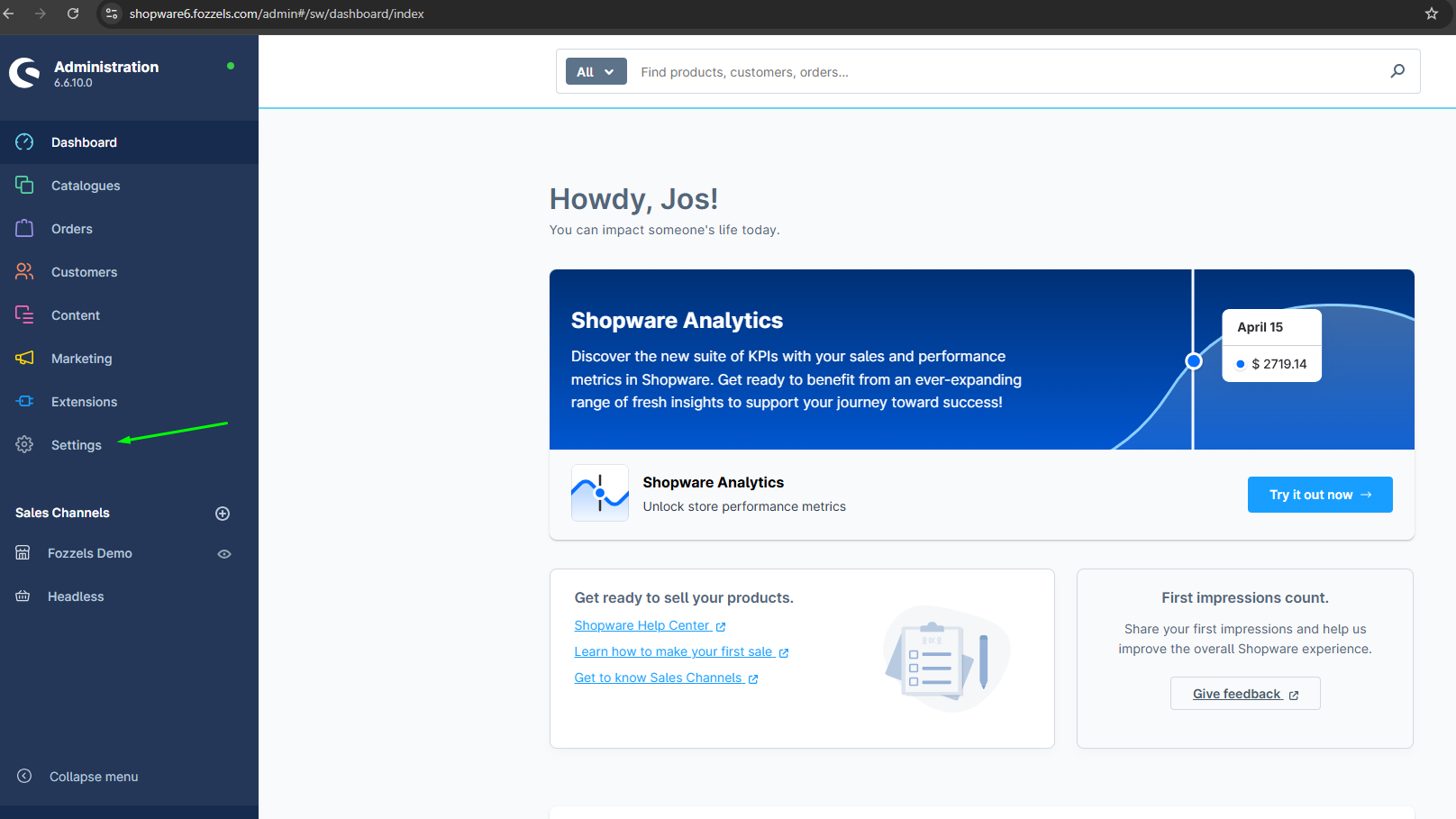
2. Clique em "Configurações"
Clique em "Configurações".
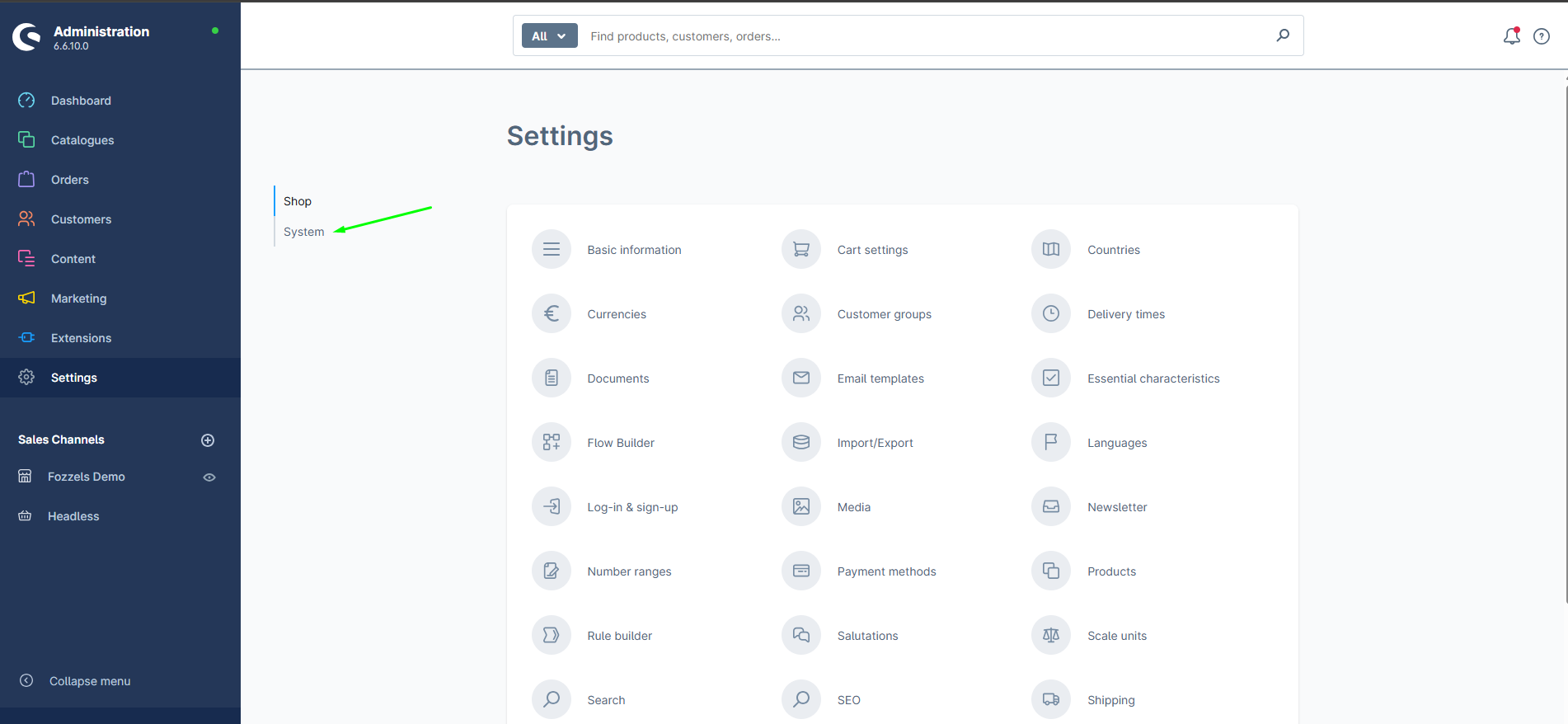
3. Clique em "Sistema"
Navegue até as configurações do sistema.
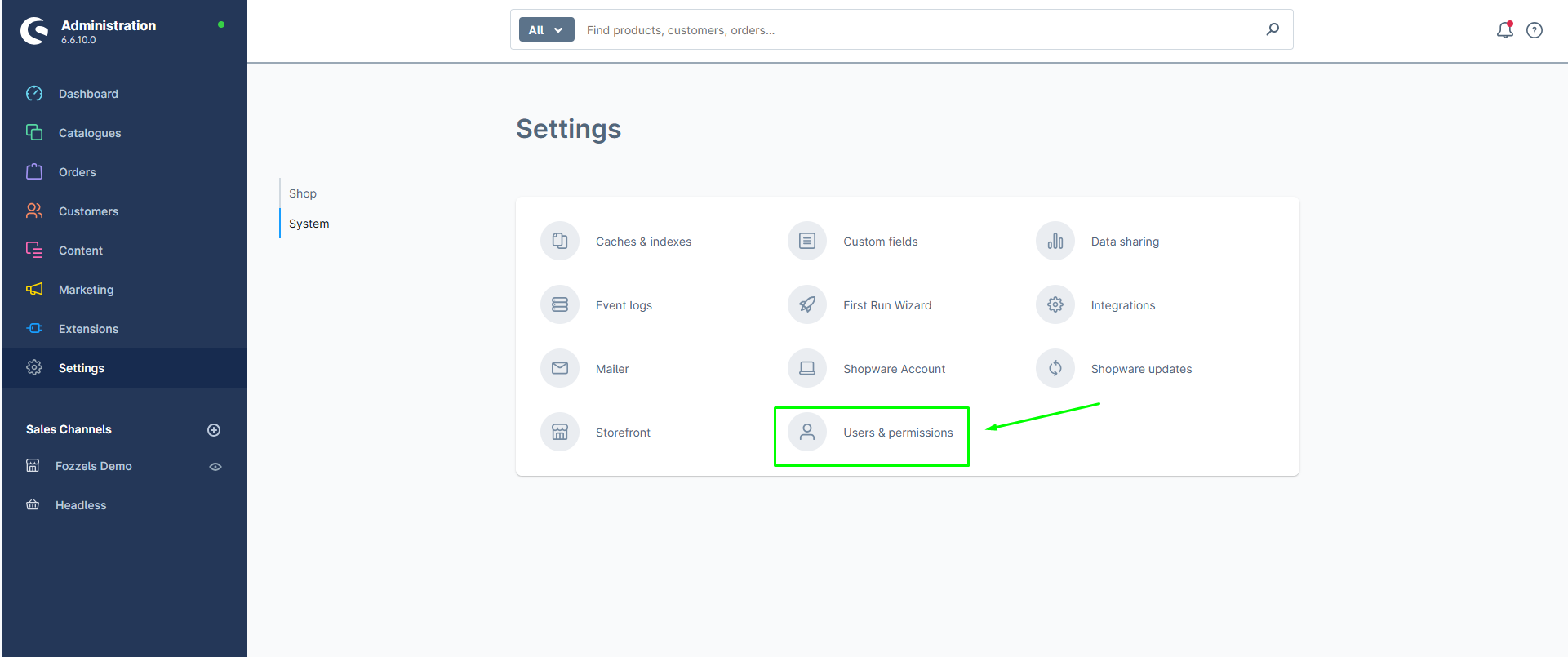
4. Clique em "Usuários e permissões"
Selecione a opção Integrações no menu Sistema.
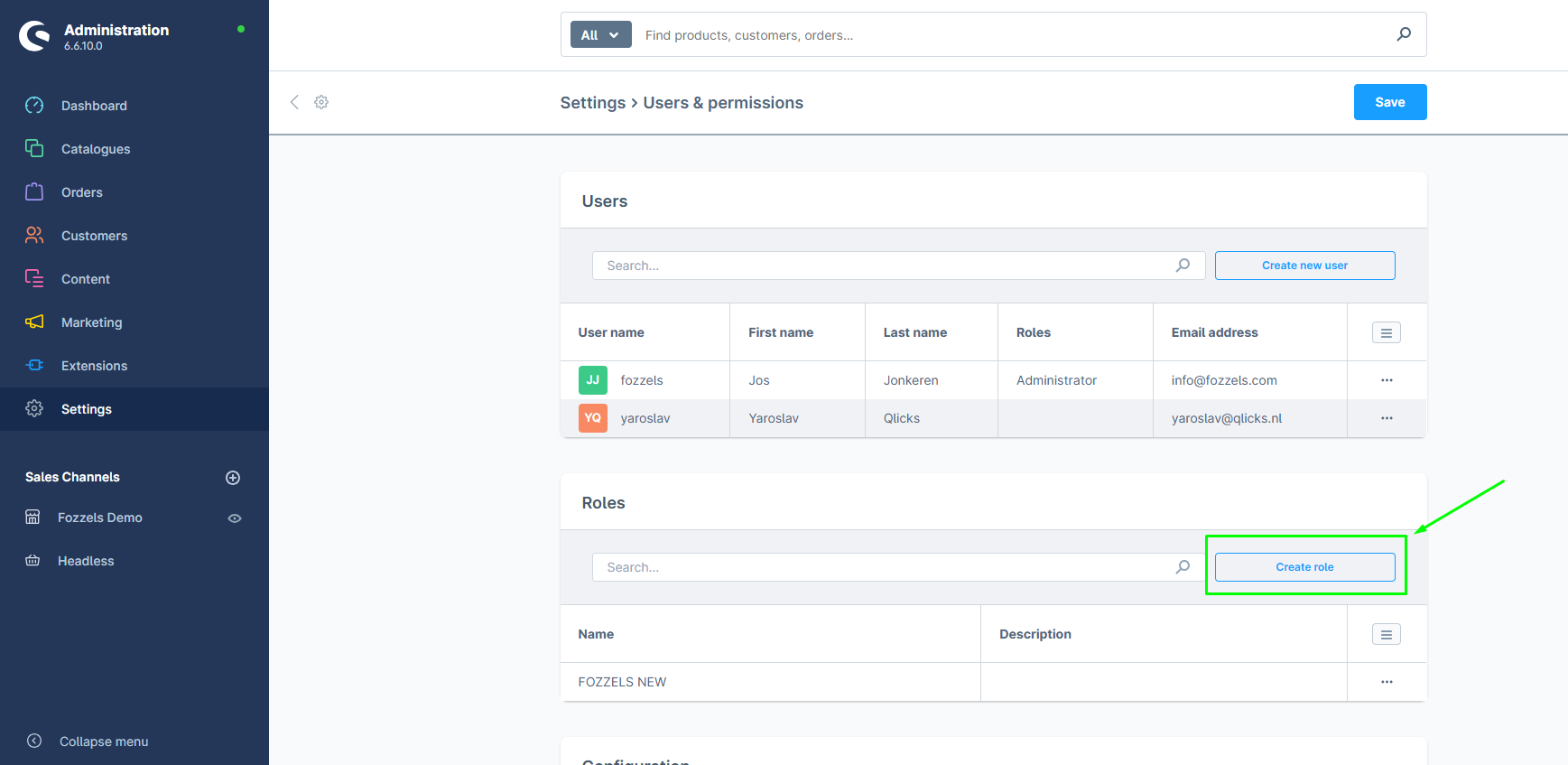
5. Role para baixo até "Funções" e clique em "Criar função"
Na página Usuários e permissões, role para baixo até a seção Funções e clique no botão "Criar função".
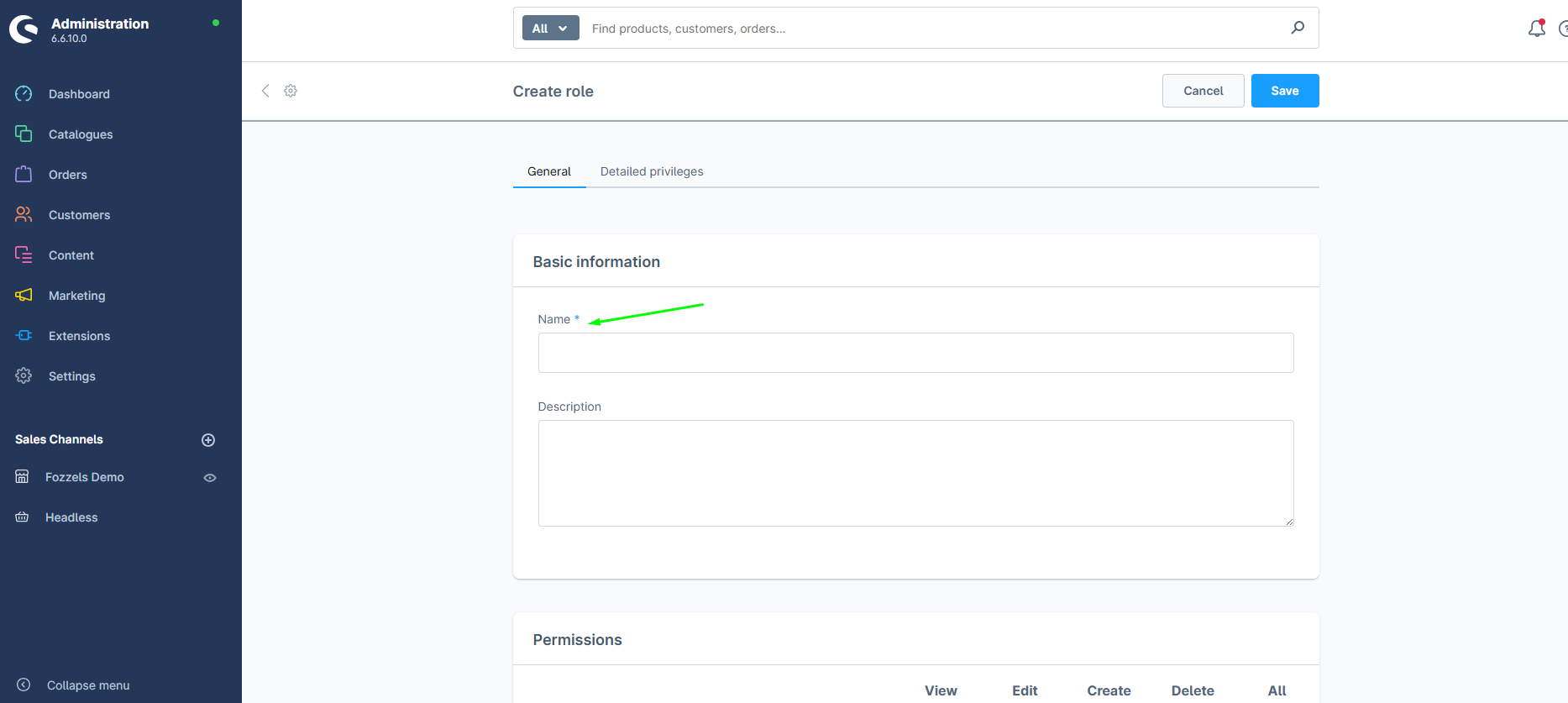
6. Preencha o nome da função
Na aba "Geral", insira um nome para a função.
7. Clique em "Permissões"
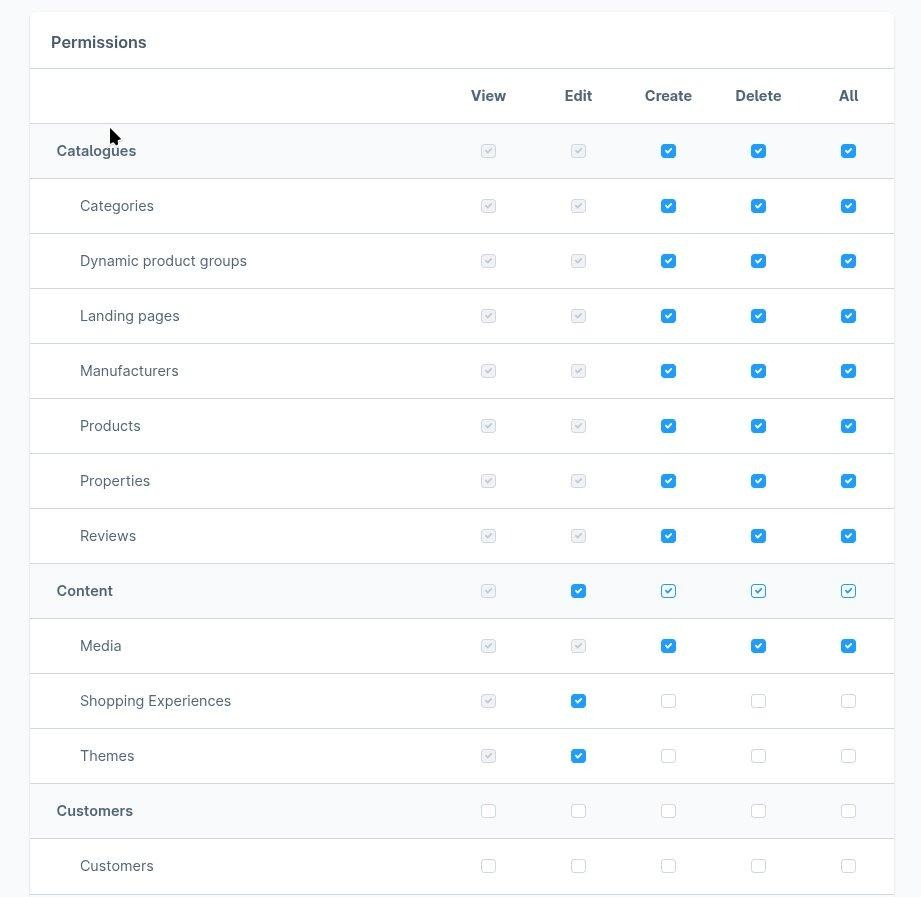
Você verá a tabela de permissões com todas as caixas desmarcadas. Ative as seguintes permissões:
Catálogos (Visualizar, Editar, Criar, Deletar):
- Categorias
- Grupos de produtos dinâmicos
- Páginas de destino
- Fabricantes
- Produtos
- Propriedades
- Avaliações
Conteúdo:
- Mídia (Visualizar, Editar, Criar, Deletar)
- Experiências de compra (Visualizar, Editar)
- Temas (Visualizar, Editar)
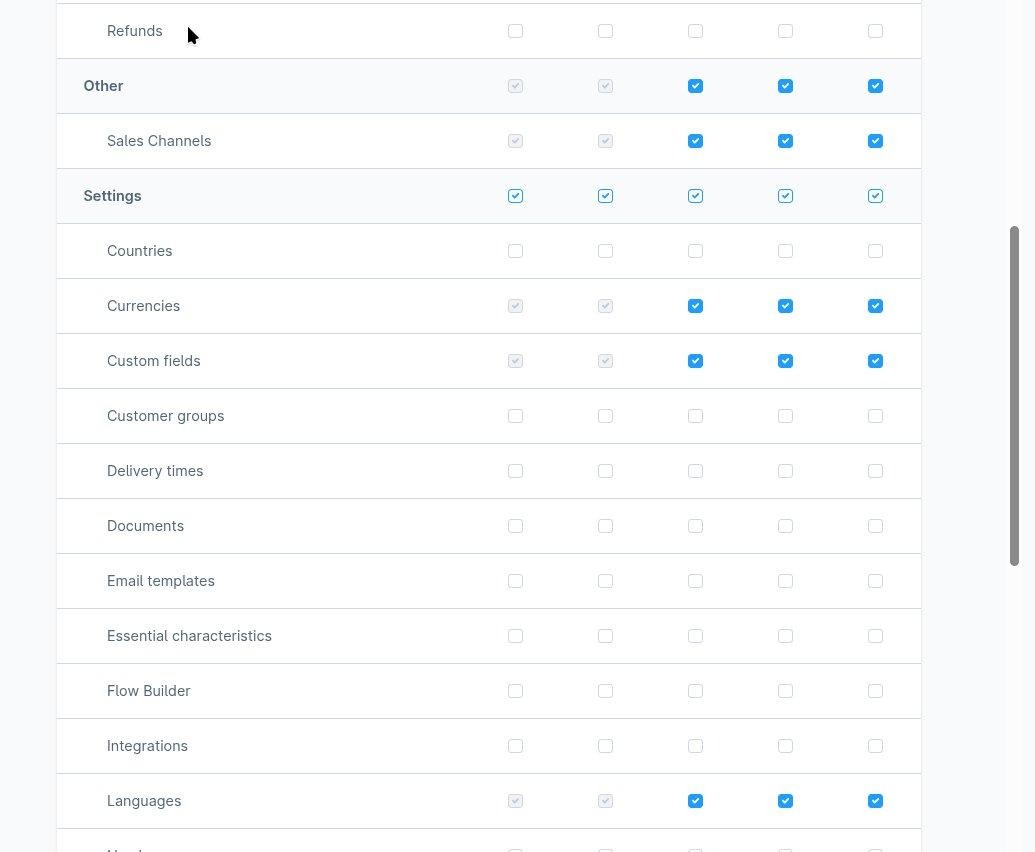
Outro (Visualizar, Editar, Criar, Deletar):
- Canais de vendas
Configurações:
- Moedas (Visualizar, Editar, Criar, Deletar)
- Campos personalizados (Visualizar, Editar, Criar, Deletar)
- Idiomas (Visualizar, Editar, Criar, Deletar)
8. Salve a função
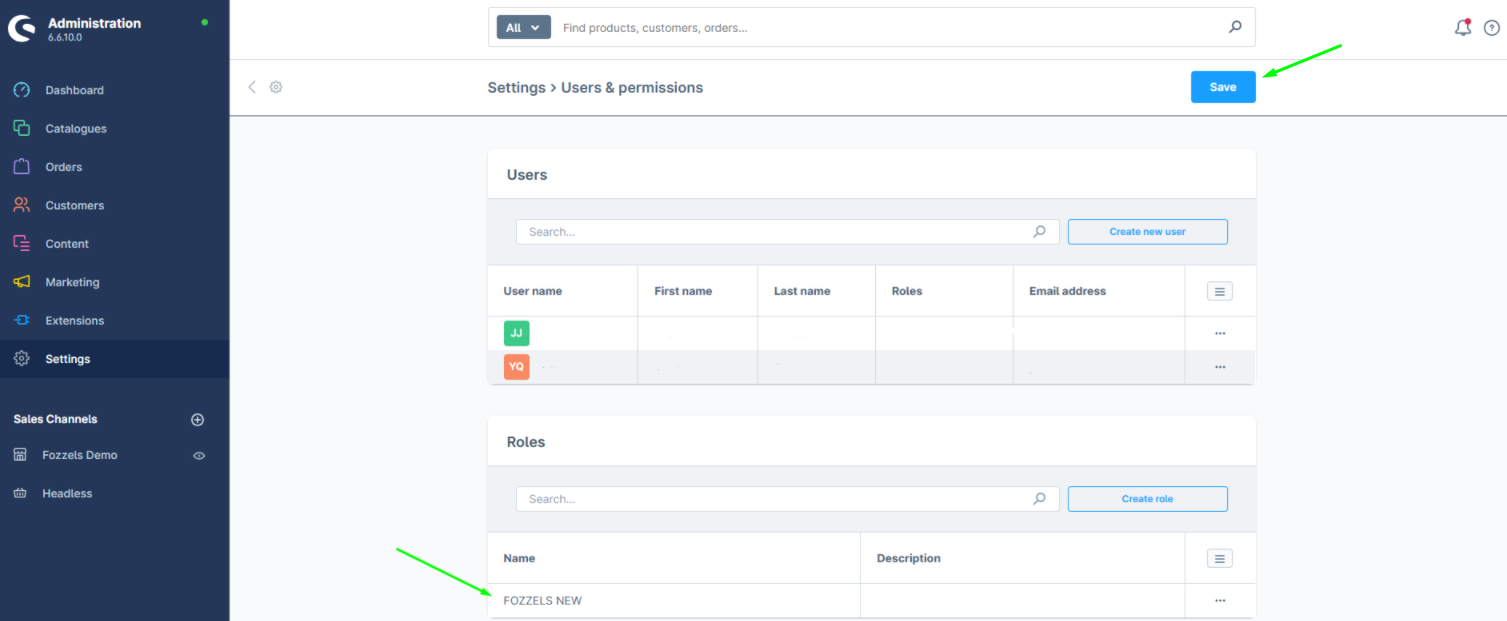
Após definir todas as permissões, clique em "Salvar" para salvar a função.
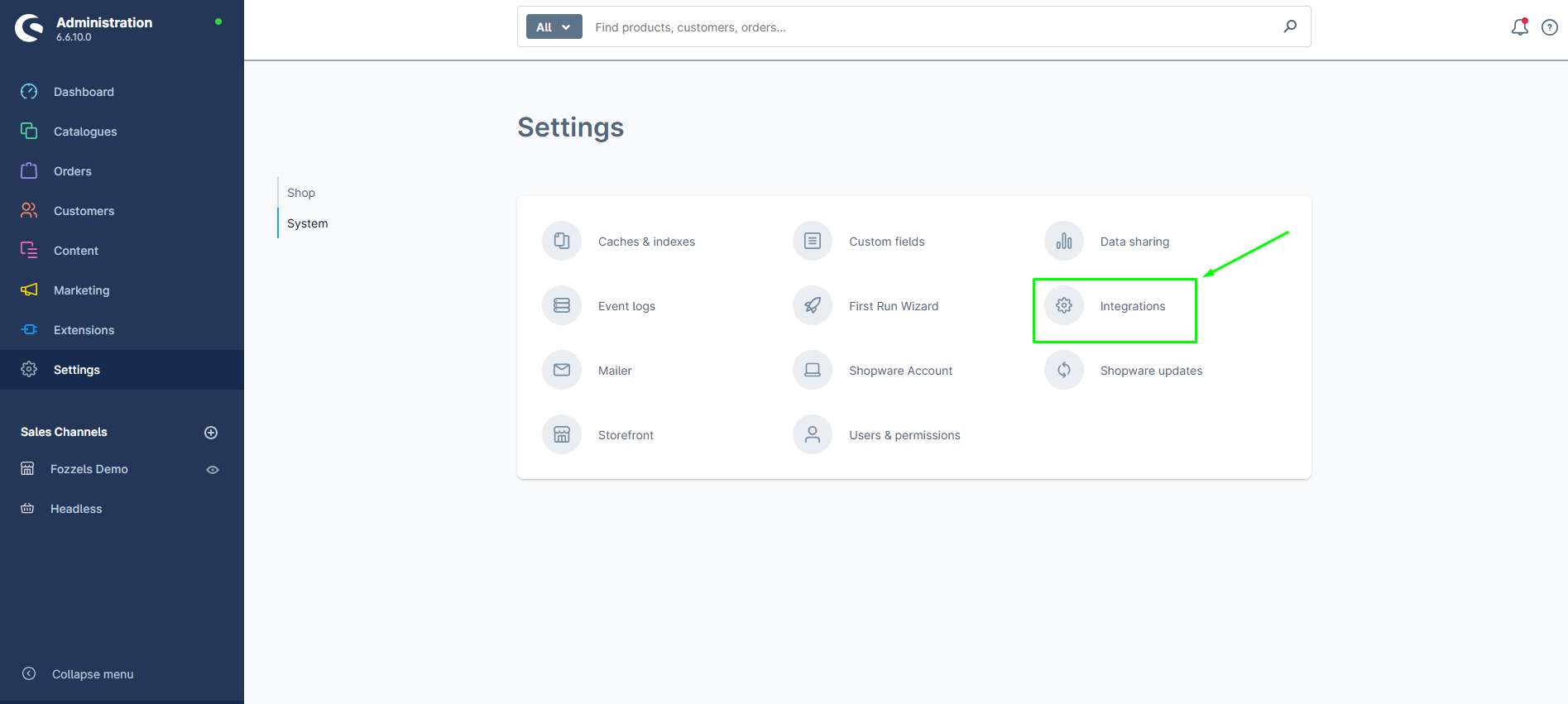
9. Vá para Sistema > Integrações
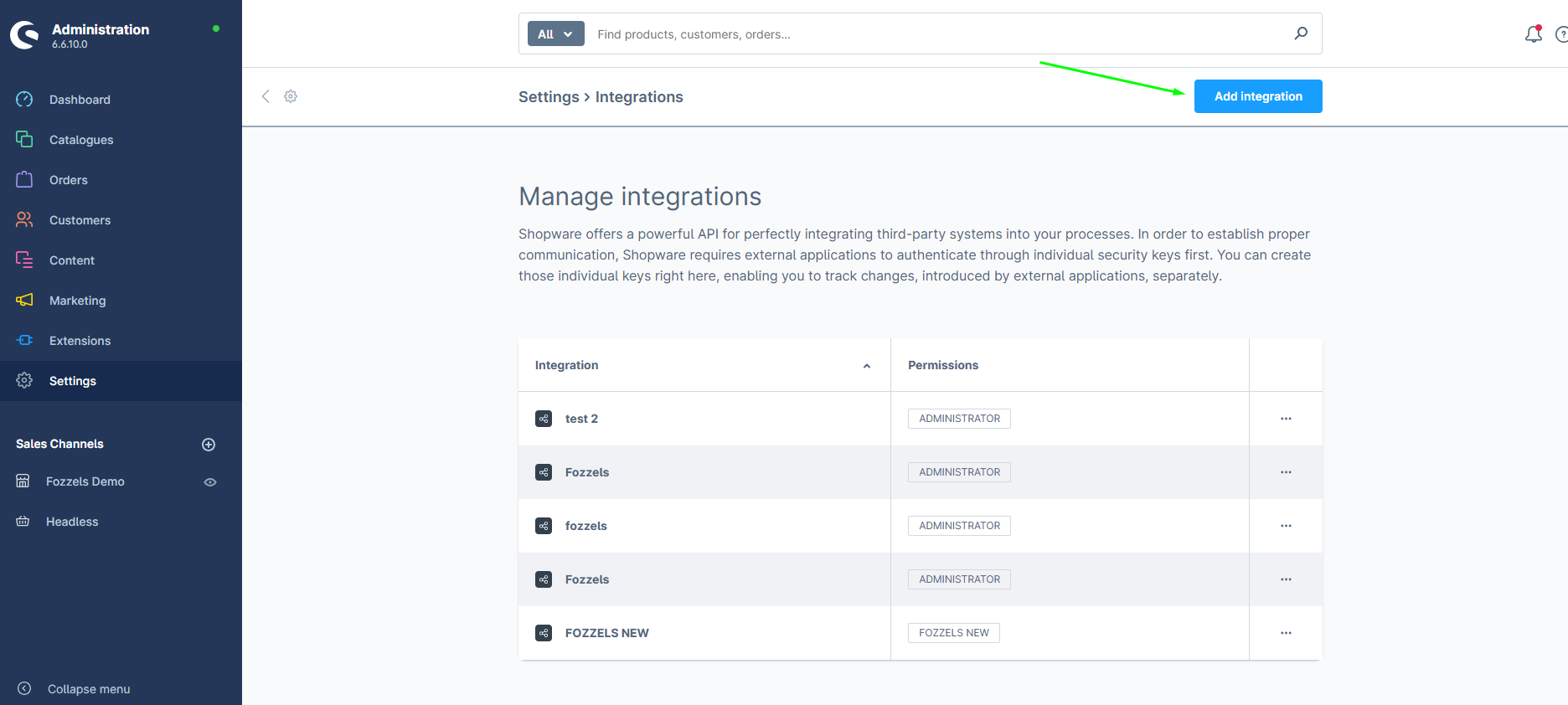
 10. Clique em "Adicionar integração"
Clique no botão "Adicionar integração". A caixa de diálogo "Criar integração" aparecerá:
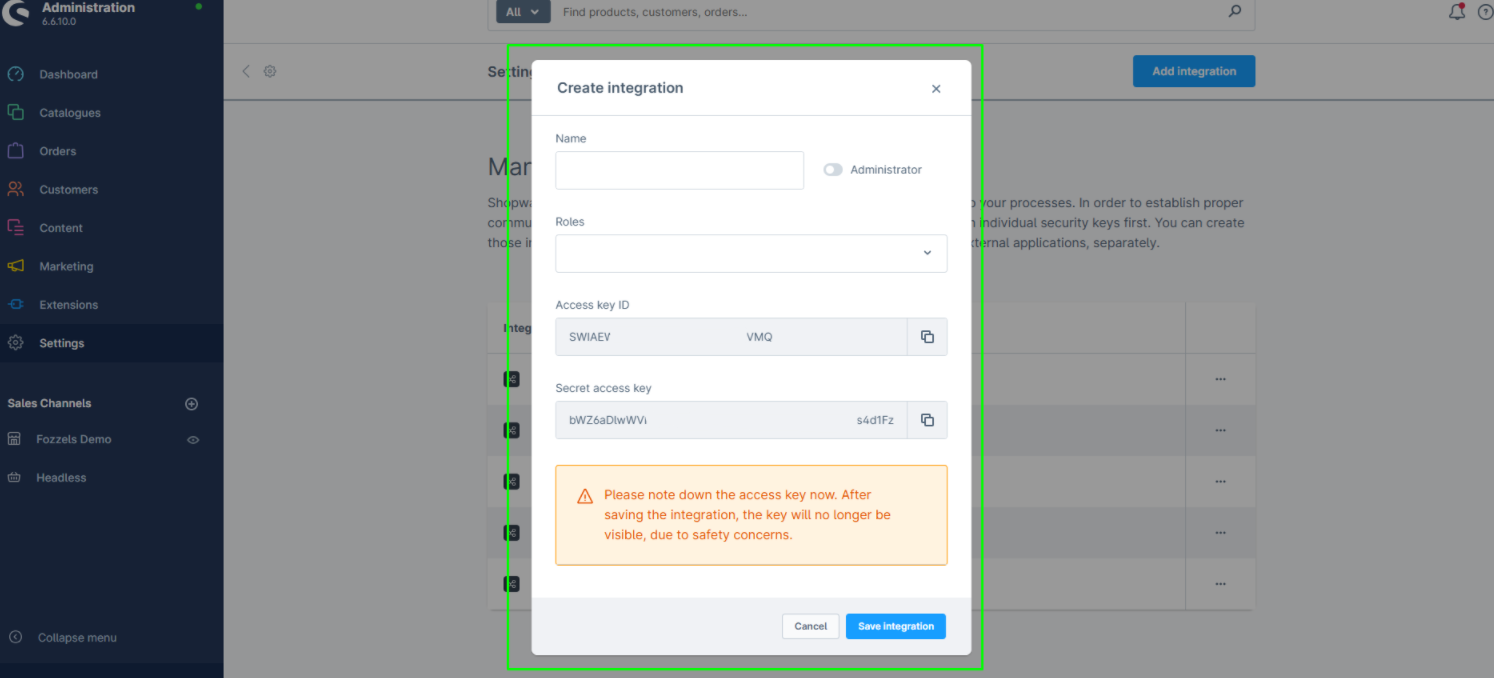
11. Preencha os detalhes da integração
Insira um nome para a integração. Em seguida, abra o menu suspenso "Funções" e selecione a função que você criou anteriormente.
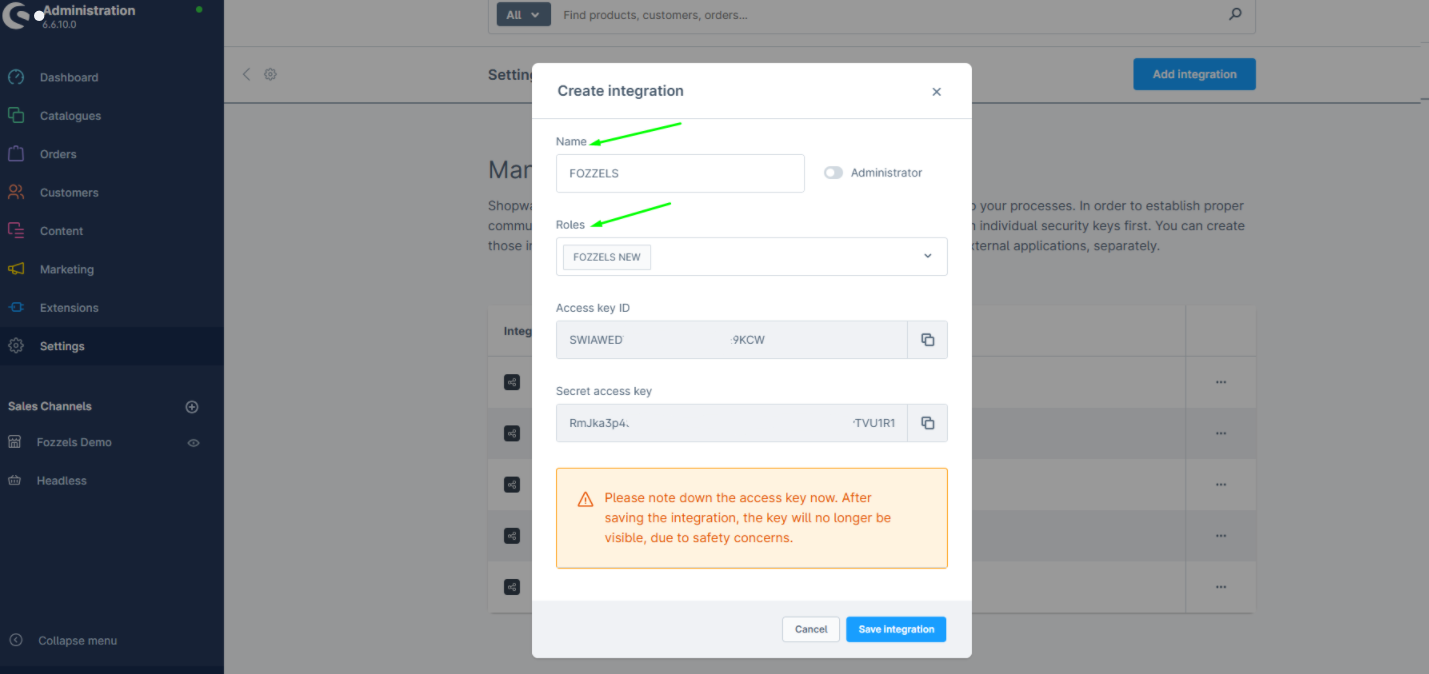
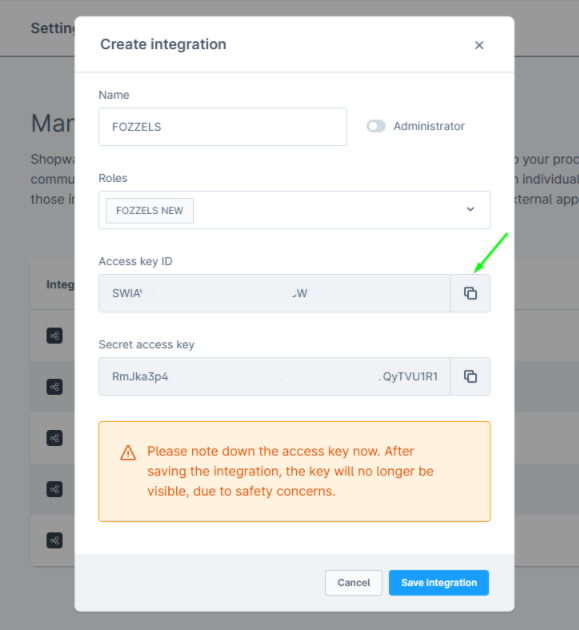
12. Copie a ID da chave de acesso
Clique no ícone copiar ao lado da ID da chave de acesso para copiá-la para sua área de transferência. Cole esta chave em um documento de texto para manter em segurança - você precisará dela na Parte 2.
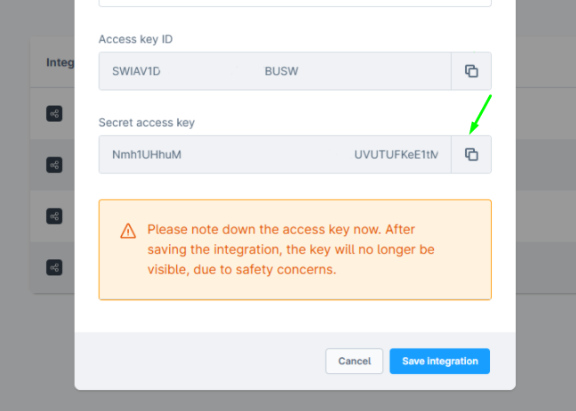
13. Copie a chave de acesso secreta
Faça o mesmo para a chave de acesso secreta: clique para copiar a chave de acesso secreta para sua área de transferência. Em seguida, cole este código em um documento de texto para que você possa acessar e copiar o código mais tarde.
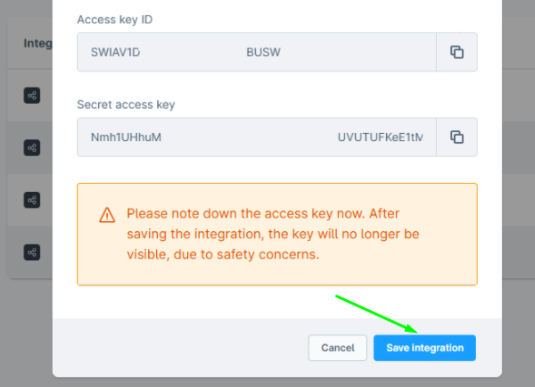
14. Clique em "Salvar integração"
Salve as configurações de integração.
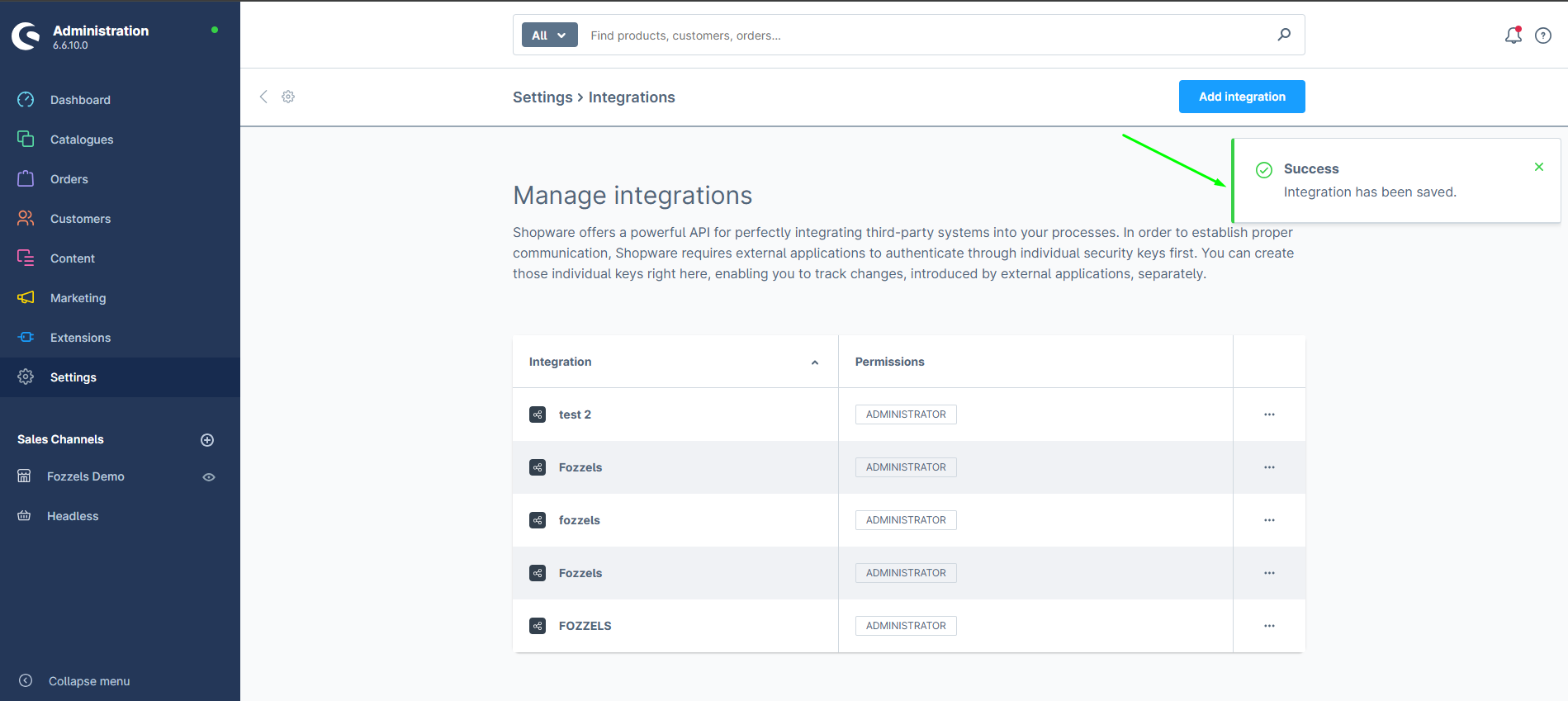
15. Confirme a mensagem de sucesso
A integração agora está criada e ativa.
Parte 2: Conecte Fozzels ao Shopware 6
Agora que você criou a integração no Shopware, você configurará a conexão no lado do Fozzels usando as credenciais da Parte 1.
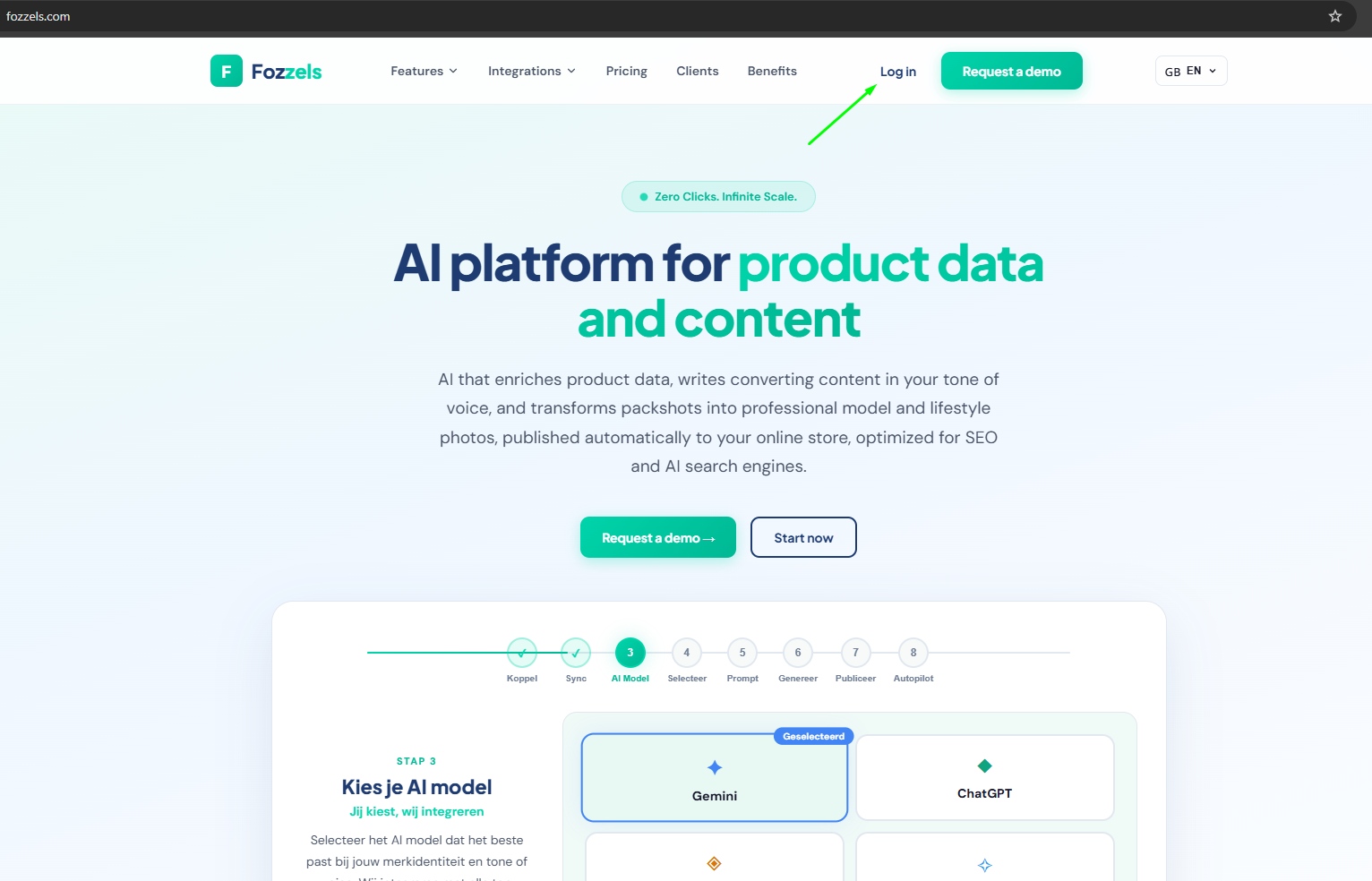
1. Vá para Fozzels.com
2. Clique em "Integrações"
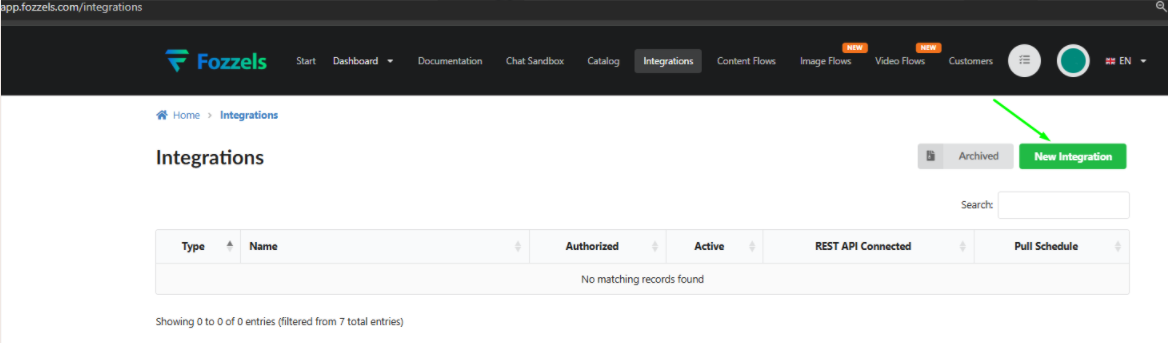
No menu Fozzels, clique em Integrações.
 3. Clique em "Criar"
Clique no botão "Criar" para começar a configurar uma nova integração.
3. Clique em "Criar"
Clique no botão "Criar" para começar a configurar uma nova integração.
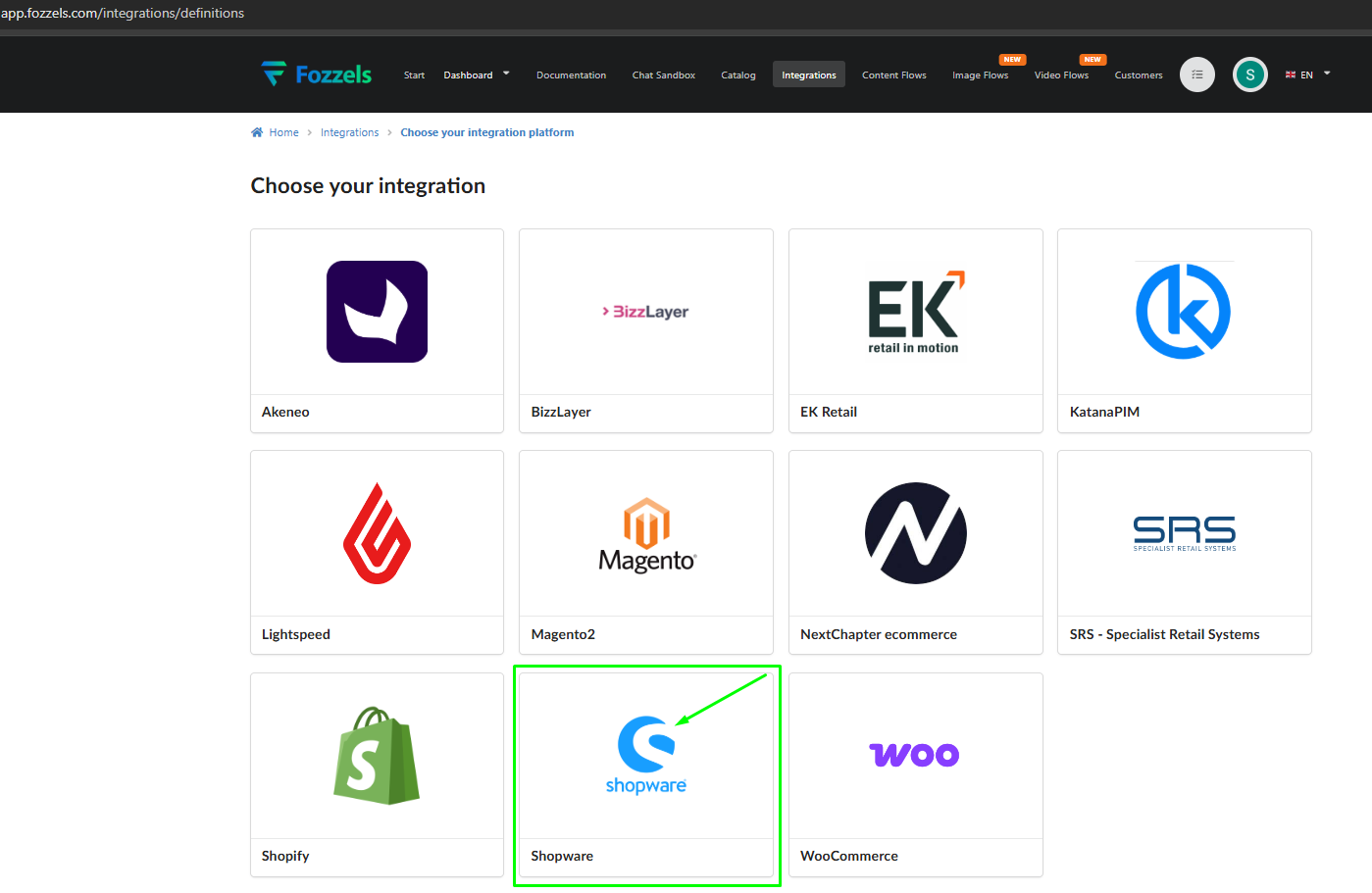
 4. Selecione o logotipo do Shopware
Escolha Shopware como o tipo de integração clicando no logotipo do Shopware.
 5. Preencha os detalhes da integração
Preencha os seguintes campos em ordem:
1. Nome — Insira um nome para esta integração, por exemplo "Shopware 6".
-
URL — Insira a URL de sua loja online Shopware 6 (por exemplo, https://your-store.com).
-
ID da chave de acesso — Cole a ID da chave de acesso que você copiou do Shopware na Parte 1.
-
Chave de acesso secreta — Cole a chave de acesso secreta que você copiou do Shopware na Parte 1.
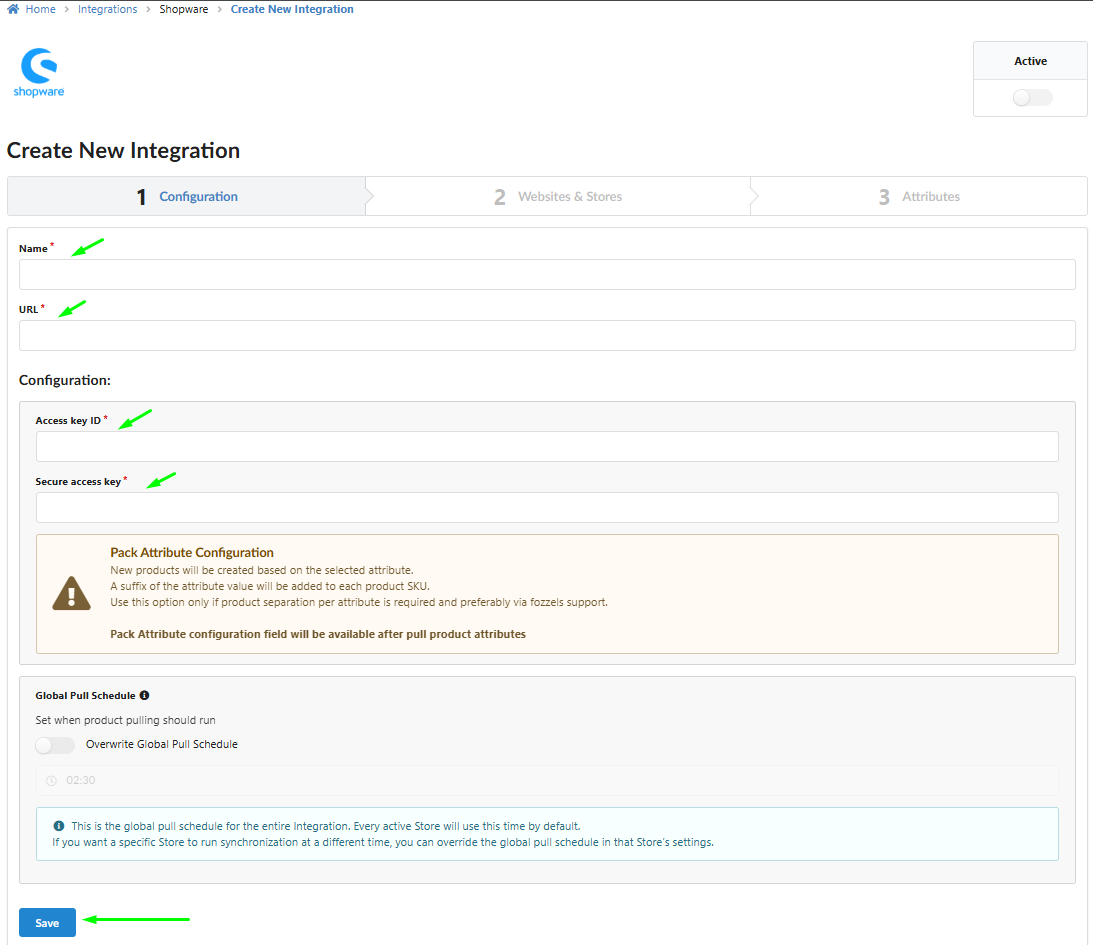
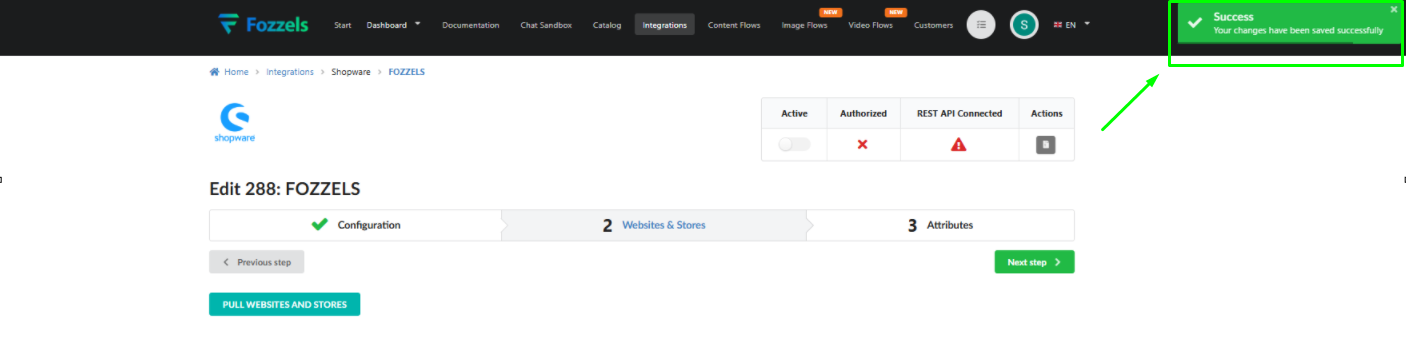
6. Quando todos os campos estiverem preenchidos, clique em "Salvar". Você deverá ver uma pop-up de "Sucesso" confirmando que a conexão foi salva.
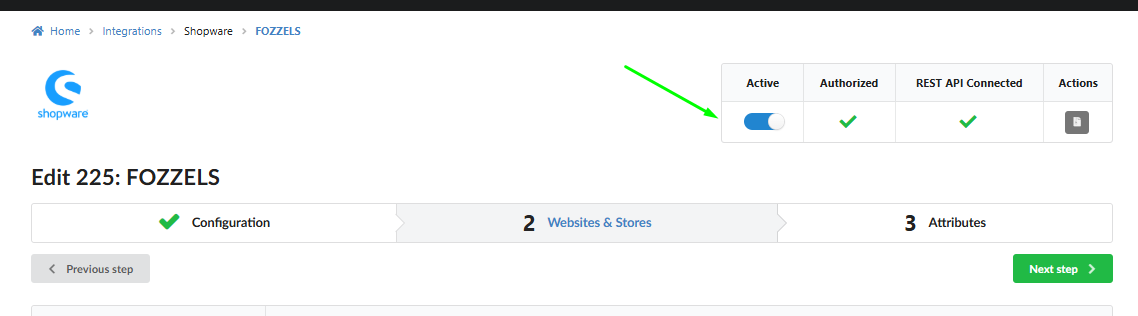
7. Ative a integração
Alterne o botão "Ativo" para ativar a integração.
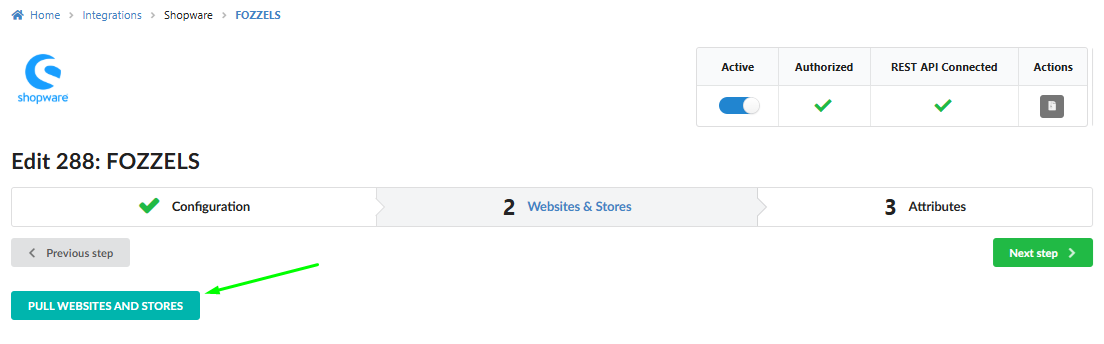
 8. Puxe sites e lojas
Clique no botão "Puxar sites e lojas". Fozzels recuperará todos os dados do canal de vendas do Shopware.
8. Puxe sites e lojas
Clique no botão "Puxar sites e lojas". Fozzels recuperará todos os dados do canal de vendas do Shopware.
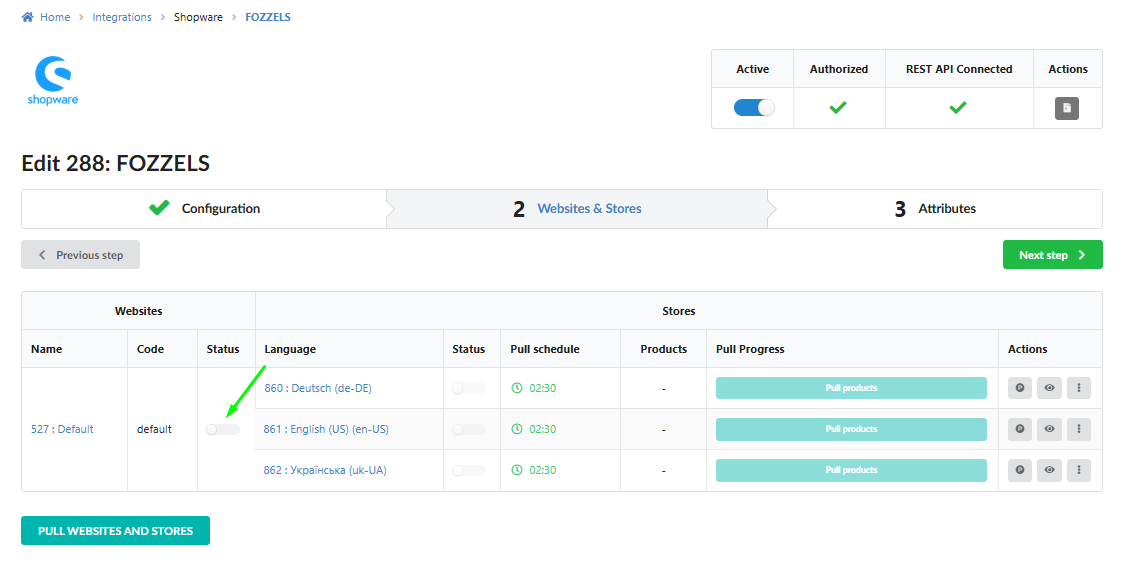
 9. Ative a conexão da sua loja
Alterne o botão Status para ligar para sua loja.
9. Ative a conexão da sua loja
Alterne o botão Status para ligar para sua loja.
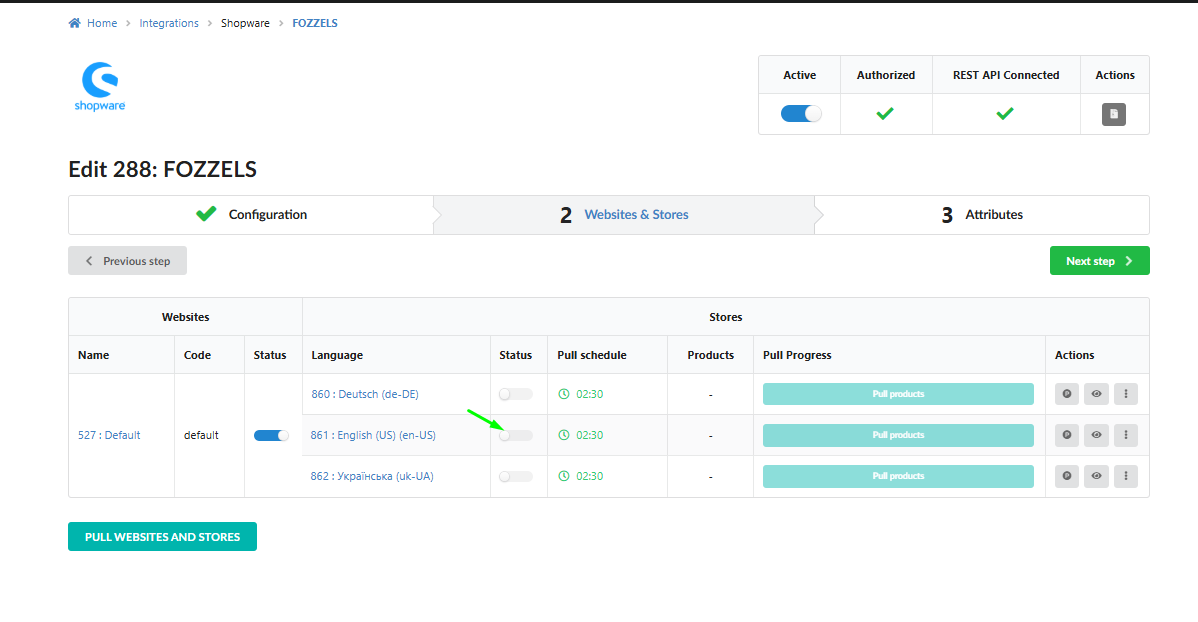
-
Ative visualizações de loja / canais de vendas
Ative as visualizações de loja disponíveis ou canais de vendas que você deseja usar no Fozzels.
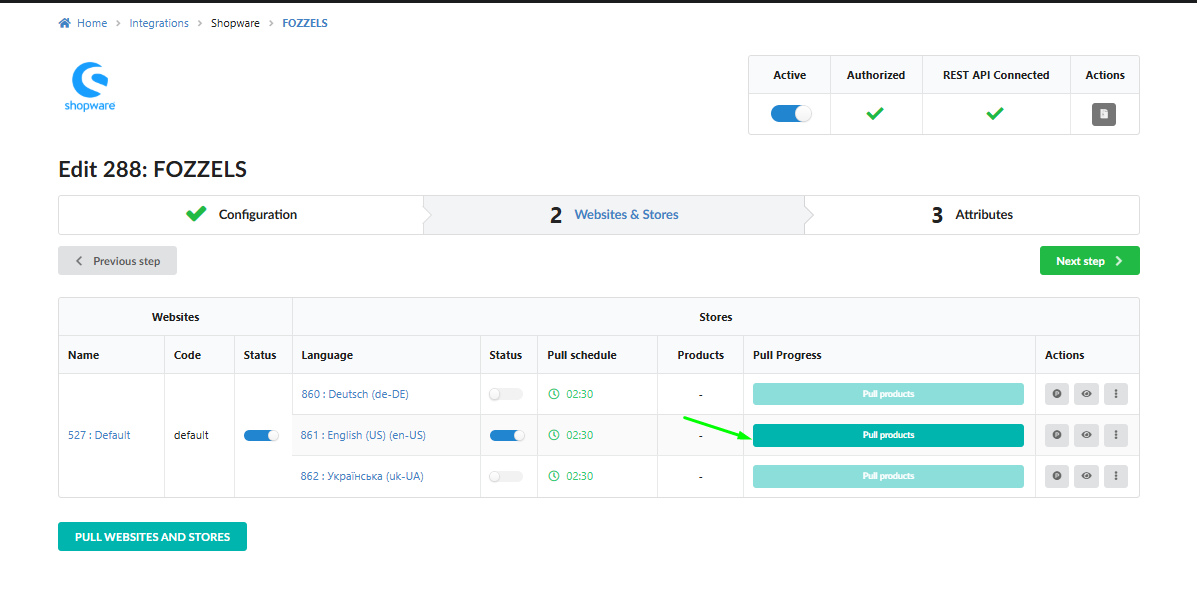
-
Puxe produtos
Clique em "Puxar produtos" para recuperar os dados do produto do Shopware. Isso pode levar um tempo dependendo do número de produtos.
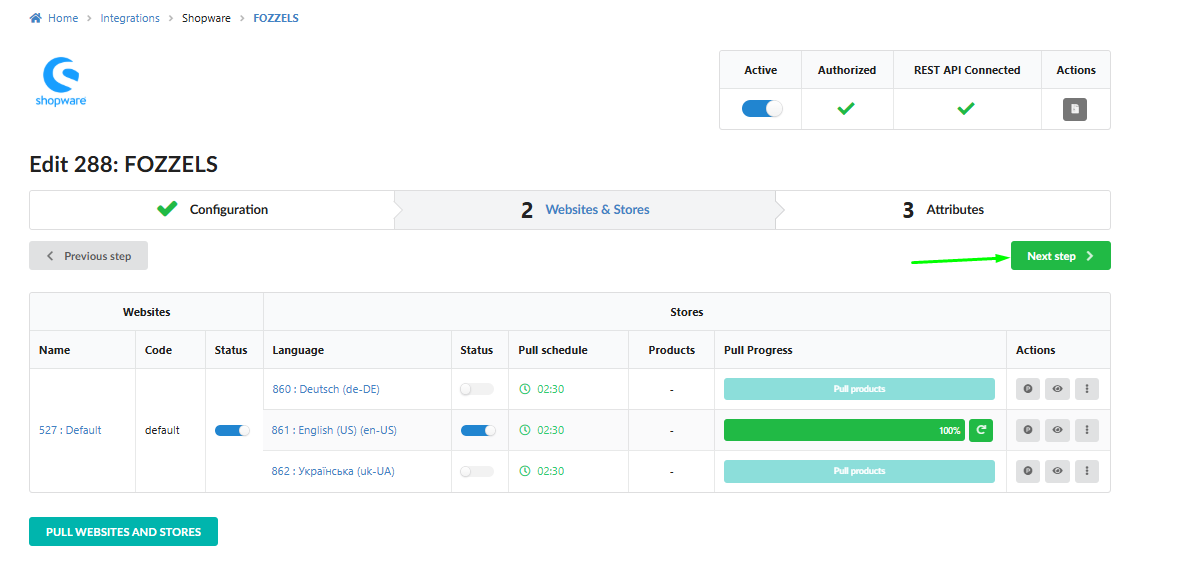
 12. Clique em "Próxima etapa"
Prossiga para a próxima etapa para finalizar a configuração.
12. Clique em "Próxima etapa"
Prossiga para a próxima etapa para finalizar a configuração.
Configuração concluída
Parabéns! Sua loja Shopware 6 está agora totalmente conectada ao Fozzels. Você pode usar esta integração para criar fluxos de produto e gerenciar o conteúdo do seu produto diretamente na plataforma Fozzels.
Começando
Aqui estão alguns artigos adicionais que podem ajudá-lo a começar com Fozzels:
-
Criação de prompt e filtragem. Editor de prompts de arrastar e soltar
-
Quando novos produtos são gerados: o ciclo de puxar explicado
-
Ações em massa e controle operacional em listas de lotes / lista de lotes diária total
-
Definição de fluxo e tipos de conteúdo (texto, imagem, vídeo)
Ou entre em contato conosco diretamente - estamos sempre felizes em ajudar!