2.3.4. Migrating a Shopify integration from Per market to Per language
The cleanest way to move from Per market to Per language is to update your Shopify app's scopes and then create a new Fozzels integration with the Per language mode. If you already have flows, contact Fozzels support instead of switching yourself.
Before you start
This guide is for customers whose Shopify integration uses the Per market mode and who don't need market-specific content within one language. With Per language, you sync one translation per language and Shopify applies it to all markets where that language is published. This means fewer sync operations and lower cost.
Check two things first.
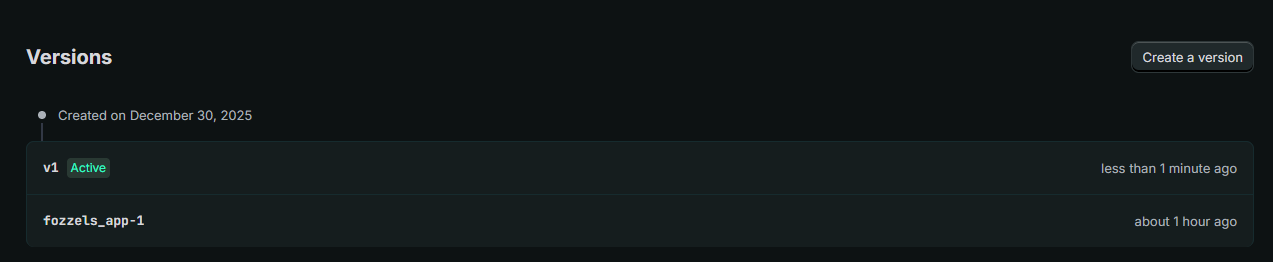
1. Does your app have all required scopes? Per language needs scopes that older app versions may not have, most often read_publications. Open your app in the Shopify Dev Dashboard, go to Versions, open the active version and compare its Scopes with the list in Step 1. If anything is missing, do Step 1. If all scopes are there, skip to Step 2.
2. Do you already have flows in Fozzels? This decides how you switch the mode.
| Your situation | What to do |
|---|---|
| No flows yet | Step 1 if needed, then Step 2, Option A: archive and recreate the integration |
| Flows already created | Step 1 if needed, then contact Fozzels support (Step 2, Option B) |
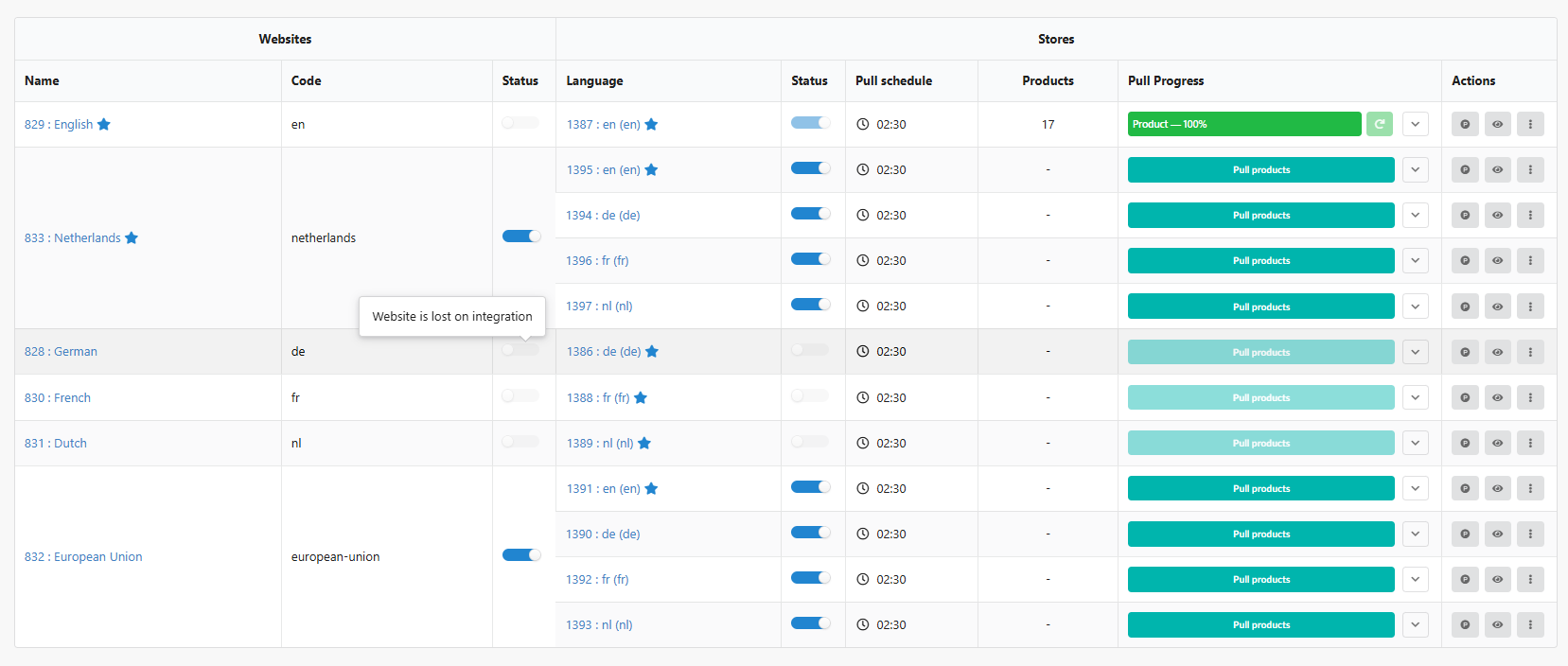
Why not just switch the mode in the existing integration? Switching doesn't remove the old market-based websites and stores. They stay in the table as inactive, marked "Website is lost on integration", next to the new language-based ones. Flows bound to the old stores stop running, and the table becomes hard to navigate.
Step 1. Shopify: add the missing scopes
You don't need a new app. You create a new version of your existing app with the updated scopes. The Client ID and Secret stay the same.
1.1. Create a new version
- Log in to the Shopify Dev Dashboard: https://dev.shopify.com/dashboard.
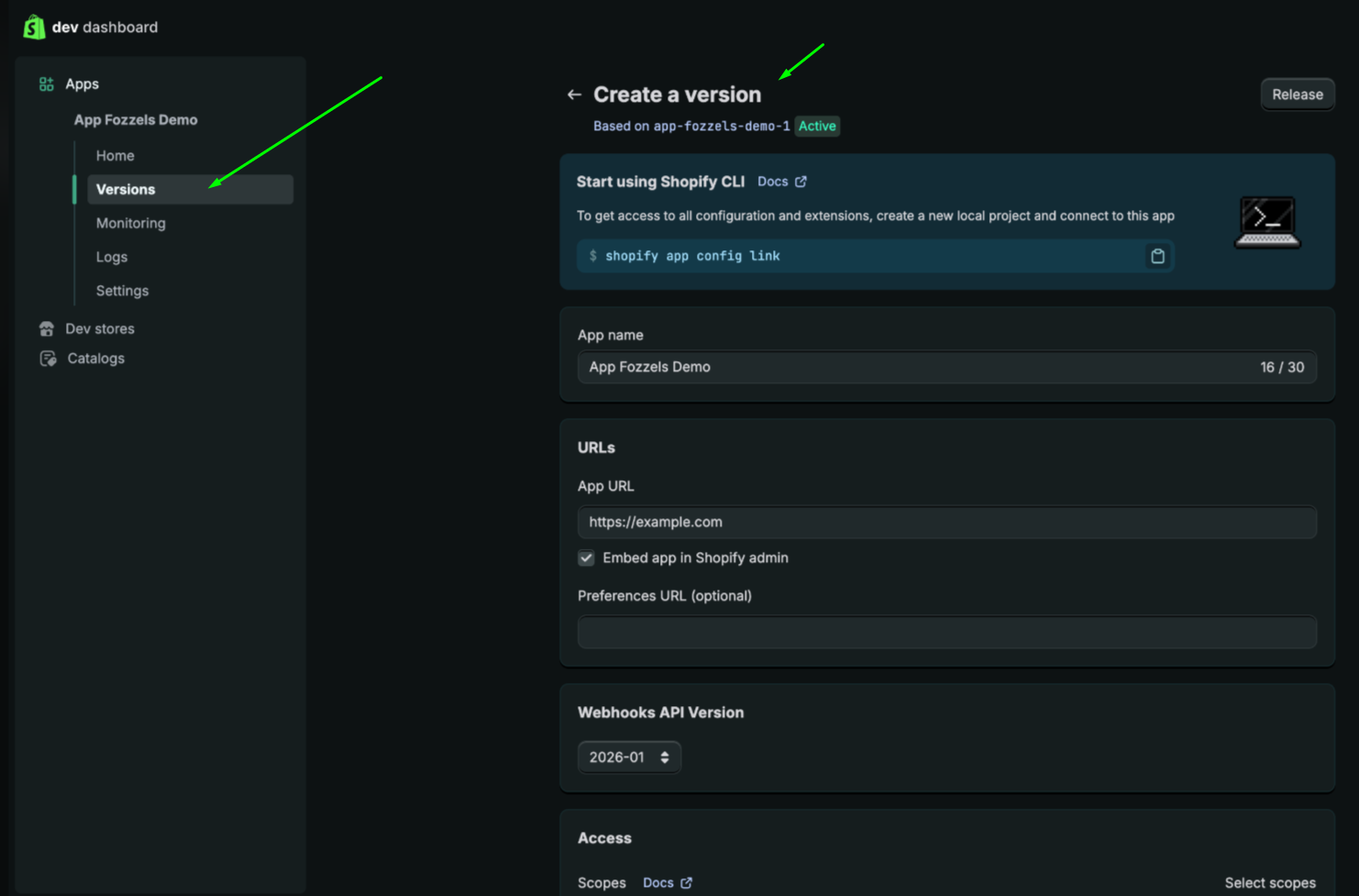
- Open Apps and select your Fozzels app.
- Go to Versions and click Create version. The new version is based on your current active version, so all existing settings are copied over.
1.2. Update the scopes
Scroll down to the Access section. In older app versions, the Scopes field often lacks read_publications. Here is an example of an incomplete list:
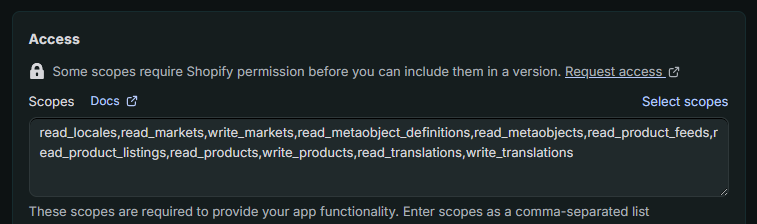
Replace the content of the Scopes field with the full list:
read_locales,read_markets,write_markets,read_metaobject_definitions,read_metaobjects,read_product_feeds,read_product_listings,read_products,write_products,read_translations,write_translations,read_publications
If you also want to sync weight data (the Inventory option in Fozzels), add read_inventory and write_inventory at the end of the list.
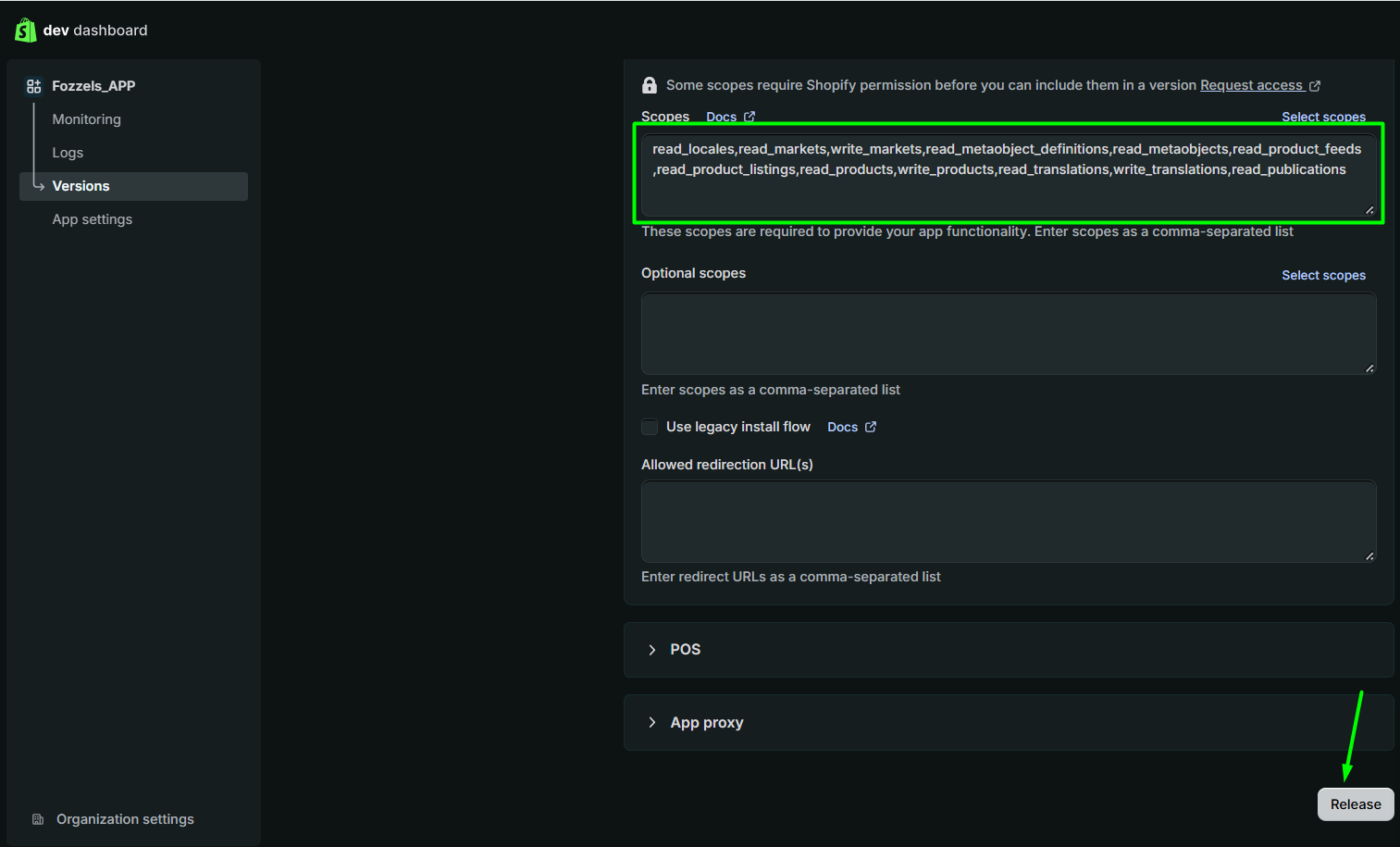
Leave everything else unchanged: Optional scopes empty and Use legacy install flow unchecked.
1.3. Release the version
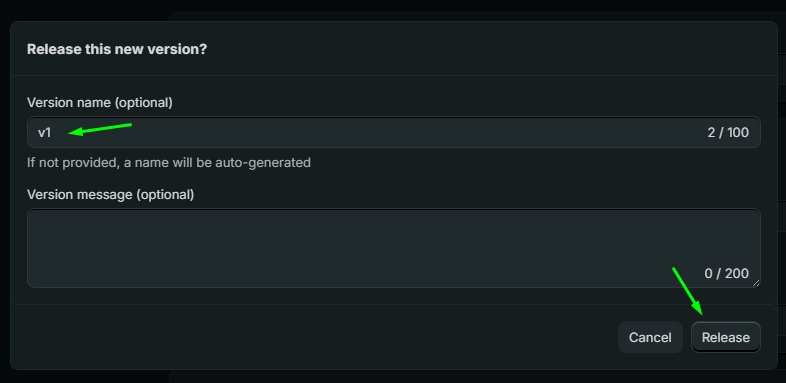
- Click Release (top right corner or bottom of the page).
- Optionally enter a version name, for example
v2, and click Release to confirm.
The new version becomes Active.
1.4. Approve the new permissions in your store
Releasing a version doesn't give the app the new permissions yet. The store owner has to approve them by installing the app again. Until then, Per language won't work correctly.
- Open the app's Overview page and click Install app, or open the install link from Distribution if you use Custom distribution.
- Log in with the store owner's account if prompted.
- Review the access list and confirm the installation.
Step 2. Fozzels: switch to Per language
Option A: no flows yet — archive and recreate
This gives you a clean Websites & Stores table with only the new language-based websites.
- Before you start, copy the current Api Key, Api Secret and App Host Name from the integration's Configuration step, or take the Client ID and Secret from App settings → Credentials in the Shopify Dev Dashboard.
- Open the current integration and turn off the Active toggle.
- Archive the integration.
- Create a new Shopify integration: Integrations → Shopify, connection method Custom App.
- Enter the same URL, Api Key, Api Secret and App Host Name.
- Under Markets mode, choose Per language.
- Set the optional settings if you used them before (Inventory, Global Pull Schedule, delays) and click Save.
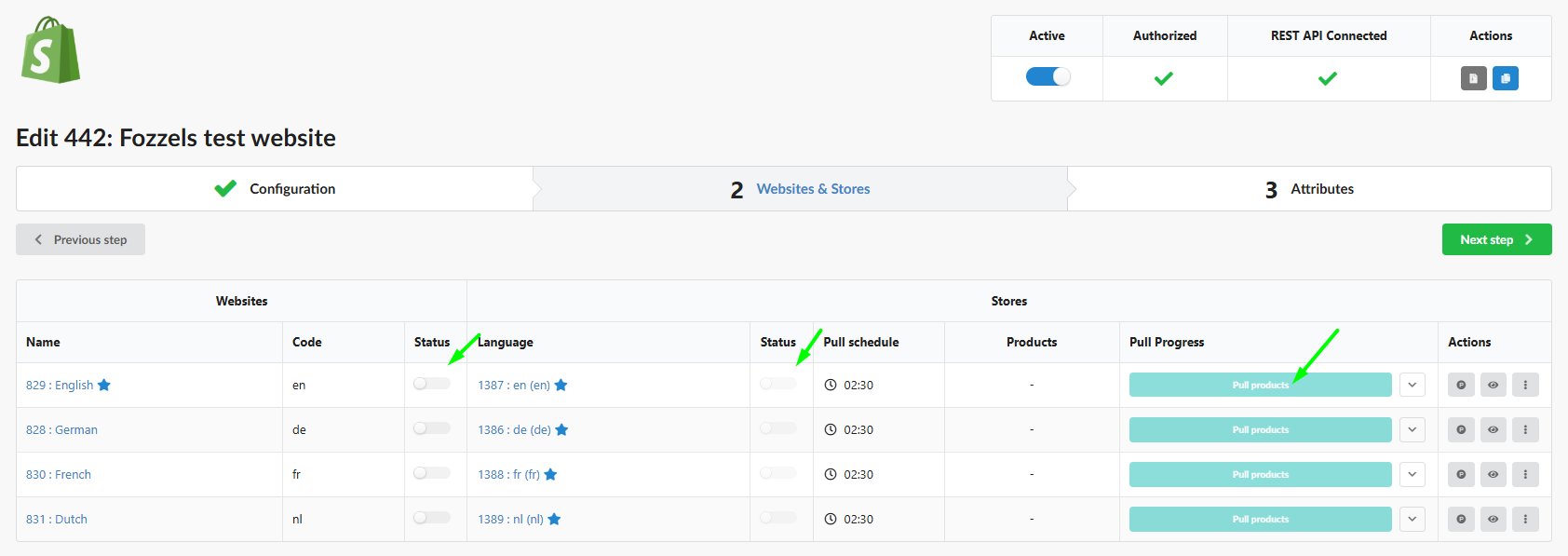
- Turn on Active and click Pull Websites and Stores.
- Turn on Status for each website and its store, then click Pull products.
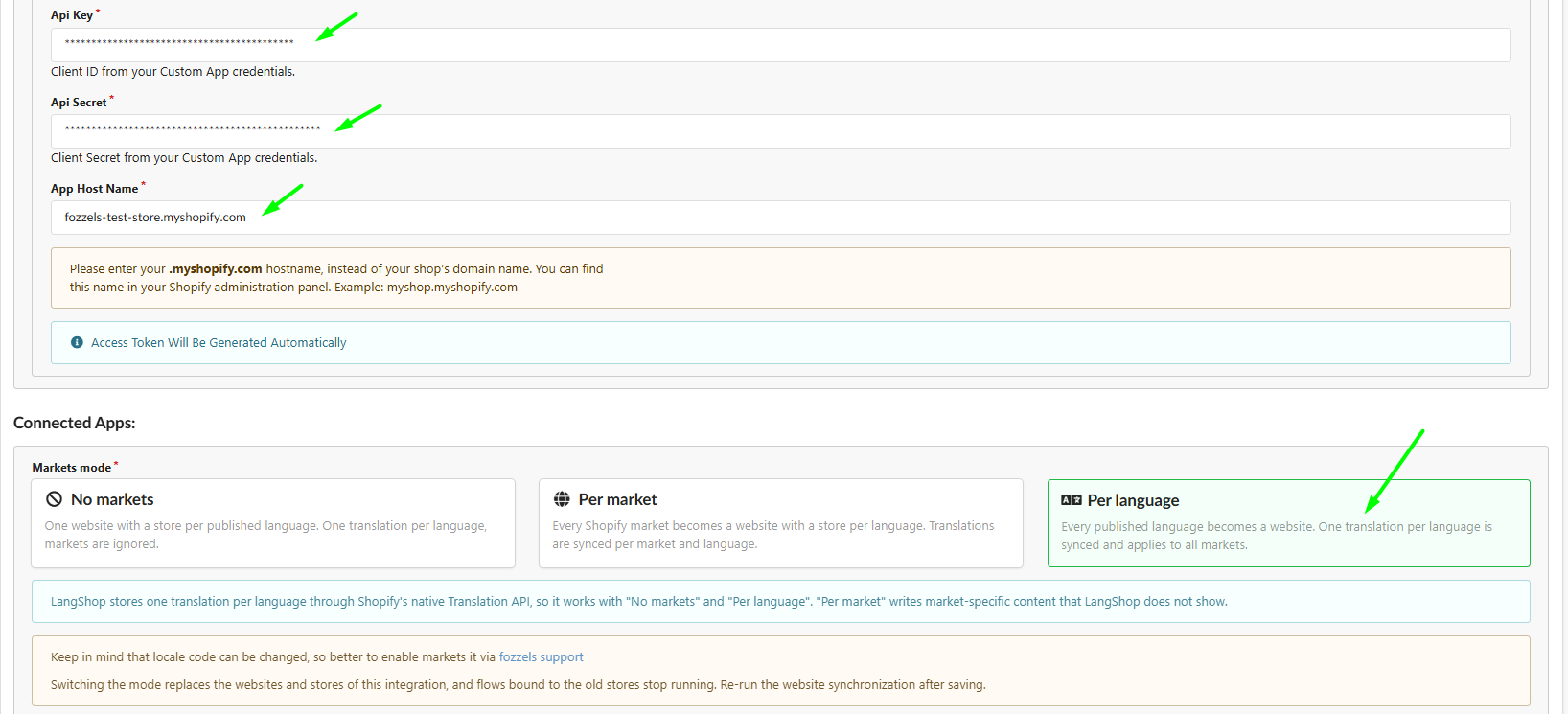
For the full description of each field, see 2.3.2. Connecting Shopify stores to Fozzels via Shopify Dev Dashboard.
Option B: flows already created — contact support
Contact Fozzels support before changing the mode. We'll help you switch while keeping your flows working, and check the locale codes on the Shopify side, which may change during the switch.
After the migration
In Per language mode, every published language is a separate website with one store.
- The active app version in Shopify includes
read_publicationsand all other required scopes - The store owner approved the new permissions (app installed again)
- The integration uses Per language
- Authorized and REST API Connected are green
- Websites and stores are active for the languages you need
- All four pulls (Product Attribute, Category Attribute, Category, Product) finished at 100%
- Flows are rebuilt on the new stores, or support has confirmed the switch (Option B)