2.11.1. How to Set Up a Pimcore Integration
This guide helps you connect your Pimcore product catalog to Fozzels, step by step.
Before you start: preparation in Pimcore
Fozzels connects to Pimcore through the Datahub module, a built-in Pimcore tool that opens access to your data via an API.
Your Pimcore instance needs to have a Datahub endpoint configured (your Pimcore administrator may have already set this up). If not, reach out to them or to our support team. You'll need:
- Endpoint name: found in Pimcore, under Datahub, in the Name field.
- API key: shown next to the endpoint, on the Security Definition tab, in the Datahub API Keys field.
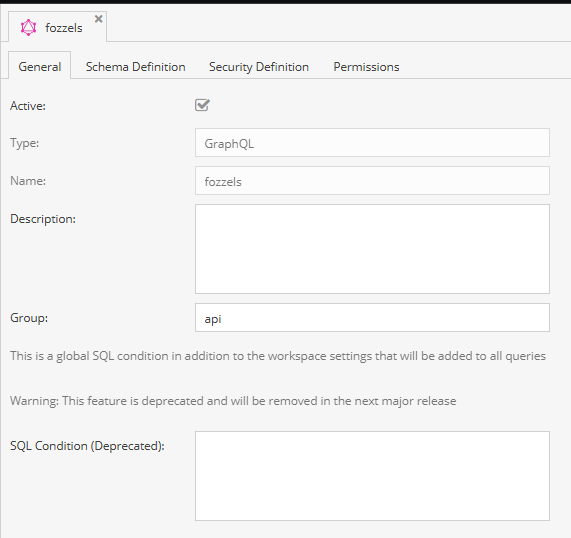
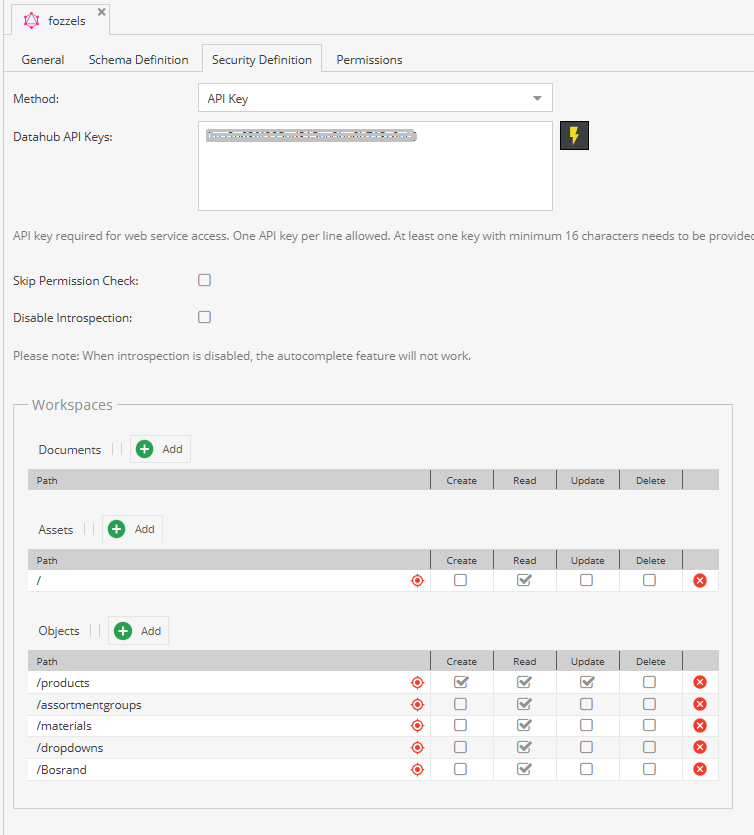
Important: in the endpoint's settings (Security Definition → Workspaces tab), read access (Read) must be granted to the relevant objects, most importantly the folder containing your products (for example
/products). If your products are spread across several nested folders, make sure access is granted to all of them.
1. Create the integration
- Go to Home → Integrations.
- Click Create.
- Select the Pimcore platform.
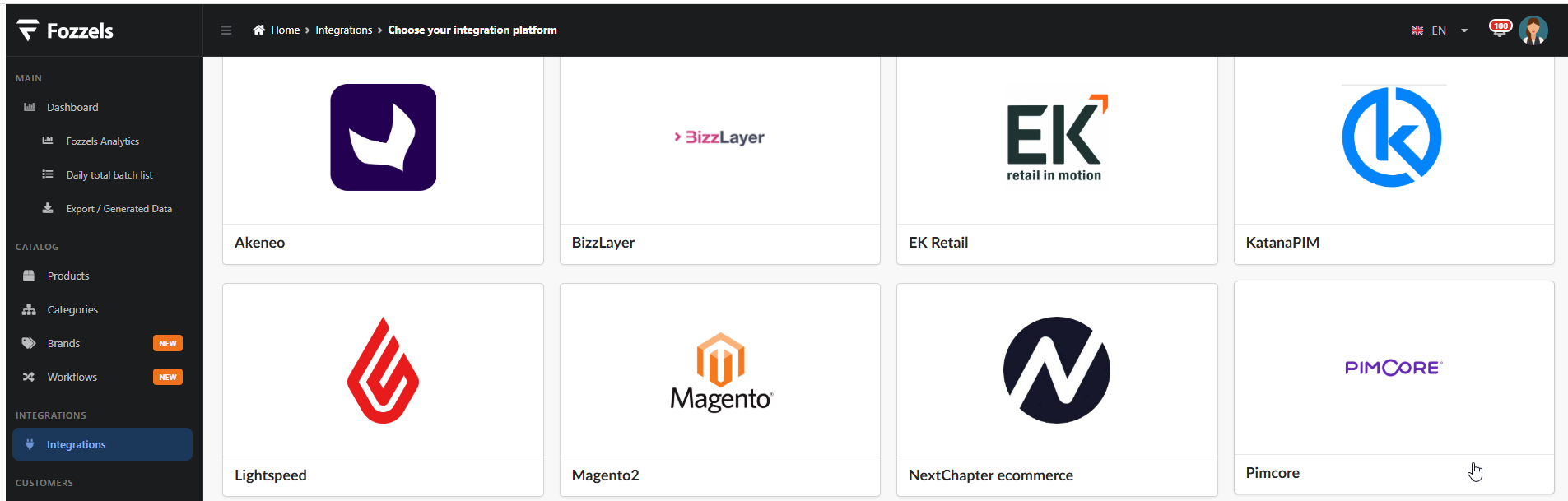
2. Fill in the configuration form
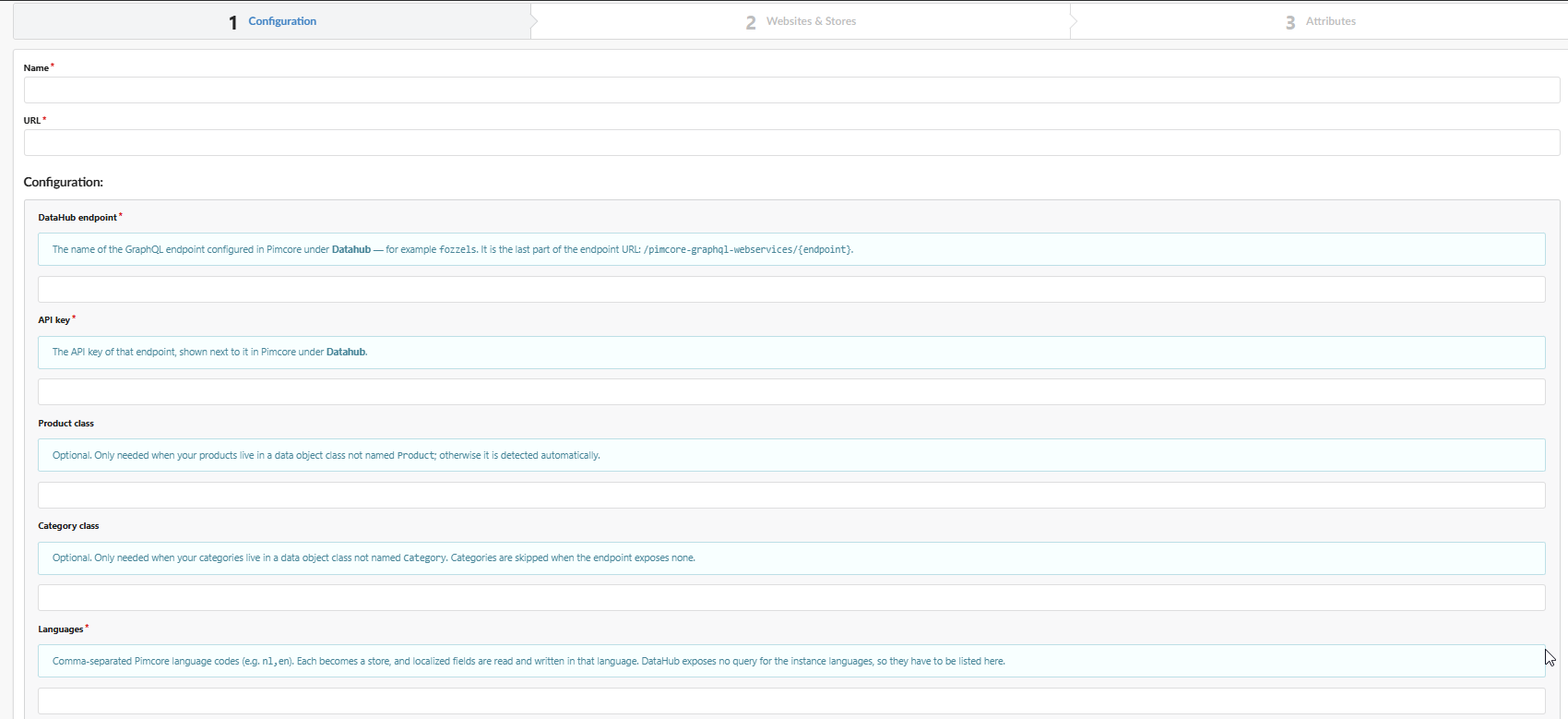
| Field | What to enter |
|---|---|
| Name | Integration name, for your own reference |
| URL | Base address of your Pimcore instance (for example https://your-company.pimcore.com) |
| DataHub endpoint | The endpoint name from Pimcore (for example fozzels) |
| API key | The access key from Pimcore (from the Security Definition tab) |
| Product class | Leave empty if your products are stored in a class named Product. Fill in only if the class is named differently |
| Category class | Same as above: leave empty if categories are stored in a class named Category |
| Asset folder | Optional. Only needed if Fozzels will generate new product images for you and they need somewhere to be saved in Pimcore (for example /products) |

| Field | What to enter |
|---|---|
| Languages | Comma-separated list of language codes (for example nl,en). Each language becomes a separate Store in Fozzels |
| Include unpublished objects | Off by default. Turn this on if you want the sync to also pull unpublished (draft) products and categories. They'll be processed the same way as regular ones |
Sync schedule (Global Pull Schedule)
You can leave the default schedule, or enable Overwrite Global Pull Schedule and set your own time.
Time is in UTC: the time is set in UTC, not your local time zone. If you want the sync to run at night specifically for you, convert your local night-time to UTC before entering it here.
Delay between requests
We recommend not filling these in right away. Run a few syncs with the default settings first. If everything works fine, no further configuration is needed. If errors appear, come back and add a small delay.
Click Save.
3. Activate and import products
- Turn on the Active toggle (top right).
- Click PULL WEBSITES AND STORES. Fozzels pulls your languages in as separate Stores.
- Activate the relevant Website and Store toggles.
- Click Pull products to import products, categories and their attributes.
If the number of products is lower than expected
If fewer products were imported into Fozzels than you have in Pimcore, the most common reason is products that aren't published (have an unpublished/draft status) in Pimcore. Turn on the Include unpublished objects toggle in the integration settings (Configuration) and run the sync again.
Tip: once enabled, products will have a new Published attribute (Yes/No). You can use it to filter products in the catalog, or scope a specific flow to it, if you only want to process published products, for example.
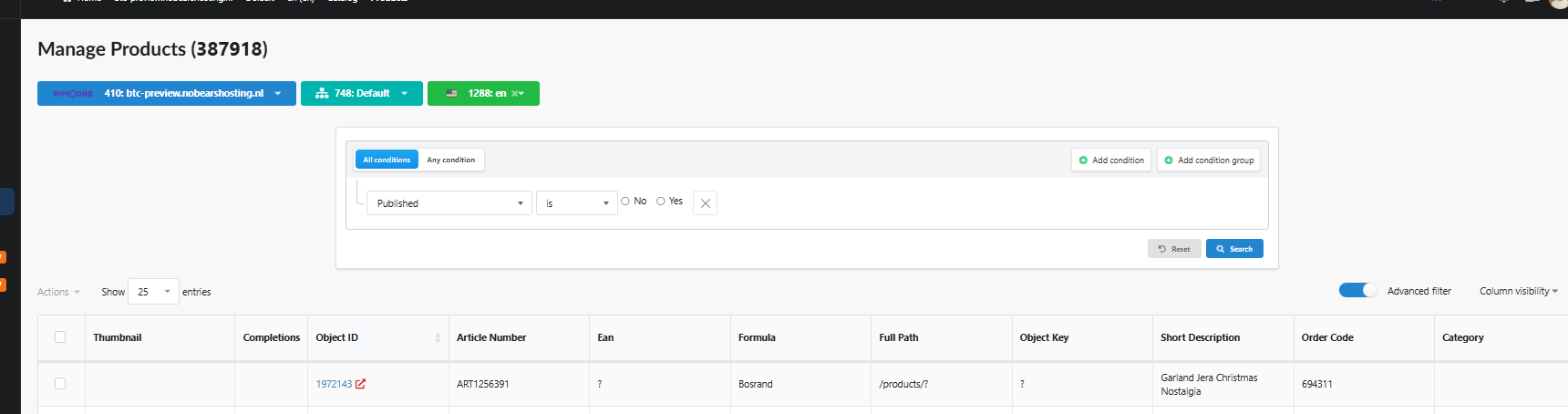
Other possible causes include limited access to some of the product folders, or products split across multiple classes in Pimcore. In these cases, it's best to reach out to us or to your Pimcore administrator to review the access settings.
To expose more attributes, such as the published flag or your image gallery, see 2.11.2. Pimcore: Exposing Attributes via DataHub.
That's it: your Pimcore catalog is now connected. You can refresh the data anytime by clicking Pull products again.