2.2. Full integration Setup with Magento 2.
This guide details the process of establishing a secure, two-way connection between your Magento 2 store and Fozzels. You will generate the necessary API Tokens and configure permissions, ensuring seamless product data import and content export.
The Magento 2 integration requires creating a dedicated New Integration in the Magento admin panel to generate four essential keys: Consumer Key, Consumer Secret, Access Token, and Access Token Secret. We will also configure the required fozzels_completion_date attribute for tracking content synchronization.
Part 1: Magento 2 Setup (Creating the Integration and Tokens)
You must create a new integration and define specific permissions within your Magento admin panel.
Step 1: Create a New Integration
-
Log in to your Magento admin panel.
-
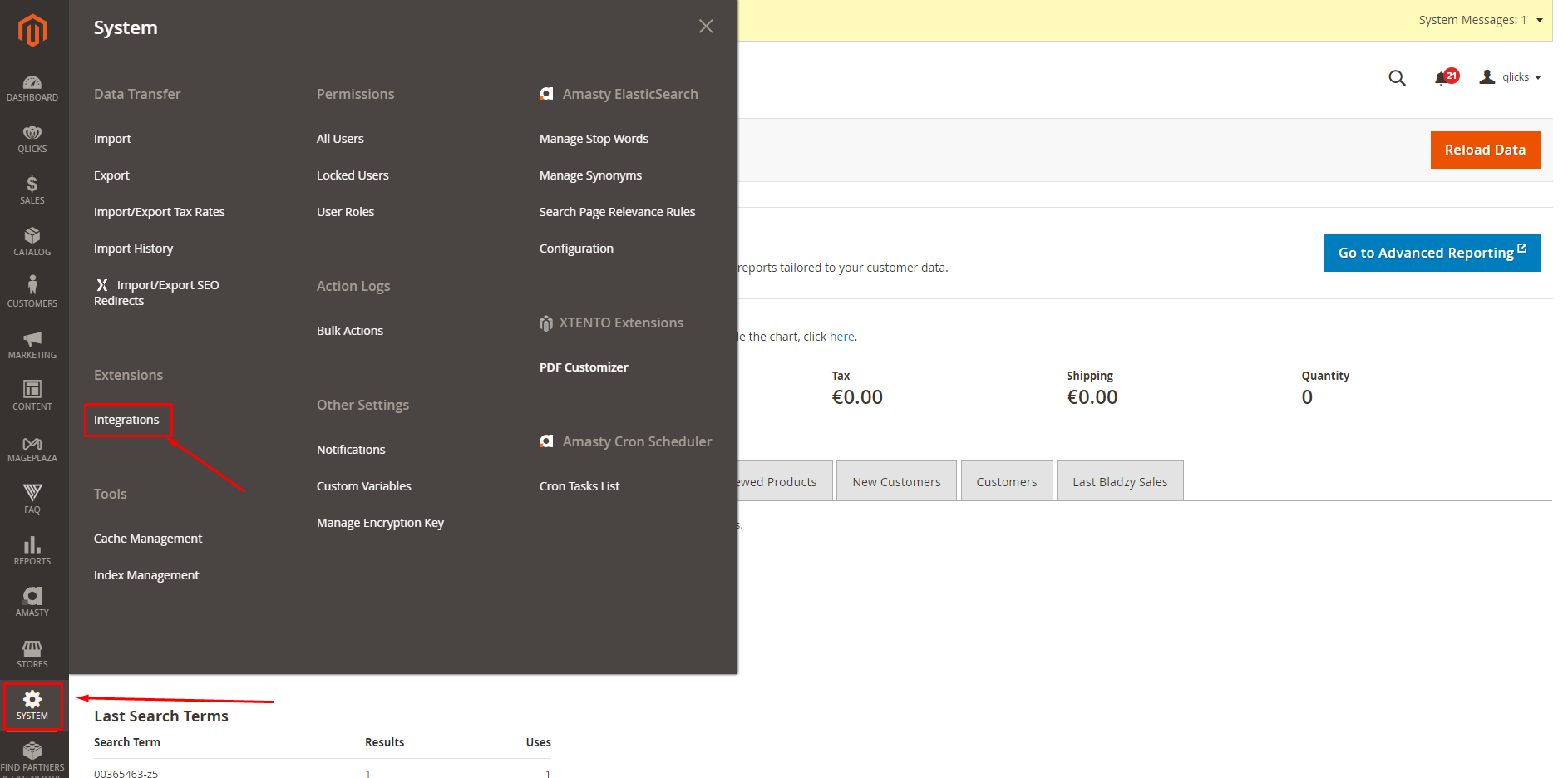
Go to System / Integrations.
-
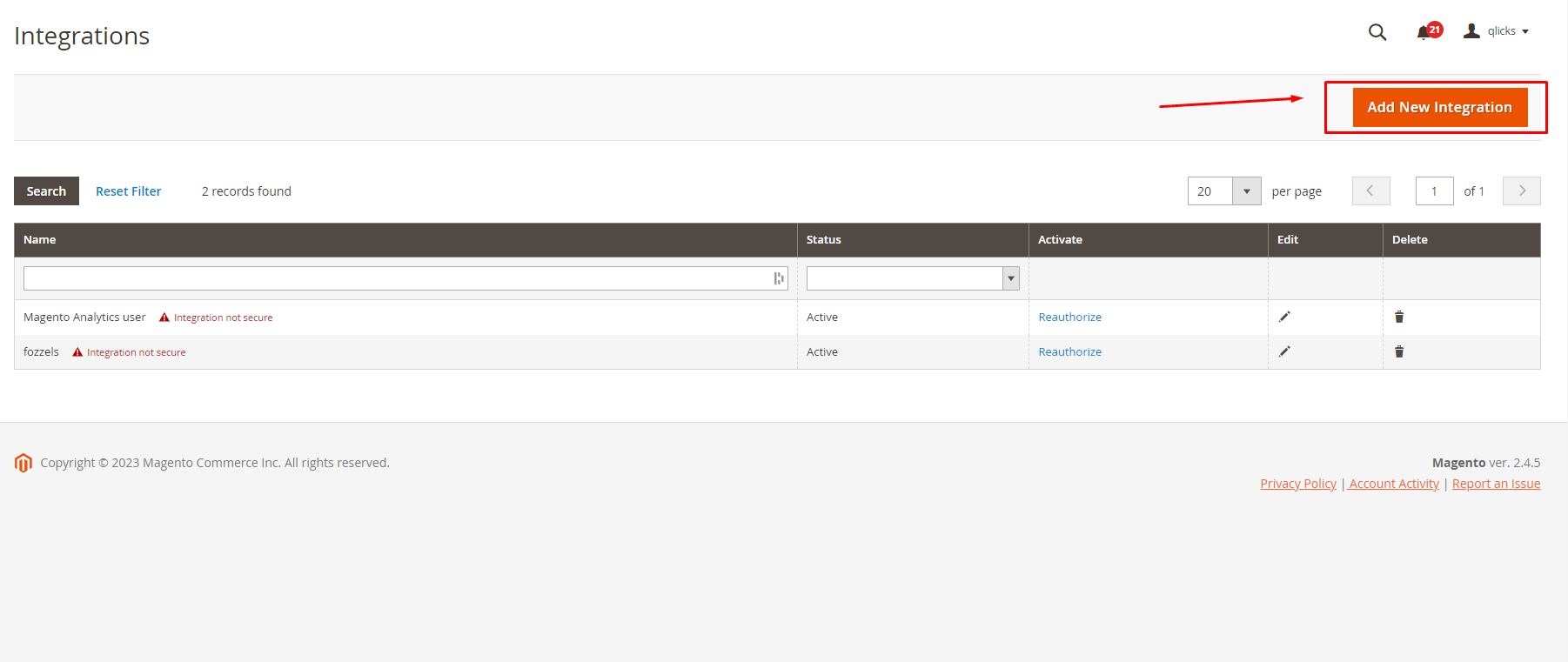
Click the “Add New Integration” button.
Step 2: Fill in Integration Info
-
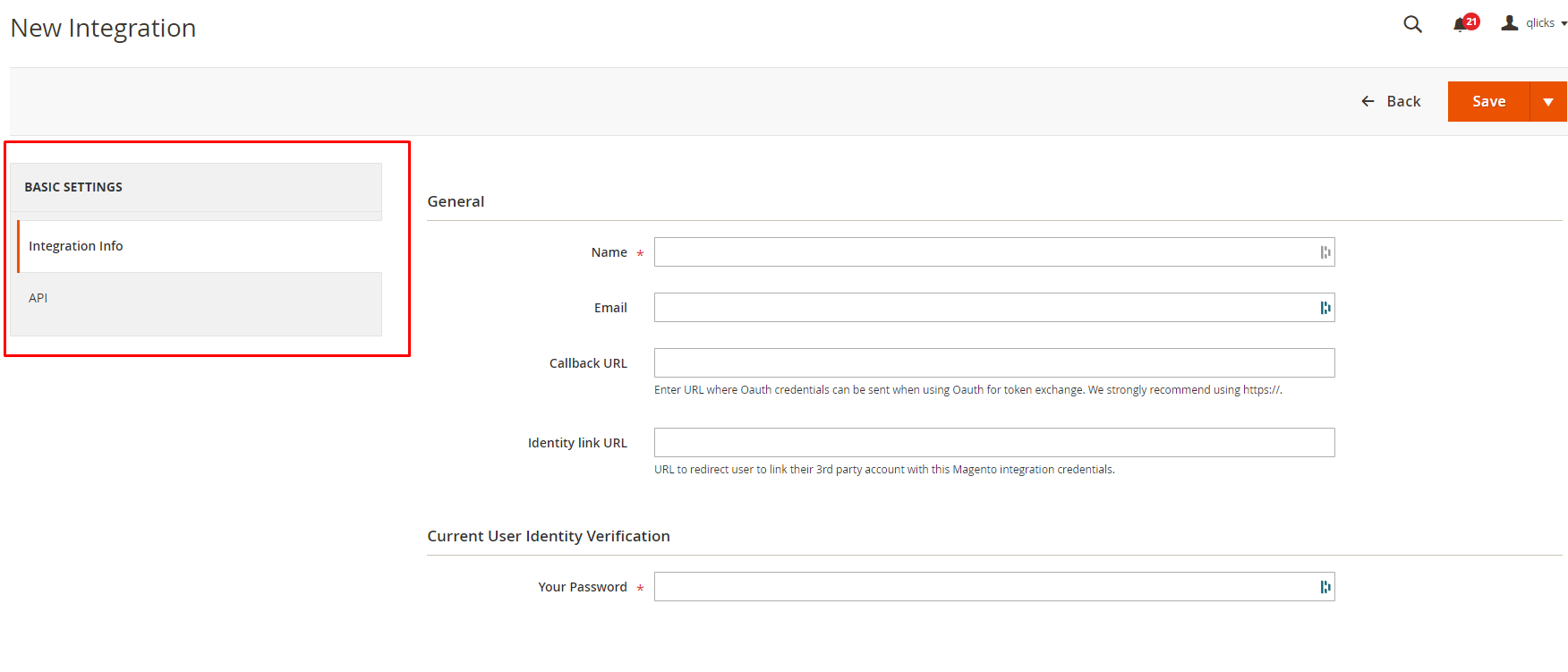
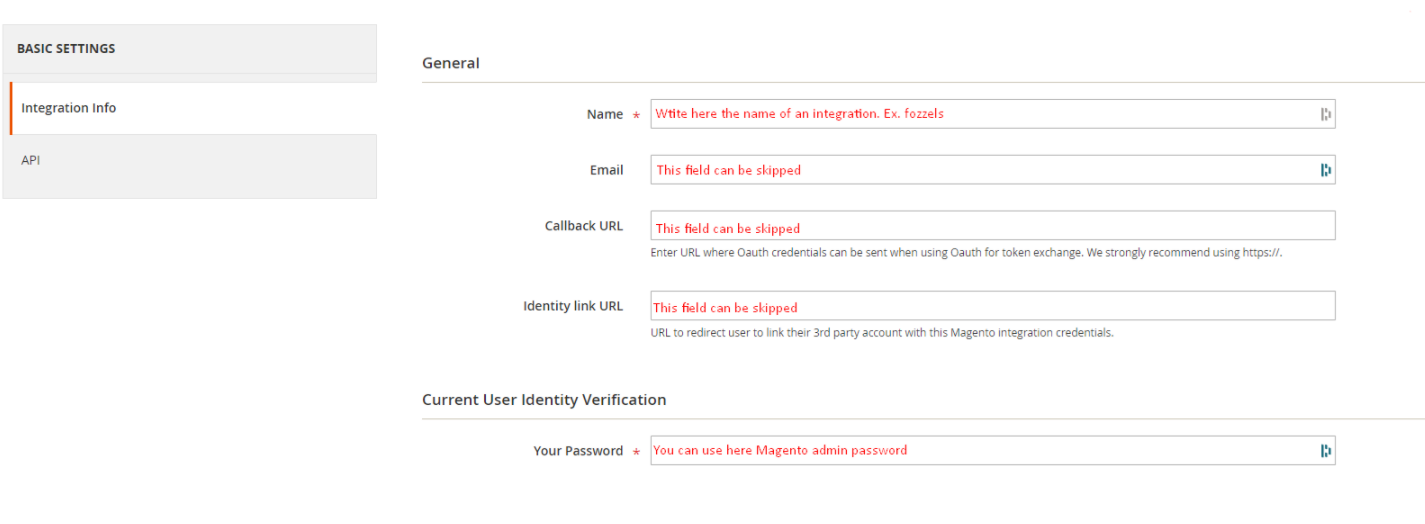
Navigate to the Integration Info tab (Basic settings).
-
Fill in the required fields: 2.1. Enter Name: Fozzels. 2.2. Enter E-mail: info@fozzels.com. 2.3. Enter your Magento admin password for confirmation.
-
Skip optional fields (Callback URL, Identity link URL).
Step 3: Configure API Permissions (Scopes)
-
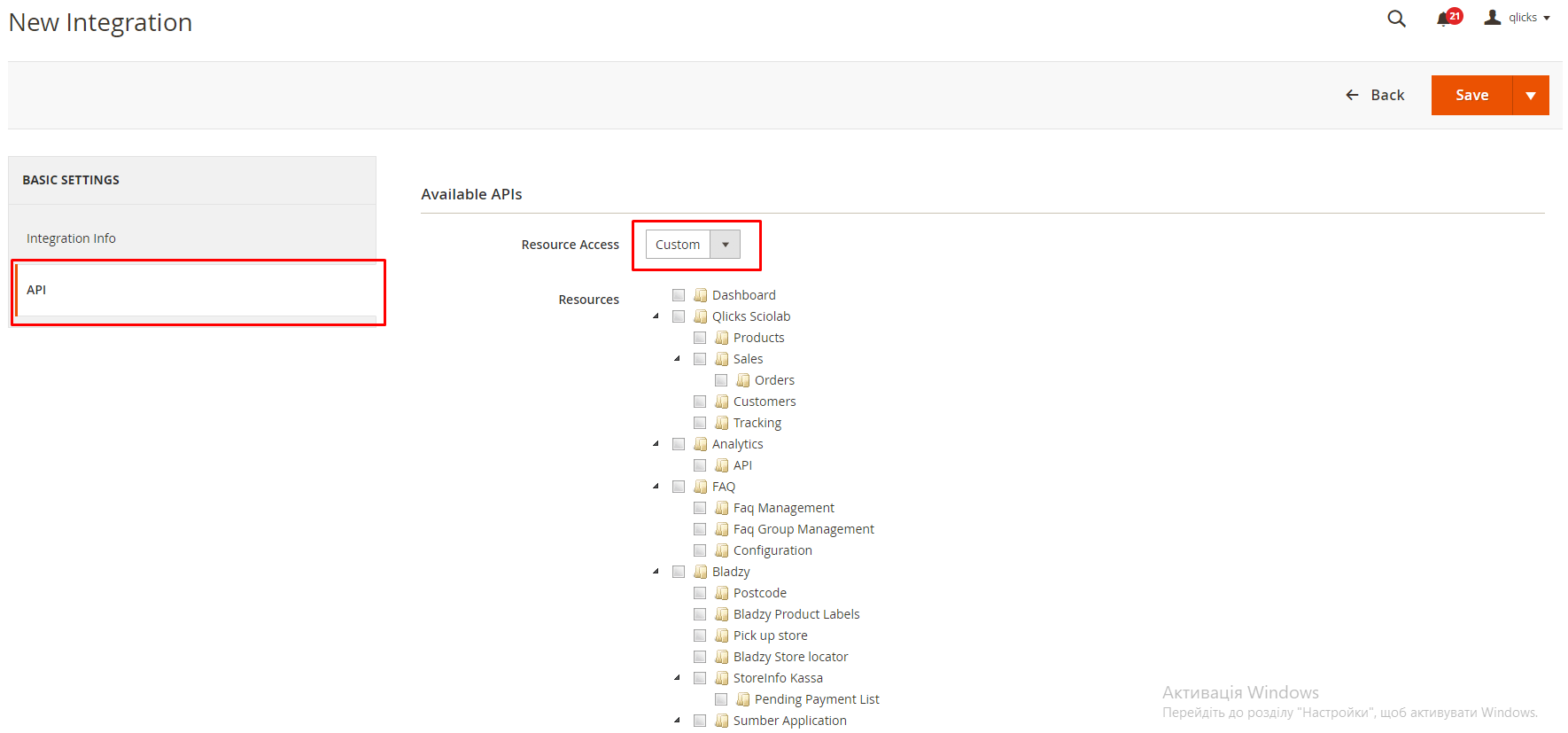
Click the "API" tab.
-
In the dropdown menu, select "Custom".
-
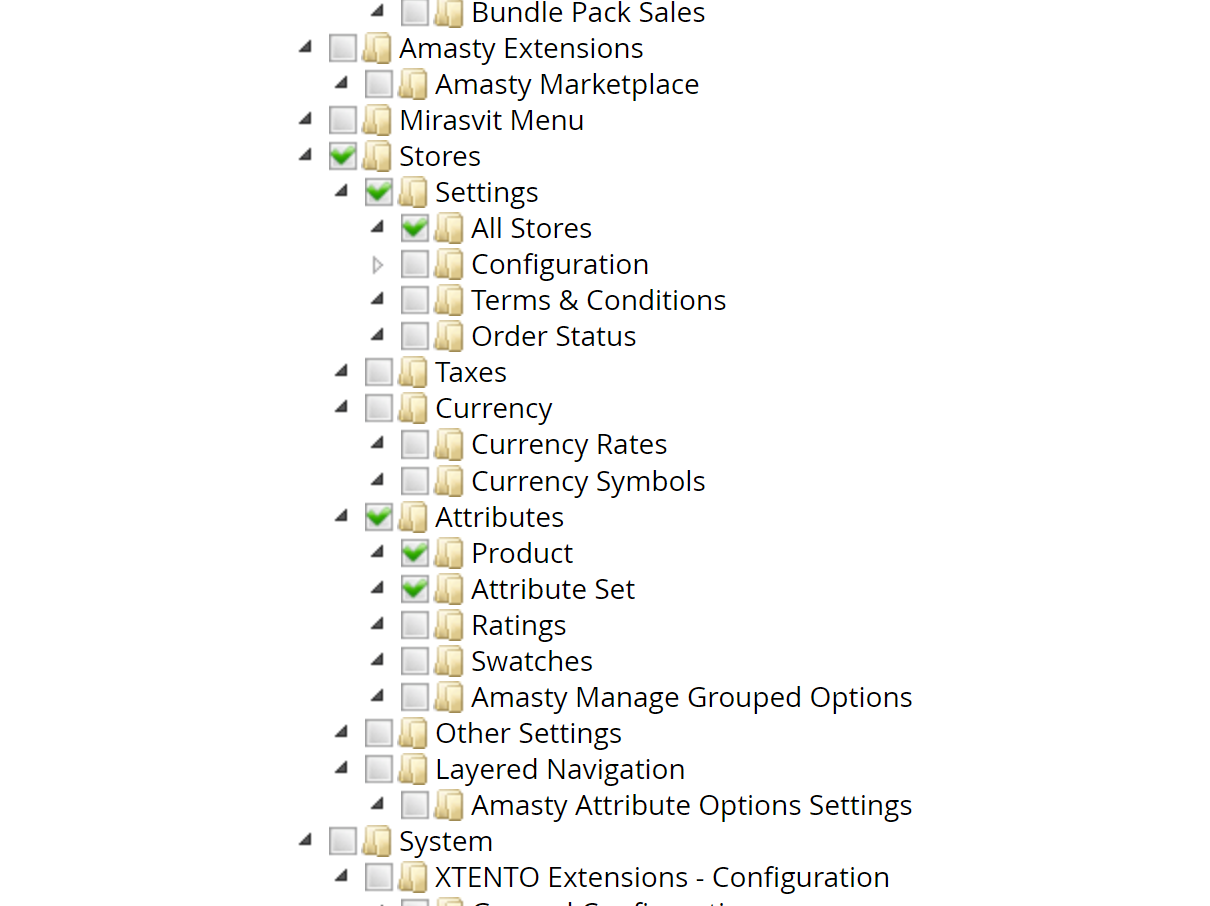
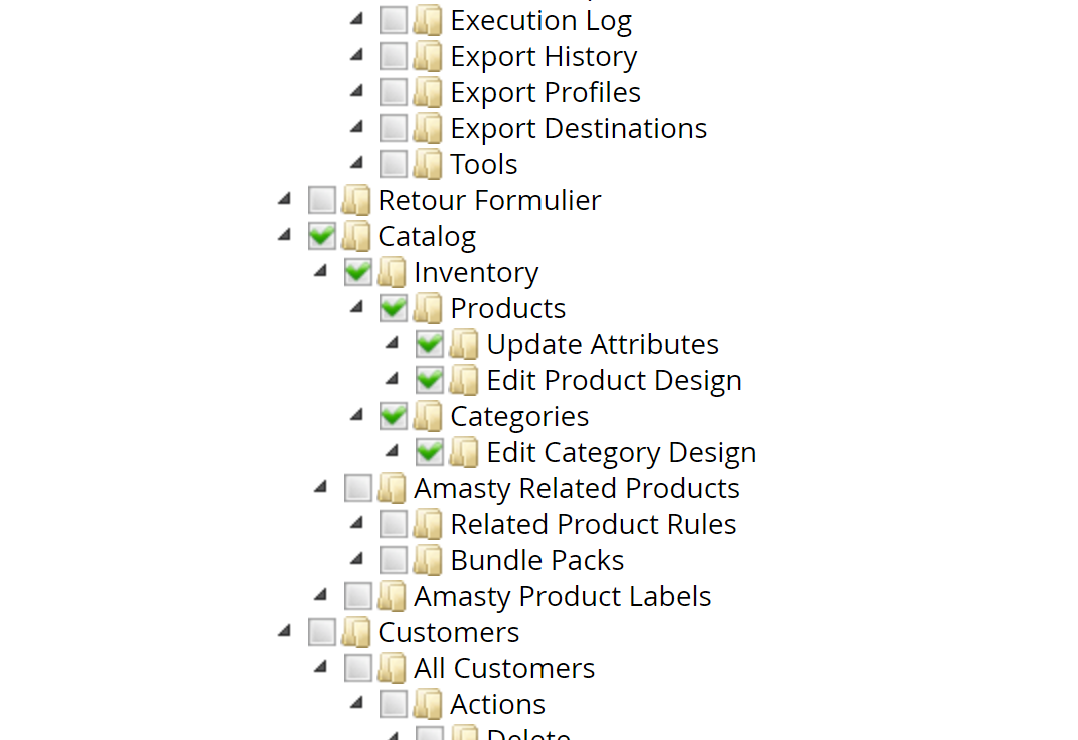
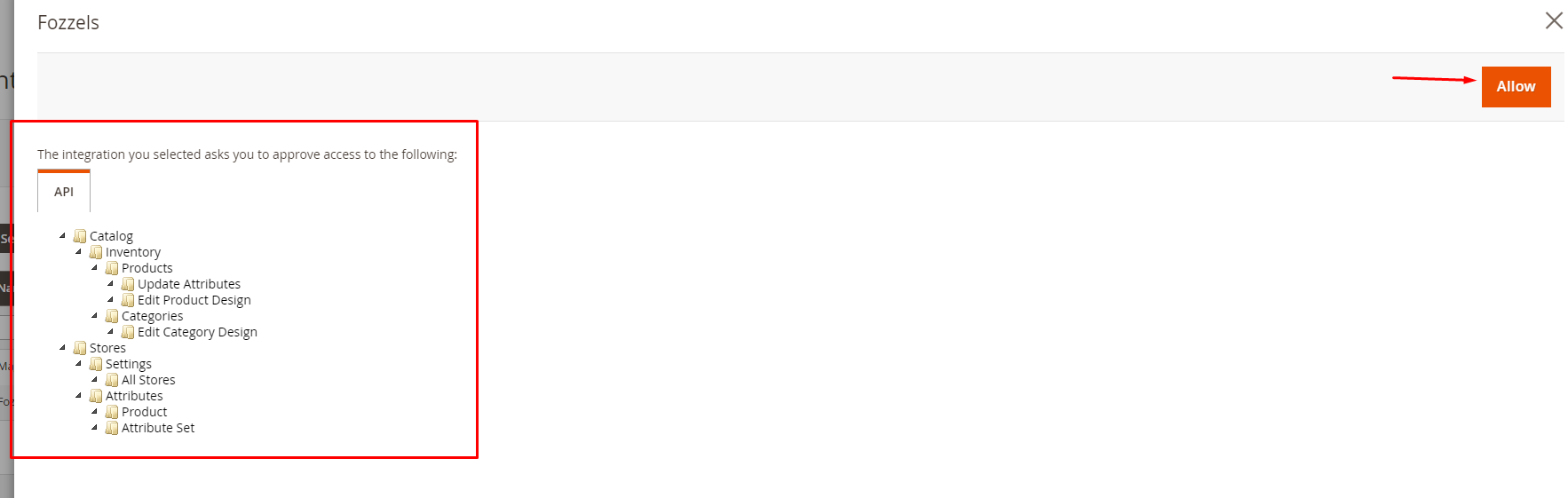
Tick only these checkboxes (for Read/Write access): 3.1. Catalog: Categories, Inventory, Products, Update Attributes, Edit Product Design. 3.2. Stores: Settings, All Stores. 3.3. Attributes: Product, Attribute Set.
Step 4: Save and Activate the Integration
-
Click the “Save” button in the top right corner.
-
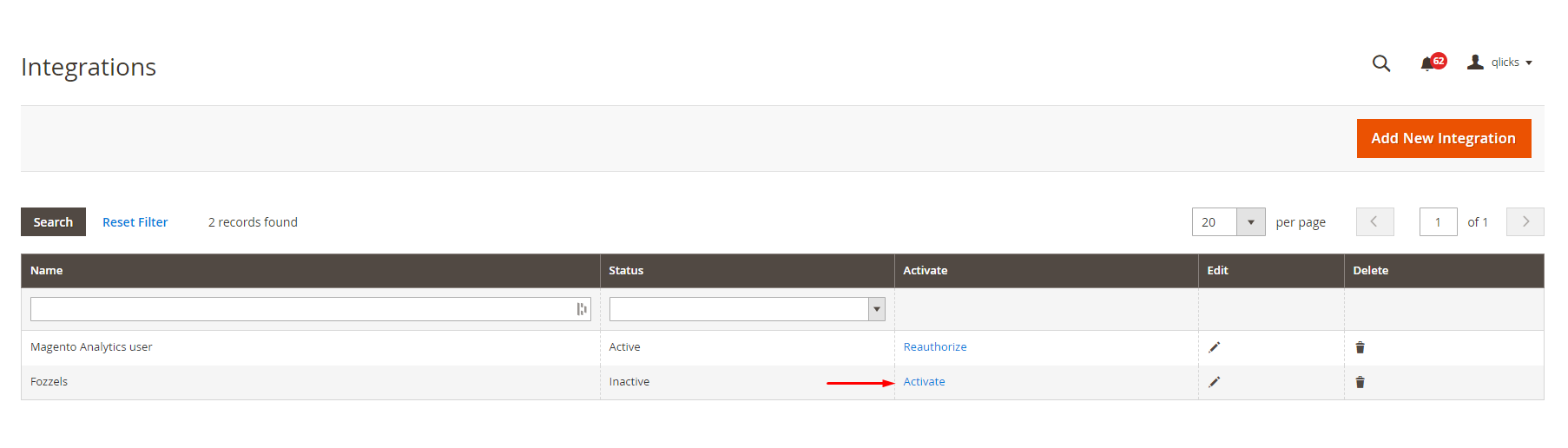
On the Integrations list page, locate the new Fozzels integration.
-
Click the ”Activate” link.
-
On the activation detail page, check if the correct APIs (from Step 3) have been selected, and click "Allow".
Step 5: Copy and Store the API Keys
-
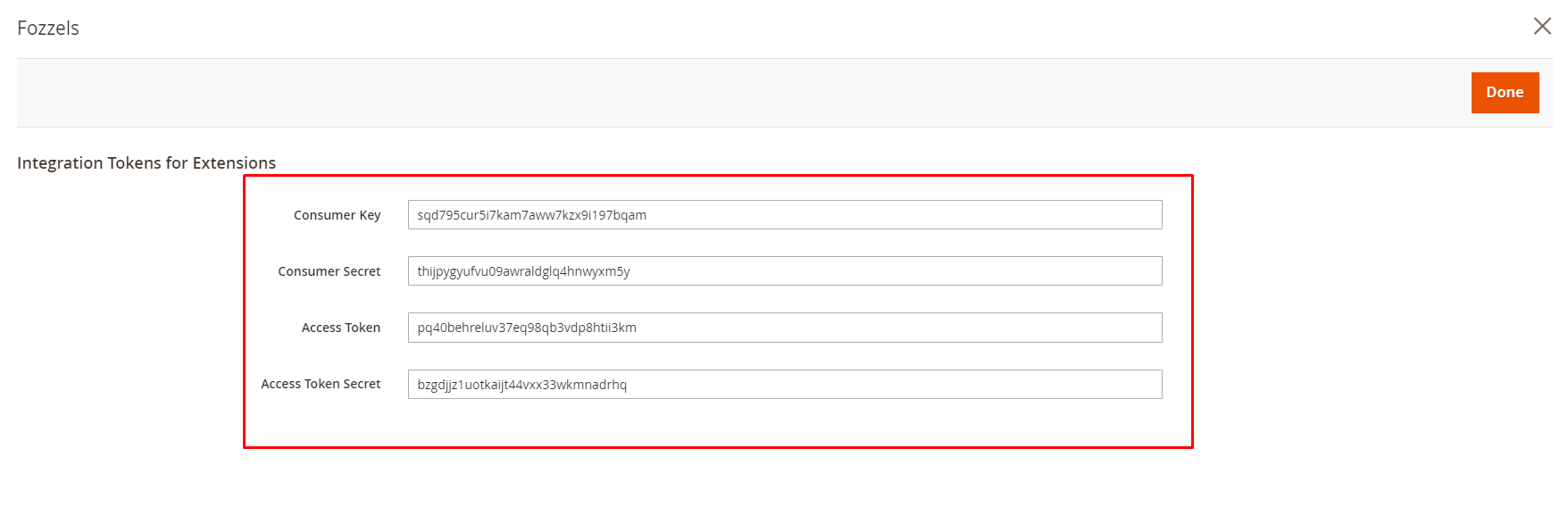
After clicking "Allow," you will be redirected to the “Integration tokens for extensions” page.
-
Copy and securely store all four automatically filled-in values: 2.1. Consumer Key 2.2. Consumer Secret 2.3. Access Token 2.4. Access Token Secret
-
Click “Done”.
-
Check or edit integration details later by pressing the “Edit” button on the Integrations page.

Part 3: Fozzels Activation and Data Sync
Step 6: Verify API Access
Before connecting Fozzels, make sure that your server does not block or rate-limit requests from Fozzels to the Magento REST API (/rest/) and GraphQL API (/graphql). Firewalls, WAFs and security services such as Cloudflare or Sucuri can block these requests.
What to do:
- Allow the Fozzels IP addresses (IPv4 and IPv6) and the Fozzels User-Agent, and exclude them from rate limiting. All addresses and settings, including Cloudflare instructions, are listed in 2.1.1. Connection Requirements: IP Addresses, User-Agent and Firewall Settings.
- Forward that page to your hosting provider or server administrator.
If this is not done, you will receive a 401 (Unauthorized) error when creating the integration in Fozzels, or a 429 (Too Many Requests) error during Pull Products, and the connection or synchronization will not complete.
After confirming the changes, proceed to creating the integration in Fozzels.
Step 8: Create New Integration in Fozzels
-
Log in to your Fozzels account.
-
Go to Integrations.
-
Click “Create New Integration”.
-
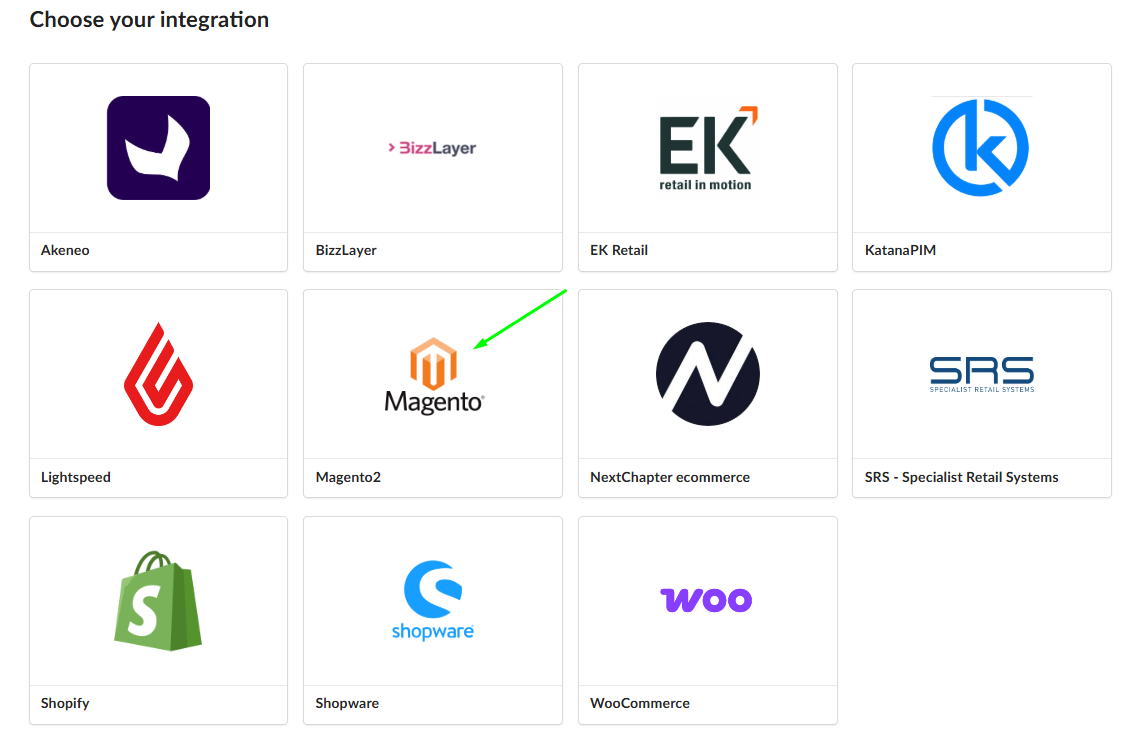
Choose "Magento" from the available options.


Step 9: Fill in Connection Details
You will use the keys from Part 1 to connect Fozzels and initiate the data import.
-
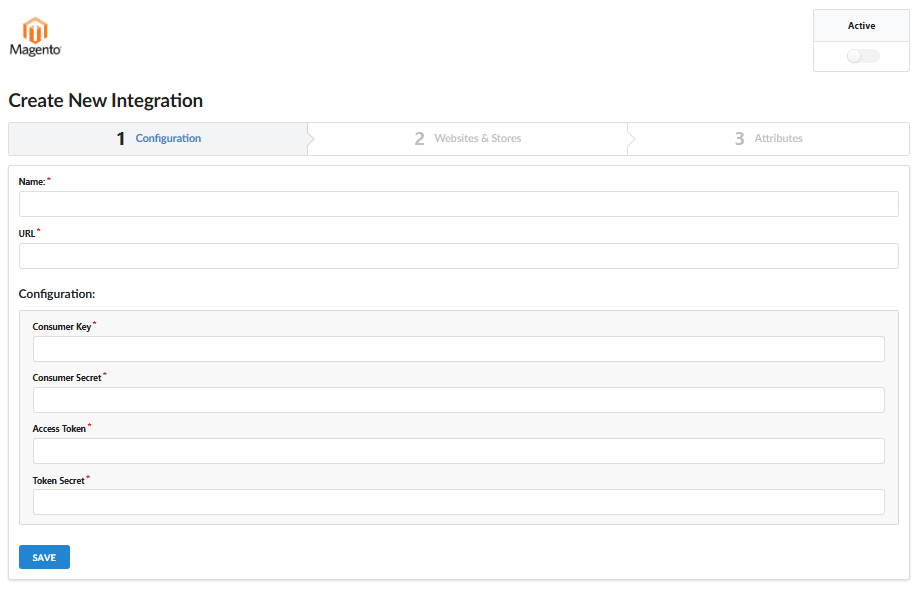
Name your integration clearly.
-
Enter the URL to your Magento website.
-
Fill in the four keys copied in Step 5 into the corresponding fields.
-
Click “Save”.
Step 10: Activate and Synchronize Stores
-
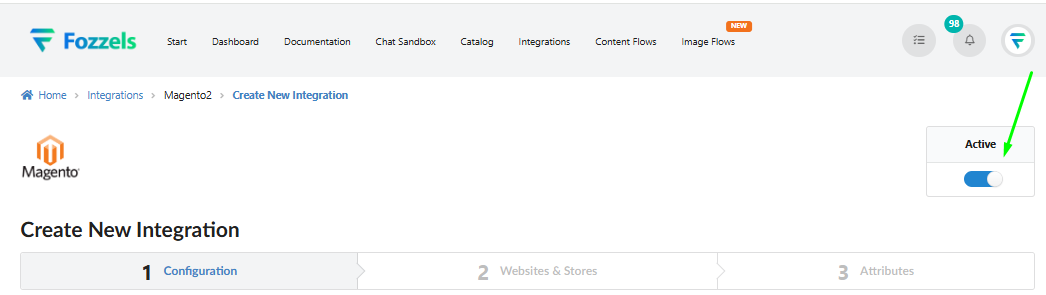
Switch on the ‘Active’ toggle in the top right corner. Without this, the connection will not work.
-
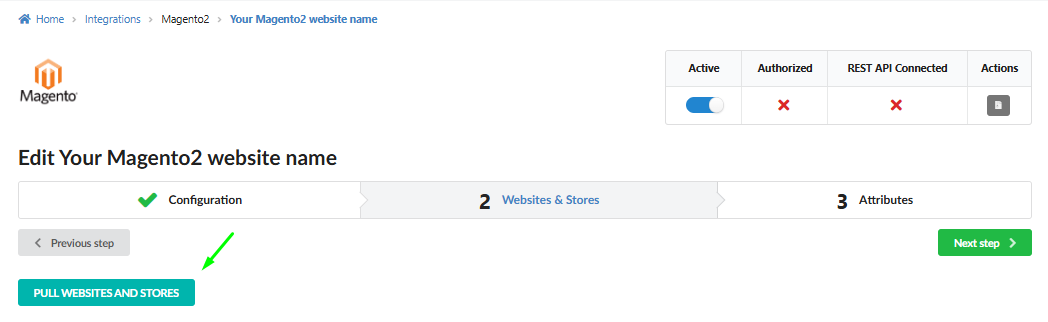
Navigate to the “Websites & Stores” tab.
-
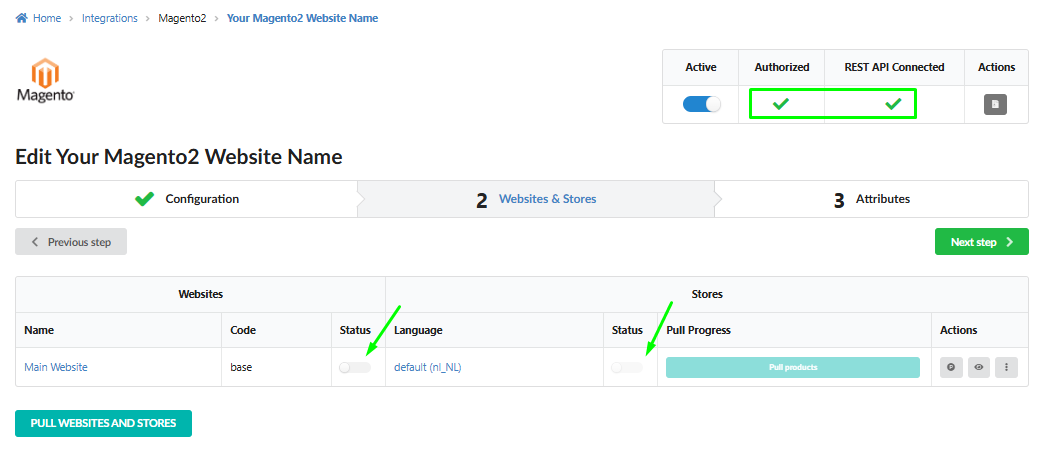
Click the "Pull websites and stores" button. Your websites and stores should now appear.
-
Verify that the integration has the following statuses: Authorized: yes and REST API Connected: yes.
-
Enable the current websites and stores using the toggle for further work.
Step 11: Pull Products and Verify
-
Click the “Pull Products” button to start the process of importing your product catalog.

-
Wait for the products to load (progress will be shown in the progress bar).
-
Go to the "Attributes" tab to configure your synchronization rules.
-
Read more about working with product attributes and customizing data fields here.