2.3.2. Connecting Shopify stores to Fozzels via Shopify Dev Dashboard
Since January 1, 2026, Shopify no longer lets you create Private Apps in the store admin. New connections and updates to existing integrations are set up through the Shopify Dev Dashboard. This guide walks you through both sides: creating and installing the app in Shopify (Part 1) and connecting it in Fozzels (Part 2).
Before you start: find your .myshopify.com domain
Fozzels needs your store's .myshopify.com address, not your public store domain (such as www.yourbrand.com). This address was assigned when the store was created and can't be changed, so it may differ from your brand name.
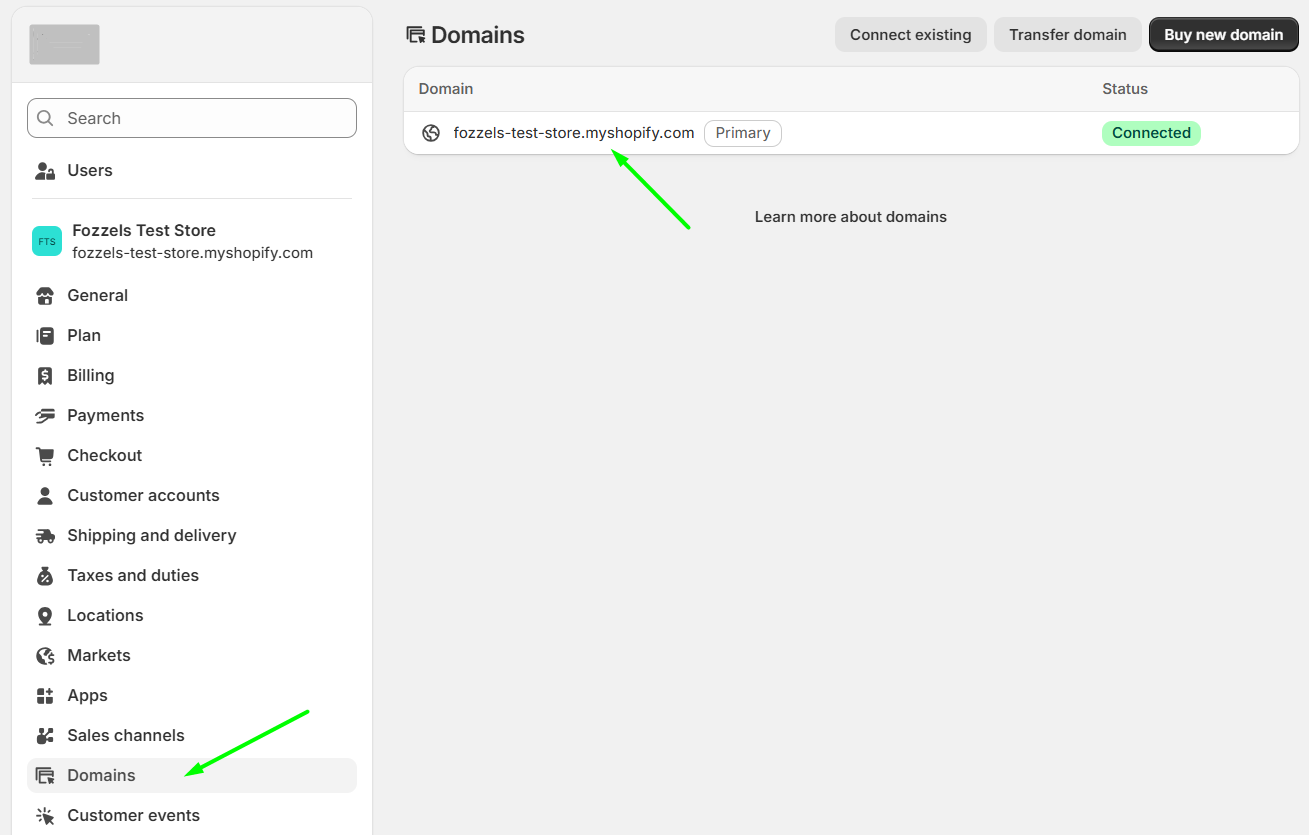
You can find it in three places in the Shopify admin:
- Settings sidebar: open Settings. Your .myshopify.com domain is shown under the store name at the top of the sidebar.
- Settings → Domains: the Domains page lists all your domains. Use the one that ends in .myshopify.com, even if it isn't marked as Primary.
- Browser address bar: while in the admin, the URL looks like
https://admin.shopify.com/store/your-store. Take the part after/store/and add.myshopify.com:your-store.myshopify.com.
You'll use this domain in two formats:
| Where | Format |
|---|---|
| App URL (Shopify), URL (Fozzels) | https://your-store.myshopify.com |
| Store domain (Shopify distribution), App Host Name (Fozzels) | your-store.myshopify.com |
Part 1. Shopify: create the app
1. Create the app
- Log in to the Shopify Dev Dashboard: https://dev.shopify.com/dashboard.
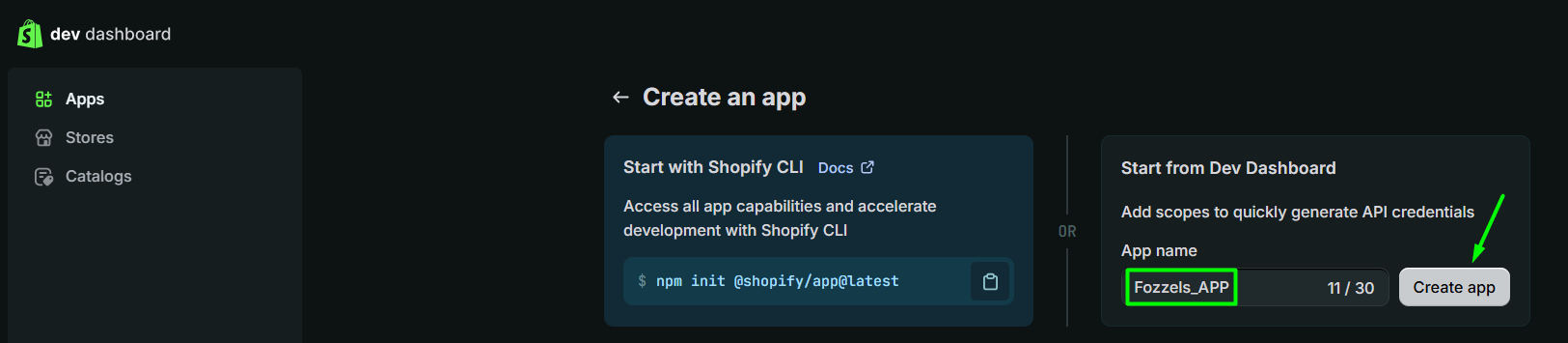
- Open Apps in the left-hand sidebar and click Create app in the top right corner. Depending on your account type, the interface may look slightly different. If you don't see the button, scroll to the bottom of the page and click the Create app link.
- Under Start from Dev Dashboard (the option on the right), enter an app name, for example
Fozzels_APP, and click Create app. This option gives you API credentials without using the command line.

2. Configure the version
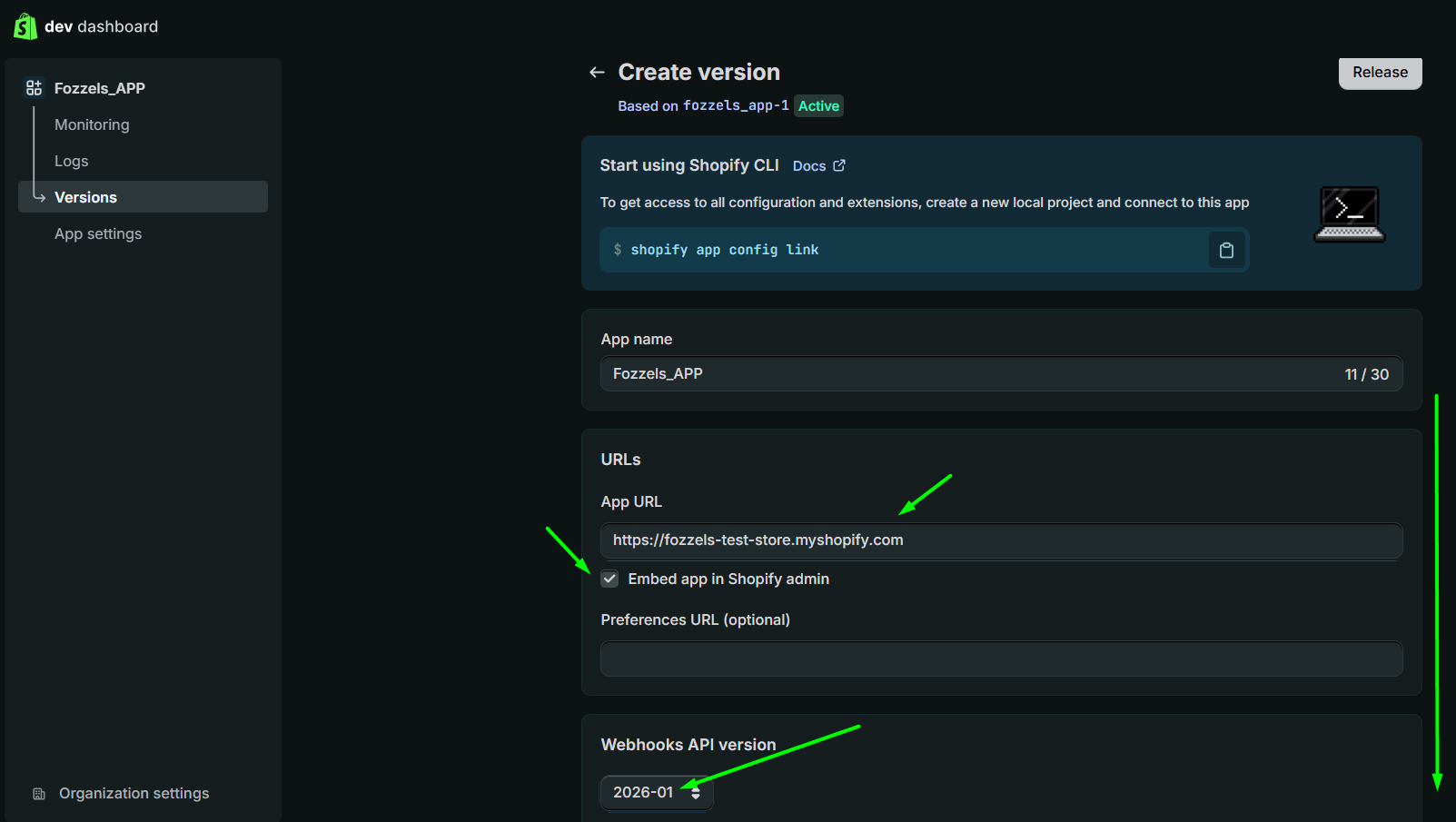
After you create the app, you land on the Create version page. Shopify has already created an initial version (for example fozzels_app-1). Your settings will be released as a new version based on it.
- App name: keep the name or change it.
- App URL: enter your store URL with https, for example
https://your-store.myshopify.com. - Embed app in Shopify admin: must be enabled. This shows the Fozzels interface inside your Shopify admin.
- Webhooks API version: select the latest stable version offered.
3. Add the scopes
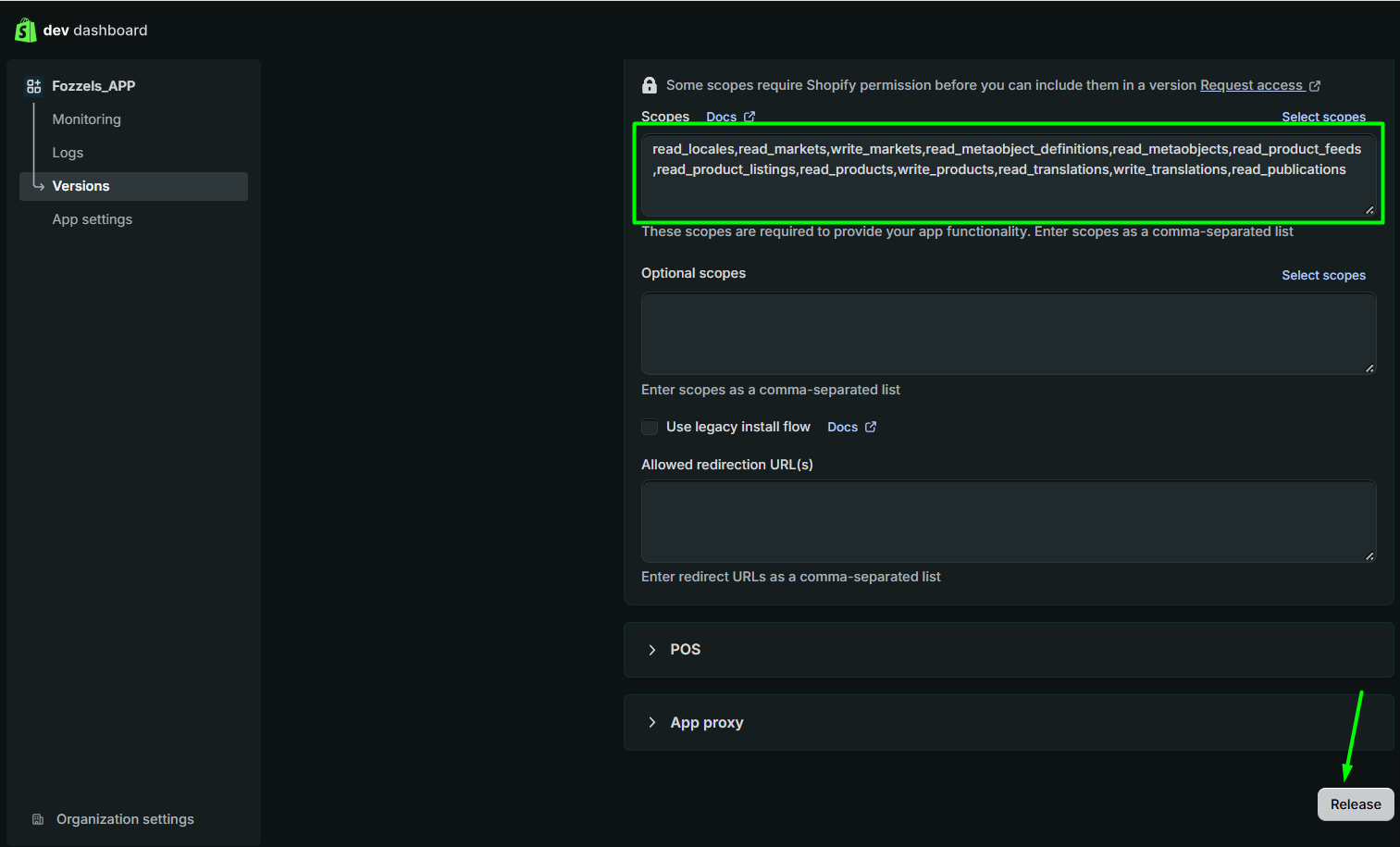
Scroll down to the Access section. Paste the list below into the Scopes field, or click Select scopes and find each permission with the search bar.
Required scopes, ready to copy and paste:
read_locales,read_markets,write_markets,read_metaobject_definitions,read_metaobjects,read_product_feeds,read_product_listings,read_products,write_products,read_translations,write_translations,read_publications
| Group | Scopes |
|---|---|
| Products | read_product_listings, read_products, write_products, read_product_feeds |
| Metadata | read_metaobject_definitions, read_metaobjects |
| Translations | read_translations, write_translations, read_publications |
| Locales | read_locales |
| Markets | read_markets, write_markets |
These scopes are required for all store types, including stores using Shopify Markets and multiple languages.
Planning to sync weight data? Also add read_inventory and write_inventory now. They are only needed for the optional Inventory setting in Fozzels (step 10), but adding them now saves you from creating a new app version later. Full list including inventory:
read_locales,read_markets,write_markets,read_metaobject_definitions,read_metaobjects,read_product_feeds,read_product_listings,read_products,write_products,read_translations,write_translations,read_publications,read_inventory,write_inventory
Leave the rest of the section as is:
- Optional scopes: leave empty.
- Use legacy install flow: leave unchecked.
- Allowed redirection URL(s): leave empty.
The note "Some scopes require Shopify permission" doesn't apply to the scopes Fozzels needs, so you don't need to request access.
4. Release the version
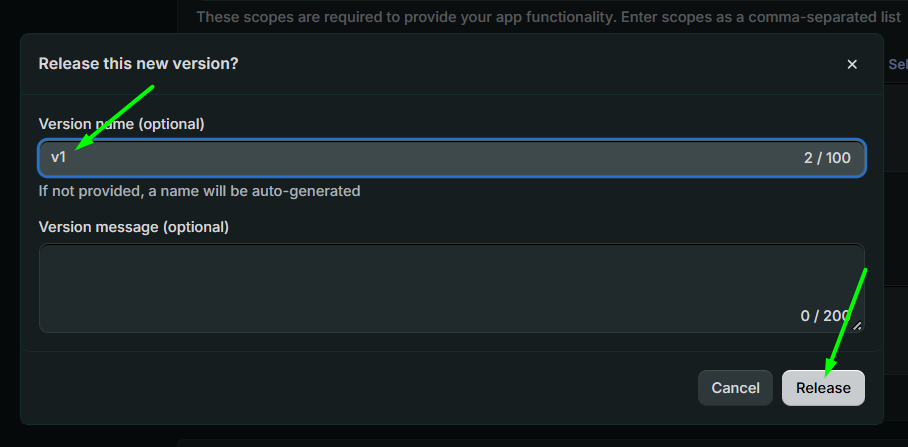
- Click Release. The button is available both in the top right corner and at the bottom of the page.
- In the pop-up, optionally enter a Version name (for example
v1) and a Version message. If you leave the name empty, Shopify generates one. - Click Release to confirm.
The new version appears on the Versions page with the Active status.

5. Install the app in your store
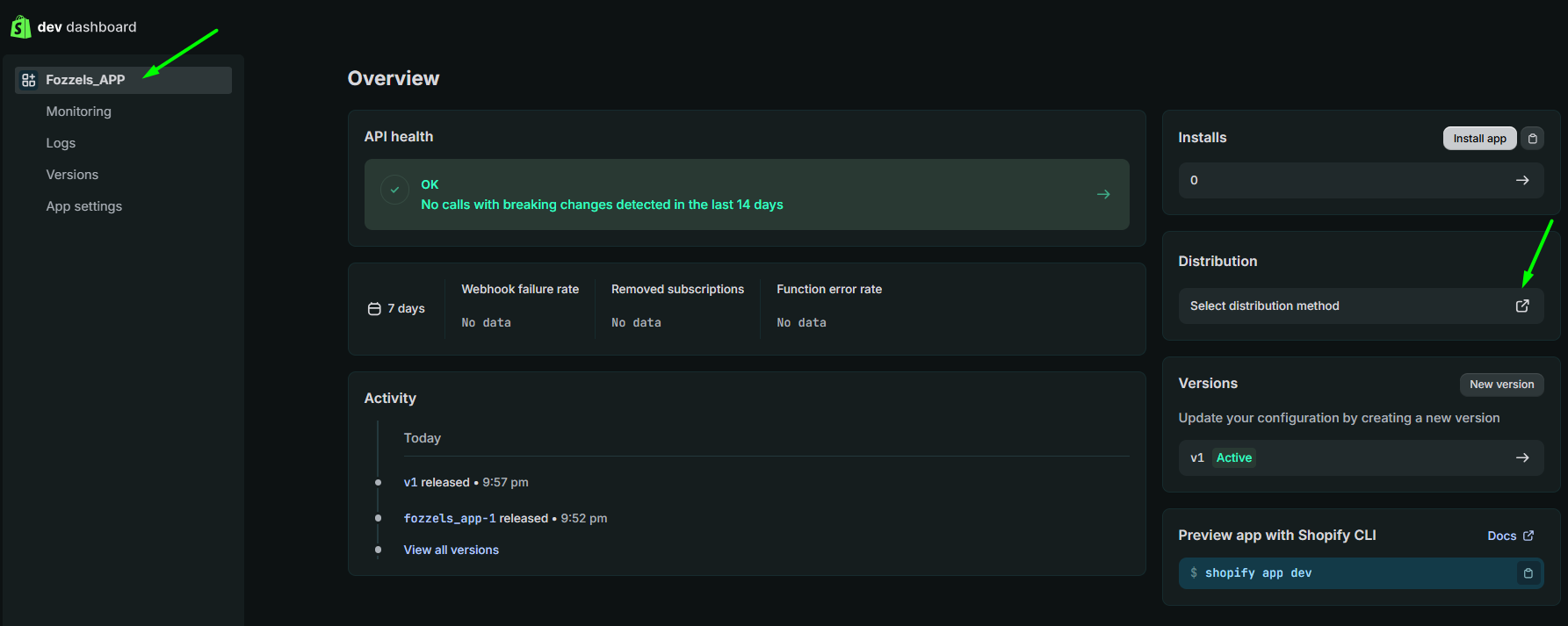
The installation steps depend on your Shopify account type. To start, open your app's Overview page by clicking the app name in the left-hand sidebar.
Option A: a single store (no Partner account)
- In the Installs block, click Install app.
- If prompted, log in with the store owner's email. Only the store owner can approve the installation.
- On the Install app page in your store admin, review the access list and click Install.
You don't need to configure distribution. Continue with step 6.
Option B: a Partner account or multiple stores
You first set up Custom distribution to generate an install link for one specific store.
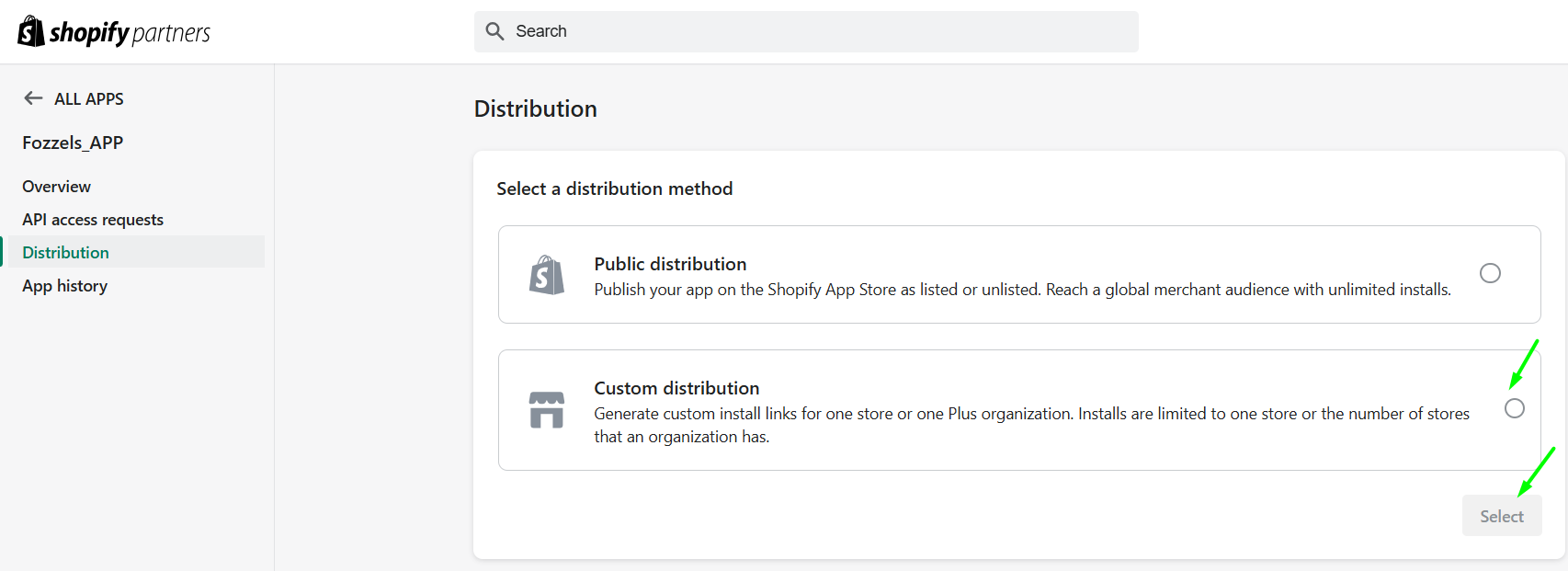
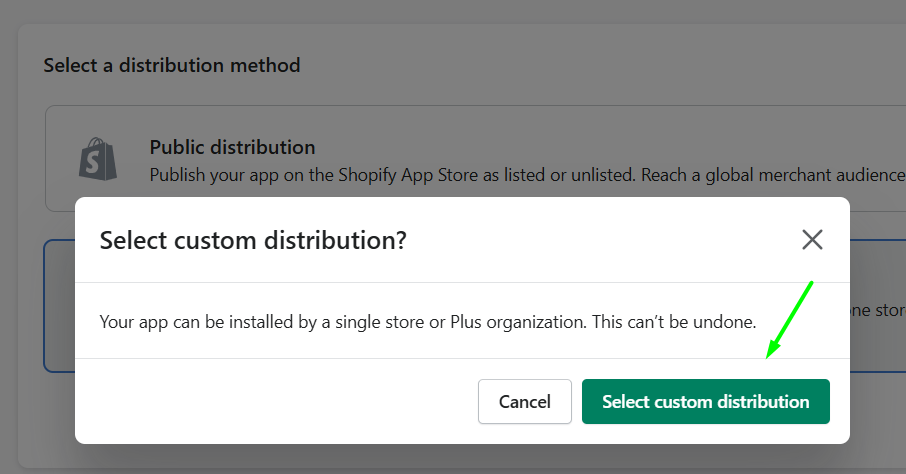
- In the Distribution block, click Select distribution method. This opens the app in Shopify Partners, a separate interface.
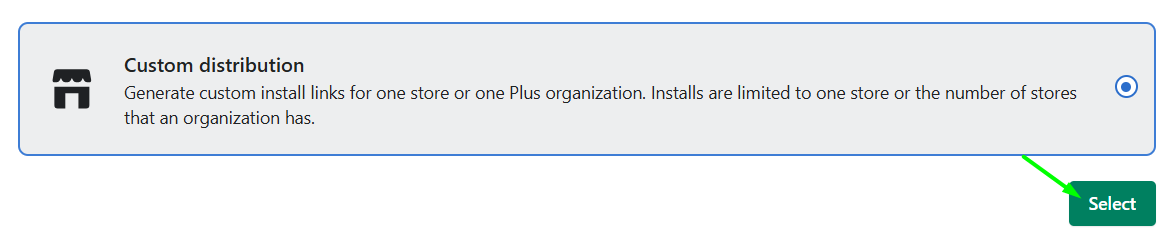
- Select Custom distribution and click Select.
- Confirm with Select custom distribution.
Warning: choosing Custom distribution can't be undone. The app can then only be installed on one store or within one Plus organization.
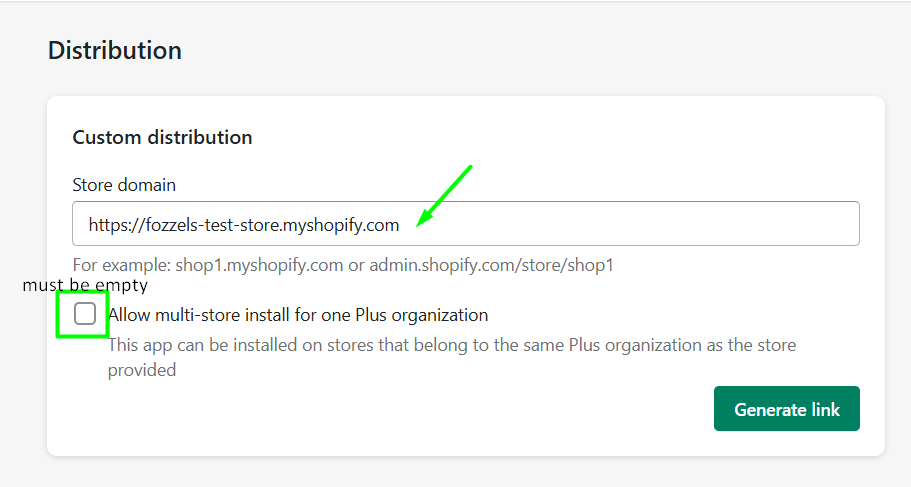
- In Store domain, enter your store domain in the format
your-store.myshopify.com. - Leave Allow multi-store install for one Plus organization unchecked.
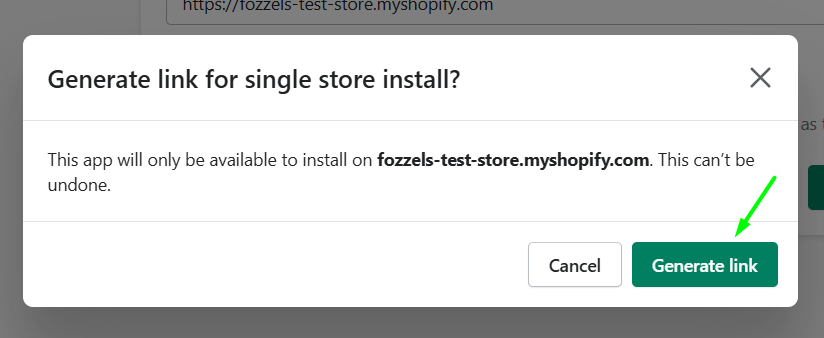
- Click Generate link and confirm.
Warning: this confirmation can't be undone either. The app will only be available to install on the store you entered.
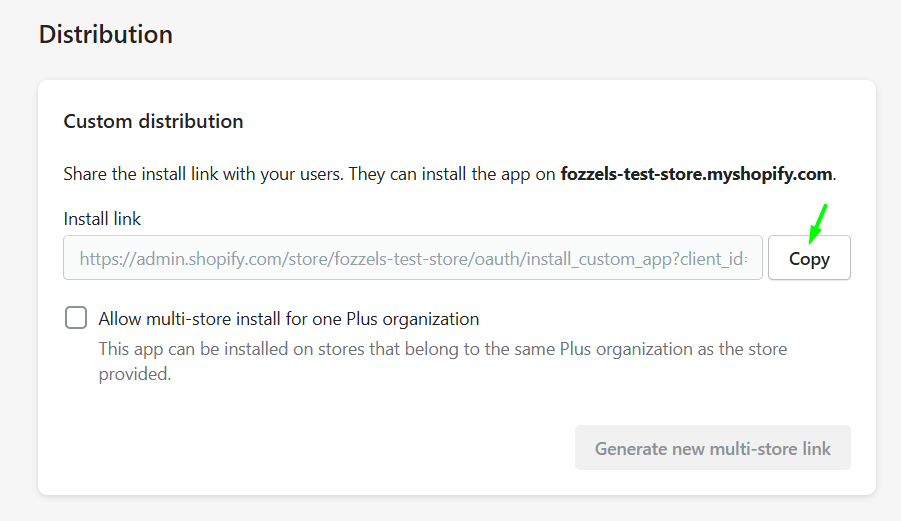
- Shopify shows the Install link. Click Copy.
- Open the link in a browser where you're logged in to the store admin, or send it to the store owner. This is handy for agencies: the store owner can complete the installation themselves.
- On the Install app page, check that you see This app is exclusive to your store, review the access list and click Install.
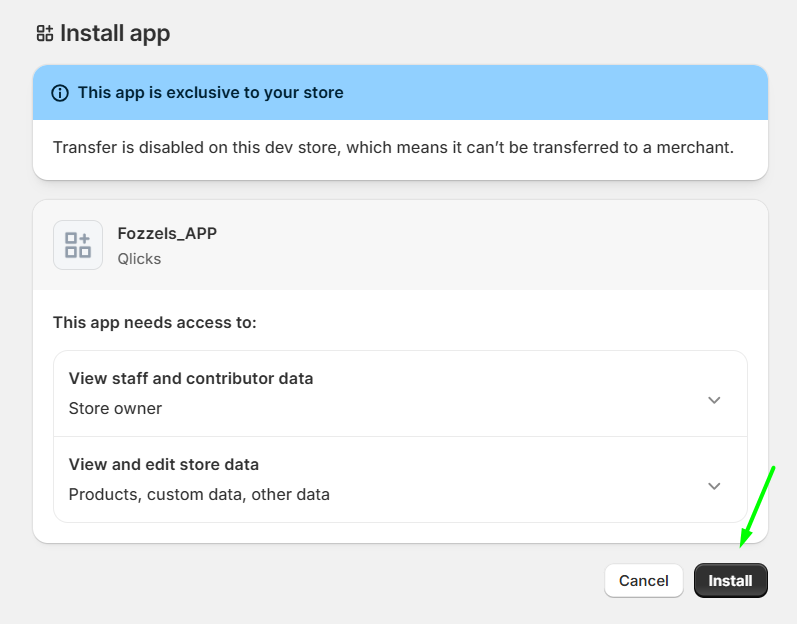
The text under "This app is exclusive to your store" depends on the store type and may differ from the screenshot. The access list should include Products, custom data, other data. If you see only Products, some scopes are missing: go back to step 3.
After installation, the app appears under Apps in your store admin's sidebar.
6. Copy the API credentials
- In the Dev Dashboard, open App settings in your app's left-hand sidebar.
- In the Credentials block, copy the Client ID.
- Click the eye icon next to Secret to reveal it, then copy it.
You'll paste them into Fozzels in step 8.
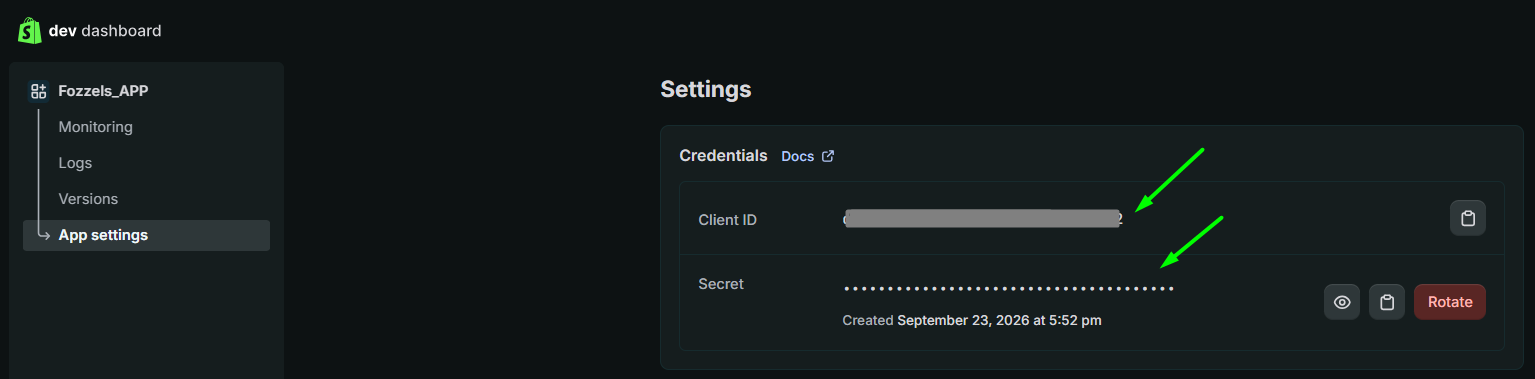
Warning: don't click Rotate unless you need to. It generates a new Secret and the old one stops working immediately, which breaks your Fozzels connection until you update the Secret in Fozzels.
Store the credentials securely, for example in a password manager. Don't send them by email or chat: the Secret gives access to your store's products and translations.
Part 2. Fozzels: connect the store
7. Create the integration
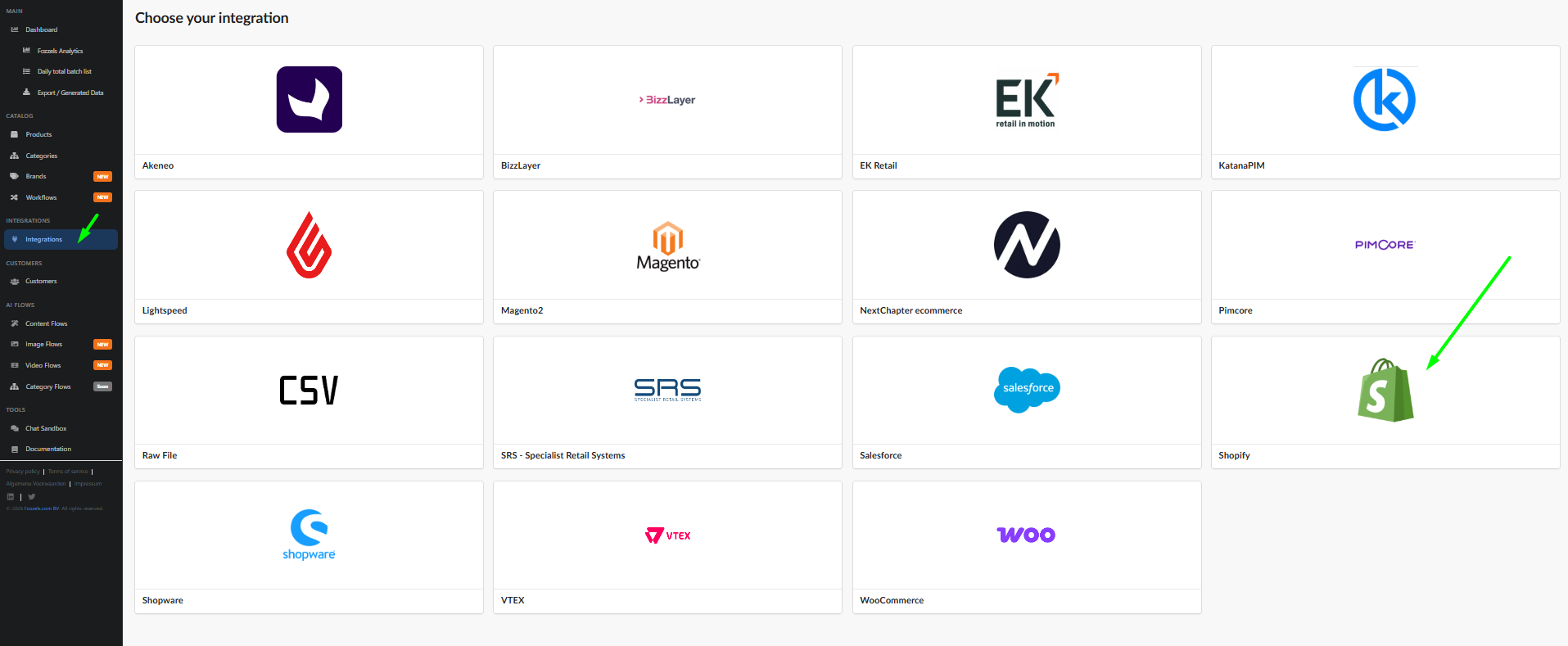
- Log in to Fozzels at https://app.fozzels.com and open Integrations in the left-hand sidebar.
- On the Choose your integration screen, select Shopify.
- On the Configuration step, fill in:
- Name: any name that helps you recognize the integration.
- URL: your store's .myshopify.com address with https, for example
https://your-store.myshopify.com. Don't use your custom domain.
- Under Connection Method, choose Custom App.
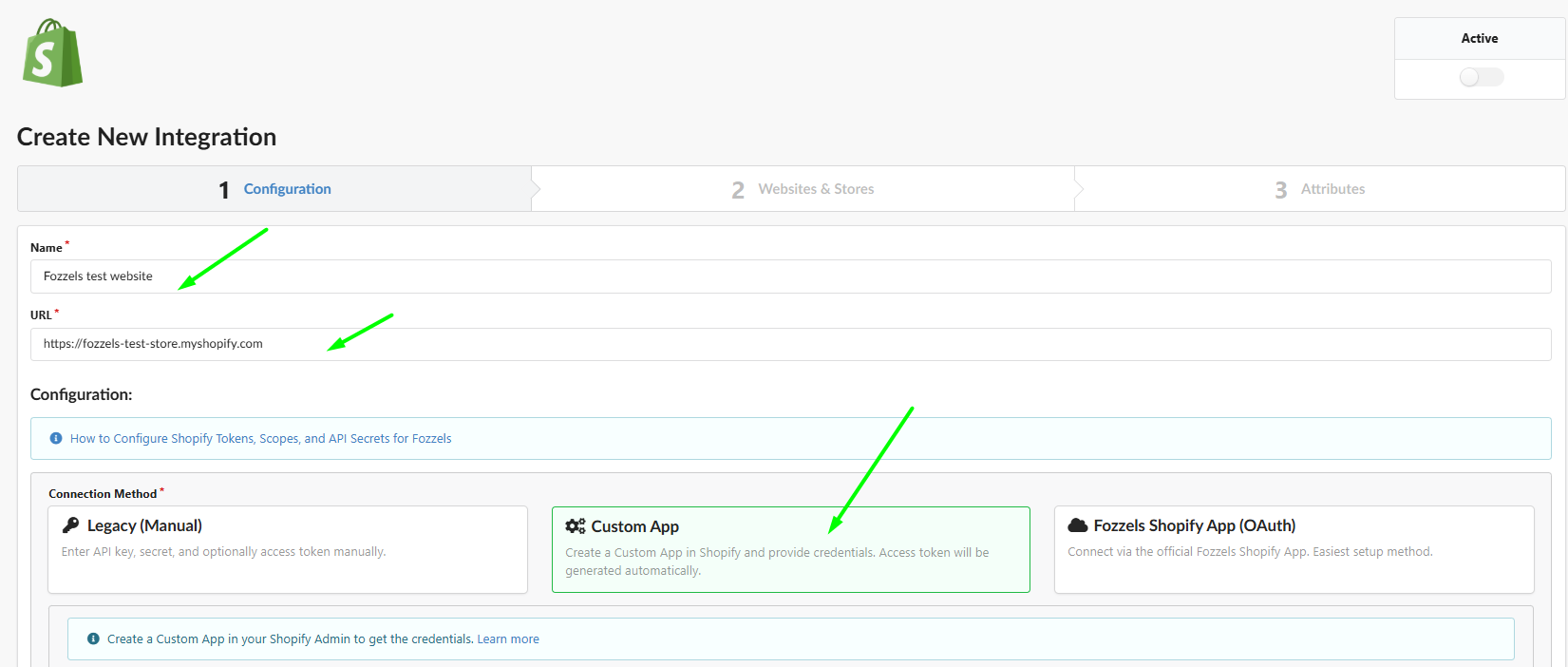
The other connection methods: Fozzels Shopify App (OAuth) connects through the official Fozzels app and doesn't require creating your own app (see 2.3.1. Fozzels Shopify App — Getting Started). Legacy (Manual) is for connections set up the old way.
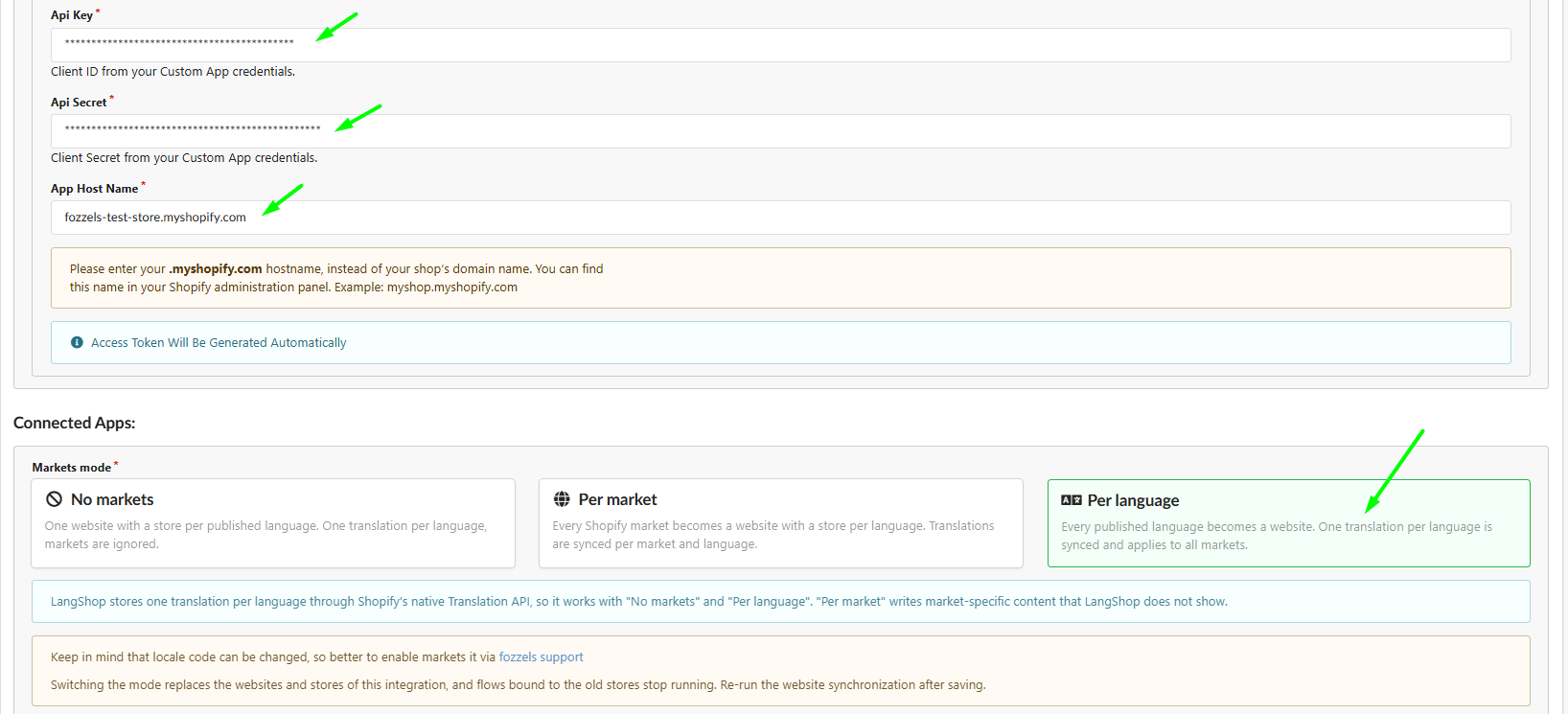
8. Enter the API credentials
| Fozzels field | What to enter |
|---|---|
| Api Key | Client ID from step 6 |
| Api Secret | Secret from step 6 |
| App Host Name | your-store.myshopify.com, without https |
You don't need an access token: Fozzels generates it automatically.
9. Choose the Markets mode
The Markets mode defines how content is distributed across your Shopify markets and languages. Choose it carefully: changing it later is not a simple switch (see Need to change the Markets mode later? at the end of this guide).
Path 1: Translations. You need the same content for all markets that share a language, translated into each published language. Choose Per language, or No markets for the simplest single-site setup.
Path 2: Unique content per market and language. You need different content for each market, even within the same language, for example different marketing accents per region. Choose Per market.
| Mode | What becomes a website | What is synced |
|---|---|---|
| No markets | One website, a store per published language | One translation per language, markets are ignored |
| Per market | Every Shopify market, with a store per language | Each market and language pair separately |
| Per language | Every published language | One translation per language, Shopify applies it to all markets with that language |
Using LangShop? It works only with No markets and Per language.
10. Optional settings
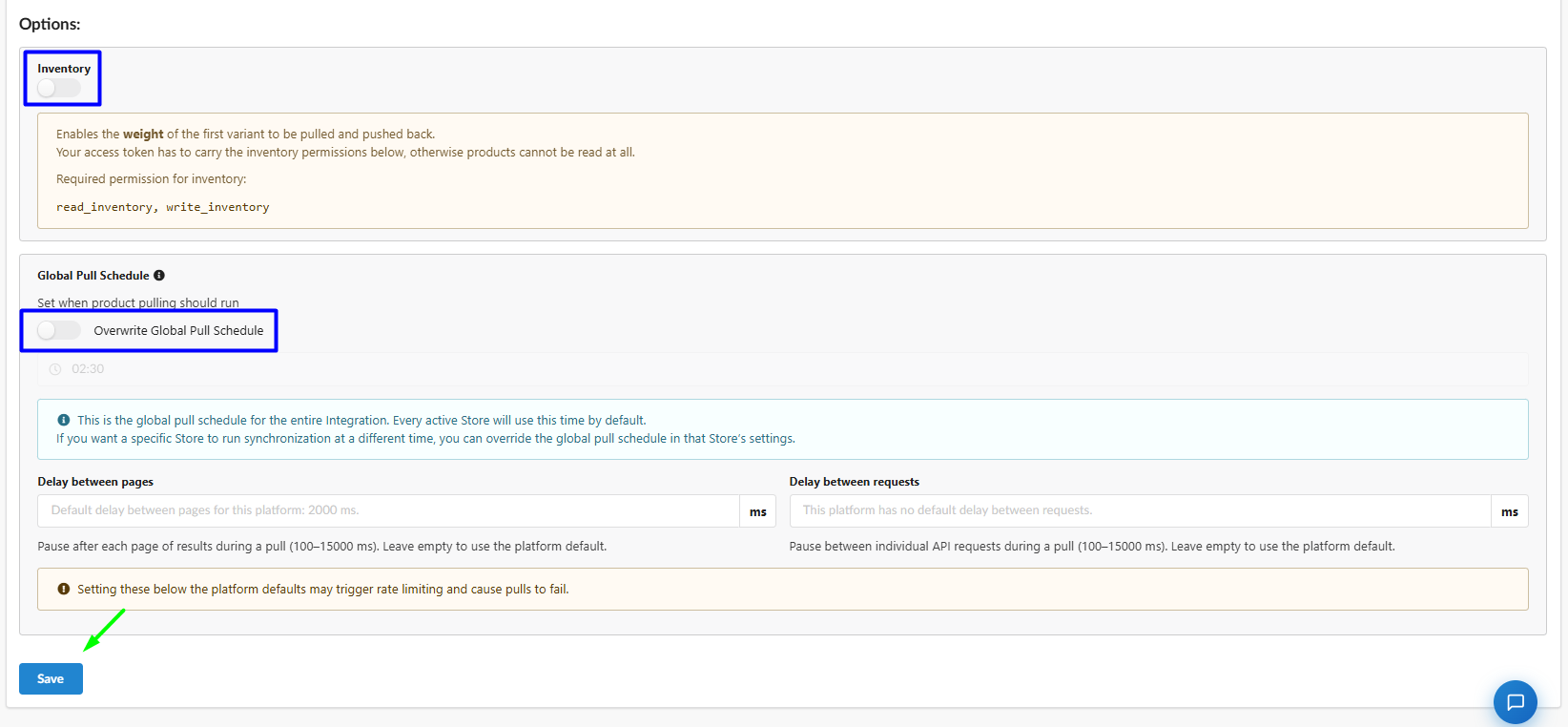
If you're not sure you need these settings, leave the defaults.
Inventory. Enable this toggle to sync weight data of the first product variant. Fozzels pulls two additional attributes, Weight and Weight Unit (both of the select type), and can push them back to Shopify.
Warning: Inventory requires the
read_inventoryandwrite_inventoryscopes. If you didn't add them in step 3, create a new app version with these scopes, release it and reinstall the app before enabling Inventory. If the toggle is on without these scopes, Fozzels can't read products at all.
Global Pull Schedule. By default, Fozzels pulls products for all active stores of the integration at 02:30. To set a different time for the whole integration, enable Overwrite Global Pull Schedule and choose the time. A specific store can have its own schedule in that store's settings. Read more in 3.1.2 How to Configure Global Pull Schedule & API Throttling.
Delay between pages and Delay between requests. Use these only if pulls fail because of Shopify API rate limits. Leave them empty to use the platform defaults.
| Field | What it does | Range | Shopify default |
|---|---|---|---|
| Delay between pages | Pause after each page of results | 100–15000 ms | 2000 ms |
| Delay between requests | Pause between individual API requests | 100–15000 ms | none |
Values below the defaults may trigger rate limiting and make pulls fail.
11. Save
Click Save at the bottom of the page.
12. Activate the integration and pull websites and stores
After you click Save, Fozzels shows "Integration was created successfully" and opens the Websites & Stores step. The status panel in the top right shows Active off, Authorized red and REST API Connected with a warning. This is expected at this stage.
- Turn on the Active toggle in the top right corner. Fozzels authorizes with Shopify and generates the access token.
- Click Pull Websites and Stores.
Authorized and REST API Connected should now turn green.
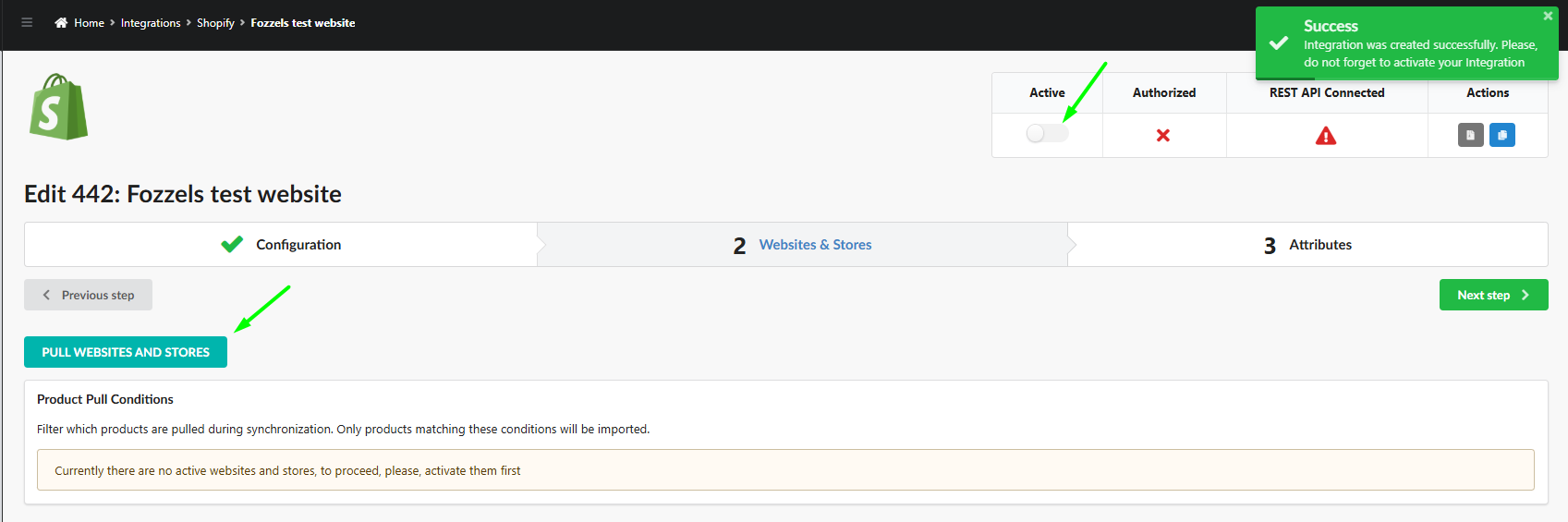
If Authorized stays red, check that the app is installed in your store (step 5), that Api Key and Api Secret match the Client ID and Secret, and that App Host Name is your .myshopify.com hostname without https.
13. Activate websites and stores
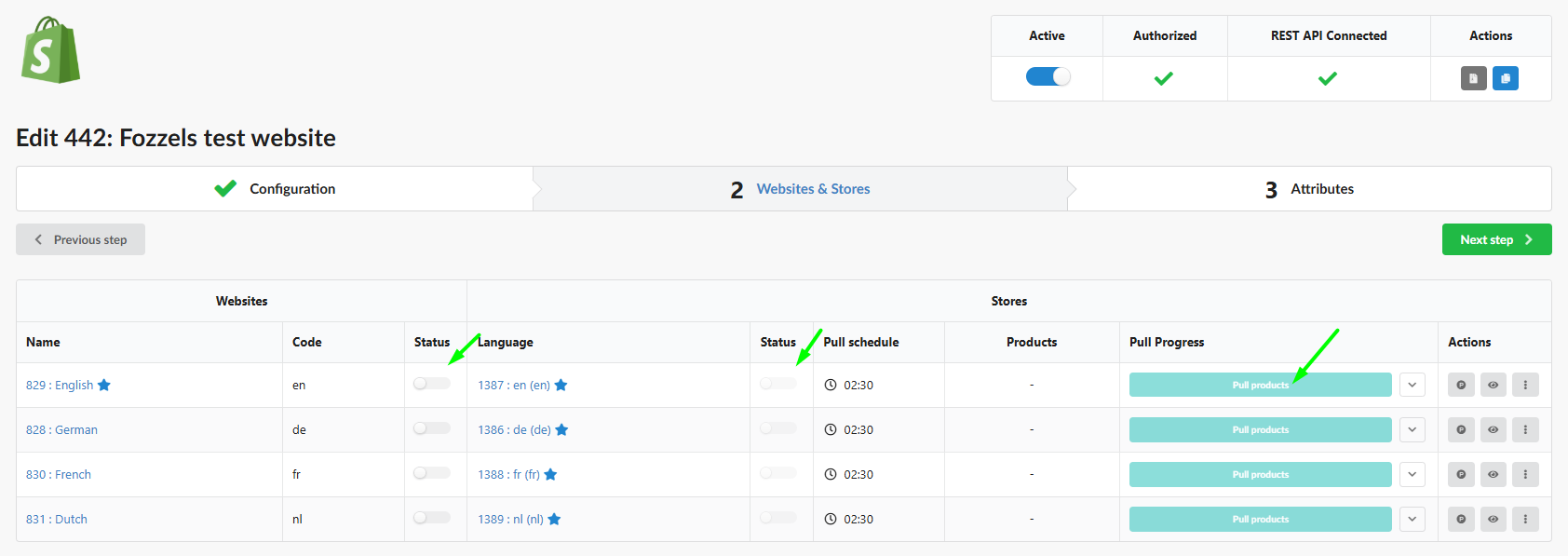
The table now shows your websites and their stores. The structure depends on the Markets mode from step 9. In Per language mode, every published language is a separate website with one store.
A star next to a website marks the default website. A star next to a store marks the default store of that website.
For each website you want to work with, turn on both toggles: Status in the Websites section and Status in the Stores section. Pull products becomes available only when both are on.
14. Pull products
- Click Pull products in the row of an active store. Fozzels starts four pulls at once: Product Attribute, Category Attribute, Category and Product.
- To follow each one, click the arrow next to the progress bar.
- When all four progress bars are green at 100%, the pull is complete. The Products column shows the number of pulled products.

Your Shopify connection is ready. You can now start building flows and generate your first content.
After the first pull, Product Pull Conditions become available on the Websites & Stores step. They let you filter which products are imported. This is covered in a separate article.
Need to change the Markets mode later?
Switching the Markets mode, in either direction, doesn't remove the old websites and stores. They stay in the Websites & Stores table as inactive, marked "Website is lost on integration", next to the new ones, which are created and activated automatically. Flows bound to the old stores stop running.
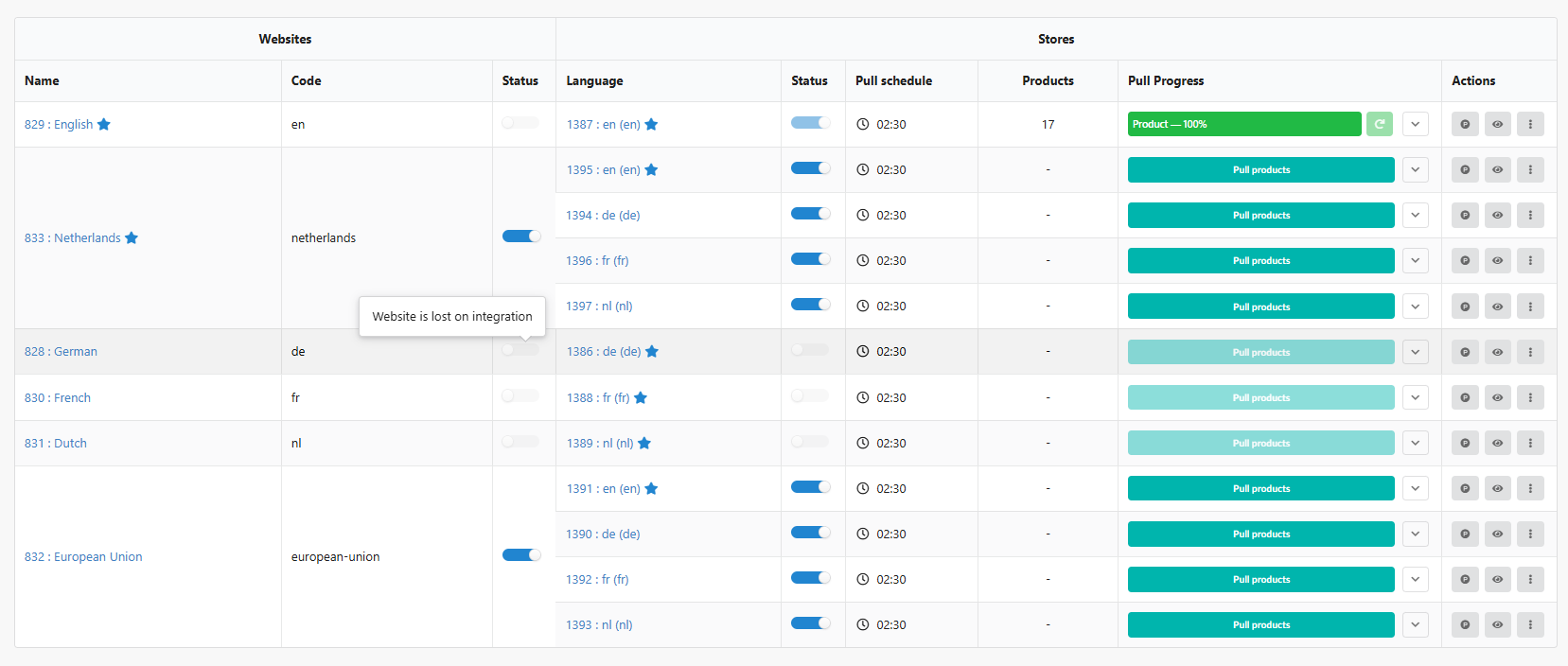
- No flows created yet: start over for a clean table. Deactivate the current integration, archive it and create a new integration with the same Api Key, Api Secret and App Host Name, choosing the correct Markets mode. You don't need a new app in Shopify.
- Flows already created: contact Fozzels support before changing the mode. We'll help you switch without losing your work.
Because the locale code on the Shopify side may change, we recommend changing the mode via Fozzels support in any case.
Moving from Per market to Per language specifically? See 2.3.4. Migrating a Shopify integration from Per market to Per language.