4.1.2.c How to Sync Generated Content to All Store Views in Magento 2
What this option does
With this option on, every push from the flow saves the generated text twice: in the flow's own store view, and as the product's default value for all store views in Magento.
Any store view that doesn't have its own value for that attribute shows the new text right away. A store view that has its own value set in Magento keeps showing its own text.
The option is available for Magento 2 integrations only.
When to use it
Turn it on when several store views should show the same text and you don't want to run a separate flow for each of them. A typical case: two or more store views in the same language, for example a main store and an outlet store.
Keep it off when your store views use different languages or need different texts. In that case, run a separate flow for each store view, as before.
How to turn it on
-
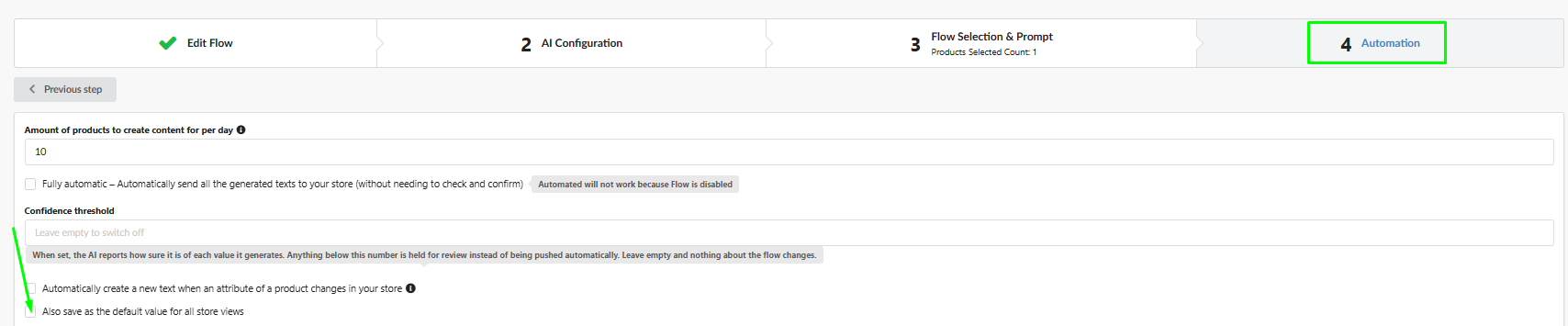
Open the flow and go to step 4 Automation.
-
Tick Also save as the default value for all store views. A short explanation appears under the checkbox.
-
Save the flow.
The option works for every push from this flow: a manual push after review, a fully automatic push, and Synchronize again. A multi-attribute flow always syncs all of its attributes together.
How store view values work
In Magento, a product attribute has a default value (shown in the All Store Views scope) and can have its own value in any store view. On the product page, switch the Scope to a store view: if Use Default Value under a field is ticked, that store view shows the default. If it's unticked, the store view has its own value and ignores the default.
Here is what one push does, with a flow on Default Store View and a store with two more store views:
| Store view | Before the push | After the push | Use Default Value |
|---|---|---|---|
| All Store Views (default) | Old text | New text | — |
| Default Store View (the flow's) | Old text | New text, saved as its own value | Unticked |
| Store view B, no own value | Old text (inherited) | New text (inherited) | Ticked |
| Store view C, own value | Its own text | Its own text, unchanged | Unticked |
To make a store view show the new text, open the product in Magento, switch the Scope to that store view, tick Use Default Value for the attribute and save. From then on it follows the default.
One store view per attribute
Only one store view's flows can save a given attribute as the default. This stops flows of different store views from overwriting each other's default text.
- Several flows of the same store view can have the option on for the same attribute.
- Flows of different store views can have the option on only for different attributes. For example, a flow on store view A syncs the description, and a flow on store view B syncs the meta title.
If you turn the option on for an attribute that a flow of another store view already saves as the default, the flow won't save and shows this error:
The flow "<flow name>" of another store view already saves this attribute as the default value for all store views. Only one store view's flow can write the shared default of an attribute.
To fix it, either remove the shared attribute(s) from this flow, or turn the option off (or remove the attribute) in the flow named in the error.
Duplicating a flow to another store view turns the option off in the copy and shows a warning. Turn it on again only if no flow of another store view saves the same attributes as the default.
Things to know before you turn it on
- All Store Views means every website. The default applies to store views of all websites in your Magento, not only the flow's website. If your websites use different languages, store views without their own value will show the flow's language.
- The last push wins. If several flows of the same store view sync the same attribute, the default holds the text of the latest push, even if another flow generated a newer text.
- The flow's store view stops following the default. After the first push with this option, the flow's store view holds its own value. Later defaults won't reach it until you tick Use Default Value there.
- It can trigger other flows. A flow of another store view that reads this attribute in its prompt and has Automatically create a new text when an attribute changes on treats the new default as a change. After the next pull, it creates a new text, and uses credits, for every product without its own value in its store view.
- Configurable products: only the parent product is updated. Its variants keep their own texts, which is fine because the product page shows the parent's texts.
- Turning the option off doesn't undo anything. Values already saved as the default stay. New pushes go only to the flow's store view.
- Removing an attribute from a flow doesn't clear the default. The last synced value stays until another flow syncs a new one.