What's new in Fozzels: October 2026
This update is all about saving you time and giving you more control over your AI content. You can now fill up to 13 attributes in one Flow, set up automatic quality rules with Workflows, and build prompts in a new editor with a live preview.
We also added a whole set of safeguards that keep AI mistakes out of your shop. Here's everything that's new and how to start using it.
Highlights
Fill up to 13 attributes in one Flow
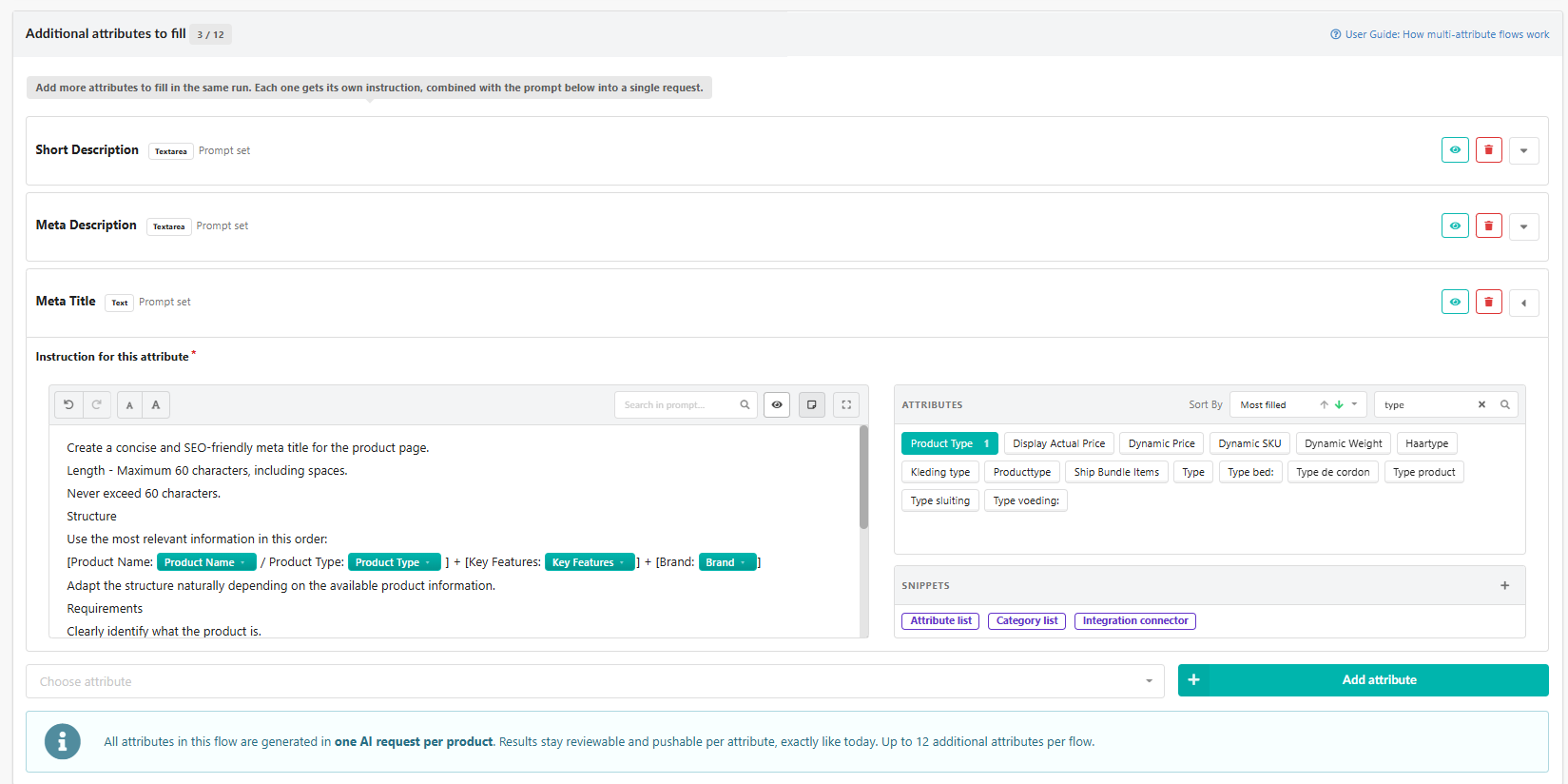
You no longer need a separate Flow for every attribute. One Flow can now fill a main attribute plus up to 12 more, for example a description, a short description, a meta title and a meta description. All attributes are generated together in one AI request per product, so your product data and images are sent only once, and the texts fit together naturally.
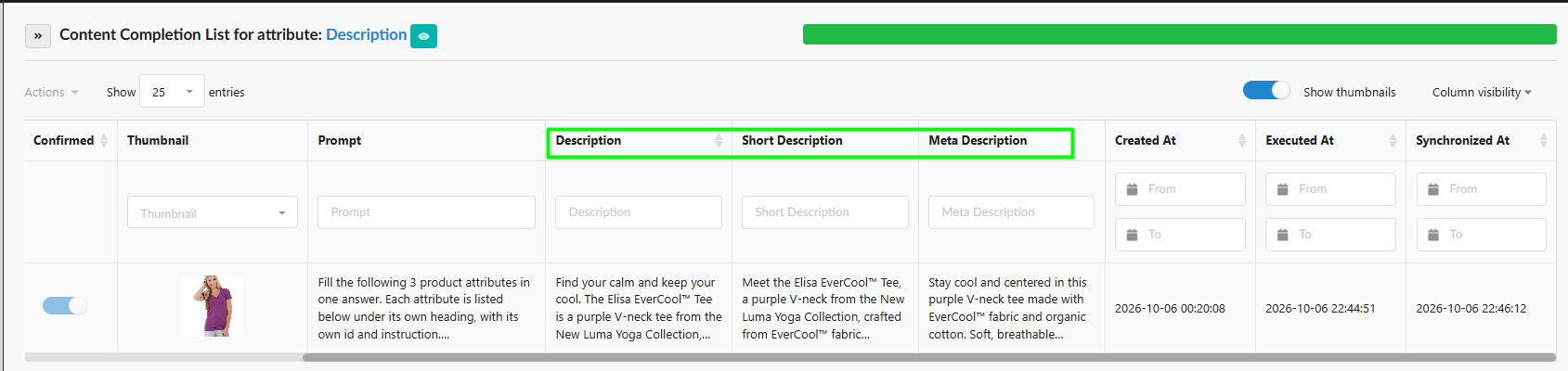
In the Batch List, each attribute gets its own column, so you review all results for a product in one row.
How to use it: open a Flow, go to Flow Selection & Prompt, and under Additional attributes to fill, add the attributes you need with an instruction for each. Read the guide
Workflows: automatic quality rules
Workflows check and edit every generated result before it reaches your shop. You set simple "IF / THEN" rules once, and Fozzels applies them to every new result:
- Replace text: swap or remove words and phrases, for example to keep your brand terms consistent.
- Truncate: cut a text to a maximum length, keeping whole words.
- Mark suspicious: hold a result for manual review, with a reason your team can see.
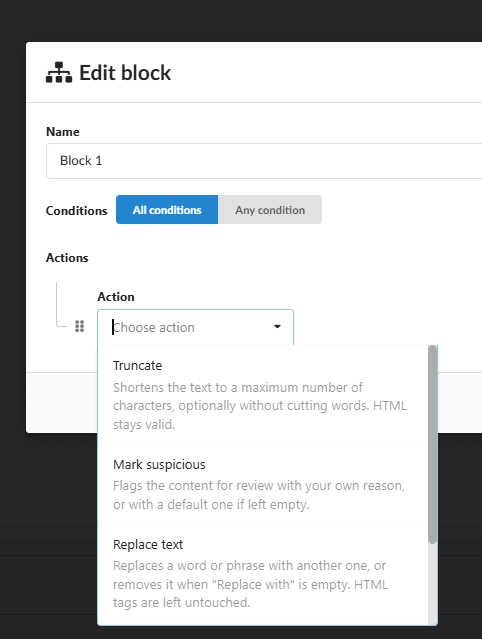
You can chain several Workflows in one Flow, and a flagged result is never synced until someone checks it.
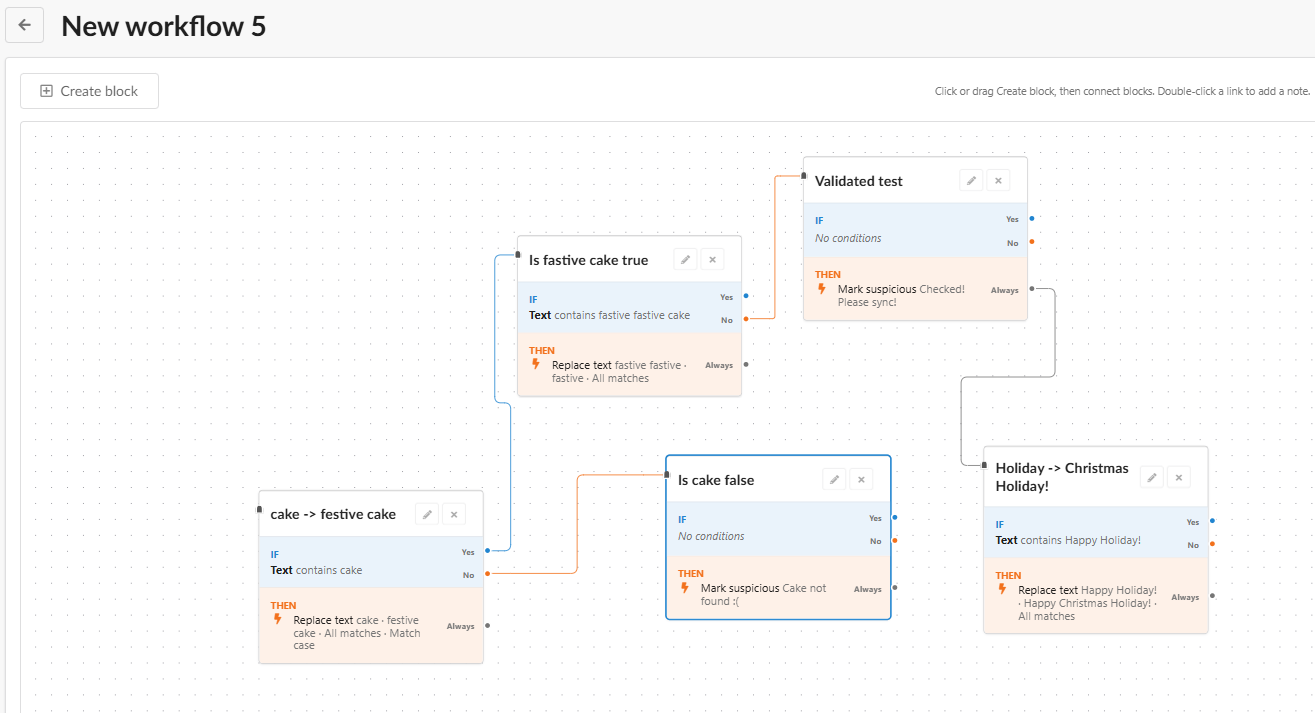
How to use it: go to Home → Workflows, create a workflow, then assign it to a Flow in the Automation step. Read the guide
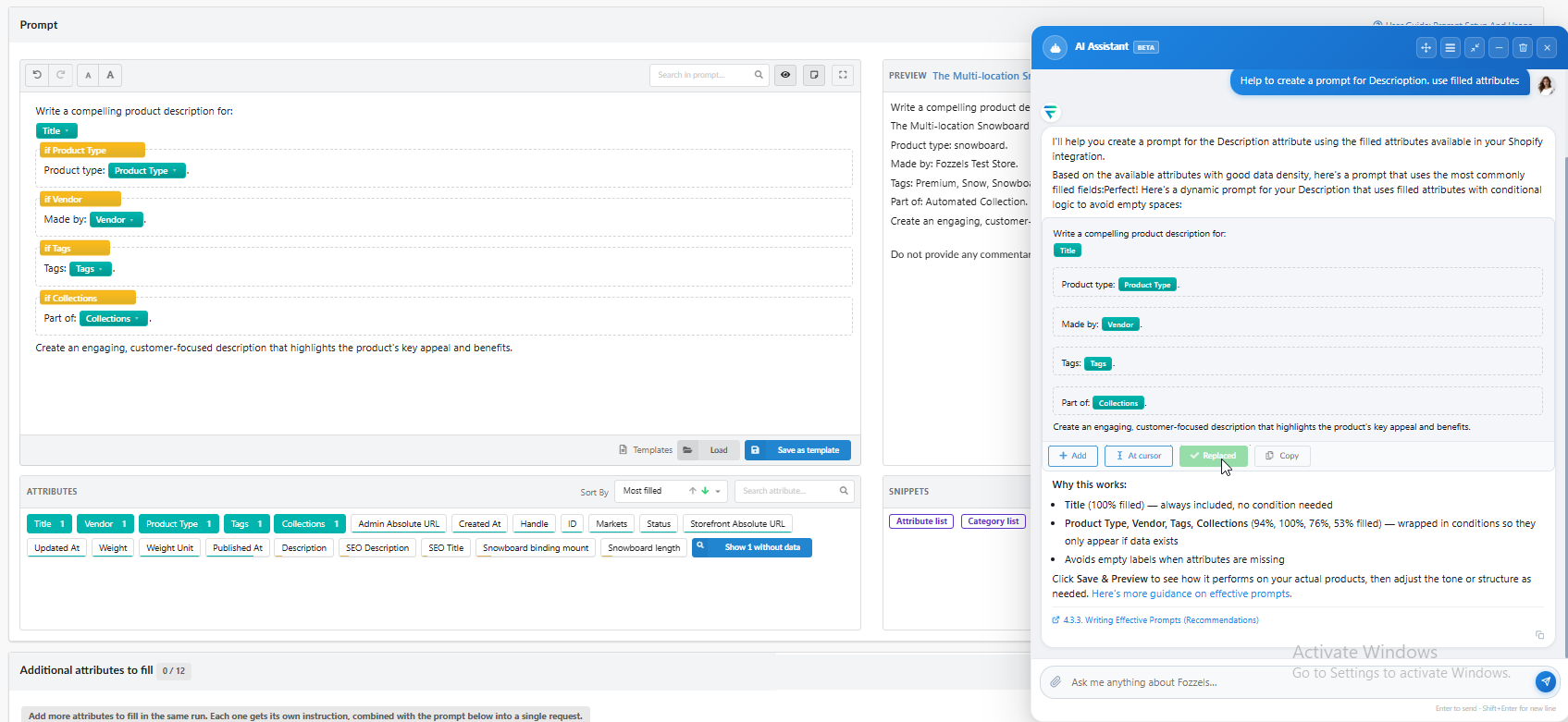
A new prompt editor with live preview
Building a prompt is now much easier. Attributes and conditions appear as clear blocks, and the live preview shows the exact prompt for a real product while you type, so you no longer need to save and open a preview to check it. Type / or drag an attribute from the panel to add product data.
Need help? Ask Jane, our AI assistant: she can write and adjust prompts for you right in the editor. Read the guide
Reusable prompt snippets
Save parts of your prompts that you use in many Flows, such as your brand's tone of voice or a list of attributes grouped by topic. Add a snippet to any prompt in one click. When you update a snippet, every Flow that uses it is updated too, so you never have to edit Flows one by one.
Category texts that know their products
Category Flows can now include the products of the category in the prompt, with their names, links, slugs and other attributes. Your category descriptions can mention real products and include working links to product pages, which is great for SEO and helps shoppers find what they need.
New AI models: GPT-6 Astra and Claude Opus 5.5
The latest and most capable models are now available in your Flows. GPT-6 Astra also supports web search, including in the Sandbox, so it can add useful information that isn't in your catalog. Premium models cost more per generation; you can see the price on each model tile in the AI Configuration step.

Safer AI content
AI models sometimes invent facts, guess what a product looks like, or leave notes in the text. We added safeguards at every step, so only reliable content reaches your shop.
-
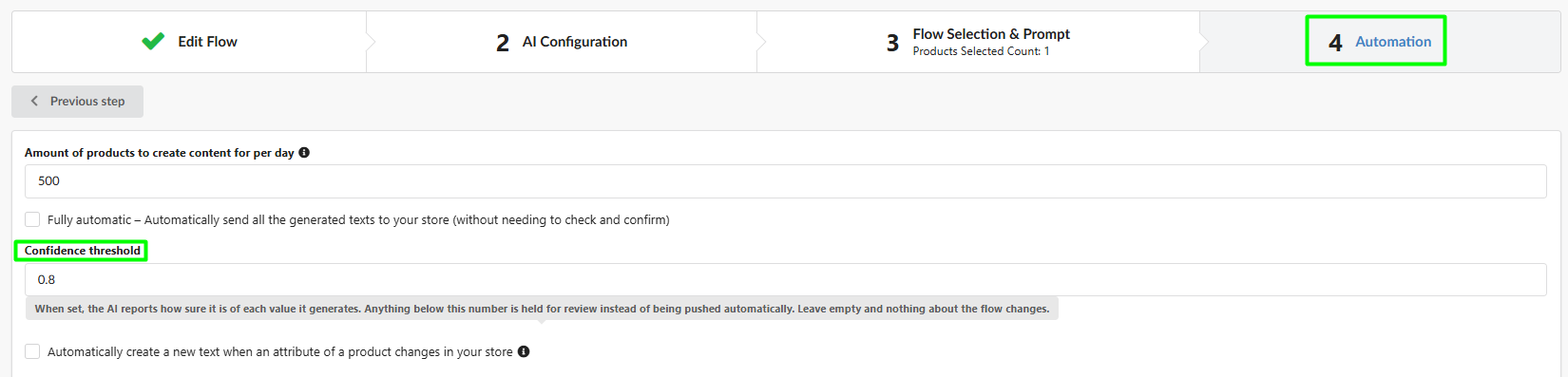
Confidence threshold. Set it per Flow in the Automation step, from 0.1 to 1.0. The AI reports how sure it is of each value, and anything below your threshold waits for your review instead of being sent automatically. Leave it empty to switch it off.
-
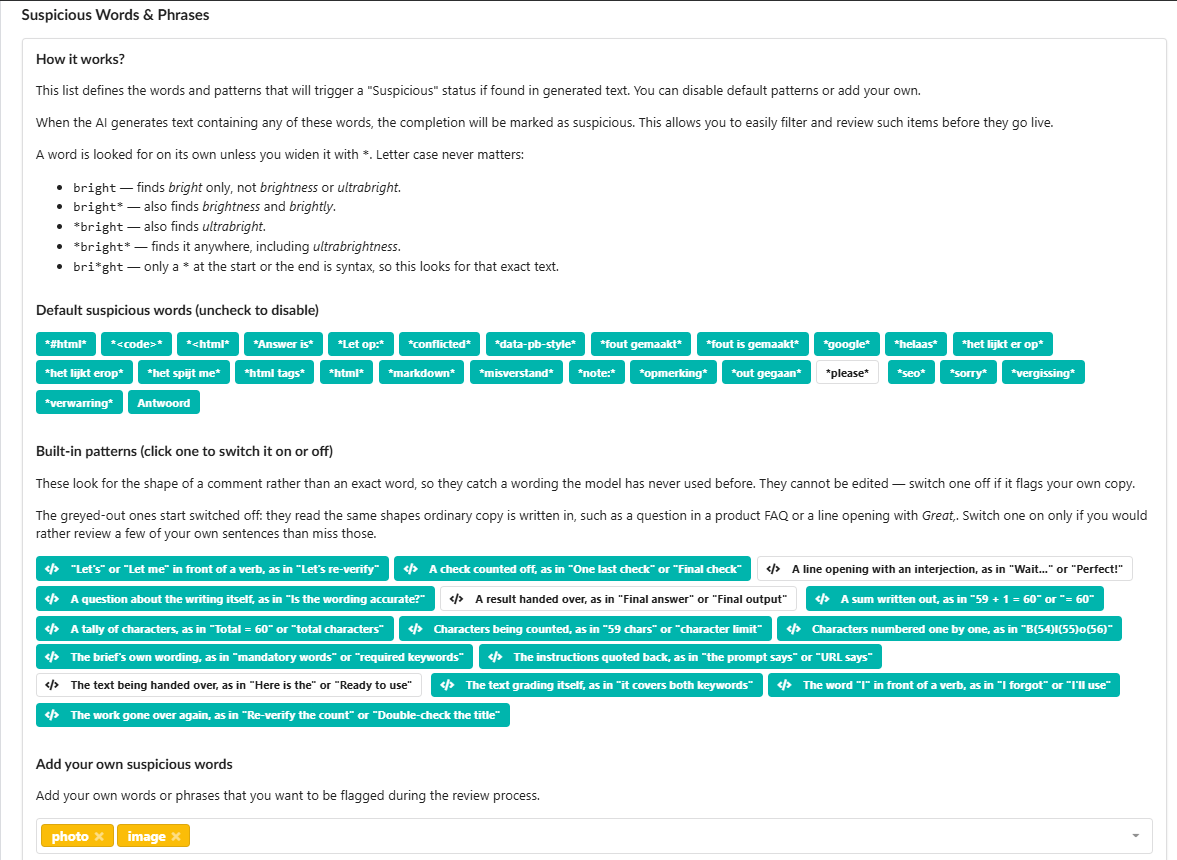
Smarter suspicious content detection. The default list of suspicious words and phrases is longer, and new built-in patterns recognize the typical shape of an AI comment, such as "Here is the…" or "Final check", even in wordings the model never used before. You can switch patterns on or off and add your own words in the integration settings.
-
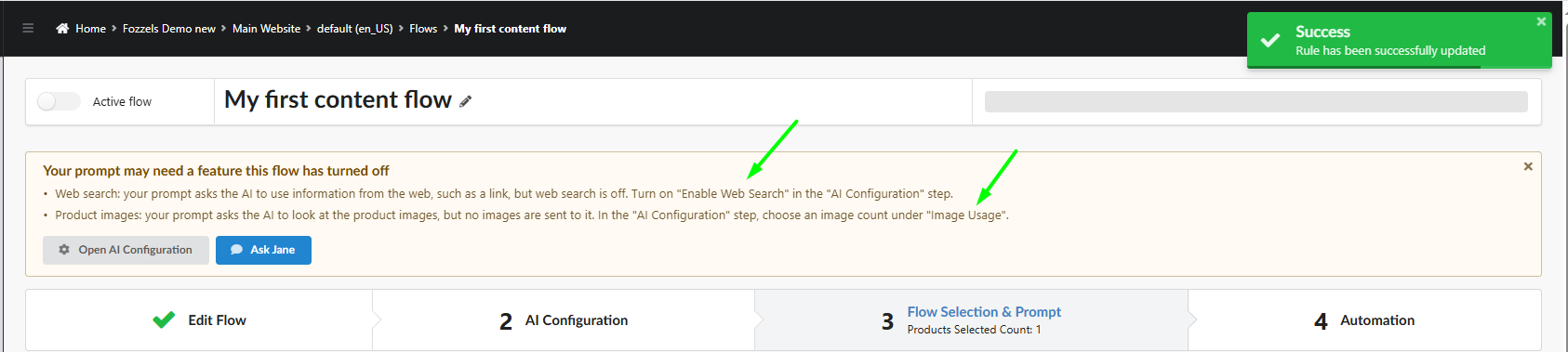
A check for features that are off. When you save a Flow, Fozzels checks whether your prompt needs a feature that is switched off, for example web search or product images. A warning tells you what's missing, with a button to open AI Configuration or ask Jane.
-
No guessing without images. If your Flow uses product images but a product has none, or they can't be read, that product is skipped instead of the AI guessing.
-
Reliable models only. We removed outdated models and models that could leave their reasoning in your texts.
-
Stronger built-in instructions. Every Flow now includes stricter general instructions that keep the AI to the facts and your requested format.
-
Every Flow needs an AI model. A Flow without a model can no longer be saved or started, so nothing fails silently.
-
Clear error messages. If a generation fails, you now see the actual reason instead of "Unknown error occurred", so you know what to fix.
Image Flows
-
Duplicate an Image Flow. Copy an existing Image Flow with all its presets, scenes, logo and prompt, and change only what's different.
-
One extra product image for the whole Flow. Under Additional product image for the whole flow, choose an image position, for example the 2nd image. Fozzels adds it to every product on top of the main image, so the AI sees more angles and reproduces the cut, print and texture more accurately. Products with fewer images use the main image only.

-
Run Now respects your daily limit. Manual runs now count toward the products-per-day amount of the Flow. If the limit is already reached, you'll see a warning with what to do: raise the amount in the Automation step or run the Flow later. Free test generations in the preview don't count.
Catalog and Batch List
-
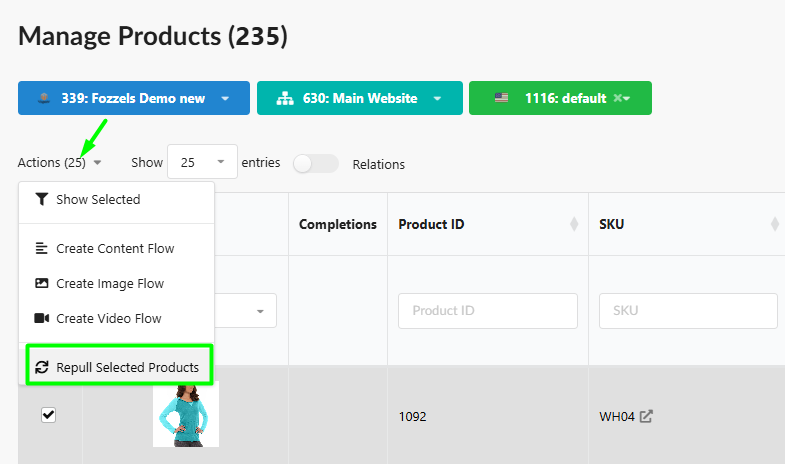
Refresh selected products. Changed a few products in your shop? Repull just those products instead of the whole catalog, and generate new content right away.
-
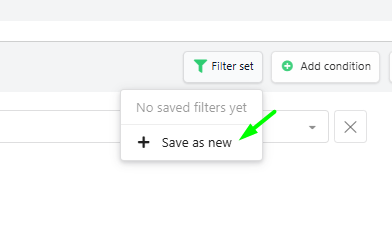
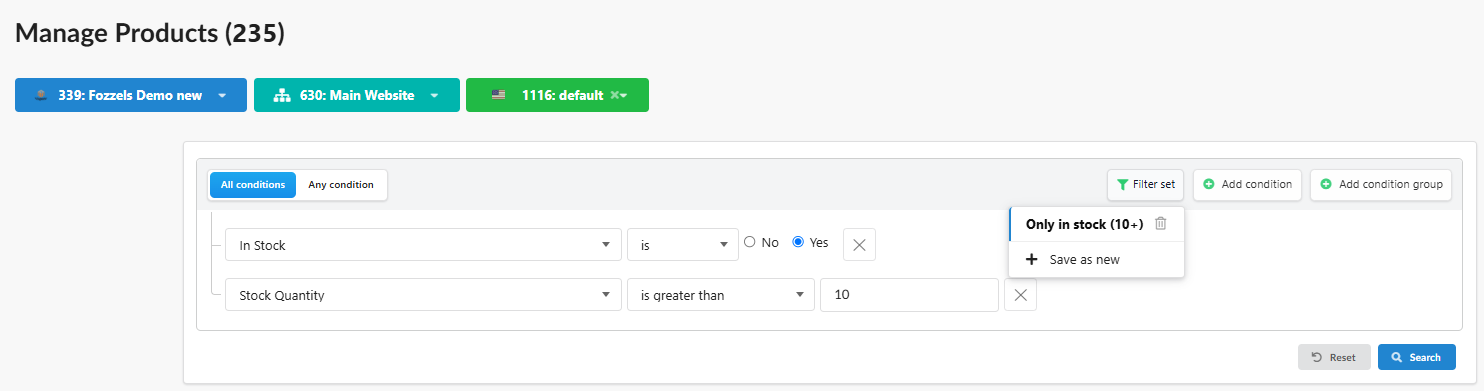
Saved filter sets. Save a filter combination once, for example "Women - empty descriptions", via Filter set → Save as new. Apply it in one click in integrations, the catalog and Flows, and add extra conditions when you need them.
-
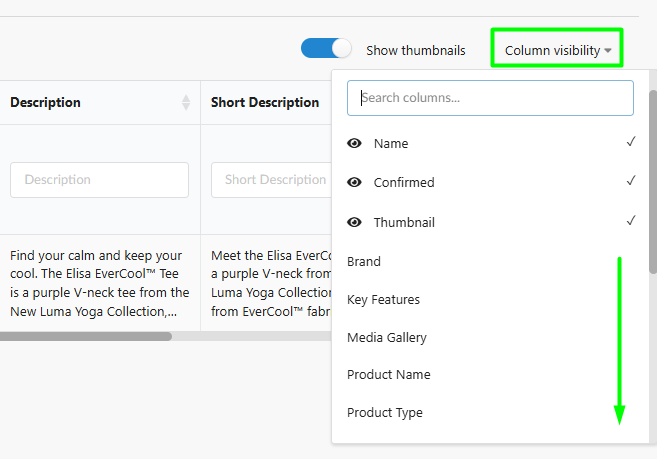
Choose your Batch List columns. You asked, we built it. Set any attribute to always show in the Batch List with one checkbox in its settings, and choose which prompt attributes to show per Flow under Column visibility.
-
Richer reports. Add extra columns with generated attributes to your exported reports, ready to share with your team.
-
Smoother review. The review popup now scrolls automatically.
-
Clear Flow activation. When you switch on a Flow, Fozzels shows exactly what will be activated and which other Flows will resume.
Jane and your account
- Jane knows the new editor. Our AI assistant now works with the new prompt editor and multi-attribute Flows. Ask her to read, write or update your prompts.
- Separate finance email. Send invoices and balance notifications to your finance or accounting address instead of your login email.
- Timezone by country. New accounts automatically get the timezone of their country, so imports run at the right local time.
- Connection help. If an integration can't connect, for example because of a firewall, Fozzels links you to a Help Center page that explains what to allow.
Integration updates
Magento 2
-
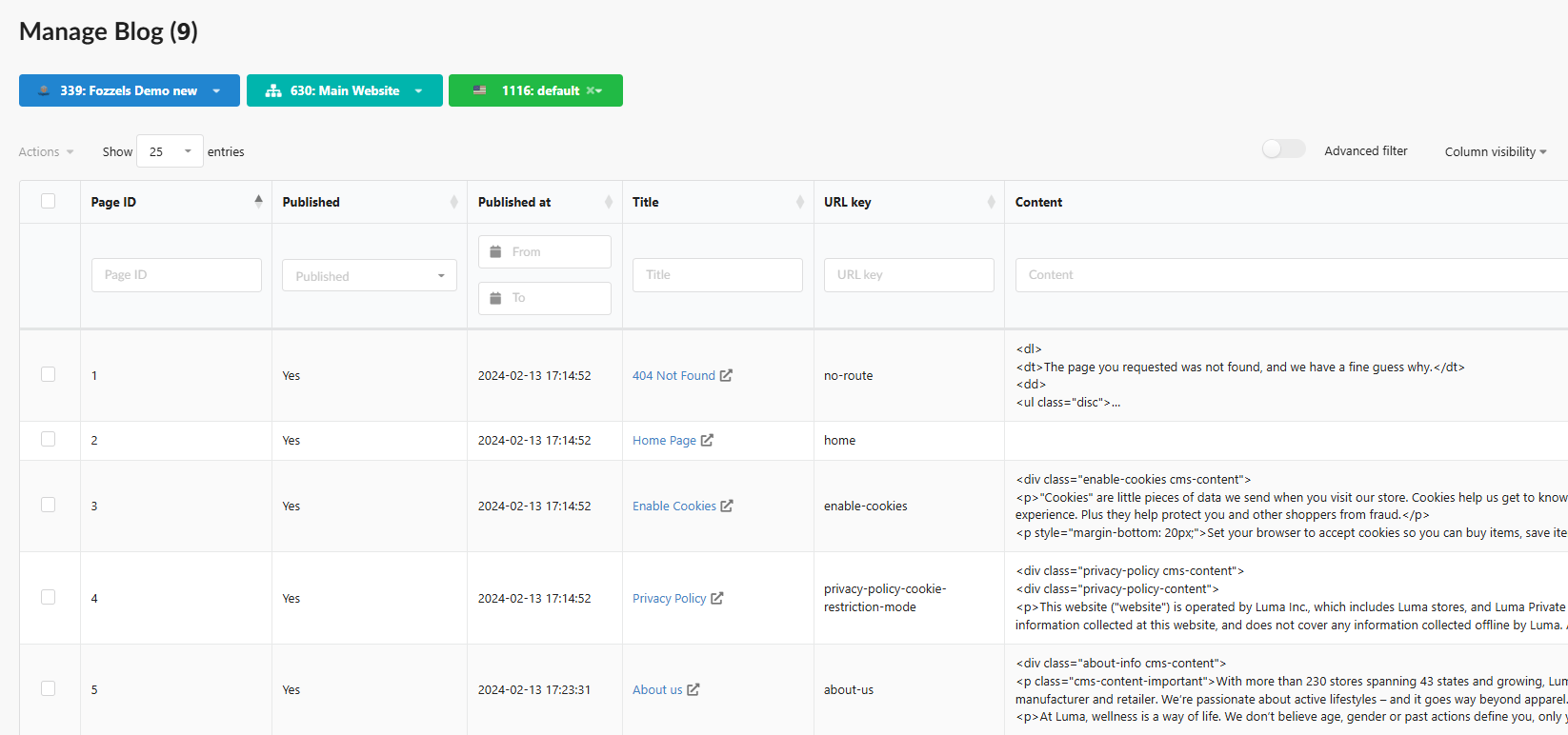
Blog and CMS content (first step). Fozzels now imports your blog and CMS content with its attributes and shows it in a separate catalog and brand page. AI content generation for blogs and CMS pages is coming in a next update.
-
Filter by stock status and quantity, so you can focus on products that are in stock, for example only products with more than 10 items available. Switch on Pull stock status and Pull stock quantity in your integration settings.

-
Sync images to All Store Views. Image Flow results can now be synced to the All Store Views scope, so one sync updates every store view.
WooCommerce
- Alt texts for product images, for better SEO and accessibility.
Salesforce
- Stock filtering and pull conditions at the integration level, so you import only the products you need.
CSV / Raw File
- Larger files are now supported thanks to pagination.
BizzLayer
- Products removed from your feed are no longer used for content generation.
Fixes
-
Special characters such as & in product names now display correctly in your shop.
-
The product count in Flows now matches your actual selection.
-
Flow sync progress no longer counts deleted products.

-
Filters in older Flows now pass products to the Batch List correctly.
-
The prompt and product preview update automatically when you change Flow filters.
-
Active Image Flows no longer show as inactive.
-
Image generation no longer stops on large or unavailable images.
Questions about any of these updates? Ask Jane in the app.