What's new in Fozzels: November 2026, part 1
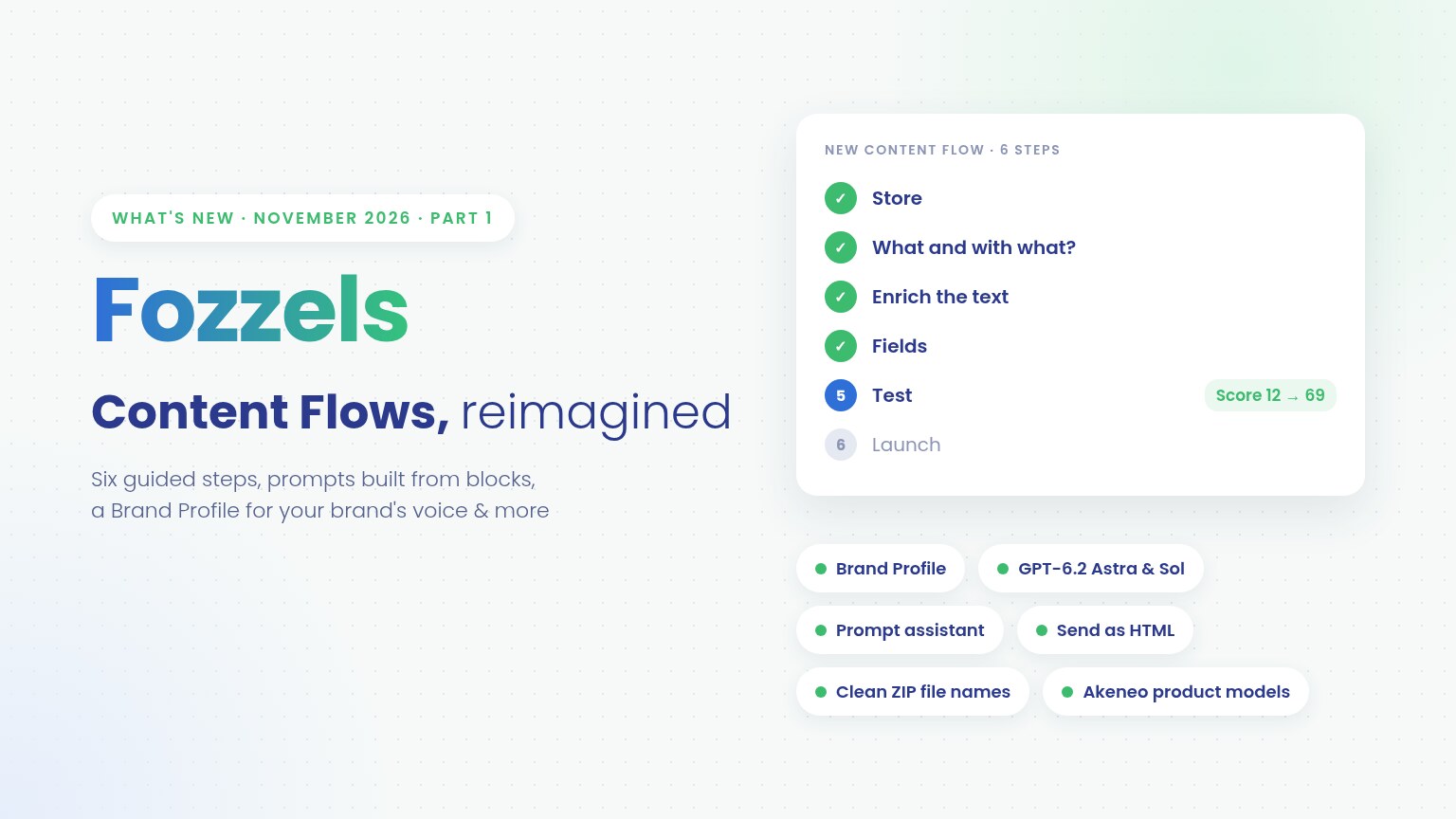
This is our biggest update since Multi Flow. We built Content Flows again from the start: you set up a Flow in six guided steps, you build the prompt from blocks, and the new Brand Profile keeps the voice of your brand in one place. Here is what is new:
- New Content Flows. Six guided steps, prompts built from blocks, tests with scores and a safe launch.
- Brand Profile. Save your role, audience, tone and rules one time. Every new Flow starts with them.
- Prompt assistant. Fozzels writes the first prompt for a new attribute in one click.
- Two new GPT-6.2 models, and attributes that you can send to the prompt as HTML.
- Clean file names in image downloads, Akeneo product models as parents and more reliable image generation.
Content Flows, reimagined
Setting up a Flow is now a guided path in six steps. Each part of your prompt is a block that you switch on or off, and the voice of your brand is in one place: the new Brand Profile. You get more control with less work, for your first Flow and for many Flows.
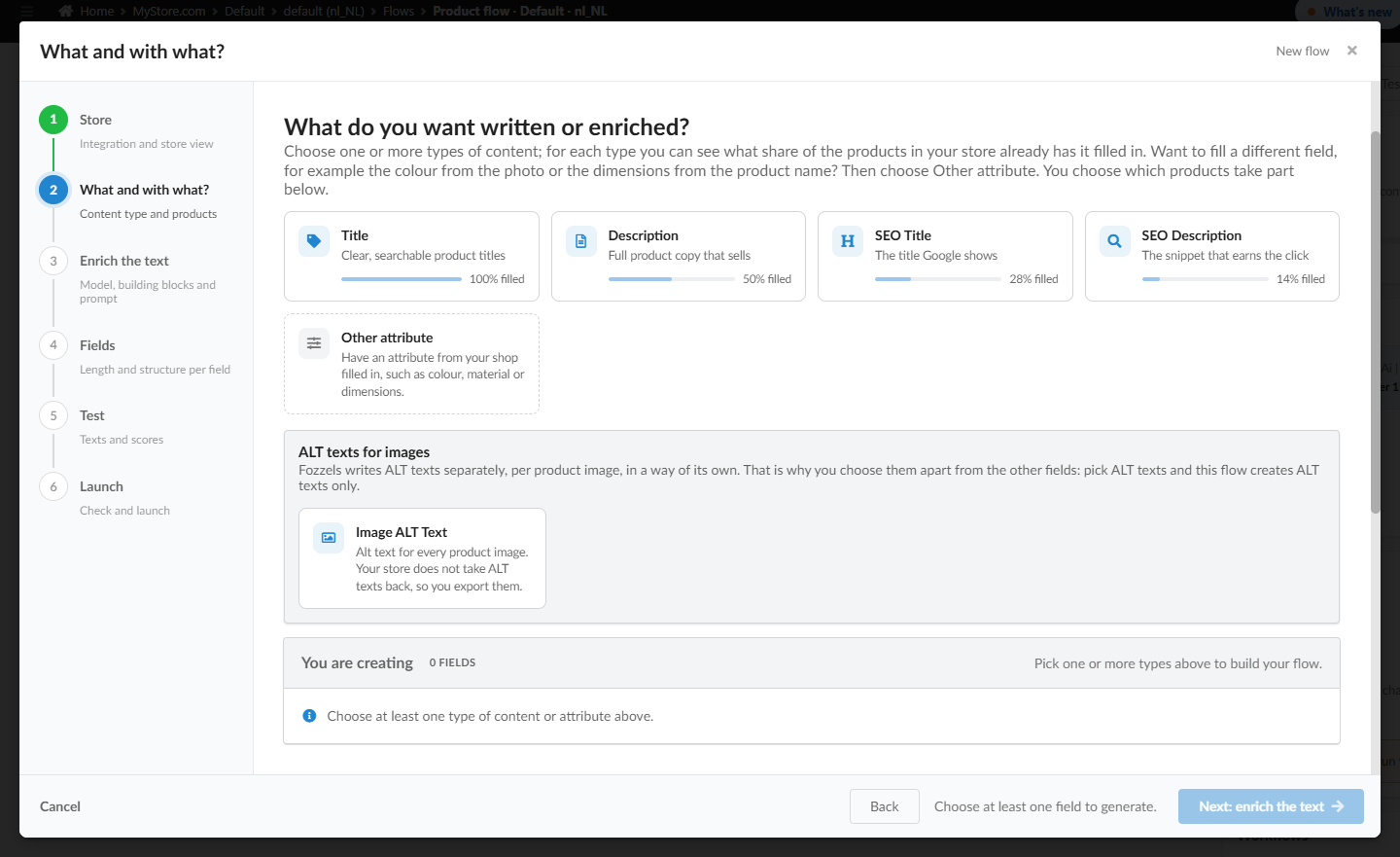
For a full description of each step, see 4.1.2. Creating a Content Flow: the six-step walkthrough.
A guided Flow in six steps
- Store: select your integration, website and store view.
- What and with what?: select the fields to generate and your products. You see how many products already have a value in each field.
- Enrich the text: select the AI model and build one shared prompt from blocks: who writes, for whom, in which tone, and where the facts come from.
- Fields: set the length, structure and format for each field.
- Test: generate texts for real products and see the scores before you spend money on many products.
- Launch: set how many products Fozzels does each day and if you approve the texts first.
Each step tells you what is missing before you can continue.
Step by step or Expert view
Step by step guides you through the steps, one at a time. Use it for new Flows and new team members. Expert view shows the full Flow on one page, also the advanced settings, such as the confidence threshold, the cooldown between Flows and what Fozzels does when a product has no image yet. You can switch between the two modes at any time with one click.
Prompts built from blocks
You do not have to write long prompts by hand. Switch on the blocks that you need, and Fozzels makes the prompt for you:
- How the text sounds: the role, the target audience and the tone of voice. Select each one with one click.
- Neuromarketing principles: four writing principles from research with Erasmus University Rotterdam. Fozzels tells you which principles fit your products.
- Where the facts come from: the attributes of your store, up to five product photos and an internet search for the specifications of the manufacturer. The AI uses only the sources that you switch on. It does not invent facts.
- Keywords, snippets and rules: your own search terms, instructions that you use again, words to avoid and the standard check rules of Fozzels.
Extra fields, such as SEO Title and SEO Description, use the same main prompt and need only a short guideline. A live preview shows the instruction with the data of a real product.
Prompt assistant: a ready prompt in one click
When you add a new attribute to a Flow and the attribute has no prompt, Fozzels can now write the first prompt for you. You could always ask the assistant in the chat, but this button does it in one click.
- Add a new attribute to your Flow and open its empty prompt.
- In the message "The prompt is empty. Let AI write a first one…", click In the store's language or In my language.
- Fozzels writes a prompt for the attributes of your store. It adds the correct placeholders, for example Title, Vendor and Product Type, and puts them in conditional blocks, so that it skips empty attributes. It also adds rules for this field.
- Read the prompt, change it if necessary, and save it.
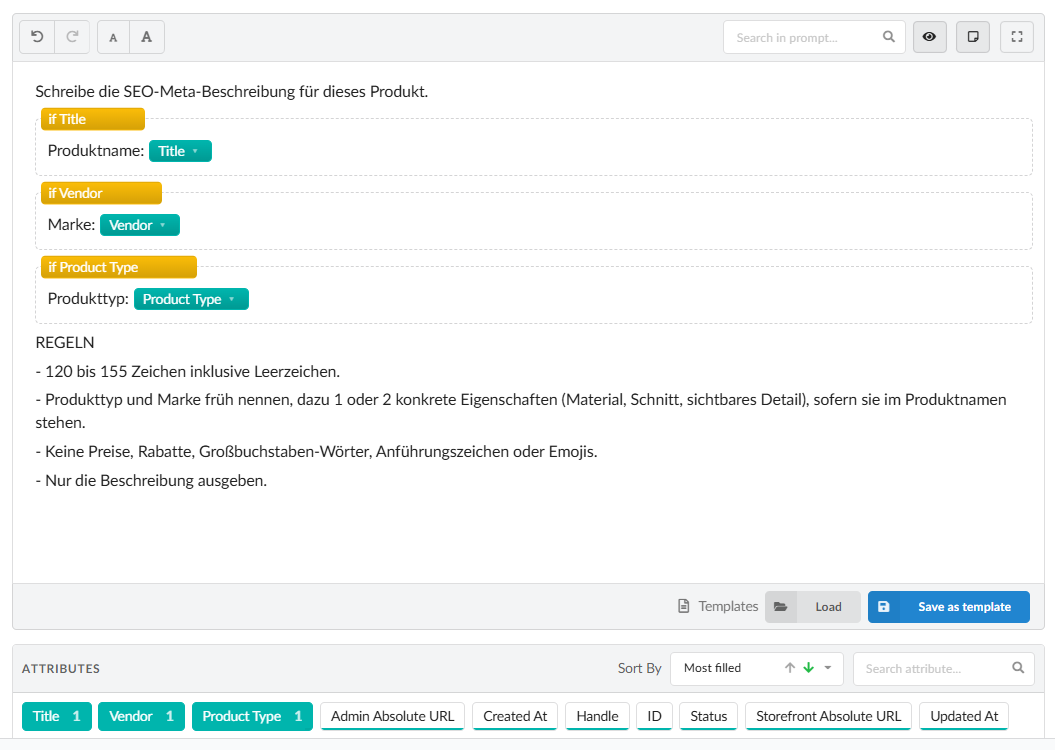
Select the language of the store to get a prompt that the model can use as it is. Select your own language if you want to read and edit the prompt more easily.
Full control for each field
Each field has its own settings: a length, a structure in sections (headings, paragraphs and bullet lists, each with its own instruction and condition) and a format: HTML or plain text. You can also add a Trust block at the end of each description, for example your return policy, your warranty or your physical store. Fozzels adds it word for word, or the AI writes it into the text in its own words.
Test before you launch
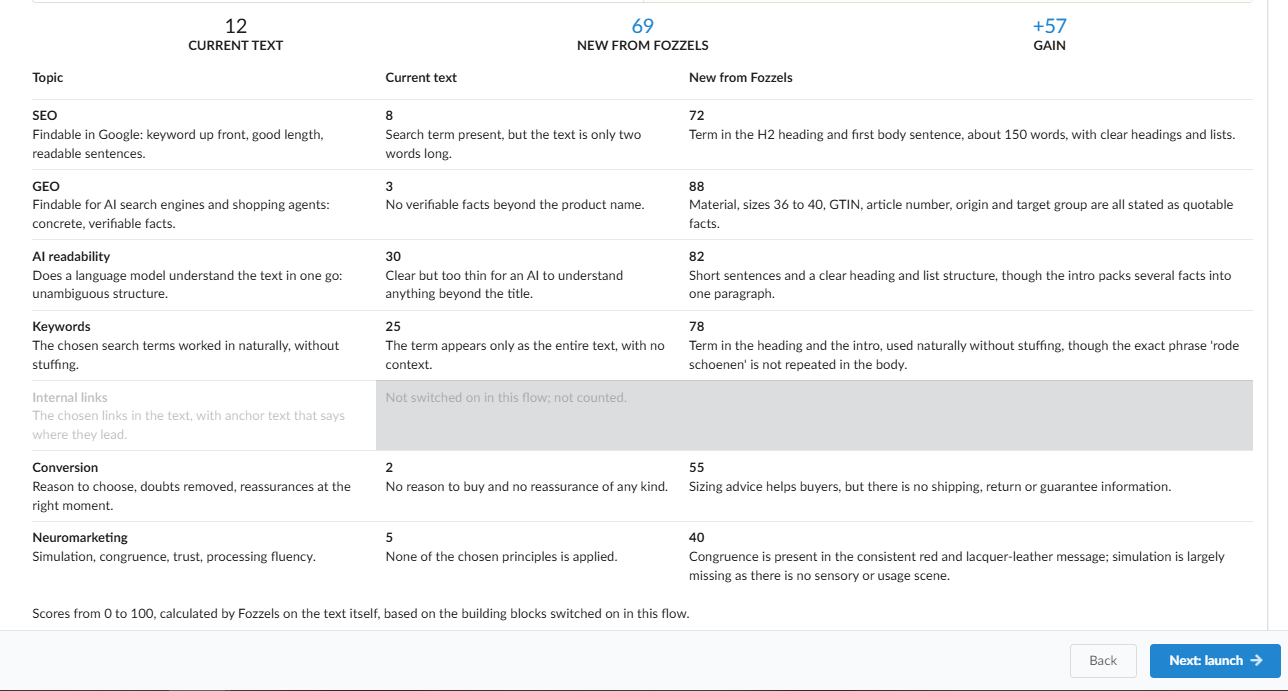
Generate texts for real products and compare the current text with the new text side by side. Fozzels gives both texts a score from 0 to 100 for SEO, GEO (visibility in AI search), AI readability, keywords, conversion and neuromarketing. It explains each score in one short sentence and shows the total improvement.
Safe by default
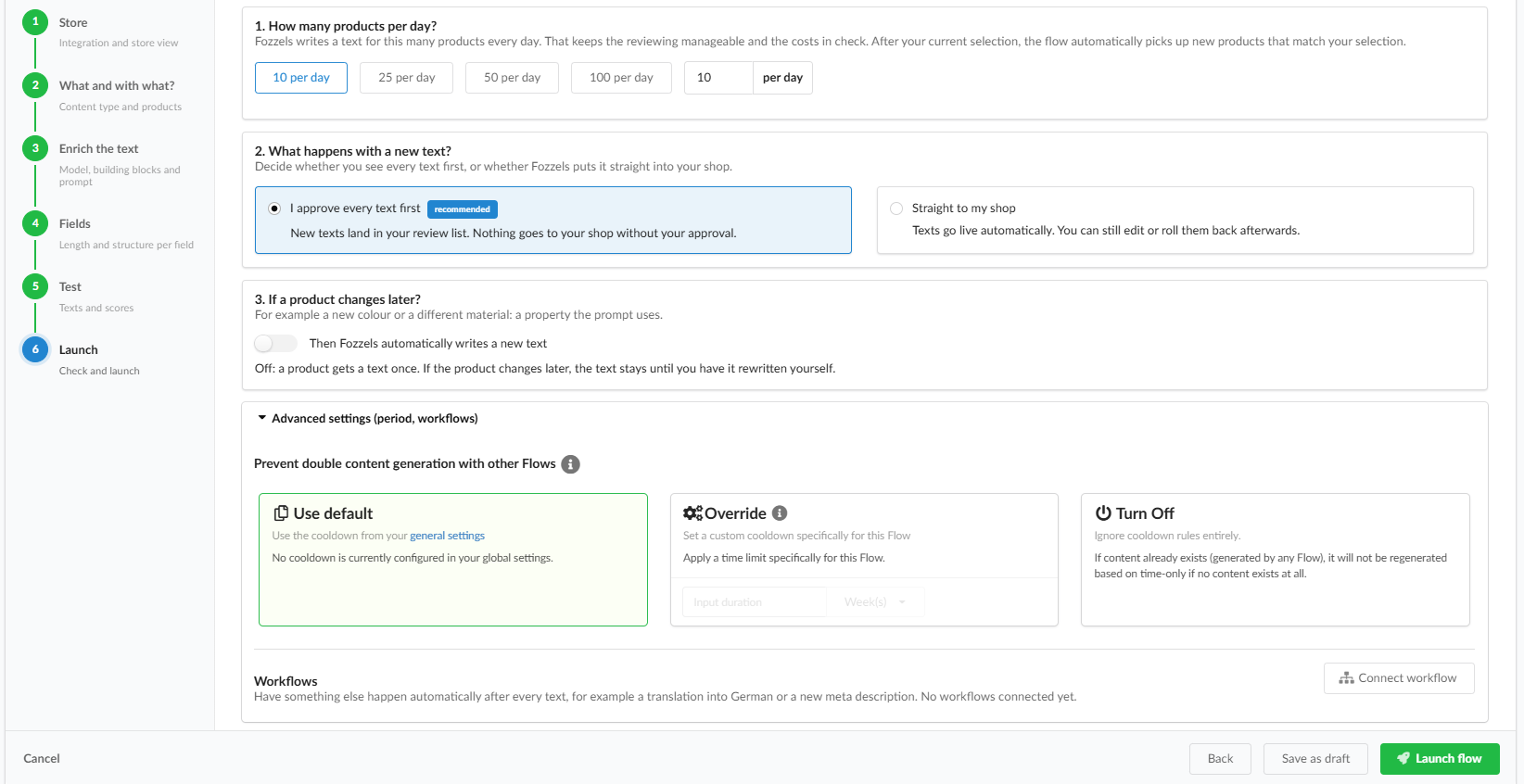
A new Flow starts carefully. A daily product limit keeps the costs and the review work small, and new texts wait for your approval before Fozzels sends them to your shop. When you trust the results, switch to automatic publishing. Fozzels can also write a new text when the product changes, and you can connect workflows that run after each text.
Introducing Brand Profile
Save the voice of your brand one time and use it everywhere. The new Brand Profile page in your account settings sets what each new Content Flow starts with: the AI model, who writes, for whom and in which tone, which neuromarketing principles and keywords the AI uses, and what must never be in the text.
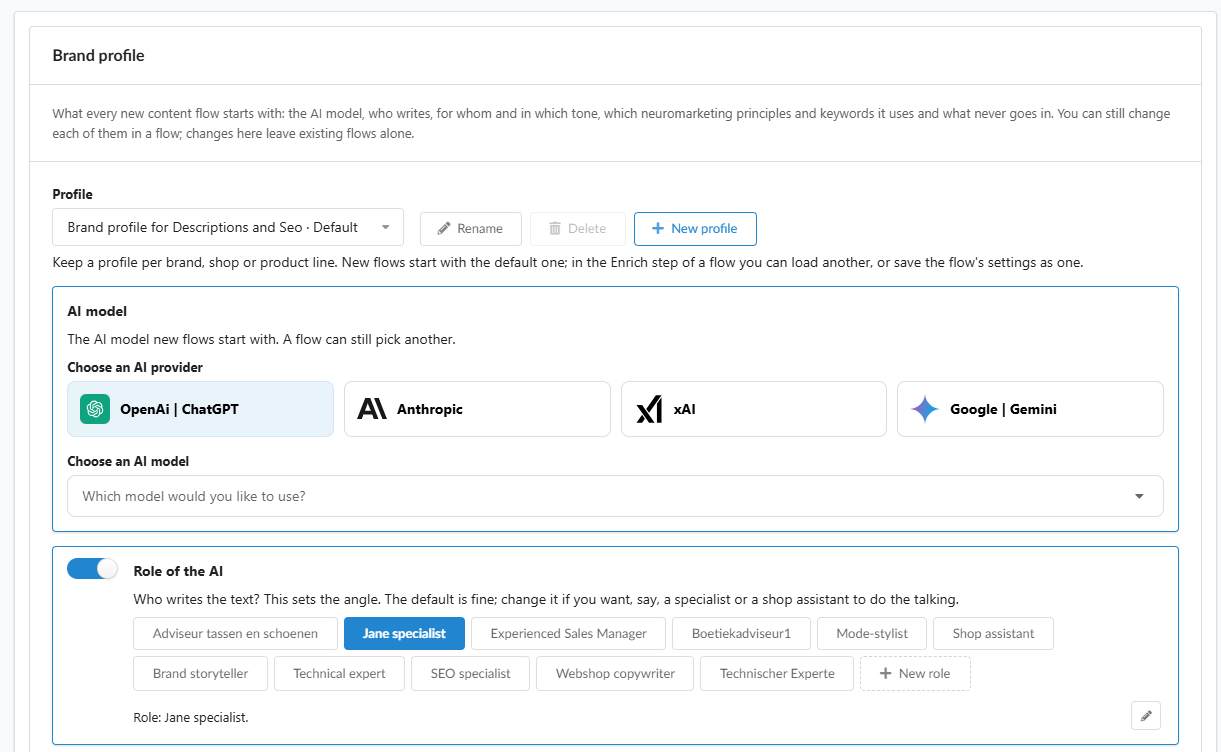
- A profile for each brand, shop or product line: for example, one for descriptions and SEO, one for FAQ and one for a sale. New Flows start with your default profile.
- Load or save from a Flow: in the Enrich the text step, load a different profile or save the settings of the Flow as a new profile.
- One click in each Flow: select a saved role, audience or tone when you build a prompt, or make a new one. Click Make default to use it in all new Flows.
- Your own instructions: add other information that the AI must always know, for example how to address the reader or that you ship in 24 hours.
You can still change each setting in a Flow. When you change a profile, Fozzels does not change the Flows that you already have. The result: the same style of content in all your stores, languages and channels, without copying prompts.
For more information, see Brand Profile.
Also new in Content Flows
- Fill rates everywhere: see for each field and each attribute how complete your catalog is.
- ALT texts have their own Flow mode.
AI models
New text models: GPT-6.2 Astra and GPT-6.2 Sol
Two new OpenAI text models are now available in Fozzels.

- GPT-6.2 Astra is the new frontier model of OpenAI, for your most difficult projects. Use it for premium descriptions, products with many attributes and complex prompts. It uses fewer output tokens than GPT-6 Astra, so each text costs less.
- GPT-6.2 Sol is the efficient model for everyday work. It has the same price as GPT-6.1 Sol, so it is a good choice for large catalogs.
Select the model in the AI configuration of your Flow, as before.
GPT-5 Flows now use GPT-5.4
OpenAI stops GPT-5 in its API on 11 December 2026. We moved all Flows that used GPT-5 to GPT-5.4, so your generation continues. You do not have to do anything.
Text content
Send attributes to the prompt as HTML
Until now, prompt placeholders sent only plain text to the model: Fozzels removed the HTML tags and links of the source attribute. For attributes that contain HTML, you can now send the original HTML.
- In the prompt editor, click a placeholder, for example Description.
- Turn on Send as HTML. An orange HTML badge shows on the placeholder.
- Look at the Preview: the model now gets the full markup, with headings, lists and links.
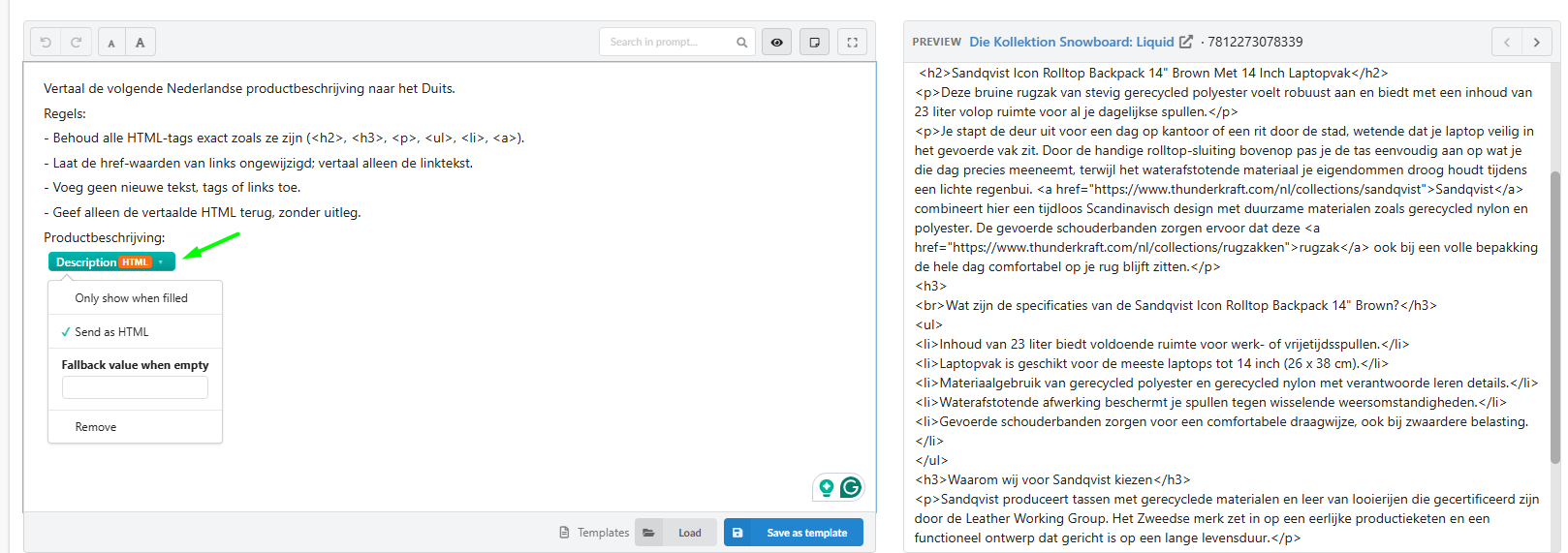
This helps when the structure is important: when you translate descriptions, when you rewrite or improve texts, and when you want to keep internal links for SEO.
Images
Image downloads: file names without the Fozzels ID
A new option in the Automation step of an Image Flow removes the Fozzels ID from the file names in the ZIP download. The files have exactly the name from your template (for example 2900268758010_01.jpg), so you can import them directly into systems such as SRS. You do not have to rename them.
- In your Image Flow, go to step 4, Automation.
- Under File name for pushed and downloaded images, set your template, for example
{id}_{productType}. Select attributes from the list to add them. - Select Leave out the Fozzels ID (_{id}) in ZIP downloads.
- In the Image Completion List, select your images and click Actions → Download images (ZIP).
- Download the ZIP file from Export / Generated Data. The file is available for 24 hours.
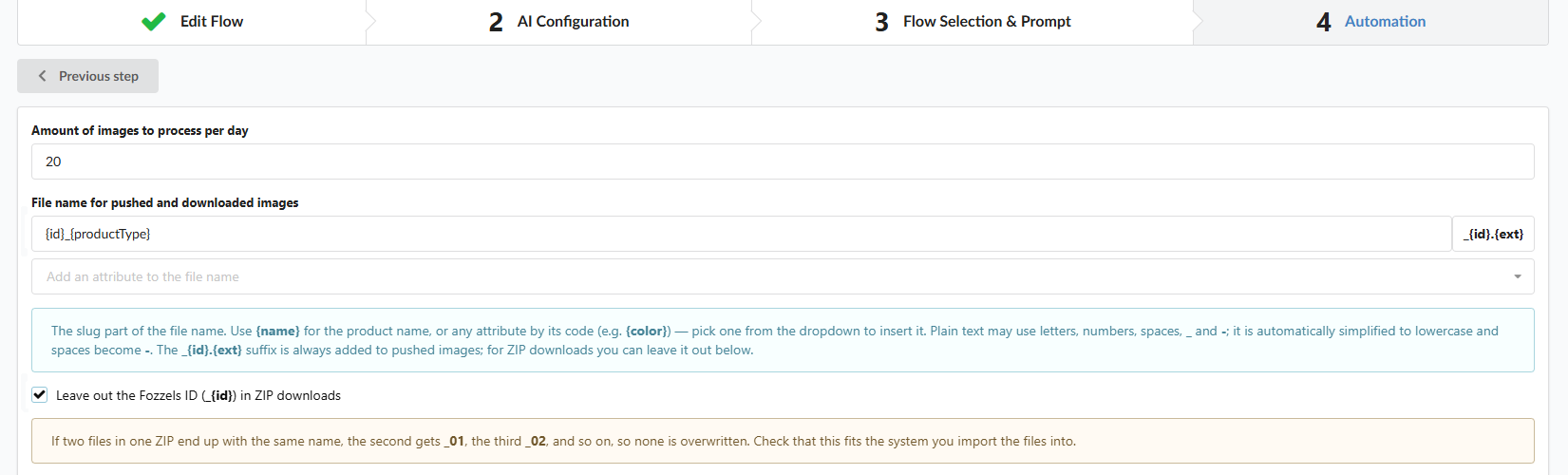
If two files in one ZIP file get the same name, the second file gets _01, the third file gets _02, and so on. Thus Fozzels does not overwrite a file. Images that Fozzels pushes to your shop always keep the _{id}.{ext} suffix.
Accept images when you want
Before, an image synced to your shop only if you accepted it in the 14 days after Fozzels generated it. This limit is gone: you can now review and accept images when you want, and they sync immediately after you accept them.
- Images that wait for your review now show Needs your review. Before, they showed a loading spinner that looked stuck.
- Did you accept an image a long time ago, but it did not sync? Click Actions → Confirm all, Save & Sync to confirm it again. The image then syncs immediately.
- We removed the Fully automatic checkbox from Image Flows and Video Flows, because it did not push anything to your shop. Images and videos sync when you accept them.
Integrations
Akeneo: pull product models as parents
A new option in the Akeneo integration, Pull product models as parents, also pulls your Akeneo product models. Fozzels shows them as parent products above their variants.
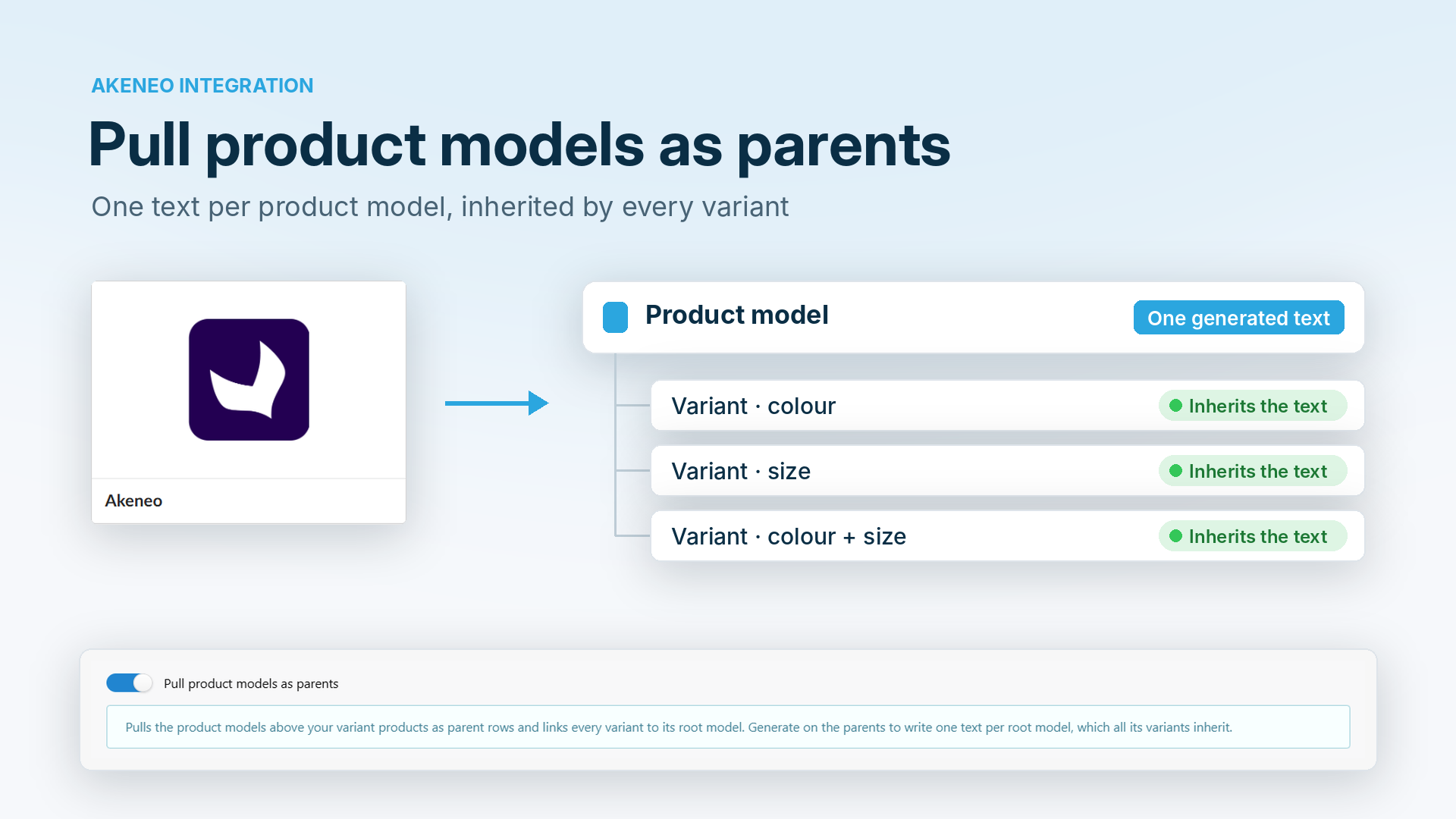
Fozzels then generates the content one time for each parent product and pushes it to the product model in Akeneo. All variants, such as colours and sizes, get it automatically, so you do not generate the same text for each size.
- Open the settings of your Akeneo integration.
- Turn on Pull product models as parents.
- Run your Flow on the parent products to write one text for each root model.
Improvements
A new Daily total batch list
We redesigned the Daily total batch list. It now gives you a clear daily overview of all the content that Fozzels generates for you.
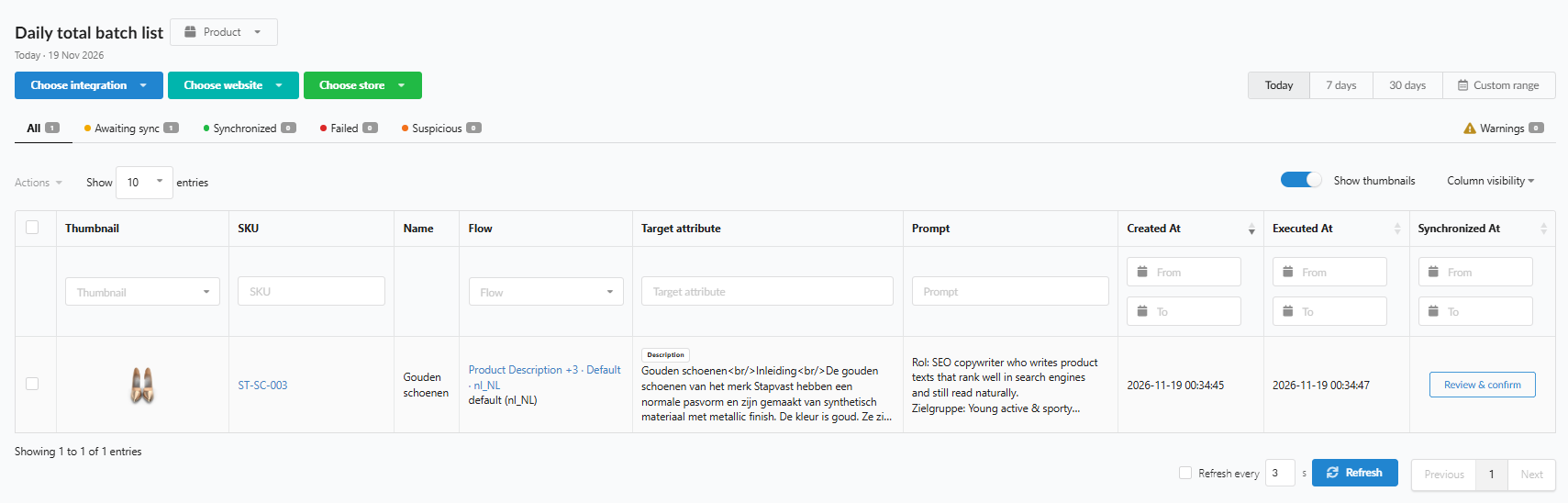
- Content types: use the selector next to the title to switch between Product, Category and Blog content.
- Statuses at a glance: the tabs All, Awaiting sync, Synchronized, Failed and Suspicious each show their own count.
- Date ranges: select Today, 7 days, 30 days or a Custom range with one click.
- New buttons: for example, Review & confirm is now in the row.
- Deleted column: products that are not in your catalog anymore show a Removed from catalog badge below the SKU and a bin icon. The same Deleted / Not deleted filter is also available in your Batch lists.
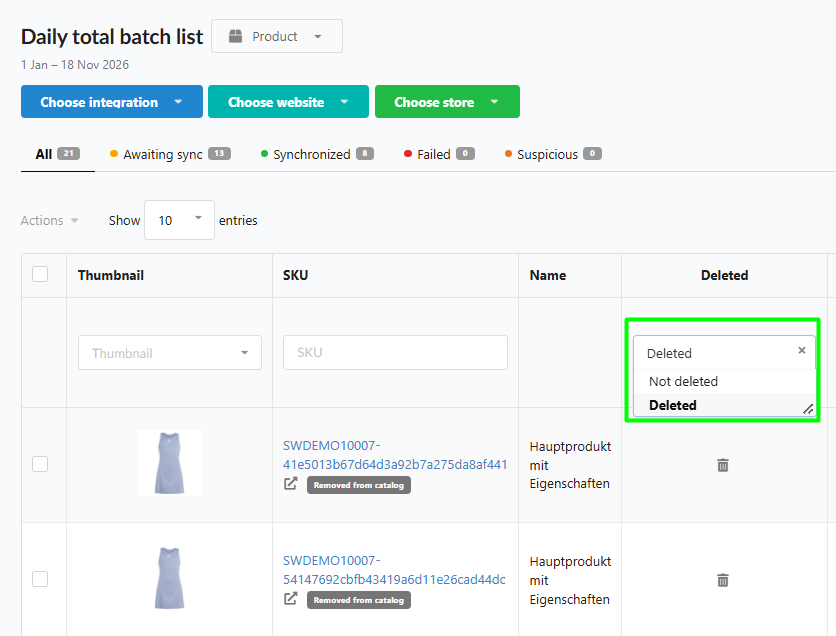
Your lists stay clean, and mass actions are safer, because you can easily filter out removed products.
More reliable image generation
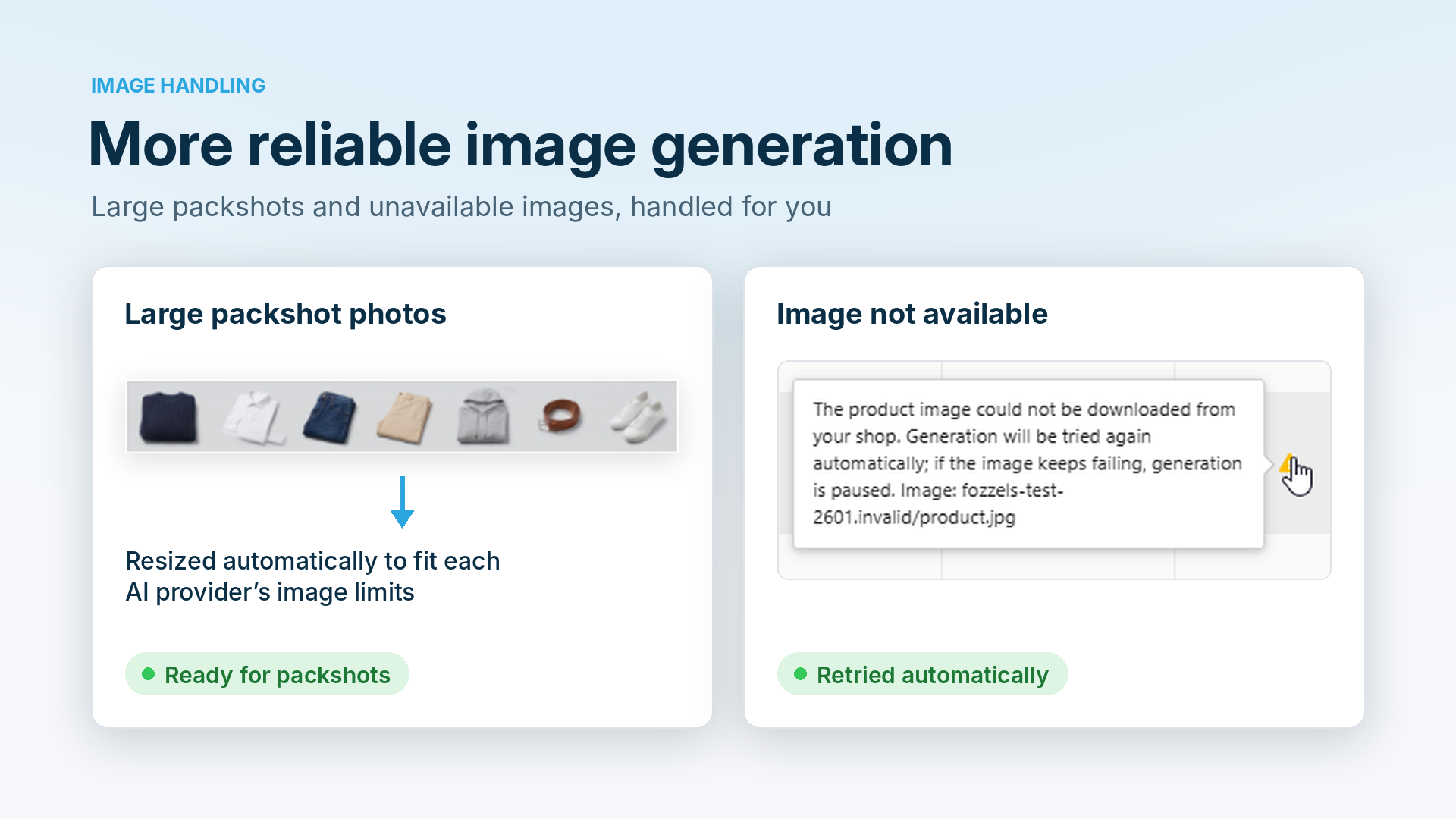
- Large packshots. Fozzels already made product images smaller before it sent them to the AI, but not large packshot photos, for example a wide strip with many products. Many shops now use such photos, so Fozzels now makes them smaller too, to the maximum size that each AI provider accepts.
- Clear warnings when an image is not available. If Fozzels cannot download a product image from your shop, the row shows a warning icon, a short explanation, the image address and the error code. Fozzels tries again automatically and continues the generation when the image is available again. If the image continues to fail, Fozzels pauses the generation for that product.
Search by SKU in the Image Completion List
The Image Completion List now has a search field in the SKU column. Type a SKU to find the image that you need immediately, also among 1,000 images.
Fixes
Cleaner output for plain-text attributes
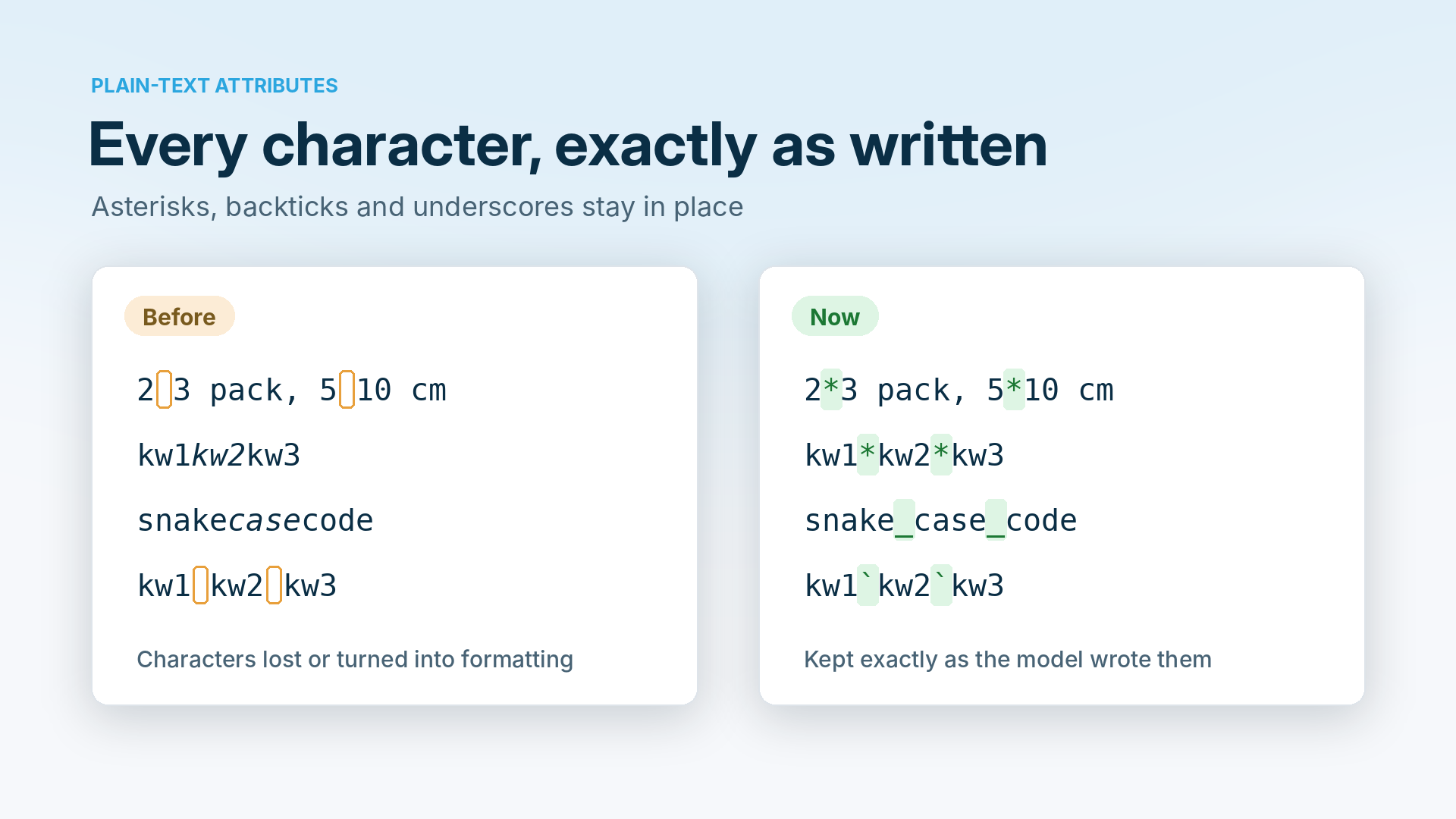
For attributes without HTML, Fozzels still processed the generated text as Markdown. Thus, characters such as asterisks, backticks and underscores could disappear or change into formatting. Now plain-text results keep each character exactly as written (2*3 pack, snake_case_code), and Fozzels changes HTML tags into clean text.
From the Fozzels team
Thank you for using Fozzels and for all the ideas that you share with us. Many of these updates started as your requests. Do you have a wish or a question? Tell Jane in the app or send an email to support@fozzels.com.