2.2. Vollständige Integrationseinrichtung mit Magento 2.
Diese Anleitung zeigt den Prozess zum Etablieren einer sicheren bidirektionalen Verbindung zwischen Ihrem Magento 2 Shop und Fozzels. Sie generieren die erforderlichen API-Tokens und konfigurieren Berechtigungen, um einen nahtlosen Produktdatenimport und Inhaltsexport zu gewährleisten.
Die Magento 2-Integration erfordert das Erstellen einer dedizierten neuen Integration im Magento-Admin-Panel, um vier wesentliche Schlüssel zu generieren: Consumer Key, Consumer Secret, Access Token und Access Token Secret. Wir konfigurieren auch das erforderliche Attribut fozzels_completion_date zur Verfolgung der Inhaltssynchronisierung.
Teil 1: Magento 2-Einrichtung (Erstellen der Integration und Tokens)
Sie müssen eine neue Integration erstellen und spezifische Berechtigungen in Ihrem Magento-Admin-Panel definieren.
Schritt 1: Erstellen Sie eine neue Integration
-
Melden Sie sich in Ihrem Magento-Admin-Panel an.
-
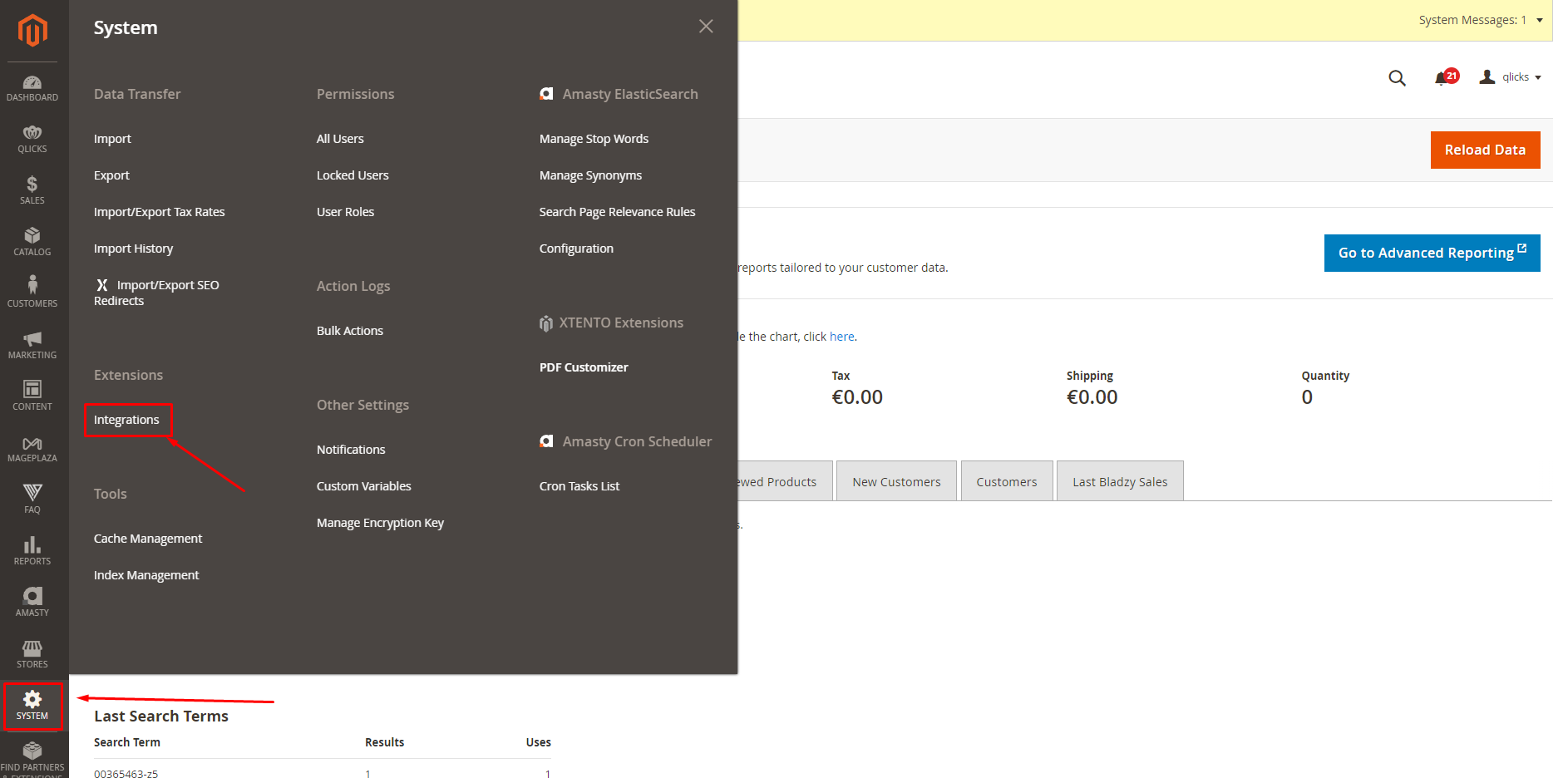
Gehen Sie zu System / Integrationen.
-
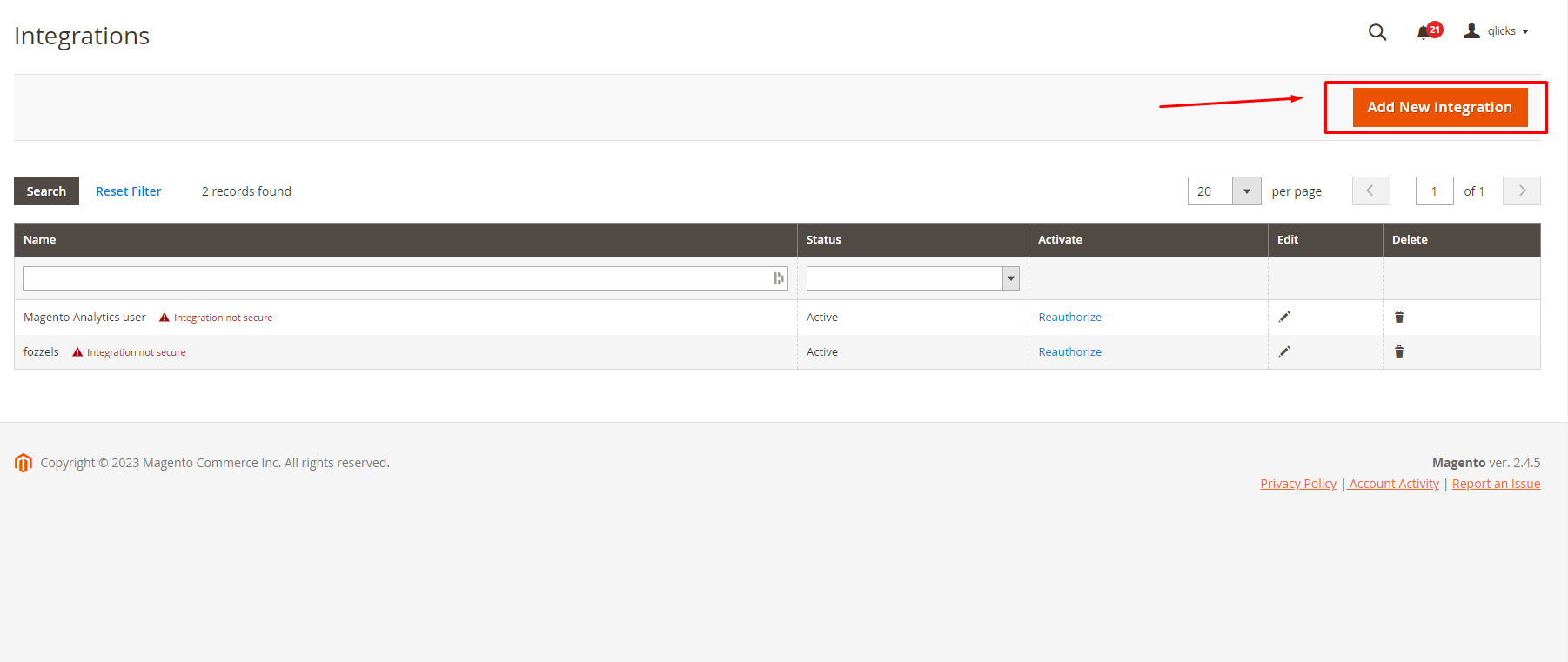
Klicken Sie auf die Schaltfläche ”Neue Integration hinzufügen”.
Schritt 2: Integrationsinformationen ausfüllen
-
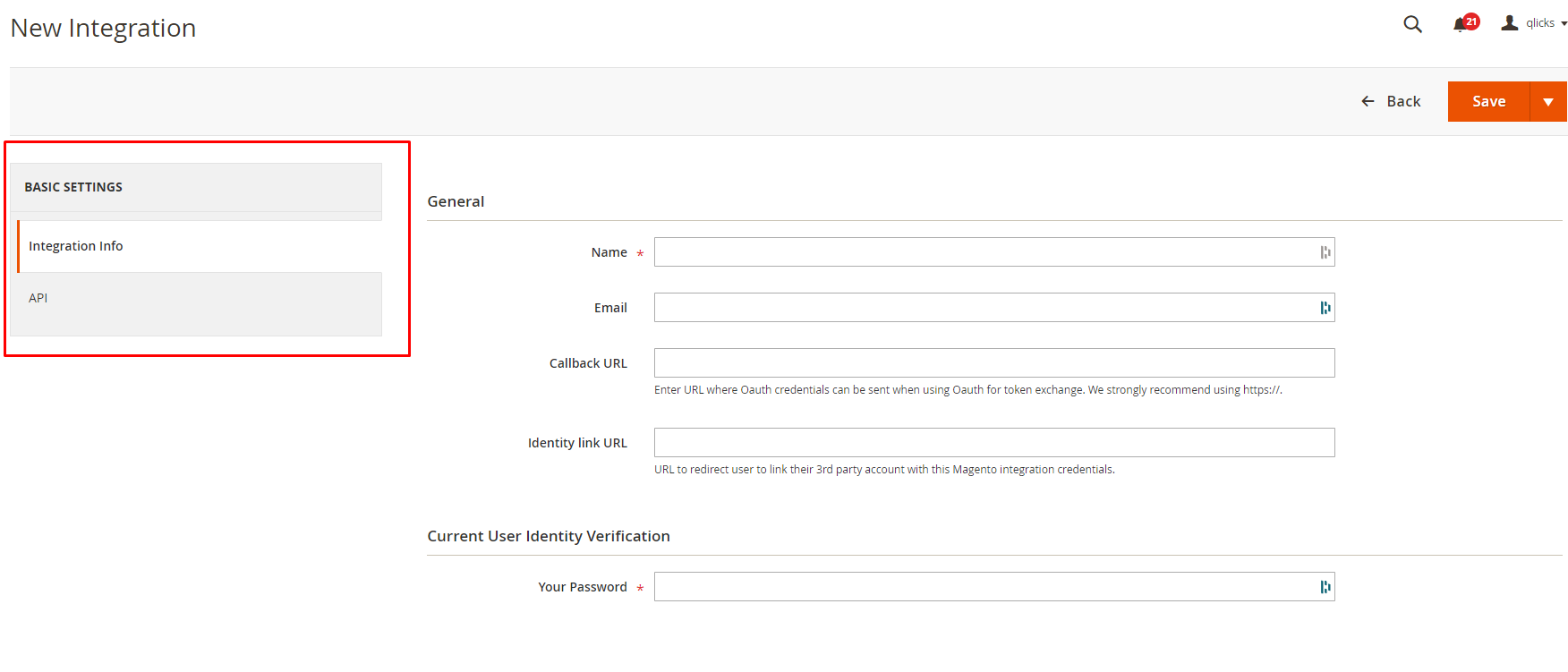
Navigieren Sie zur Registerkarte Integrationsinformationen (Grundeinstellungen).
-
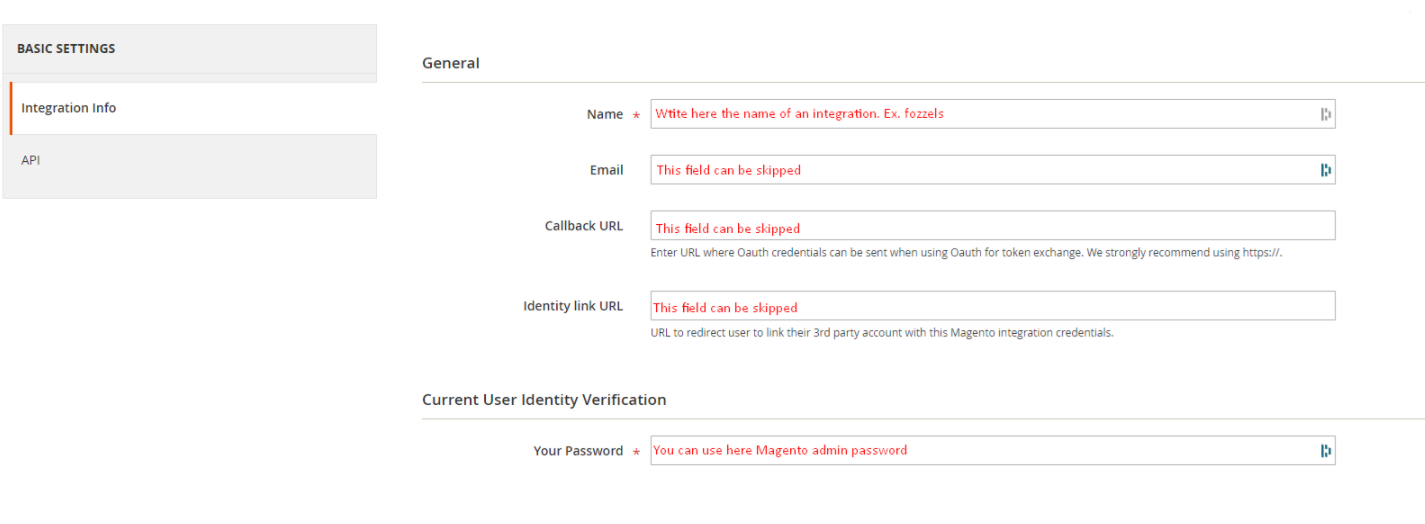
Füllen Sie die erforderlichen Felder aus: 2.1. Geben Sie Namen ein: Fozzels. 2.2. Geben Sie E-Mail ein: info@fozzels.com. 2.3. Geben Sie Ihr Magento-Admin-Passwort zur Bestätigung ein.
-
Überspringen Sie optionale Felder (Callback-URL, Identity-Link-URL).
Schritt 3: API-Berechtigungen (Scopes) konfigurieren
-
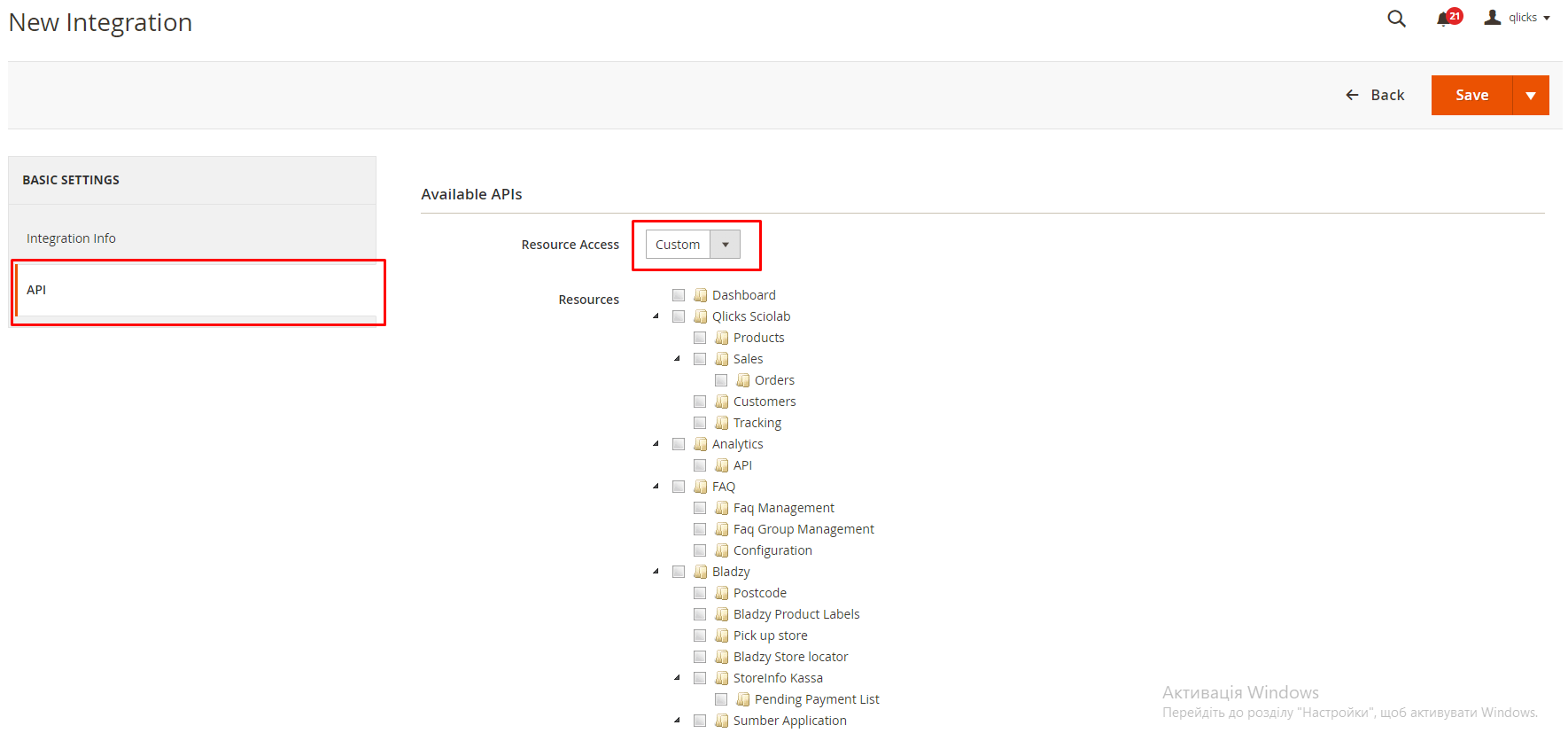
Klicken Sie auf die Registerkarte ”API”.
-
Wählen Sie im Dropdown-Menü ”Benutzerdefiniert”.
-
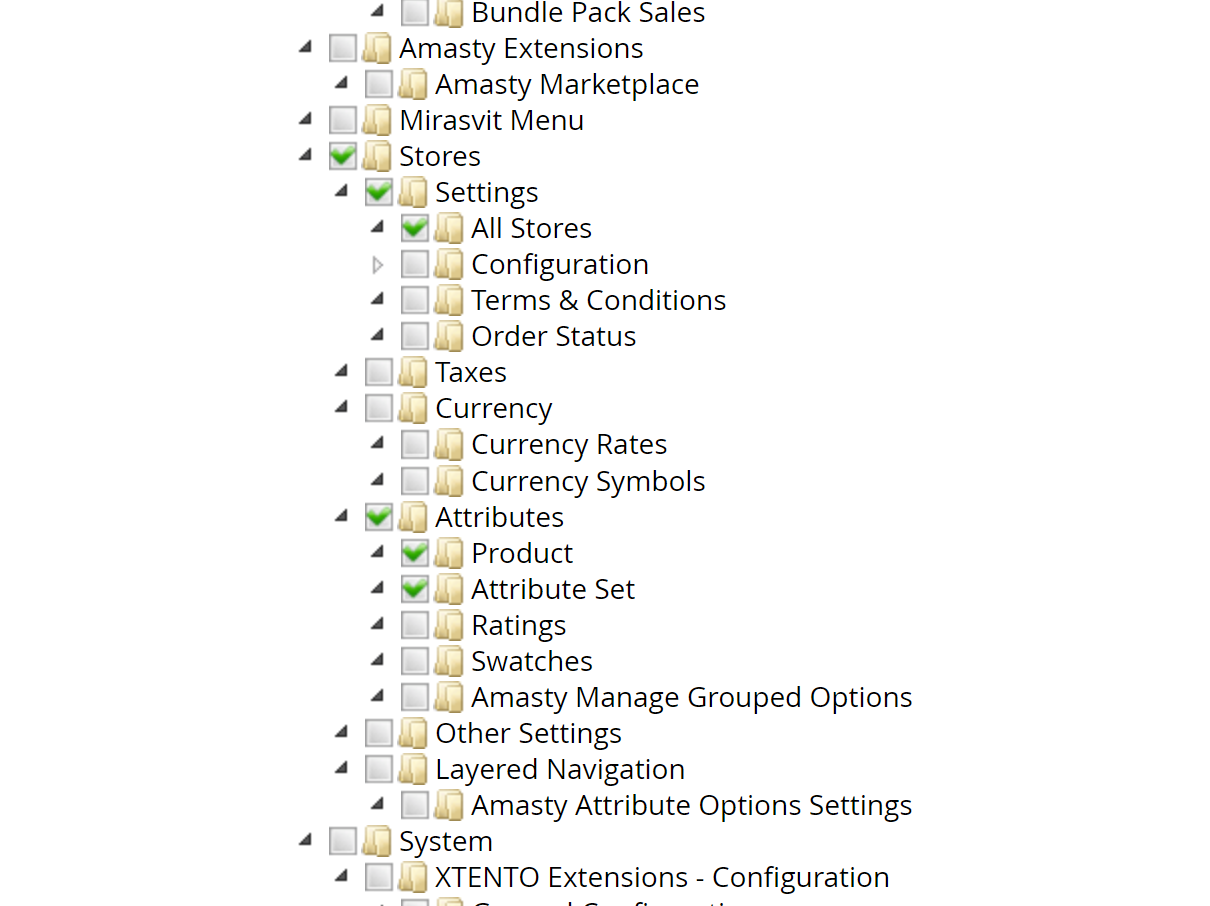
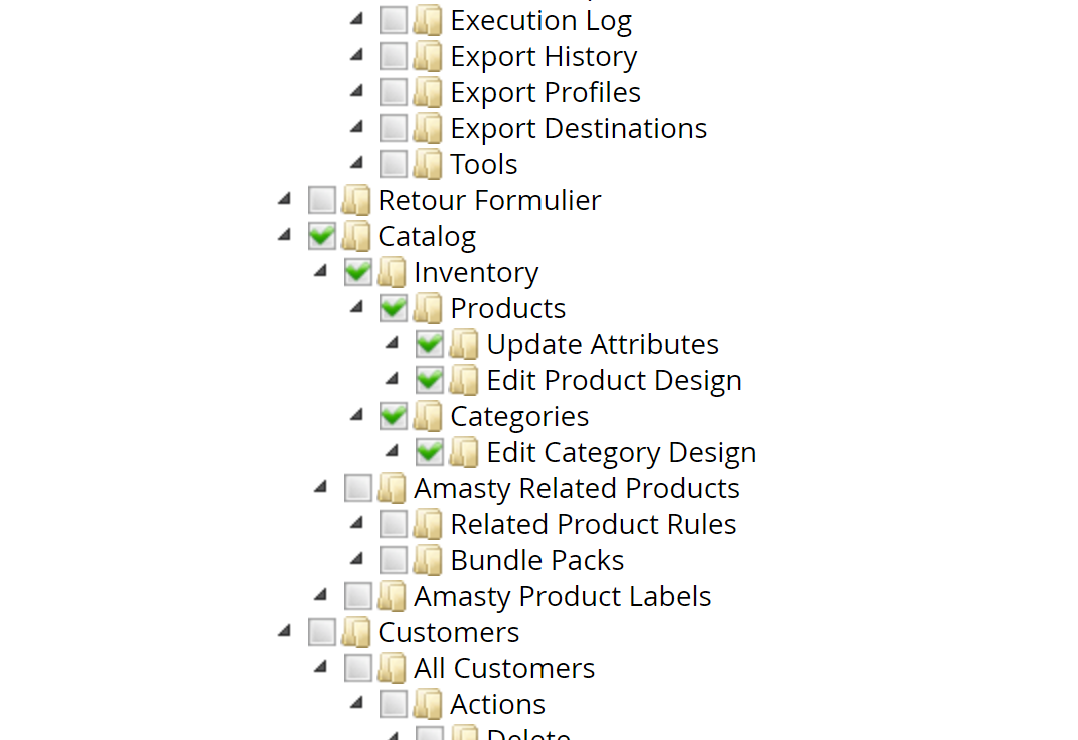
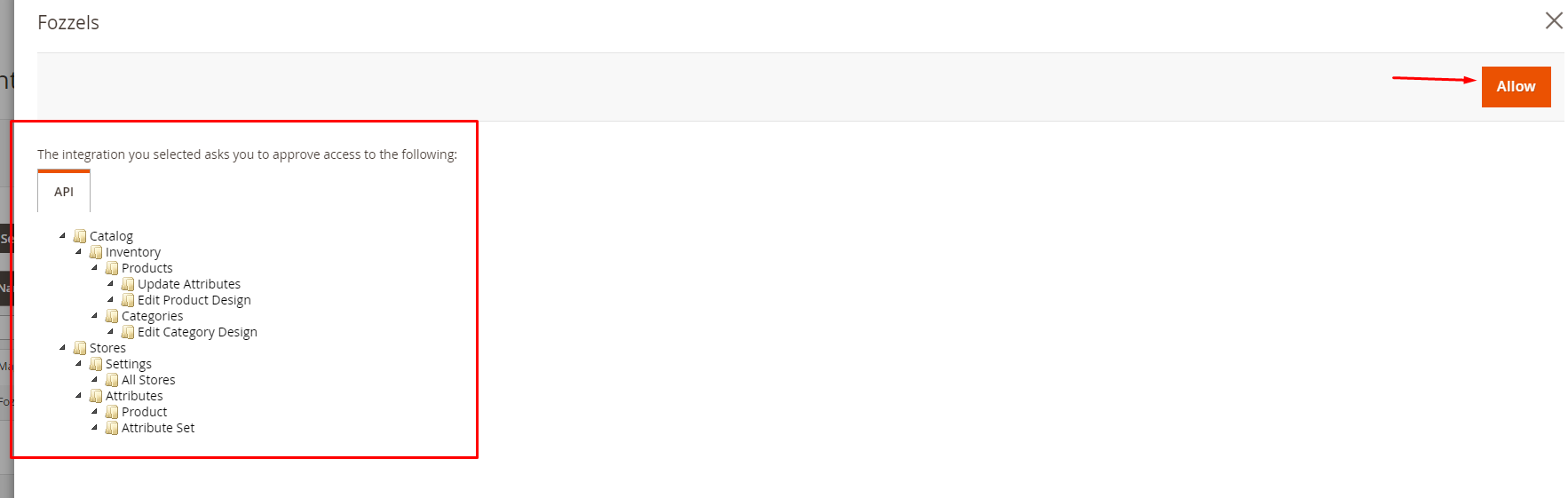
Markieren Sie nur diese Kontrollkästchen (für Lese-/Schreibzugriff): 3.1. Katalog: Kategorien, Bestand, Produkte, Attribute aktualisieren, Produktdesign bearbeiten. 3.2. Stores: Einstellungen, Alle Stores. 3.3. Attribute: Produkt, Attributsatz.
Schritt 4: Integration speichern und aktivieren
-
Klicken Sie auf die Schaltfläche ”Speichern” in der oberen rechten Ecke.
-
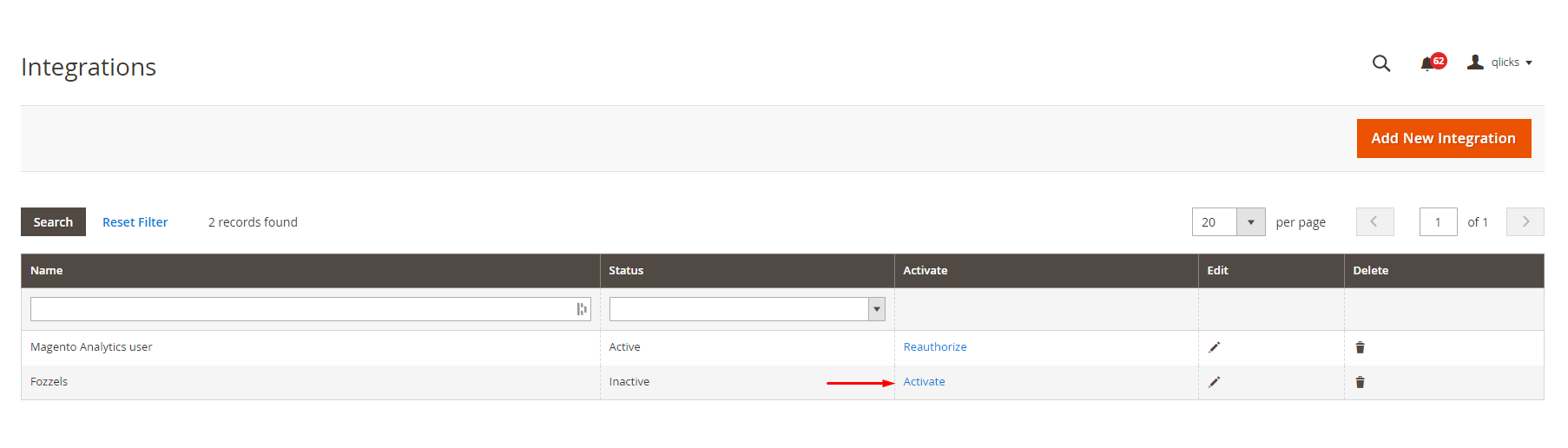
Suchen Sie auf der Seite “Integrationsliste” die neue Fozzels-Integration.
-
Klicken Sie auf den Link ”Aktivieren”.
-
Überprüfen Sie auf der Seite “Aktivierungsdetails”, ob die richtigen APIs (aus Schritt 3) ausgewählt wurden, und klicken Sie auf ”Zulassen”.
Schritt 5: API-Schlüssel kopieren und speichern
-
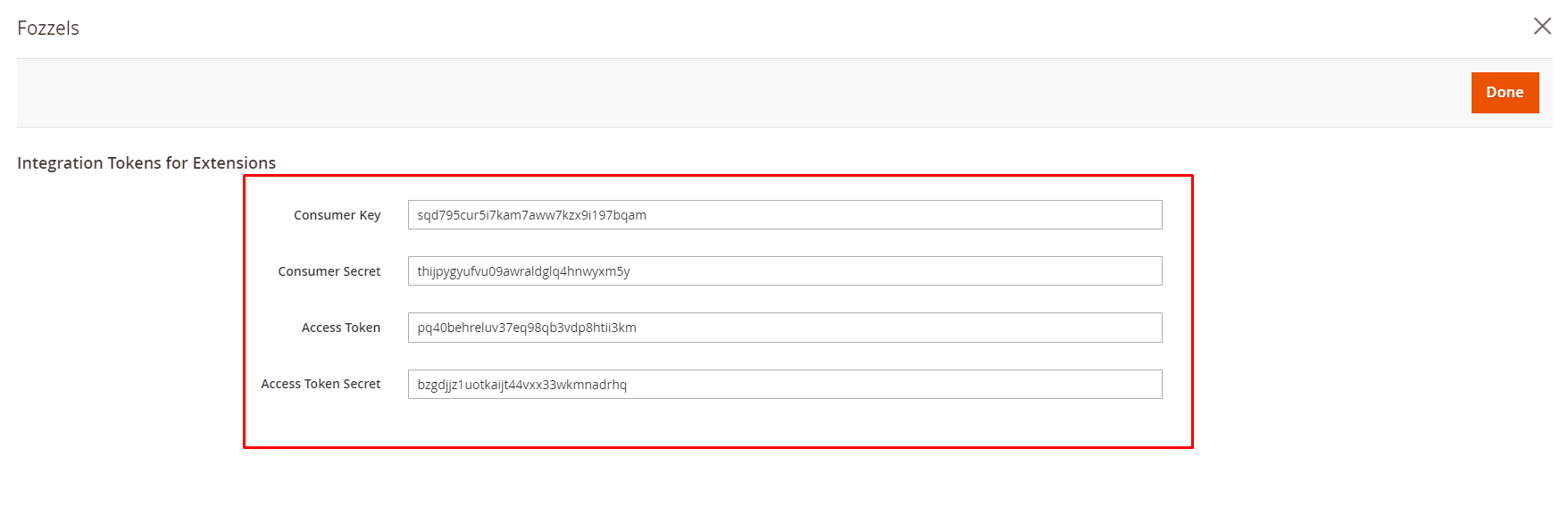
Nach dem Klicken auf “Zulassen” werden Sie zur Seite “Integrationstokens für Erweiterungen” weitergeleitet.
-
Kopieren und speichern Sie alle vier automatisch ausgefüllten Werte sicher: 2.1. Consumer Key 2.2. Consumer Secret 2.3. Access Token 2.4. Access Token Secret
-
Klicken Sie auf ”Fertig”.
-
Überprüfen oder bearbeiten Sie Integrationsdetails später, indem Sie die Schaltfläche ”Bearbeiten” auf der Seite “Integrationen” drücken.

Teil 3: Fozzels-Aktivierung und Datensynchronisierung
Schritt 6: API-Zugriff überprüfen
Bevor Sie Fozzels verbinden, stellen Sie sicher, dass Ihr Server:
1. keine externen Anfragen an die Magento REST API blockiert.
Wenn Ihr Server eine Firewall, WAF oder einen Sicherheitsdienst (Cloudflare, Sucuri usw.) konfiguriert hat, können diese eingehende Anfragen von Fozzels blockieren.
Was tun:
- Fordern Sie die aktuelle Liste der Fozzels IP-Adressen von support@fozzels.com an. Zum Whitelisting können Sie die folgenden Fozzels IP-Adressen verwenden:
49.13.117.118
91.205.205.66

2a01:4f8:c17:bb1e::/64
- Leiten Sie diese Liste an Ihren Hosting-Anbieter oder Server-Administrator weiter, um sie der Whitelist hinzuzufügen.
Wenn dies nicht geschehen ist, erhalten Sie beim Erstellen der Integration in Fozzels einen Fehler 401 (Unauthorized) und können die Verbindung nicht abschließen.
2. begrenzt nicht die Anzahl der API-Anfragen vom User Agent: Fozzels. Der vollständige User Agent ist Mozilla/5.0 (Windows NT 10.0; Win64; x64; fozzels/5.1.2; +https://app.fozzels.com/) AppleWebKit/537.36 (KHTML, wie Gecko) Chrome/123.0.0.0 Safari/537.36
Während der Synchronisierung sendet Fozzels eine große Anzahl von Anfragen, besonders bei großen Produktkatalogen. Wenn Ihr Server strikte Limits für die Anzahl der Anfragen pro Minute oder Sekunde hat (Rate Limiting), werden einige davon abgelehnt.
Was tun:
- Kontaktieren Sie Ihren Hosting-Anbieter oder Server-Administrator.
- Bitten Sie sie, das API-Anfrage-Limit zu erhöhen oder Fozzels IP-Adressen und/oder den Fozzels User Agent vom Rate Limiting auszuschließen.
Wenn dies nicht geschehen ist, erhalten Sie während des Produktabrufs einen Fehler 429 (Too Many Requests) und die Produktsynchronisierung wird nicht abgeschlossen.
Nach Bestätigung der Änderungen können Sie mit dem Erstellen der Integration in Fozzels fortfahren.
Schritt 8: Neue Integration in Fozzels erstellen
-
Melden Sie sich in Ihrem Fozzels-Konto an.
-
Gehen Sie zu Integrationen.
-
Klicken Sie auf ”Neue Integration erstellen”.
-
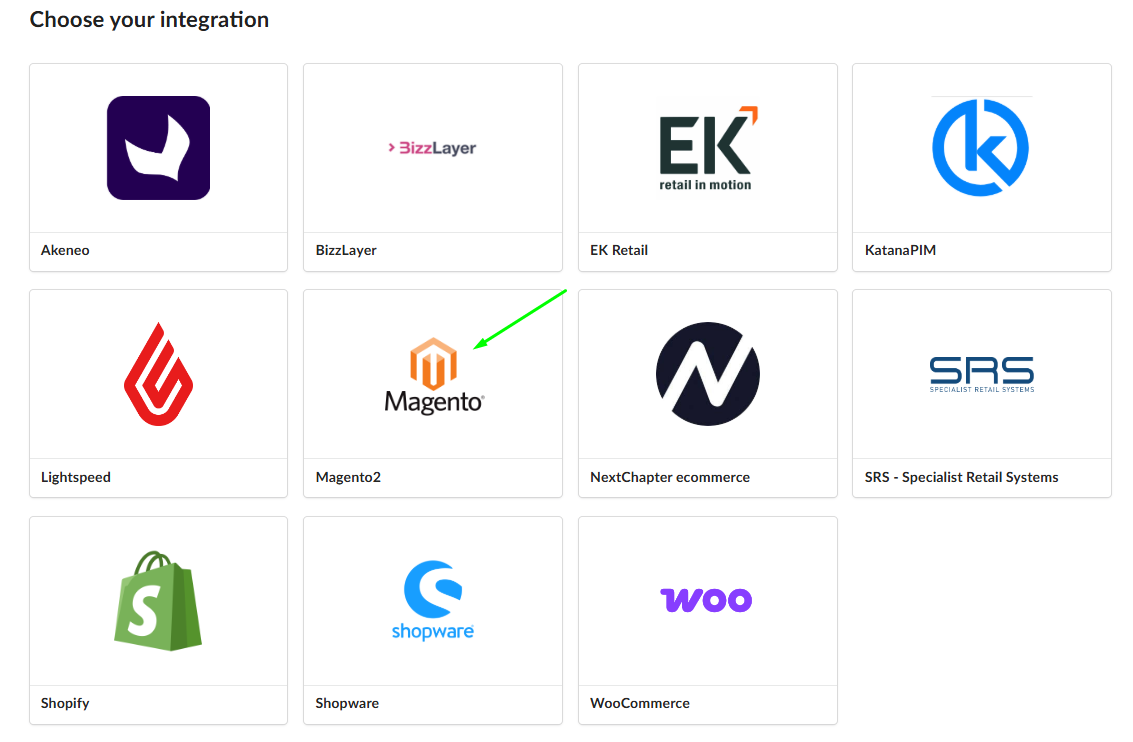
Wählen Sie ”Magento” aus den verfügbaren Optionen.


Schritt 9: Verbindungsdetails ausfüllen
Sie verwenden die Schlüssel aus Teil 1, um Fozzels zu verbinden und den Datenimport einzuleiten.
-
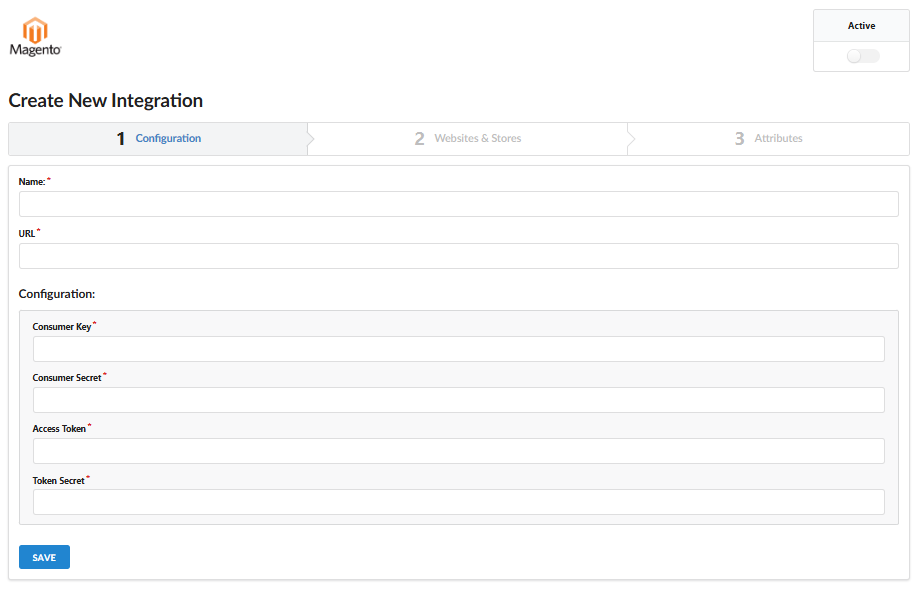
Benennen Sie Ihre Integration eindeutig.
-
Geben Sie die URL Ihrer Magento-Website ein.
-
Füllen Sie die vier Schlüssel, die in Schritt 5 kopiert wurden, in die entsprechenden Felder ein.
-
Klicken Sie auf ”Speichern”.
Schritt 10: Stores aktivieren und synchronisieren
-
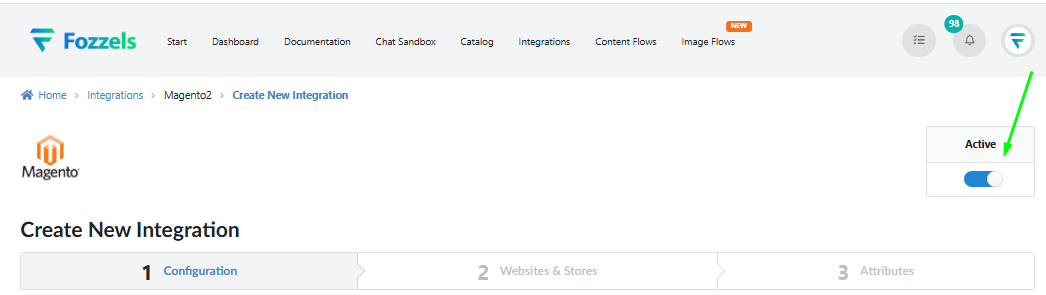
Schalten Sie den Umschalter ’Aktiv’ in der oberen rechten Ecke ein. Ohne dies funktioniert die Verbindung nicht.
-
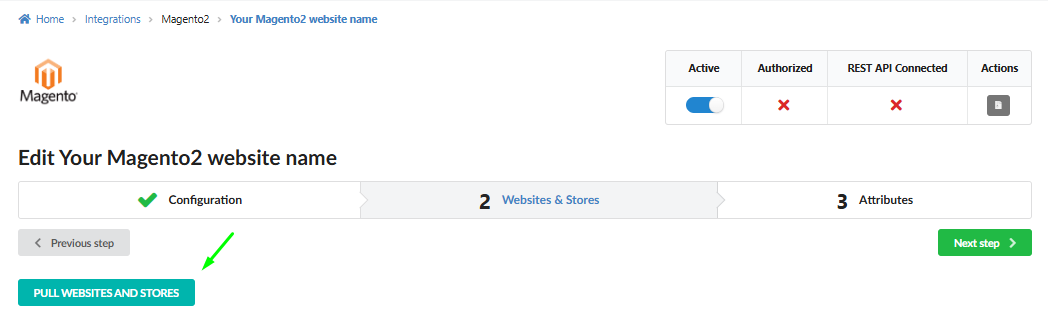
Navigieren Sie zur Registerkarte ”Websites & Stores”.
-
Klicken Sie auf die Schaltfläche ”Websites und Stores abrufen”. Ihre Websites und Stores sollten jetzt angezeigt werden.
-
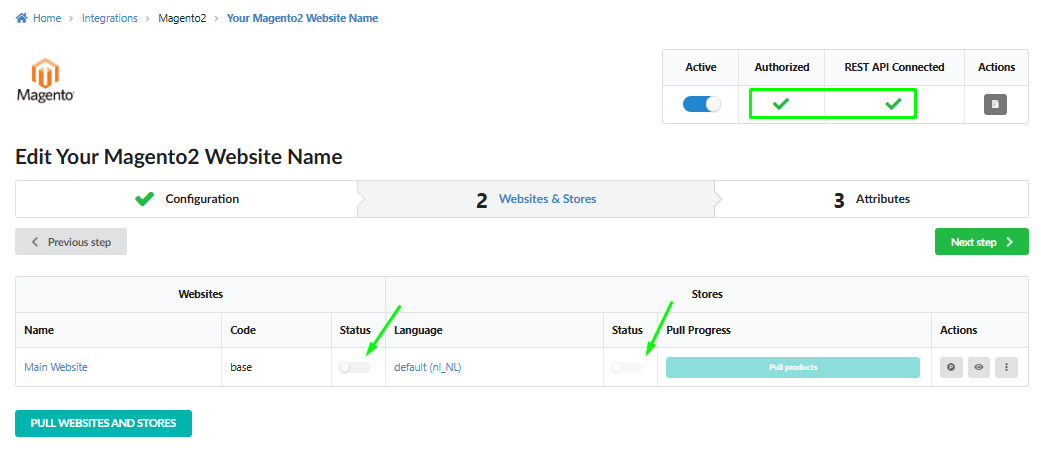
Überprüfen Sie, ob die Integration folgende Status hat: Autorisiert: ja und REST API verbunden: ja.
-
Aktivieren Sie die aktuellen Websites und Stores mit dem Umschalter zur weiteren Verwendung.
Schritt 11: Produkte abrufen und überprüfen
-
Klicken Sie auf die Schaltfläche ”Produkte abrufen”, um den Prozess zum Importieren Ihres Produktkatalogs zu starten.

-
Warten Sie, bis die Produkte geladen werden (der Fortschritt wird in der Fortschrittsleiste angezeigt).
-
Gehen Sie zur Registerkarte ”Attribute”, um Ihre Synchronisierungsregeln zu konfigurieren.
-
Lesen Sie mehr über die Arbeit mit Produktattributen und das Anpassen von Datenfeldern hier.