4.11.3. Workflows. Lesson 3: Automatic AI Check and Regeneration
Let AI check every generated text before it reaches your store. When a text is not usable, Fozzels tells the model what was wrong and generates it again automatically.
Sometimes an AI model writes something you cannot use: a placeholder, a comment like “Here is your description”, text in the wrong language or about the wrong product. With an AI check in your workflow, Fozzels finds these texts for you and generates them again automatically, so you only review what really needs a person.
This lesson builds on 4.11.1. Lesson 1: Getting Started with Workflows and 4.11.2. Lesson 2: Combining Blocks in One Workflow. If you have not read them yet, start there.
How it works in short
- Your flow generates a text, as always.
- A second AI model reads the text and checks if it is usable.
- If the text passes, nothing changes: it goes on to review or sync, as set in your flow.
- If the text fails, Fozzels generates it again and tells the model what was wrong (“feedback”).
- The new text is checked again. This repeats until the text passes or the maximum number of regenerations is reached.
- If the text still fails after the last try, it is flagged as suspicious with the reason, so you can fix it yourself.
The two new blocks
| Block | Type | What it does |
|---|---|---|
| AI validation fails | Condition | Asks an AI model to check the generated text. Yes = the text has a problem, No = the text is fine. |
| Regenerate with feedback | Action | Generates the text again in the background and sends the problems found to the model, so it can avoid them. |
Use them together in one block: the condition AI validation fails in the Conditions section and the action Regenerate with feedback in the Actions section.
What the AI check looks for
The check marks a text as not usable when:
| Problem | Example |
|---|---|
| It is not real content: instead of the expected text, the AI returned something meant for another purpose, or there is another clear mismatch | A refusal, a question back, “lorem ipsum”, “[Product name]”, an empty template tag |
| The AI is talking | “Here is the description:”, “Let me know if you need changes”, visible reasoning |
| It does not fit the attribute | A full description written as a title |
| It repeats the attribute name | “Meta description: ...” |
| It is in the wrong language | English text in a German store view |
| It is about another product | A text about earbuds for an earbuds case |
| It stops mid-sentence | The text is cut off |
The check does not judge style, tone, length or formatting, and it never rewrites your text. For length limits or word replacements, use the blocks from Lessons 1 and 2.
The check sees the product, the generated text, the previous value of the attribute and the language of your store view. It does not see your prompt. So if the attribute had a normal title before and the new value is “lorem ipsum” (even if your prompt asked for exactly that), the check gives feedback that the result does not look like a normal title.
Step 1. Create the workflow
- In the side menu, under AI Flows, open Workflows.
- Click Create workflow.
- Give the workflow a clear name, for example “AI check”.
- Add a block and give it a title, for example “AI check validation”.


Step 2. Set up the block
- In the Conditions section, click Add condition and choose AI validation fails. This condition has no settings.
- In the Actions section, click Add action and choose Regenerate with feedback in the Action field.
- Set Maximum regenerations: how many times Fozzels may generate the text again. The default is 2 and the maximum is 3.
- Click Apply.
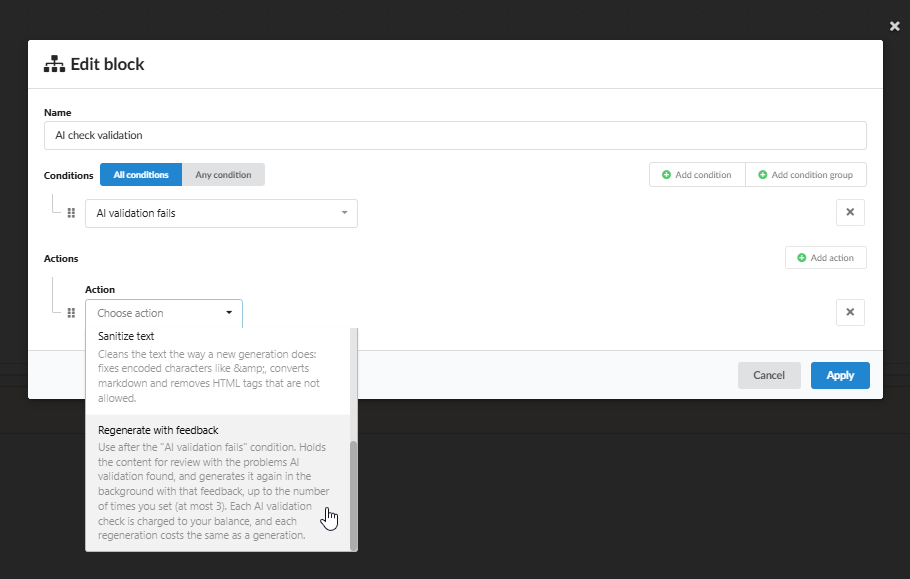
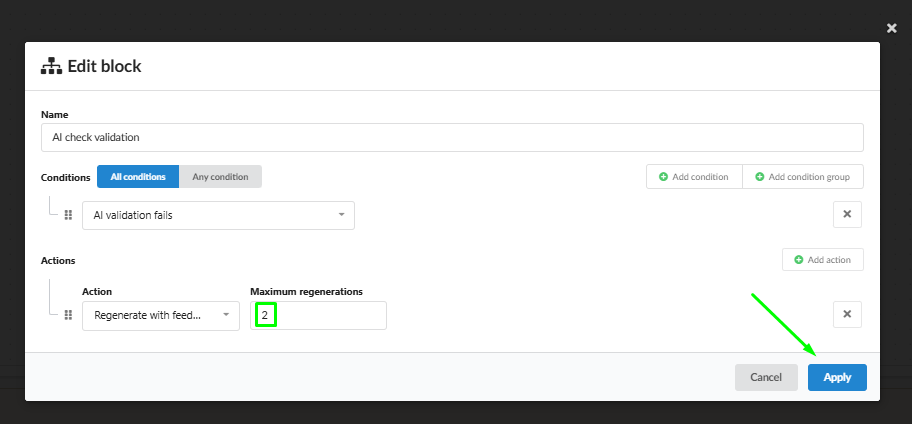
For testing, set Maximum regenerations to 1. You see the final result faster and spend less.
Step 3. Assign the workflow to a flow
- Open your content flow.
- In the Workflows field, select your workflow.
- Save the flow. The workflow only runs after the flow is saved.

If your flow also has other workflows (for example “Replace text” or “Truncate”), you can combine them. Workflows run in the order they are assigned.
Step 4. Check the result
Generate texts in your flow. For every product, one of three things happens:
The text passes the first time. Nothing special happens. The text goes on as usual.
The text fails, then passes after a regeneration. While Fozzels generates it again, the text is shown as suspicious with the reason “Did not pass AI validation and is being generated again: ...”. This takes a few seconds to minutes. When the new text passes, the flag is removed and the new text replaces the old one.
The text fails every time. After the last regeneration, the text stays suspicious with the reason, for example: “Did not pass AI validation after 2 generation(s): The Title value "All-Mountain Snowboard" is in English, not German as required.” Read the reason, then edit the text yourself or change the prompt and generate again.
You can follow every try in the Content Completion History of the product: each generation is shown as its own revision.
The reason is only kept when the text fails in the end. When a regeneration passes, the reason is removed, and the history shows the earlier version without a reason.
Other messages you may see
| Message | What it means | What to do |
|---|---|---|
| AI validation could not check this value, so it is held for review. | The check could not run, for example because of a temporary error. | Review the text yourself. |
| AI validation stopped because your balance is too low, so this value was not validated. | Your balance ran out. | Top up your balance and generate again. |
| Did not pass AI validation. It was not generated again because the flow, its workflows or the item changed in the meantime. | Something changed while the text was waiting for a regeneration. | Review the text, or generate it again. |
Costs
- Every AI check is a small paid call. It costs much less than a generation.
- Every regeneration costs the same as a normal generation.
- So one product can cost up to: 1 generation + the maximum number of regenerations + one check for each try.
Choose the maximum number of regenerations with this in mind. For most flows, 1 or 2 is enough.
Rules to remember
| Rule | What it means for you |
|---|---|
| Use the two blocks together | AI validation fails finds the problem, Regenerate with feedback fixes it |
| The check does not see your prompt | It judges if the text is usable in your store, not if it follows every instruction |
| Style, tone and length are not checked | Use Replace text, Truncate or Mark suspicious for those |
| Maximum 3 regenerations | After that, the text goes to you as suspicious |
| Every check and every regeneration is charged | Keep the maximum low |
| Save the flow after you assign the workflow | Otherwise the workflow does not run |
Test the workflow on 2–3 products first. Check the history and the reasons, then switch it on for the whole flow.
Stay in control of your content
With an AI check in your workflows, every generated text is checked before it reaches your store, and unusable texts are fixed automatically. You spend your time only on the texts that really need you, and Fozzels takes care of the rest. Take full control of your content with Fozzels.
Need help with the setup?
If you need help setting up custom workflows, contact your manager or Fozzels support.