4.11.1. Workflows. Lesson 1: Getting Started with Workflows
Workflows check and edit generated results automatically: they can replace words, cut text to a length limit, or flag a result for manual review before it reaches the store. You set the rules once, and they apply to every new result.
In this lesson you will build your first workflow, see how it behaves, and learn a few things to watch out for along the way.
The example we work with
Our flow generates a short delivery description for a cake:
We are delighted to deliver your chosen cake directly to the address you provide… Each Festive Cake will arrive in beautiful gift packaging… every celebration deserves a delicious CAKE…
The word "cake" appears three times, in three different cases. Keep this in mind, it will matter later.
Step 1. Create a workflow
Go to Home → Workflows and click Create workflow.

The editor opens with the default name New workflow 1. Give the workflow a clear name right away: once you have several, generic names are easy to mix up.
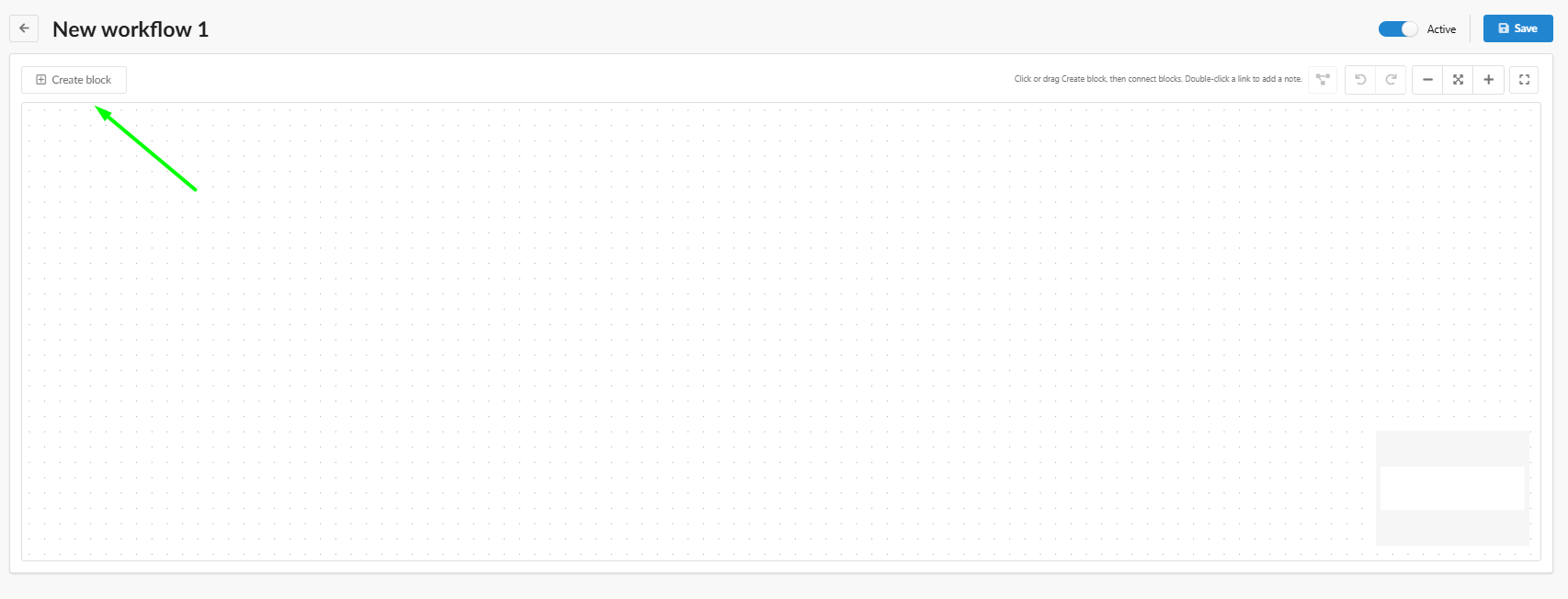
Note: the Active toggle is on by default. A workflow has no effect until it is assigned to a flow, but once assigned, an active workflow starts processing results.
Step 2. Set up a block
Click Create block. A block appears on the canvas with two parts:
- IF: the conditions under which the block runs.
- THEN: the actions it performs.
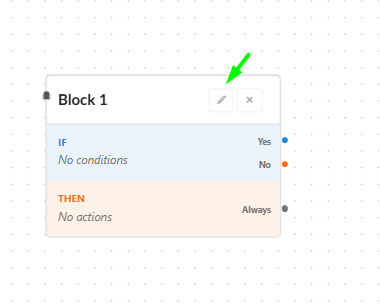
Click the pencil icon to open the block settings.
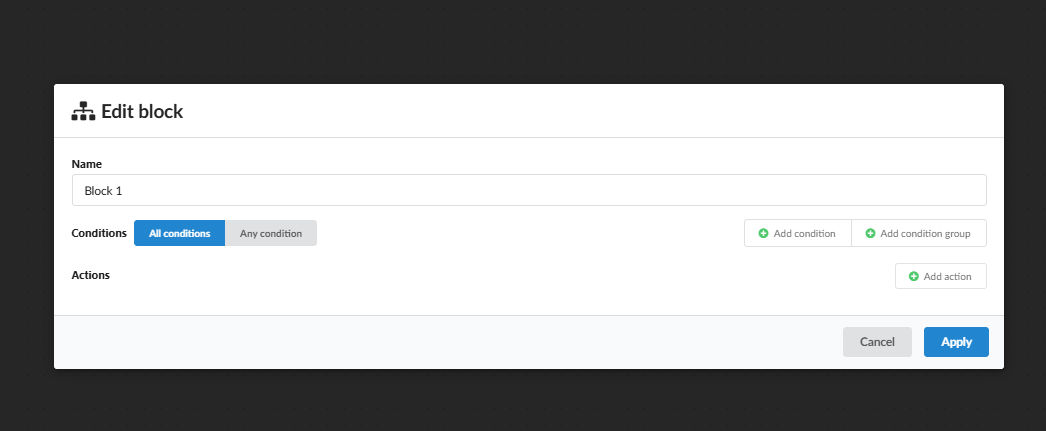
Conditions
Each condition has three parts: what to check, an operator, and a value. There are two things you can check:
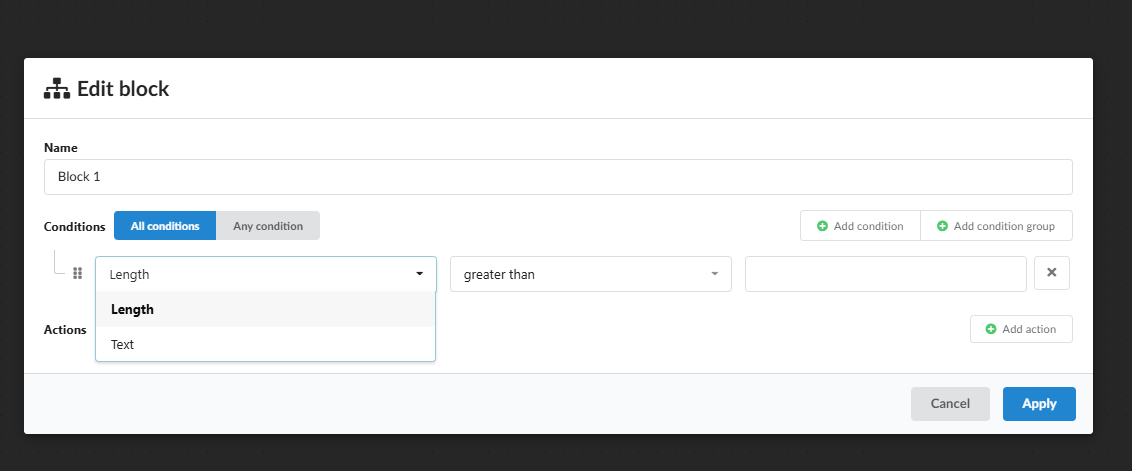
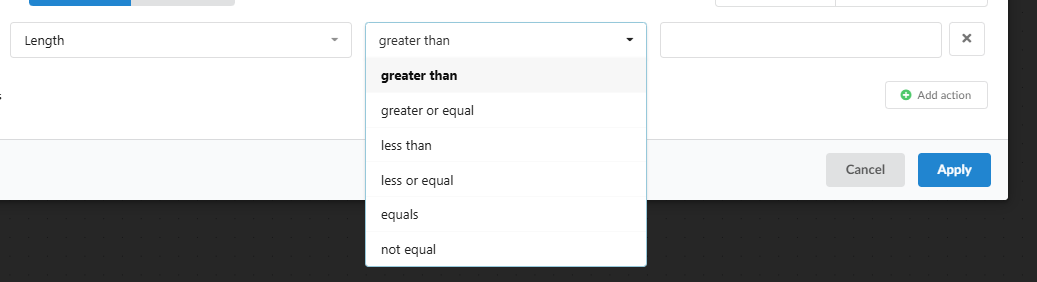
Length is the text length in characters, spaces included. Operators: greater than, greater or equal, less than, less or equal, equals, not equal.
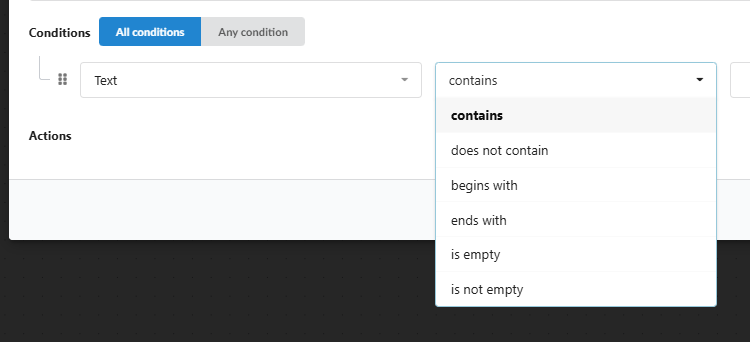
Text checks the content. Operators: contains, does not contain, begins with, ends with, is empty, is not empty.
With more than one condition, choose the logic:
- All conditions: every condition must be met (AND).
- Any condition: one is enough (OR).
Actions
Three actions are available. The descriptions are shown right in the dropdown.
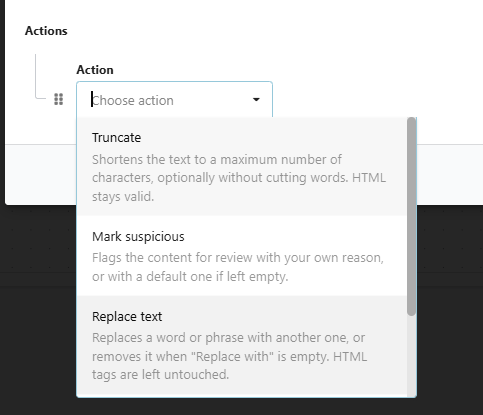
- Replace text: replaces a word or phrase. Leave Replace with empty to remove it. HTML tags are not affected.
- Truncate: cuts the text to a maximum number of characters.
- Mark suspicious: flags the result for manual review.
A block can hold several actions. They run top to bottom.
Your first block
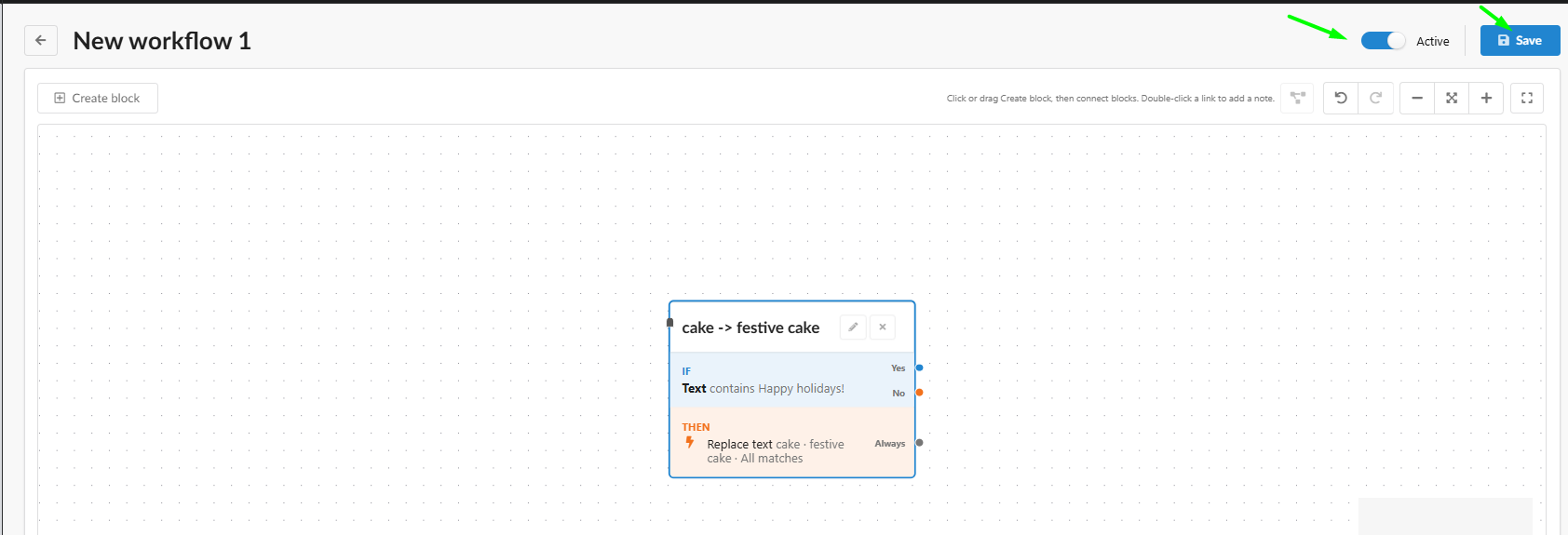
Task: if the text contains "Happy holidays!", replace "cake" with "festive cake".
- Name:
cake -> festive cake - Conditions → Add condition:
Text·contains·Happy holidays! - Actions → Add action:
Replace text, Findcake, Replace withfestive cake, All matches on (replace every match, not only the first). - Click Apply.
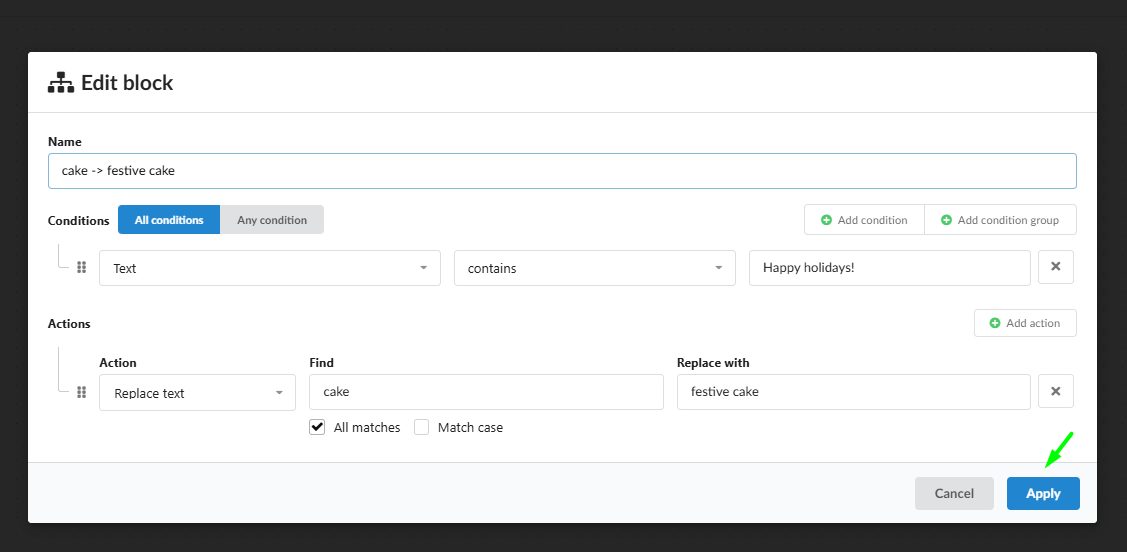
The block on the canvas now shows a summary of its conditions and actions. Check that Active is on and click Save.
Step 3. Assign the workflow to a flow
A saved workflow does nothing until it is attached to a flow.
- Open your flow and go to the Automation tab (the 4th tab).
- At the bottom, in the Workflows section, pick your workflow from the dropdown.
- Click Save to save the flow.

Generate a new result and open it from the Batch List (the table of generated results).
Step 4. Check the result
The text containing "Happy holidays!" has changed:

Notice "Festive festive cake". The model wrote "Festive Cake" with a capital C, and without Match case the replacement ignores letter case, so "Cake" was replaced too.
Fix: turn on Match case. Only lowercase "cake" is then replaced, and "Festive Cake" stays as it is.
Keep in mind: Replace text does not look at context, it only looks for matches. If the model already wrote "delicious cake", replacing
cakewithdelicious cakegives "delicious delicious cake". Think about how your replacement will behave on different texts.
Step 5. How results are processed
If you change a workflow's settings and reopen a result it already processed, the result stays the same. This is how the system works:
- Workflows process only new and regenerated results.
- Each result is processed by a given workflow only once. Editing its blocks does not affect results it has already processed.
- Changes are permanent. Removing a workflow from a flow does not restore the original text.
To apply new settings, regenerate the result.
Tip: try new workflows on a test flow first. Changes to processed results cannot be rolled back, only regenerated.
Step 6. Multiple workflows
To fix texts where "Festive festive" appears, you can add a second workflow. This one also flags the result for review:
- Conditions:
Text·contains·Festive festive - Actions:
Replace text:Festive festive→Festive, All matches and Match case onMark suspiciouswith a reason for the reviewer
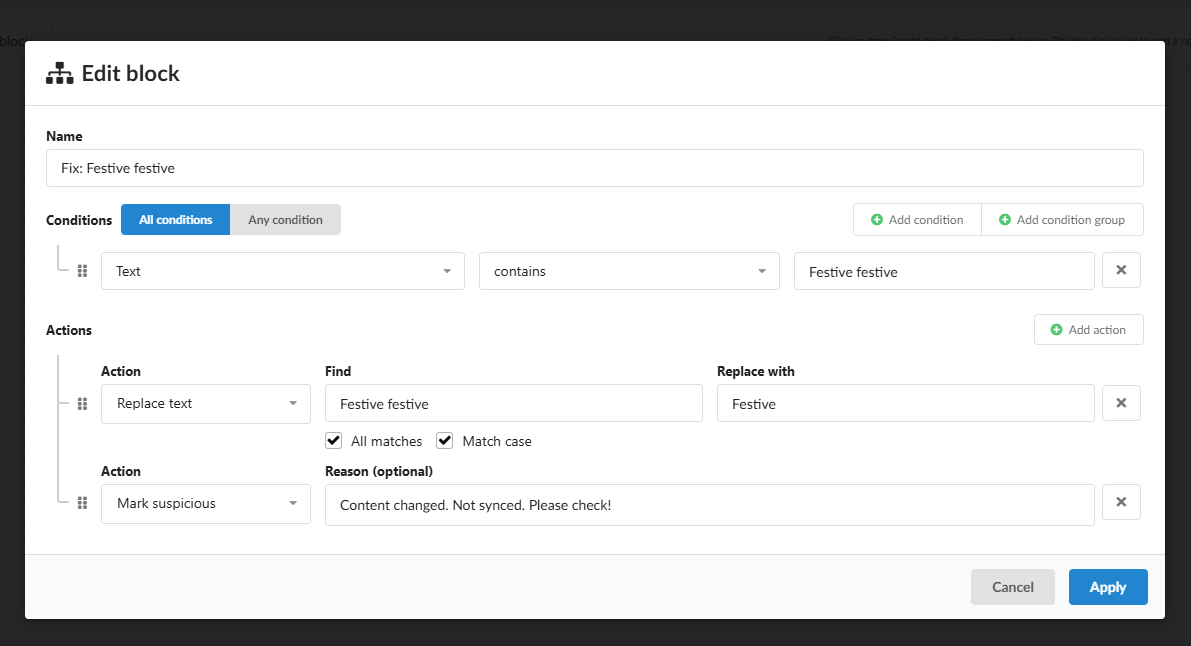
You can assign any number of workflows to a flow. They run top to bottom, and each one receives the text as changed by the previous one. Reorder them by dragging the handle or with the arrows.
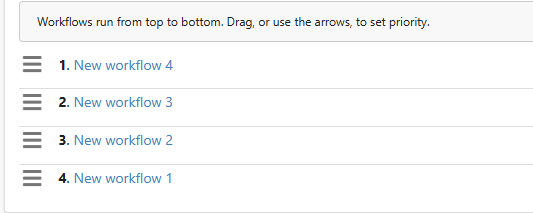
Recommended order:
- Workflows that change the text.
- Workflows that fix side effects of the ones above. A fix must run after the workflow that causes the problem.
- Mark suspicious can go anywhere: it does not stop processing.
If several workflows mark a result as suspicious, the reason from the first one in the list is shown.
Step 7. Truncate with manual review
Task: replace "cake" with "candies", limit the text to 110 characters, and keep the shortened text out of the store until someone checks it.
- Conditions (All conditions):
Text·contains·cakeLength·greater than·100
- Actions, in this order:
Replace text:cake→candies, All matches and Match case onTruncate:110, Keep whole words onMark suspicious: reasonTruncated to 110 characters
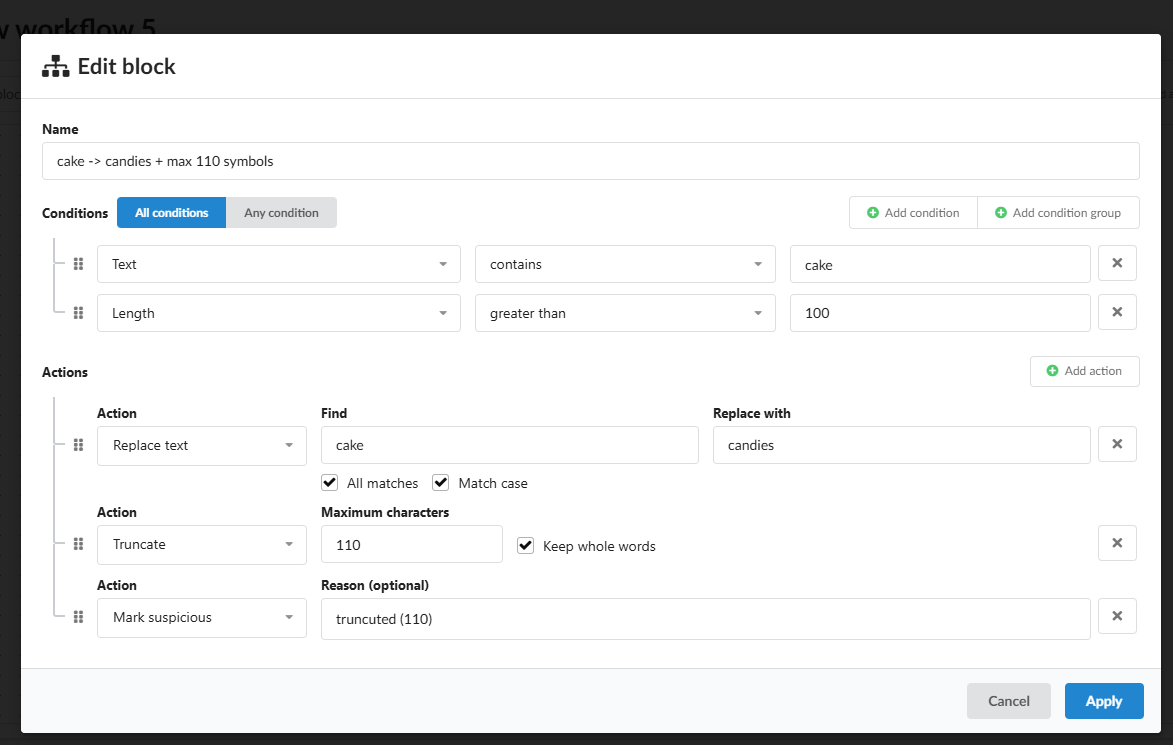
Why the order matters: "candies" is longer than "cake". If you truncate first and replace after, the text can go over the limit again. Replace first, then truncate.
Result:
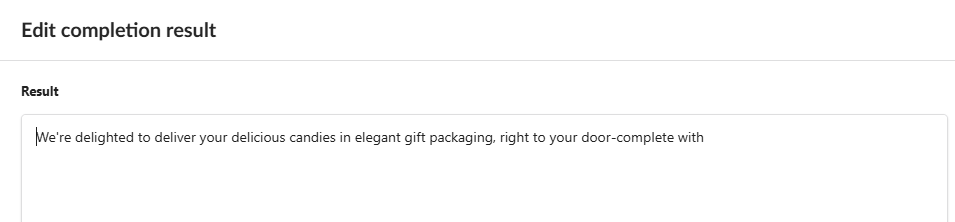
The text is 109 characters long and no word is cut in half. Words joined by a hyphen, like "door-complete", count as one word. No "…" is added at the end. The sentence, however, is unfinished, which is why Mark suspicious is part of this block.
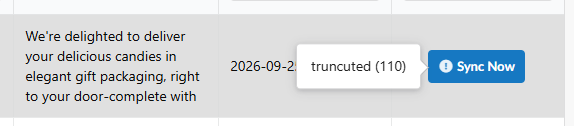
A suspicious result is not synced to the store until a user edits or regenerates it. In the Batch List, an "!" icon appears next to Sync Now, and the reason shows on hover:
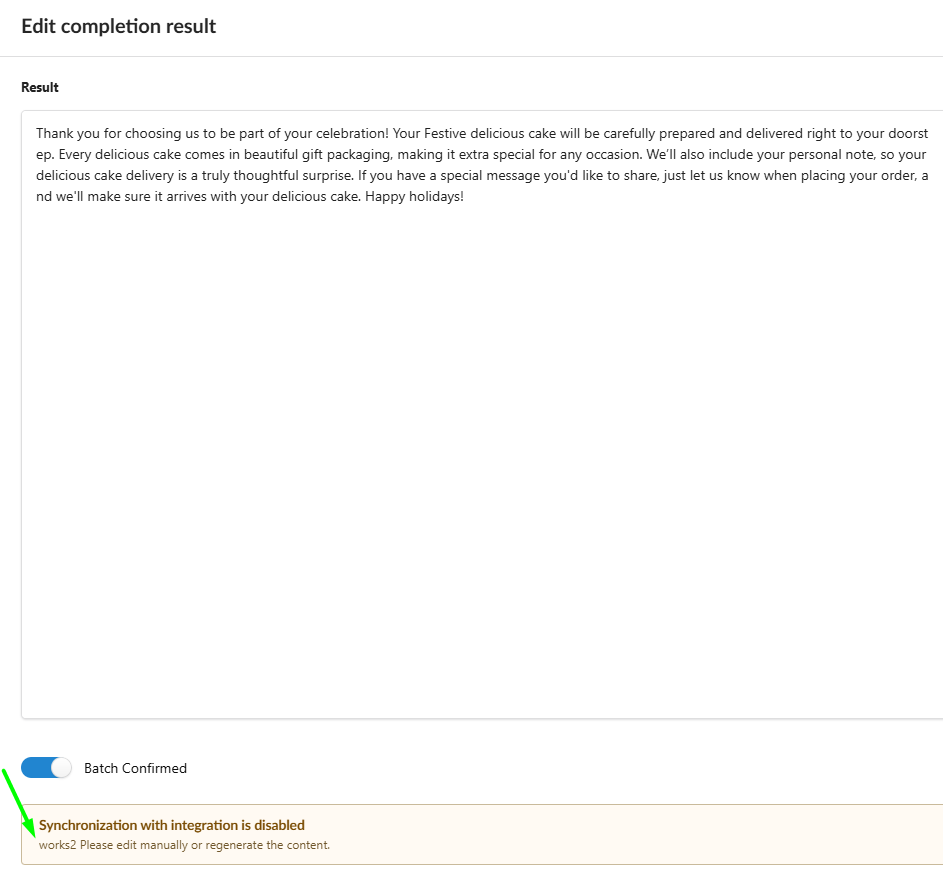
Inside the result, a Synchronization with integration is disabled warning shows the reason:
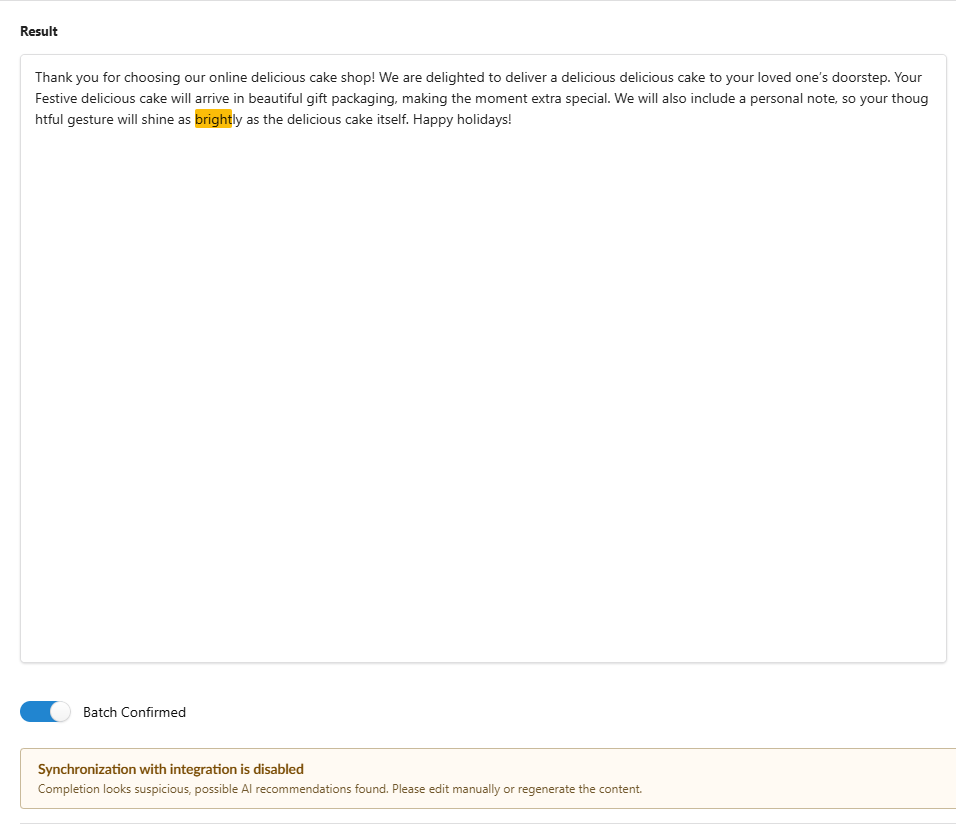
Integration suspicious words come first. The integration has its own list of suspicious words and patterns. If the text contains one, the result gets the system reason "Completion looks suspicious, possible AI recommendations found", and workflow reasons are not shown. The matched word is highlighted in orange.
Quick reference
| Setting | How it works |
|---|---|
| All / Any condition | Every condition must be met / one is enough |
| Length | Text length in characters, spaces included |
| Replace text | Empty Replace with removes the match; HTML tags are not affected |
| All matches | Off: only the first match is replaced |
| Match case | Off: replacement ignores letter case |
| Truncate | No "…" added; Keep whole words keeps words intact |
| Mark suspicious | Blocks sync to the store; does not stop other actions or workflows |
| Several suspicious marks | The reason from the first workflow is shown |
| Integration suspicious words | Take priority over workflow reasons |
| Processing | Only new and regenerated results, once per workflow; changes are permanent |
What's next
The next lesson shows how to connect several blocks with the Yes, No and Always outputs, so one workflow can handle different texts in different ways.
Continue with 4.11.2. Lesson 2: Combining Blocks in One Workflow.