4.7.4 Suspicious Words & Phrases: Advanced Content Quality Control
The Suspicious Words & Phrases feature flags generated texts that contain words, phrases or comment-like patterns you don't want published. Flagged completions get a Suspicious status, so you can filter and review them before they go live.
It catches AI artifacts (apologies, notes to the reader, leftover markup), technical leftovers and any terms you choose to block, in any language at the same time.
Where to find it
Go to Settings > Flow and scroll to the Suspicious Words & Phrases block. The settings apply globally to all your flows.
How matching works
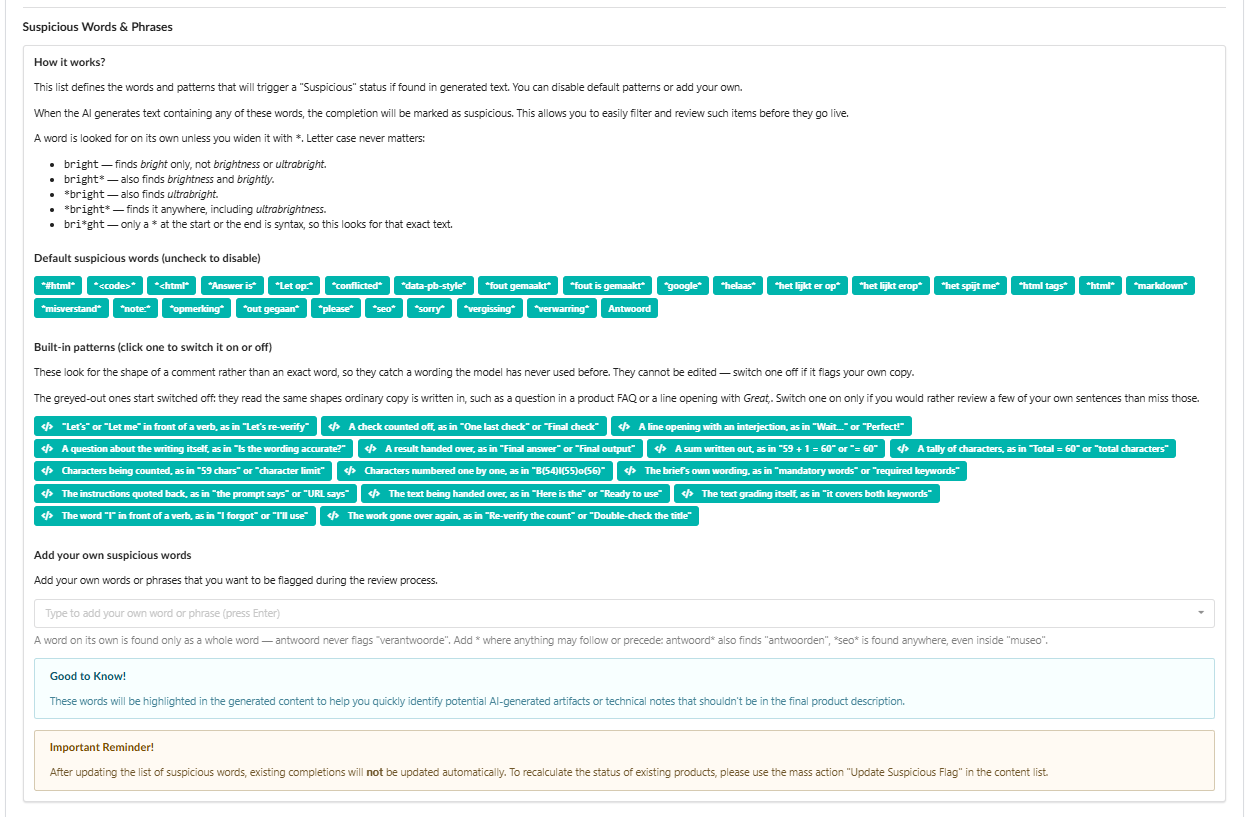
A word is matched as a whole word by default. Add * at the start or end to widen the search. Letter case never matters.
| Entry | What it finds |
|---|---|
bright | bright only, not brightness or ultrabright |
bright* | also brightness and brightly |
*bright | also ultrabright |
*bright* | the text anywhere, including ultrabrightness |
bri*ght | the exact text bri*ght — * works only at the start or end |
The same rules apply to phrases. For example, antwoord never flags verantwoorde, antwoord* also flags antwoorden, and *seo* is found anywhere, even inside museo.
What gets flagged
Three sources feed the check: default words, built-in patterns and your own words.
Default suspicious words
Fozzels comes with a ready-made list of common AI artifacts in several languages, such as *sorry*, *please*, *note:*, *markdown*, *<html*, *Let op:* and *het spijt me*. Uncheck any word you don't need, and it stops being flagged.
Built-in patterns
Built-in patterns look for the shape of an AI comment rather than an exact word. They catch wording the model has never used before, such as:
- "Let's" or "Let me" in front of a verb, as in "Let's re-verify"
- A check counted off, as in "One last check" or "Final check"
- A question about the writing itself, as in "Is the wording accurate?"
- A result handed over, as in "Final answer" or "Here is the"
- Characters being counted, as in "59 chars" or "character limit"
- The instructions quoted back, as in "the prompt says" or "mandatory words"
- The word "I" in front of a verb, as in "I forgot" or "I'll use"
The full list is in the settings, with an example on each pattern. Patterns cannot be edited — click one to switch it on or off. Switch a pattern off if it flags your own copy.
The greyed-out patterns start switched off. They match shapes that ordinary copy also uses, such as a question in a product FAQ or a line opening with Great,. Switch one on only if you would rather review a few of your own sentences than miss those comments.
Your own words
Under Add your own suspicious words, type a word or phrase and press Enter. Use it for competitor names, sensitive brand terms or errors specific to one language. You can mix languages in one list, which helps stores that publish in several locales.
How flagging works
Every new generation is checked against your current settings as soon as it is created. When a match is found:
- The completion gets the Suspicious status.
- The matched words are highlighted in the text editor, so you can see at once what triggered the flag.
- You decide what to do: edit the text manually, regenerate it, or adjust the list if the flag is a false alarm.
In the completion list, a flagged result looks like this. The matched word (here, hello) is highlighted in the text. The Sync Now button shows a warning icon and the message "Completion looks suspicious, possible AI recommendations found."
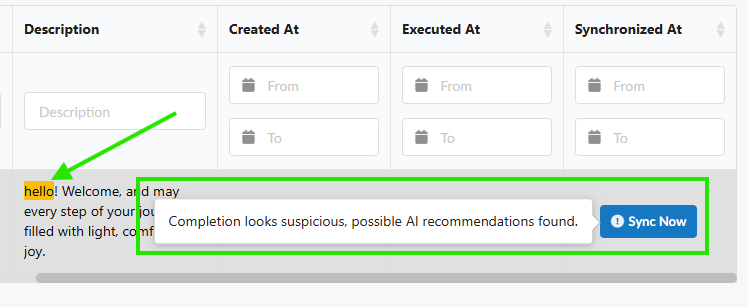
A completion like this should not be synced as is. Regenerate it, or edit the text to remove the flagged words.
To review only flagged items, turn on Show only suspicious in the Daily Total Batch List. You skip the clean results and go straight to the texts that need attention.
Updating existing completions
Changing the list affects new generations only. Completions that already exist are not re-checked automatically — their Suspicious status stays as it was until you recalculate it.
To apply your new settings to existing texts:
- Open the Content Completion List for the attribute you want to check.
- Select the products to re-check.
- Open the Actions menu and choose Update Suspicious Flag.
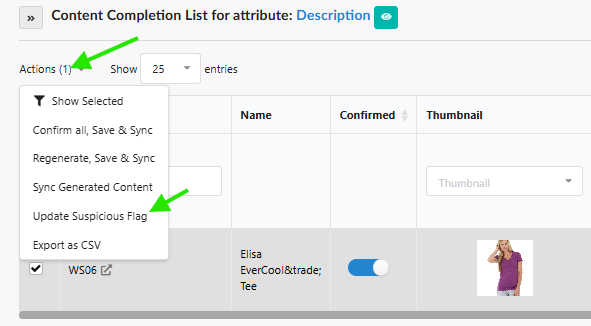
The selected completions are re-scanned against your current list and patterns. Products that no longer match lose the Suspicious status and are ready to sync.
Example: you added sorry as a suspicious word, then launched a brand called Sorry Boy. Hundreds of descriptions are now flagged. Remove or uncheck sorry in Settings, then run Update Suspicious Flag on those products — the flags clear, and you can sync them in bulk without editing each text.
Tips
- Start with whole words and add
*only when you need variants.*seo*also catches museo, which may flag ordinary copy. - If a built-in pattern keeps flagging good text in your niche, switch it off rather than editing texts one by one.
- After every change to the list, run Update Suspicious Flag on the products you want re-checked.
Used together, the word list, the patterns and the mass action give you one place to control what reaches your store — across every flow and every language.