4.3.2 Prompt Setup and Usage: The New Prompt Editor
The Prompt Field is where you write the instructions Fozzels sends to the AI for each product. The new editor lets you build the prompt, insert product data and conditions, and check the result for a real product, all on one screen.
What's new
If you used the previous drag & drop editor, these are the main changes:
| Area | Before | Now |
|---|---|---|
| Inserting attributes | Click or drag from the list | Click, drag, or type / in the editor. Every attribute is inserted as a ready condition line |
| Conditions | A separate "Attributes (if filled)" list | Each condition is a block that can hold text, attributes and other conditions (nesting) |
| Attribute options | None | Per attribute: show only when filled, hide label, fallback value |
| Data fill rate | Tooltip with a percentage | Coloured underline on every attribute, plus a tooltip with fill rate and an example value |
| Preview | Only after Save & Preview | Live preview next to the editor, synced with your cursor and scroll |
| Reusable content | Only full prompt templates | Snippets: Attribute list, Category list, Integration connector and your own reusable blocks |
| Attributes per Flow | One | The main attribute plus up to 12 additional attributes |
| Editor tools | None | Undo/redo, text size, search, full screen, show/hide preview and snippets |
Moving from the old editor. You do not need to migrate anything. Existing Flows keep working, and all prompts and saved templates were converted to the new format automatically. You can also paste a prompt written in the old format, and the editor will convert it.
1. Where the prompt fits in a Flow
You write the prompt in step 3 of a Flow, Flow Selection & Prompt. By then the Flow already knows the store, the target attribute and the AI settings.
-
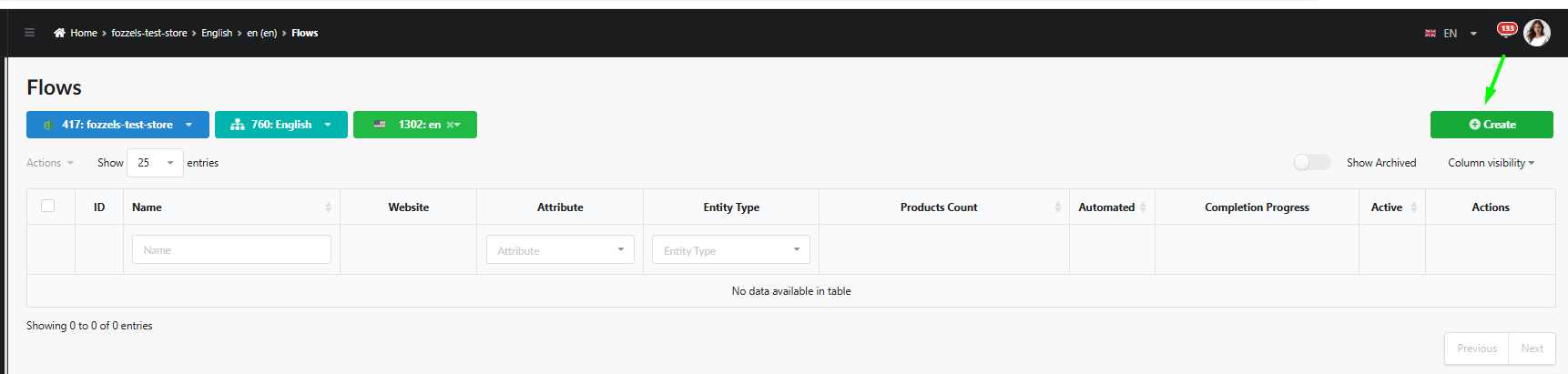
New Flow. Go to Flows → Create.
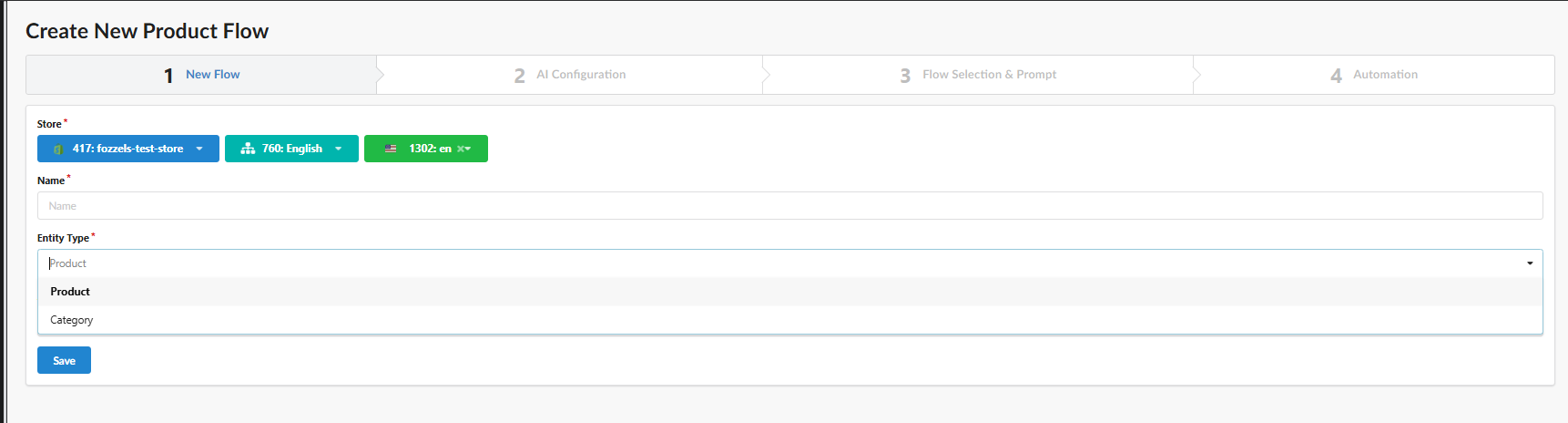
Select the integration, website and store (language), enter a name and choose the entity type: Product or Category.
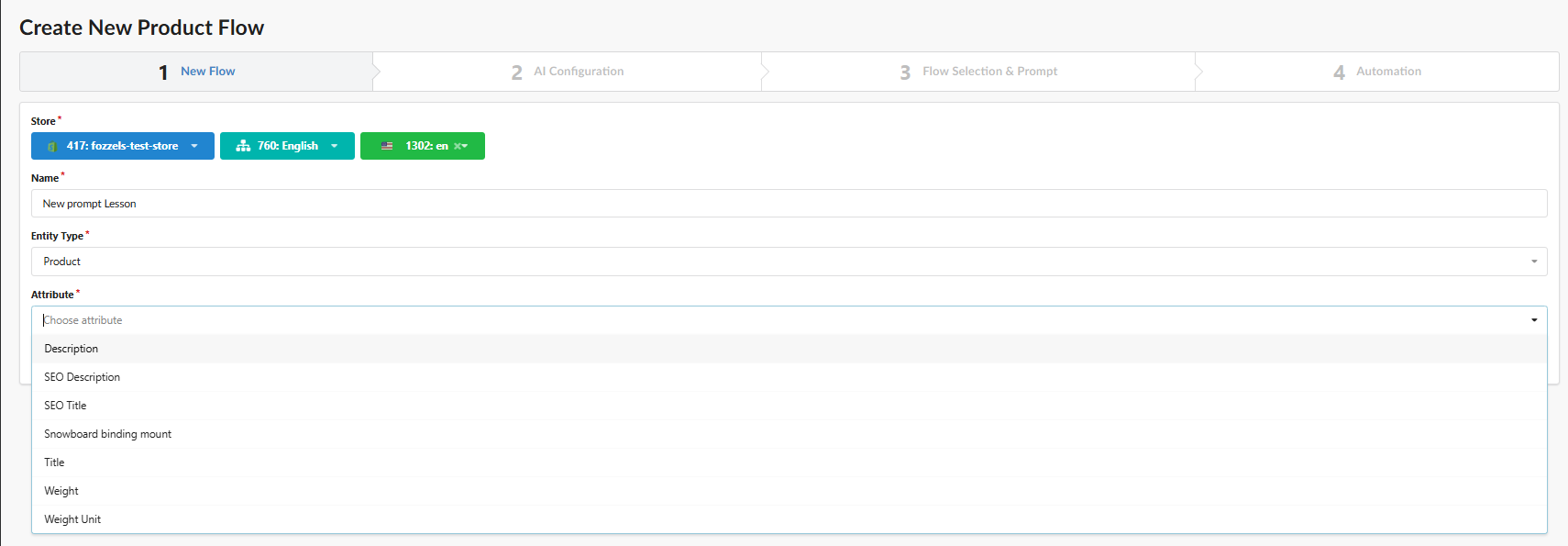
Then choose the attribute to generate content for and click Save.
-
AI Configuration. Choose the AI model and optional features such as web search, image usage and image resize. See 4.2.1 AI Configuration.
-
Flow Selection & Prompt. Use Filter & Select Products to choose which products the Flow will generate content for. If you set no conditions, all products are used. Then write the prompt in the Prompt section below.
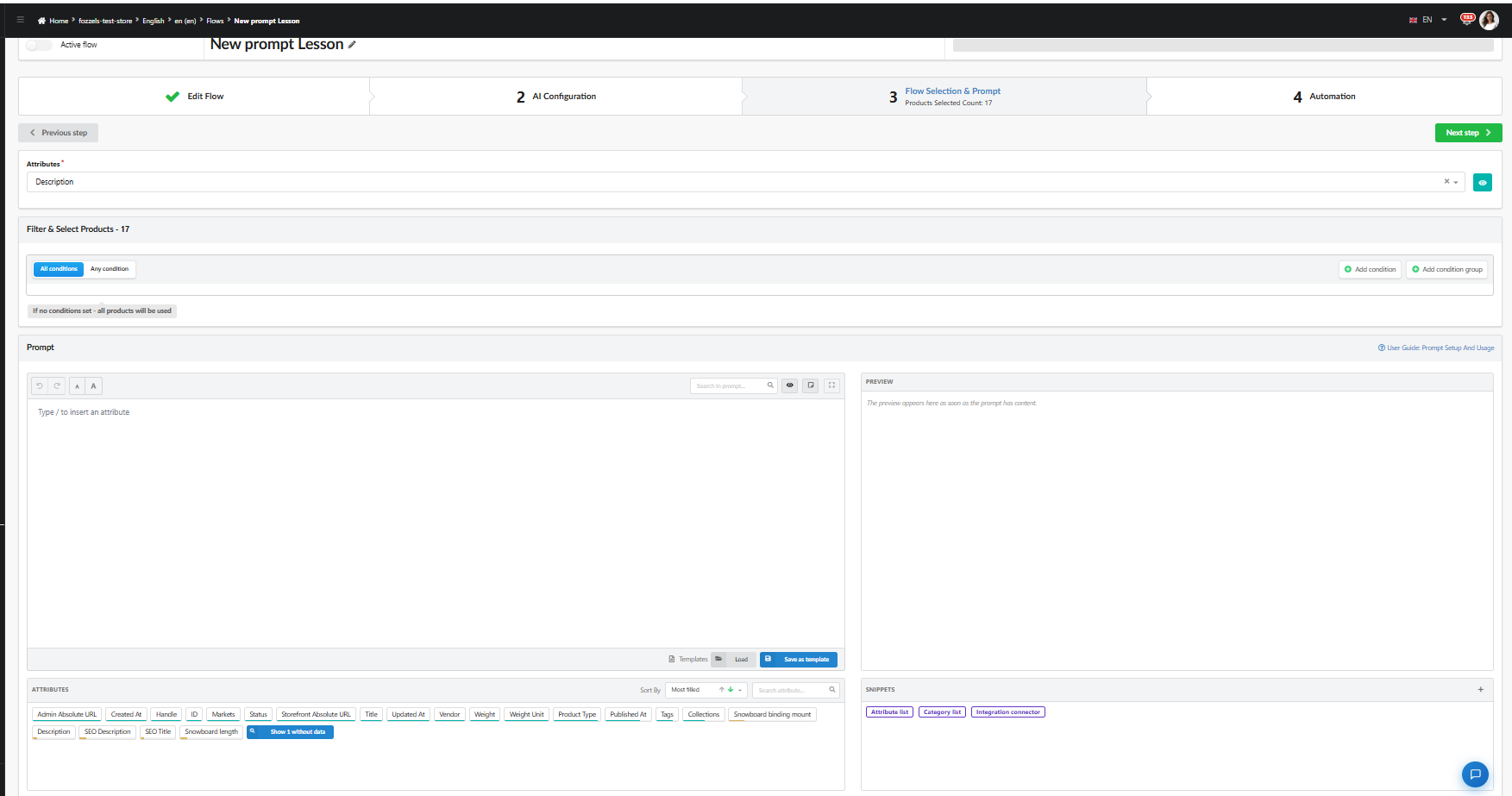
The product set you select here is also the set the Preview uses (see section 8).
One Flow, several attributes
A Flow can fill its main attribute plus up to 12 additional attributes, 13 in total. All of them are generated together in one AI request per product. Product data and images are sent once, so generation is faster and uses fewer tokens than separate Flows.
To add an attribute:
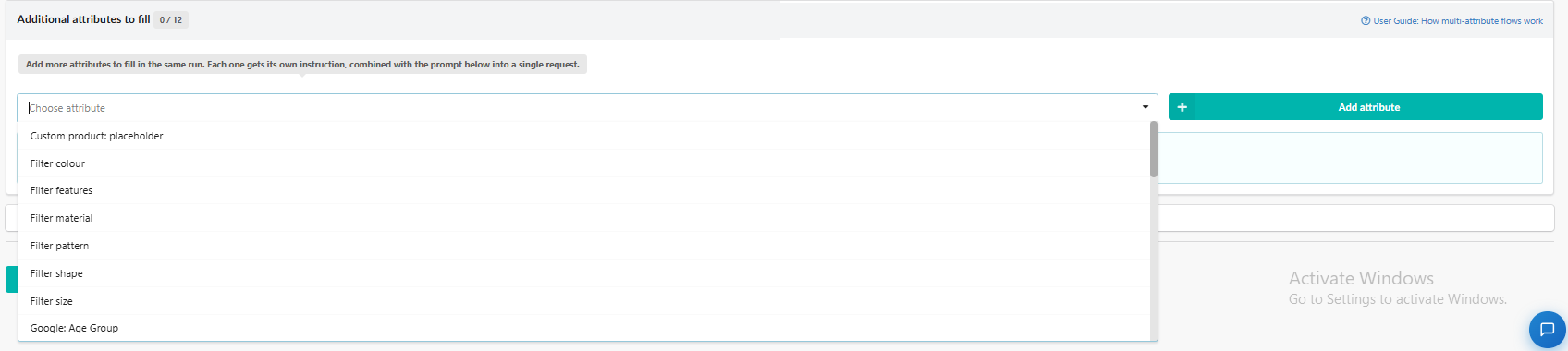
- Go to Additional attributes to fill on step 3. The counter next to the title shows how many you have added, for example 0 / 12.
- Choose an attribute in the Choose attribute list.
- Click Add attribute.
The attribute appears as its own row with its name and type, for example SEO Description · Text. Until you write an instruction, the row says No instruction yet.
In Instruction for this attribute, write what the AI should produce for this attribute. The instruction is combined with the main prompt into a single request. The field works like the main editor: type / or use the Attributes panel next to it to add attributes and conditions.
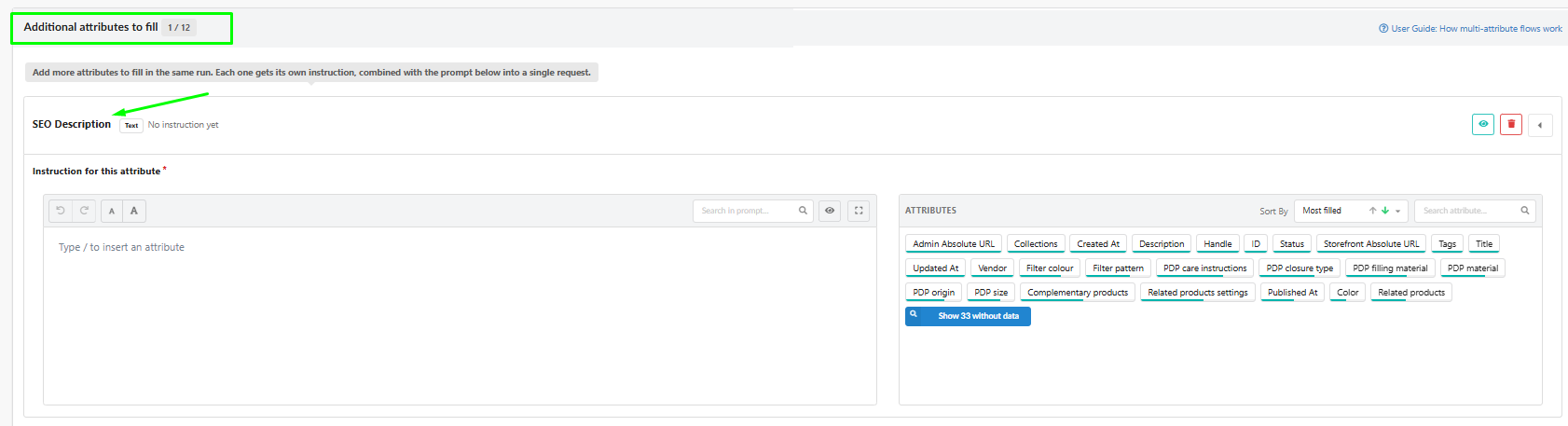
- Use the bin icon to remove the attribute, and the arrow to collapse or expand the row.
- The instruction field has no Snippets panel for now. Snippets used in it still work during generation.
- Results stay reviewable and pushable per attribute.
For more details, click User Guide: How multi-attribute flows work in the top right corner of this section.
2. Layout of the Prompt section
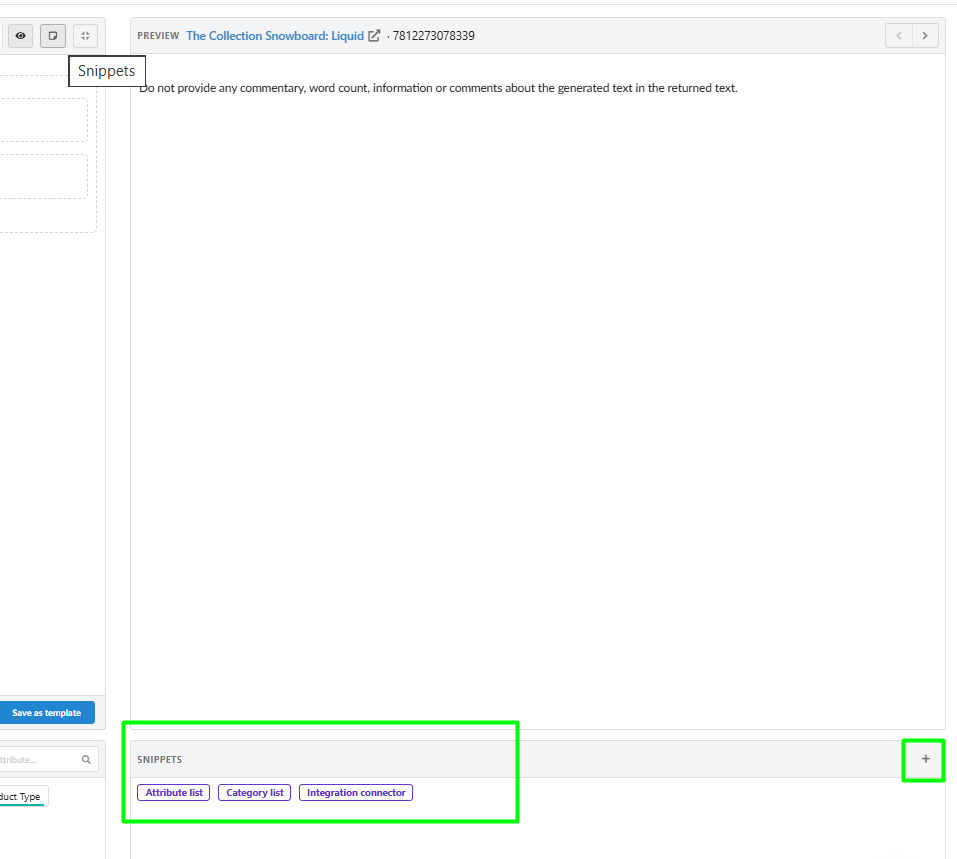
The Prompt section has four areas:
| Area | Position | What it is for |
|---|---|---|
| Editor | Top left | Write the prompt and place attributes, conditions and snippets |
| Preview | Top right | See the final prompt for one real product |
| Attributes | Bottom left | All attributes of the selected store, with their fill rate |
| Snippets | Bottom right | Reusable blocks such as Attribute list and Category list |
The User Guide: Prompt Setup And Usage link in the top right corner opens this article.
Editor toolbar
| Button | What it does |
|---|---|
| Undo / Redo | Step back or forward through your edits. Undo also restores a block you deleted by mistake |
| A / A | Make the editor text smaller or larger. This changes only the view, not the prompt |
| Search in prompt | Find words or attributes in a long prompt |
| Preview (eye) | Show or hide the Preview panel |
| Snippets (document) | Show or hide the Snippets panel |
| Maximize | Open the editor and the side panel in full screen |

When the Preview is hidden, the Attributes panel moves to the right and the editor gets more room.
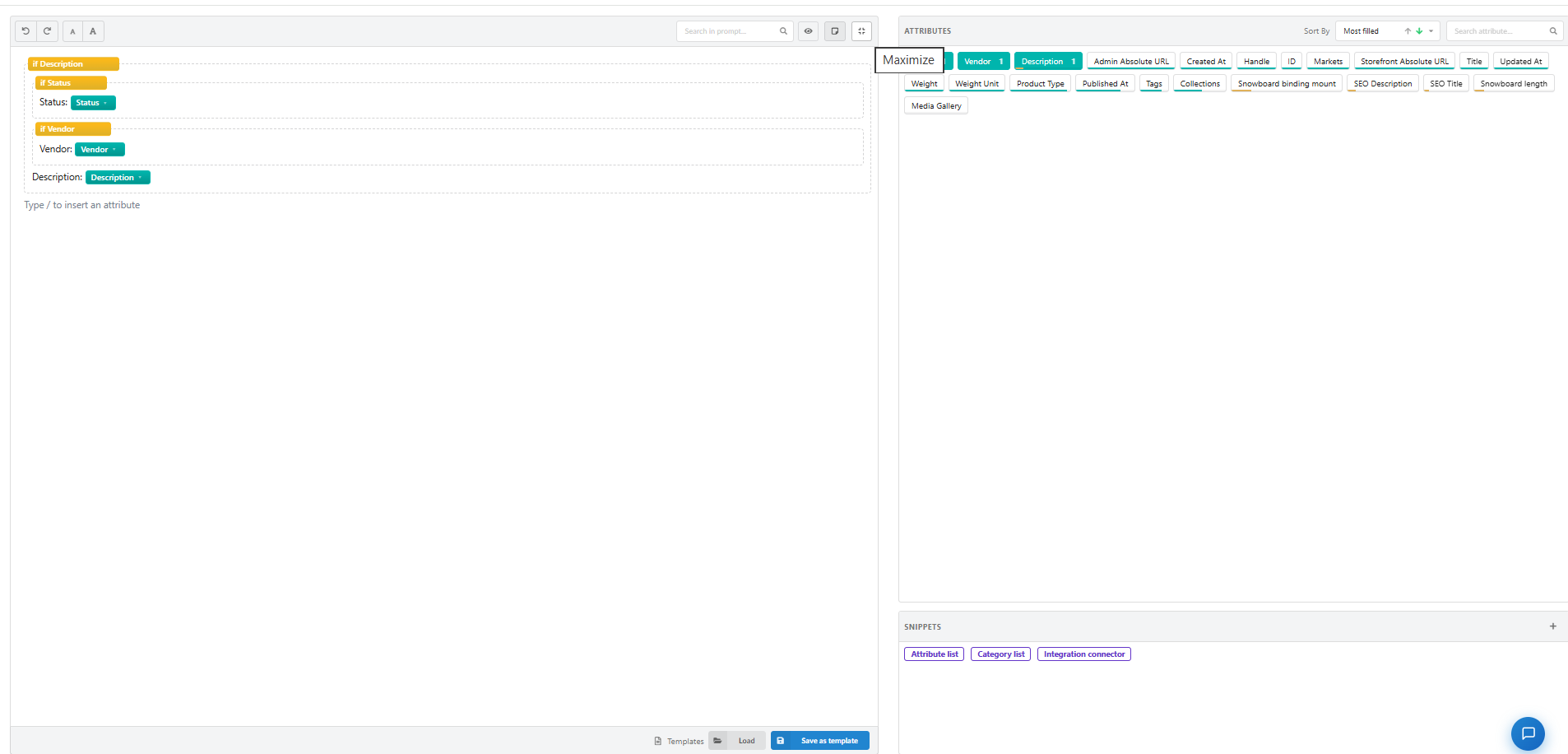
The prompt itself has no formatting: no headings, lists or bold text. To get those in the generated content, ask for them in words. You can name HTML tags such as <h2>, <ul> and <strong> in the instruction, for example Start with an <h2> heading that names the product. The editor shows them as plain text. Tags the output should contain must be allowed, see 4.7.3 Allowed HTML Tags.
3. Adding attributes
An attribute is a placeholder for product data, such as title, product type or material. In the editor it is a green chip. In the final prompt it is replaced by the product's value.
You can add an attribute in three ways:
-
Type
/in the editor. A list opens with each attribute's name and technical key.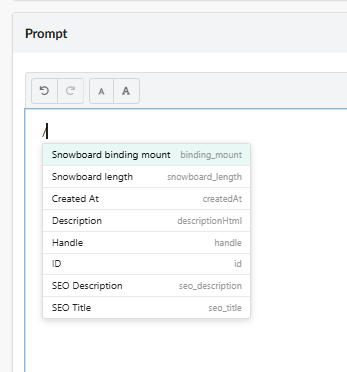
Keep typing to filter it, for example
/seo, then pick the attribute.
-
Click an attribute in the Attributes panel. It is inserted at the cursor.
-
Drag an attribute from the Attributes panel and drop it where you need it. A line shows where it will land.
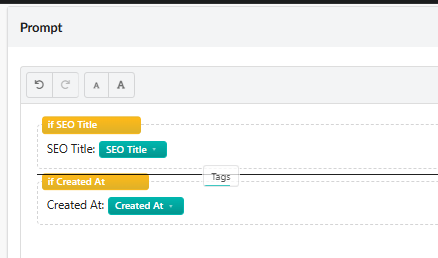
The inserted attribute arrives as a condition line with a label:

Condition line or inline attribute
The editor keeps the prompt structured: every condition takes its own line. So where an attribute ends up decides what it becomes.
| Where you insert it | Result | Example |
|---|---|---|
At the start of a line (with /, a click, or a drop before the label) | A condition line: a block with a label and the attribute | if SEO Title → SEO Title: [SEO Title] |
| Inside a line, after the label (drop between the label and an attribute) | An inline attribute with no condition of its own | Media Gallery: Handle: [Handle] [Media Gallery] |
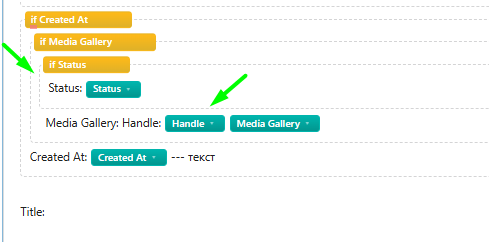
The label, such as SEO Title:, is added for you. It is normal text, so you can edit it.
You can use the same attribute as many times as you need.
4. Conditions (if-blocks)
A condition is a dashed block with a yellow header, for example if SEO Title. Everything inside the block goes into the prompt only when the product has a value for that attribute. When the value is empty, the whole block is skipped.
This keeps every product's prompt clean. A line like SEO Title: never appears without a value after it.
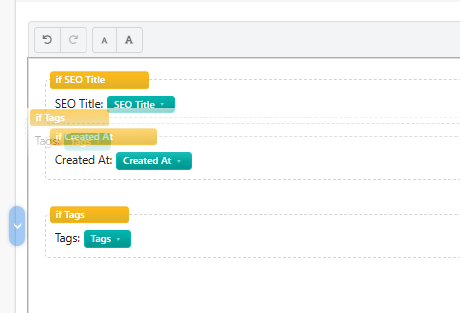
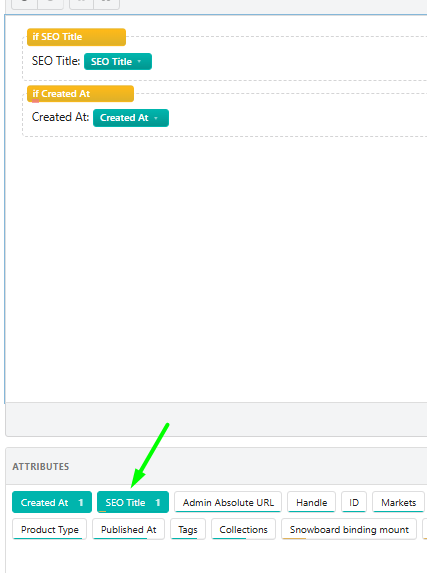
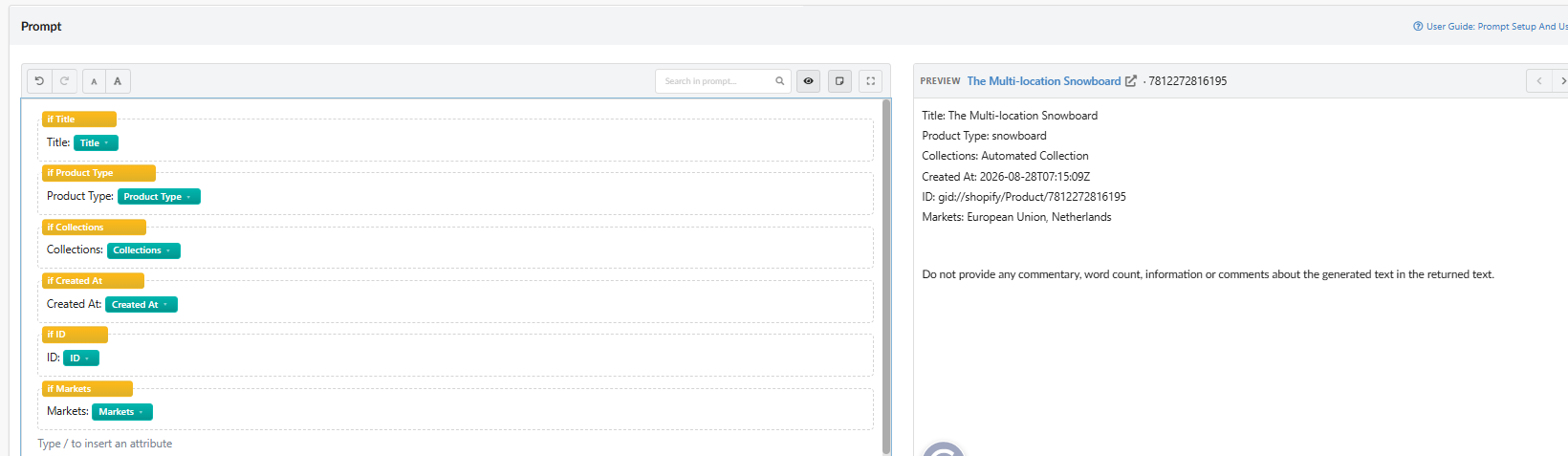
Example. The prompt contains if SEO Title, if Created At and if Tags (nested inside if Created At). The sample product has no SEO Title, so the Preview shows only the Tags and Created At lines.

What you can put inside a condition
- Free text, before or after the attribute
- Other attributes, as inline attributes
- Other conditions (nesting). For example,
if Tagsinsideif Created Atmeans the Tags line appears only when both values are filled - Snippets (see section 7)
Working with conditions
| Action | How |
|---|---|
| Move a block | Drag it by the handle ⠿ on its left. You can drop it between other lines or inside another condition. Lines without a condition have the same handle |
| Remove only the condition | Click the gear on the yellow header and select Always show (remove condition). The content stays and is always included |
| Delete the block | Click the x on the yellow header (Delete block) |
| Check the sample product | Hover the yellow header. If the condition is not met for the product in the Preview, you see No output for this sample product |

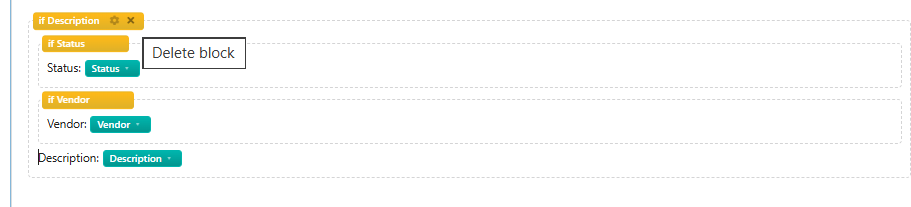
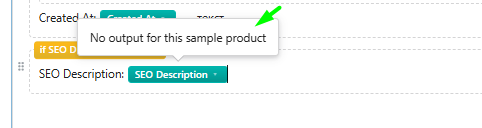
Delete block removes the whole block with everything inside it, including nested conditions. To keep the content, use Always show instead. If you delete a block by mistake, click Undo.
5. Attribute options
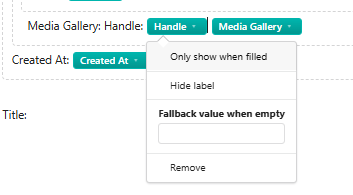
Click the small arrow on a green attribute chip to open its options.

| Option | What it does |
|---|---|
| Only show when filled | On (ticked): the attribute works as a condition and its line is skipped when the value is empty. Off: it is a plain attribute that is always included |
| Hide label | Sends only the value to the AI, without the label in front of it |
| Fallback value when empty | Text used instead of the value when the product has no value for this attribute |
| Remove | Removes the attribute from the prompt |
An inline attribute has Only show when filled off. Tick it to turn the attribute into a condition.
Using a fallback value
A fallback works only when Only show when filled is off. With the condition on, an empty line is skipped anyway, so the fallback is ignored even if you fill it in.
Example. You turn off Only show when filled for SEO Description and enter a fallback. For a product without an SEO description, the Preview shows the fallback instead. The fallback is highlighted in the Preview, so you can tell it apart from real product data.

Choosing between a condition and a fallback
- Use a condition when the line is useless without a value, for example a material or a care instruction.
- Use a fallback when the AI should always get this line, for example Brand: unknown.
- Use neither for attributes that every product has, such as the product title.
Remove deletes only the attribute chip. The label, such as Title:, stays as text. Delete it yourself, or the AI will get a label with no value.
6. The Attributes panel
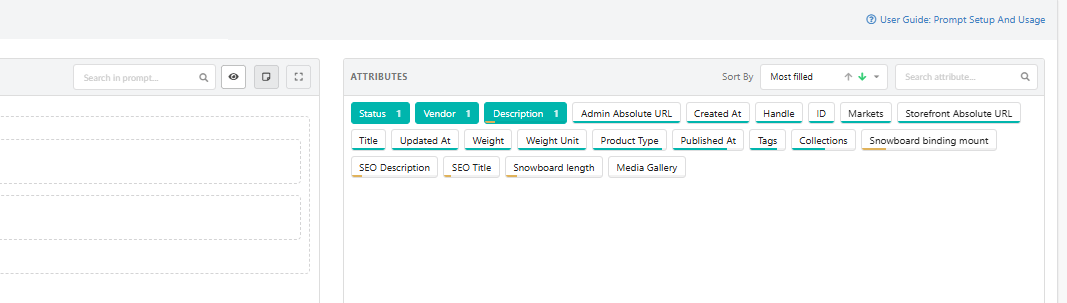
The Attributes panel lists every attribute of the selected store. Attributes already in the prompt are solid green and show a counter: SEO Title 1 means it is used once.
Fill rate (data density)
The fill rate is the share of products in the integration that have a value for an attribute. The panel shows it in three ways:
- Underline colour. Green means the attribute is filled for more than 50% of products. Yellow means less than 50%.
- Underline strength. The line gets stronger as the fill rate rises from 1% to 100%.
- Tooltip. Hover an attribute to see its name, technical key, exact fill rate and an example value from a real product.
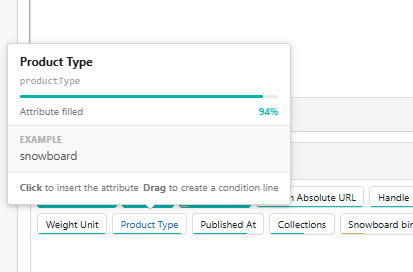
Attributes with a 0% fill rate are hidden. Click Show N without data to see them.
For attributes with a yellow underline, keep Only show when filled on or set a fallback value. This way products without that data still get a clean prompt.
Finding attributes
- Search attribute. Type part of a name to filter the list.
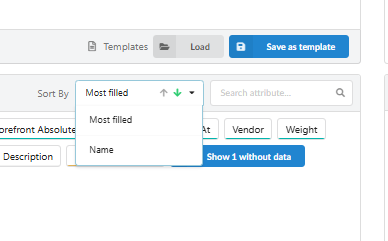
- Sort By. Sort by Most filled or by Name. Use the arrows to switch between ascending and descending order.
7. Snippets
Snippets are reusable blocks of prompt content. They appear as purple chips in the Snippets panel. Click a snippet to insert it into the prompt. A snippet already in the prompt is shown filled in the panel.
There are two kinds:
- System snippets, such as Attribute list, Category list and Integration connector. Fozzels provides them for everyone. You cannot edit or delete them.
- Your own snippets, created with the + button. You can edit them (pencil) or delete them (bin).
Attribute list
Inserts all filled attributes of the product as Label: value lines. Empty attributes are left out.
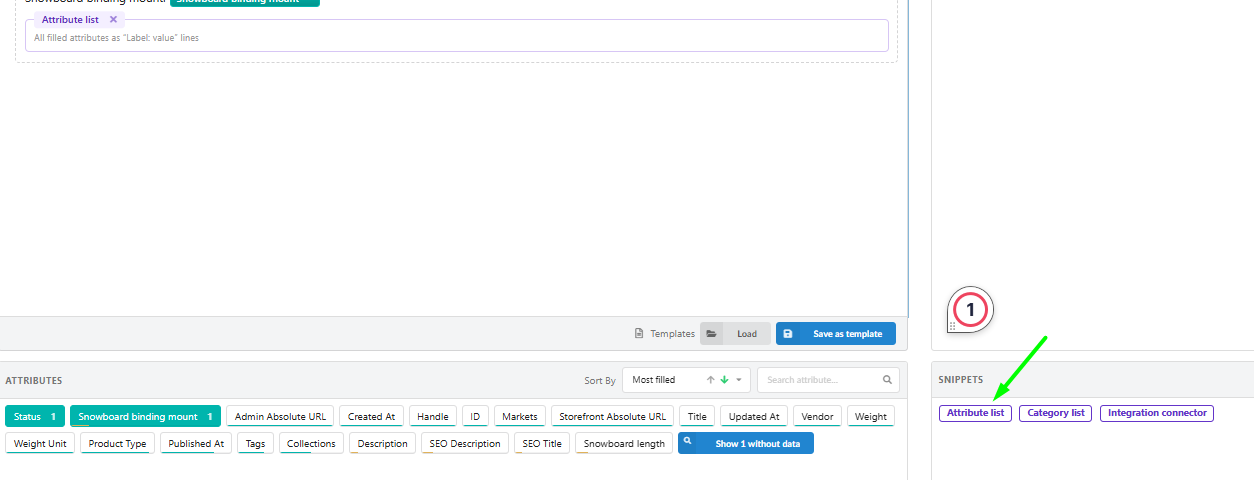
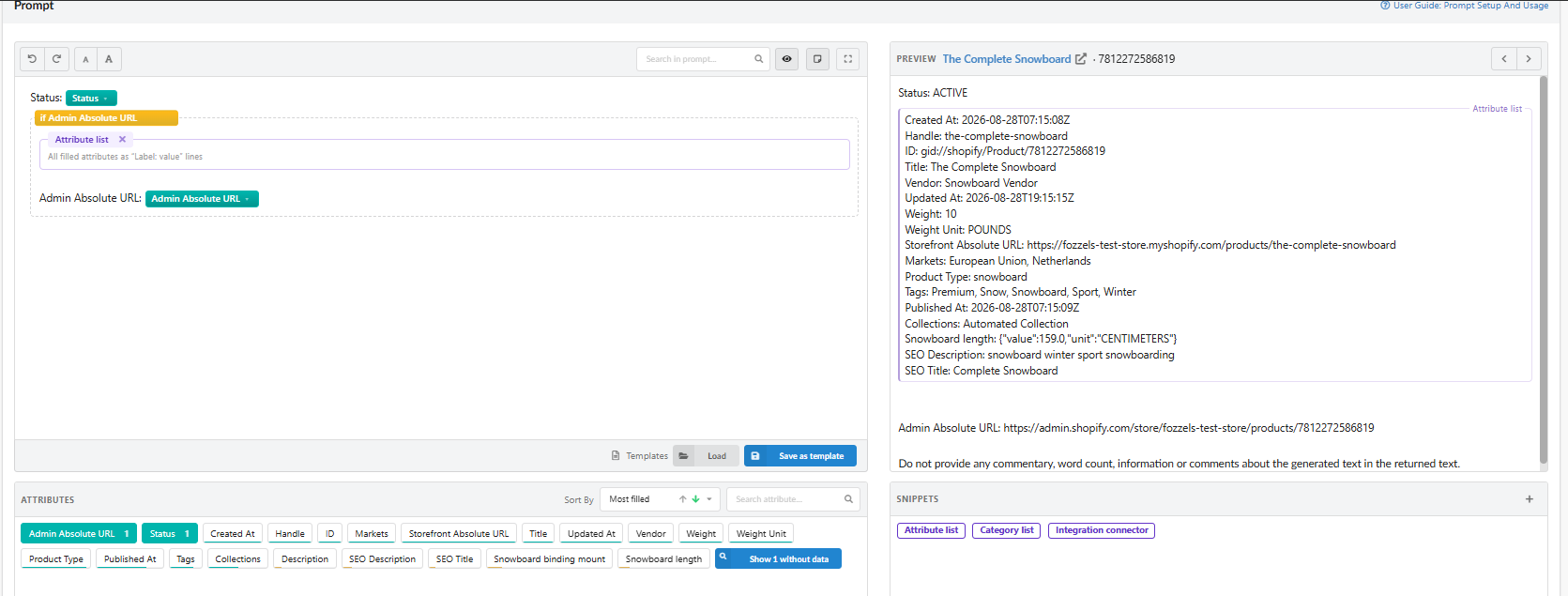
It is a quick way to give the AI all product data. But it includes everything, also technical fields such as IDs, admin URLs, dates and raw values like {"value":159.0,"unit":"CENTIMETERS"}. For better texts, choose the key attributes yourself and use Attribute list for quick tests. Insert it only once per prompt, or the same data is sent twice.
Category list
Inserts attribute lines for the categories the product belongs to. In Shopify these are collections; in other integrations it can be a different link. The block is empty when inserted and shows a header like Category list · Collections · 10.

Click the gear on the block to set it up:

- Edit template. Choose the category attributes to include, such as Name, URL, Level or Position. You build the list the same way as a snippet.
- Resolve through. Shows which product link is used to find the categories, for example Collections.
- Number of categories. The maximum number of categories in the list. A product can belong to many categories, including technical ones, so a limit keeps the prompt short and focused.
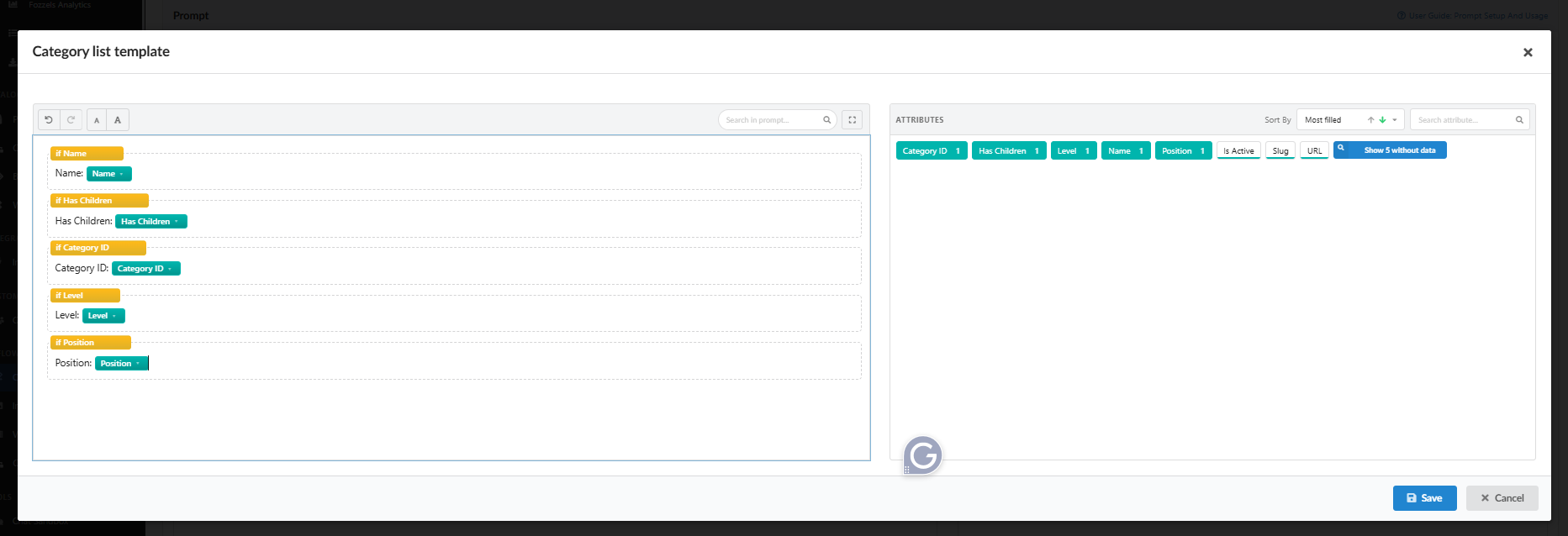
Category data helps the AI understand the product better. With Name and URL, you can also ask for internal links to related categories, which is useful for SEO.
Integration connector
Pulls in data for the same product from another store in your account. For example, a Magento Flow can use supplier notes, material composition or care instructions that only exist in your CSV feed.
- Available in product Flows only, and only when your account has a second store.
- If the product has no counterpart in that store, the block renders nothing, so the prompt stays clean.
To set it up:
-
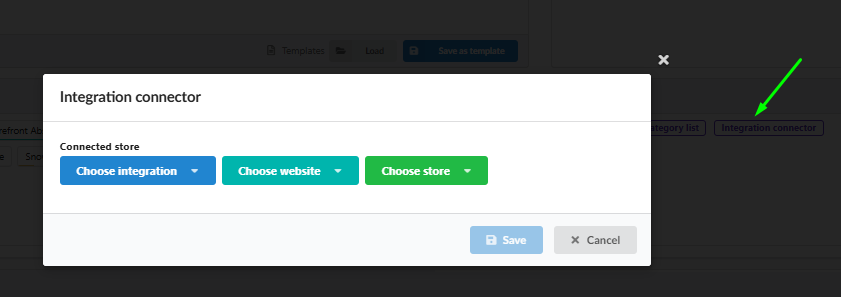
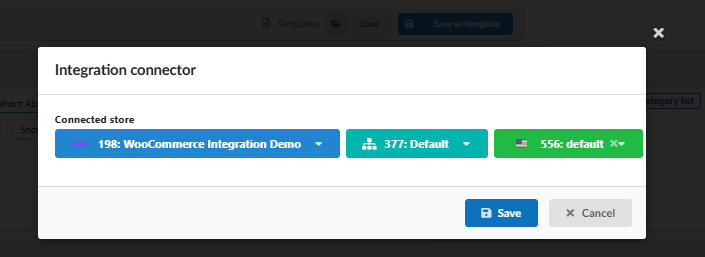
Click Integration connector in the Snippets panel. The Integration connector window opens.
-
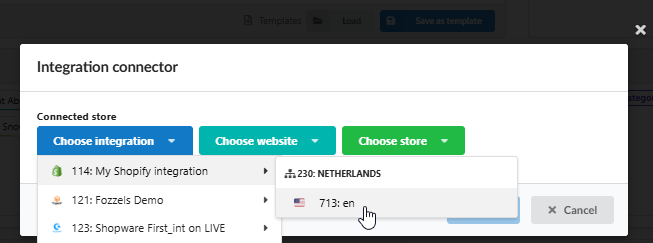
Under Connected store, choose the integration, website and store to pull data from.
-
Click Save.
-
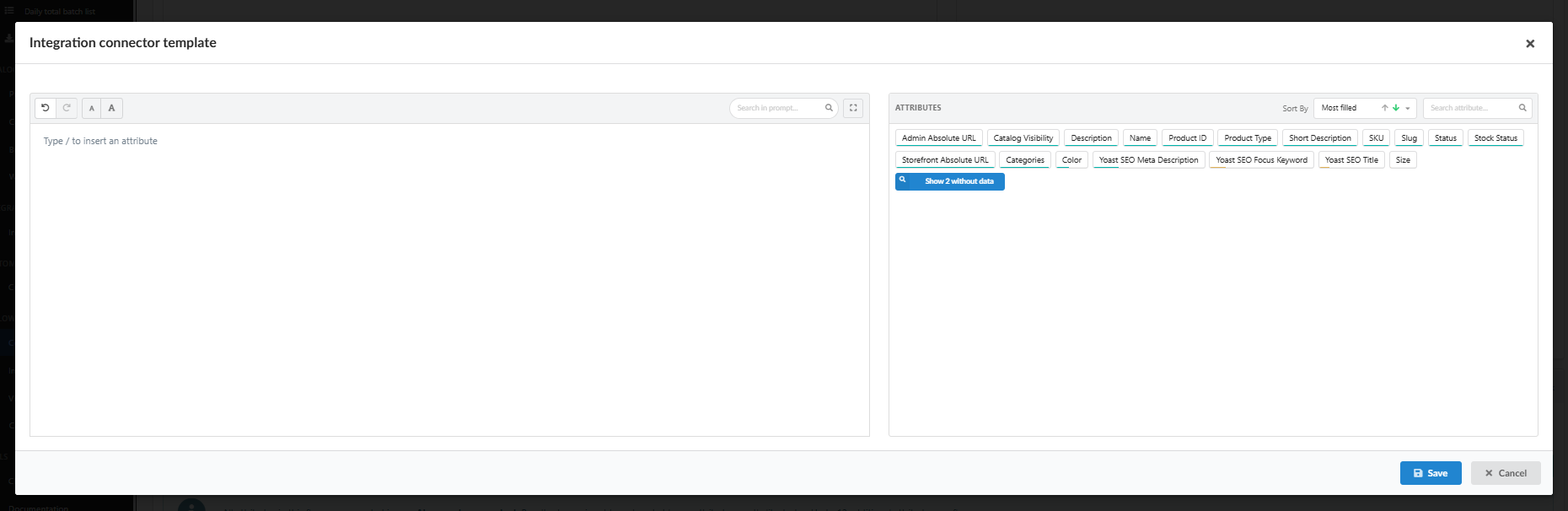
The Integration connector template window opens with the attributes of the connected store. Add the attributes you need, the same way as in a snippet: each one becomes a condition line.
-
Click Save. The block is added to your prompt.
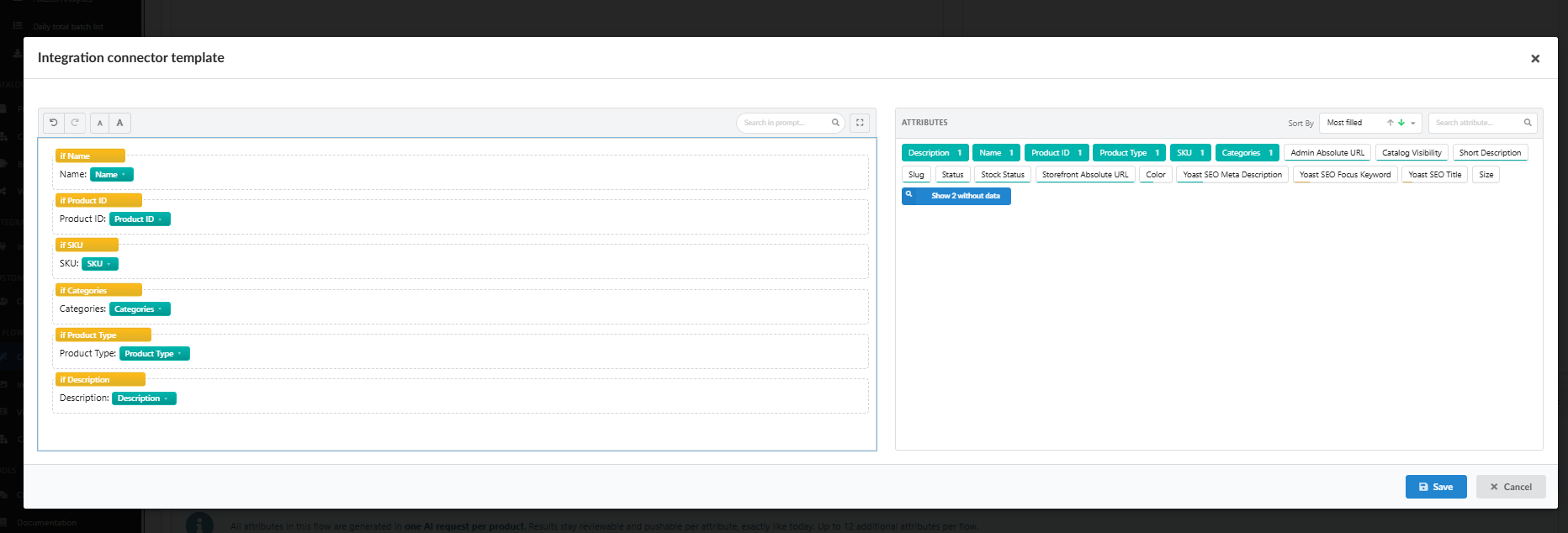
Fozzels finds the product in the connected store by its identifier, such as SKU or ID. The identifiers must match in both stores. If they do not, the product has no counterpart there and the block stays empty in the Preview.
Creating your own snippet
-
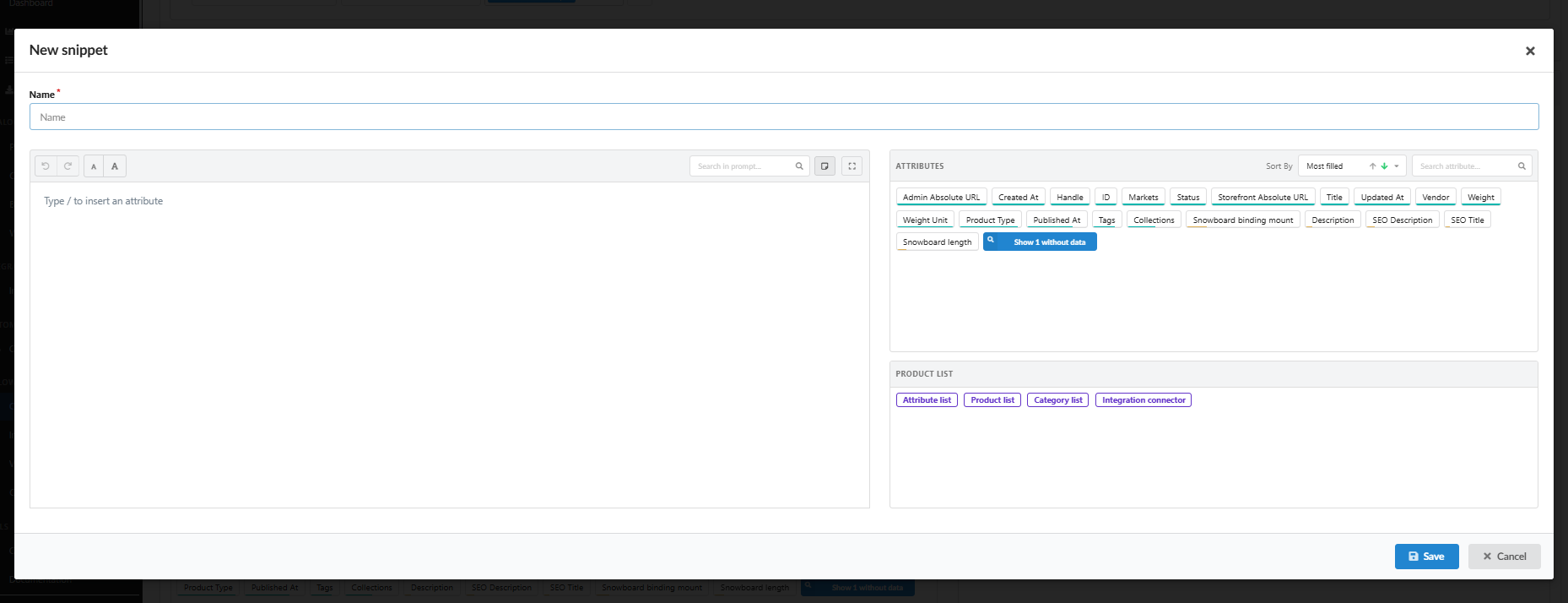
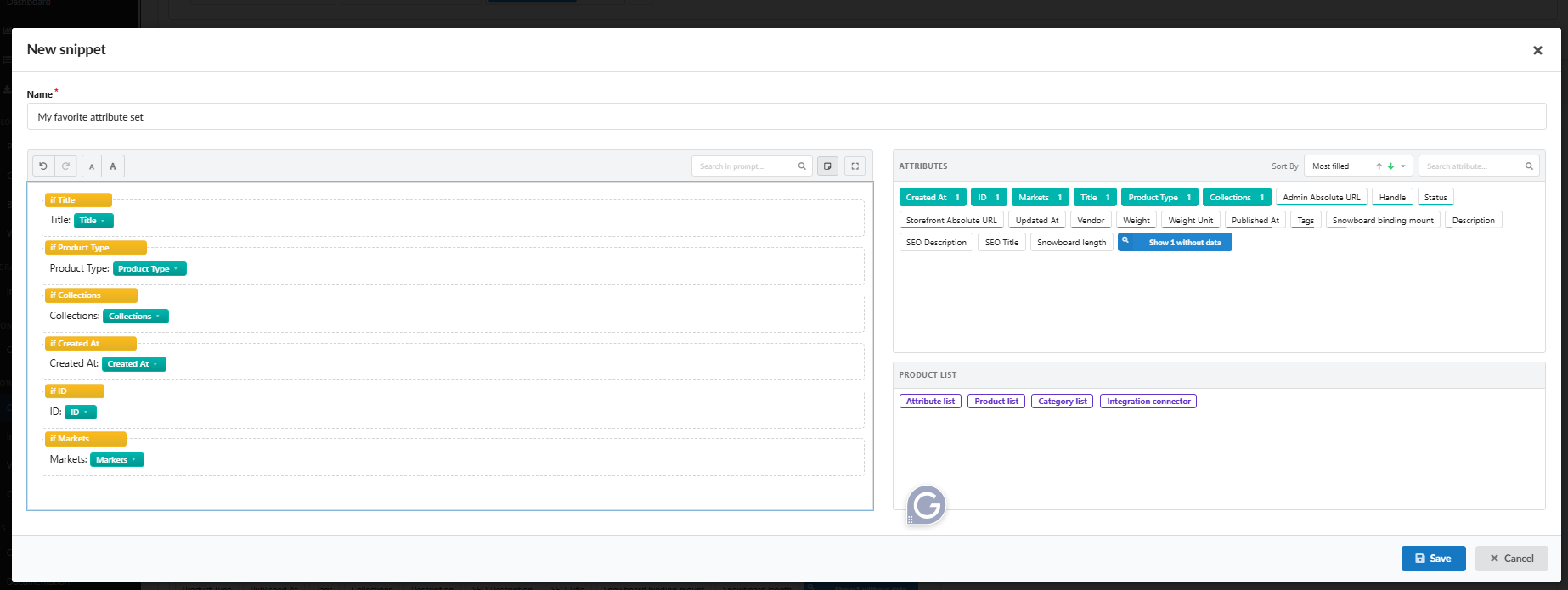
Click + in the Snippets panel. The New snippet window opens.
-
Enter a Name.
-
Click a starting type, for example Attribute list. It appears in the editor as a placeholder.
-
Click the attributes you need. Each is added as a condition line, and the placeholder is replaced by your own list.
-
Before adding the next attribute, place the cursor on a new line. A new line is not created automatically.
-
Click Save. The snippet appears in the Snippets panel.
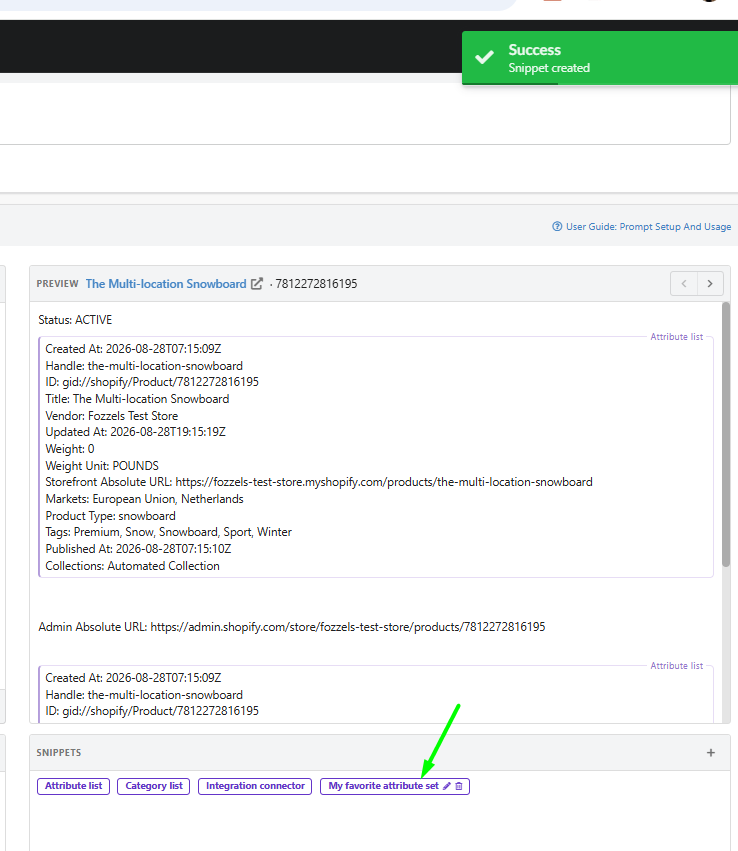
Your snippets are available in all Flows of the same integration, across all its stores.
Editing a snippet in the prompt
In the prompt, your snippet is one purple block with its name.
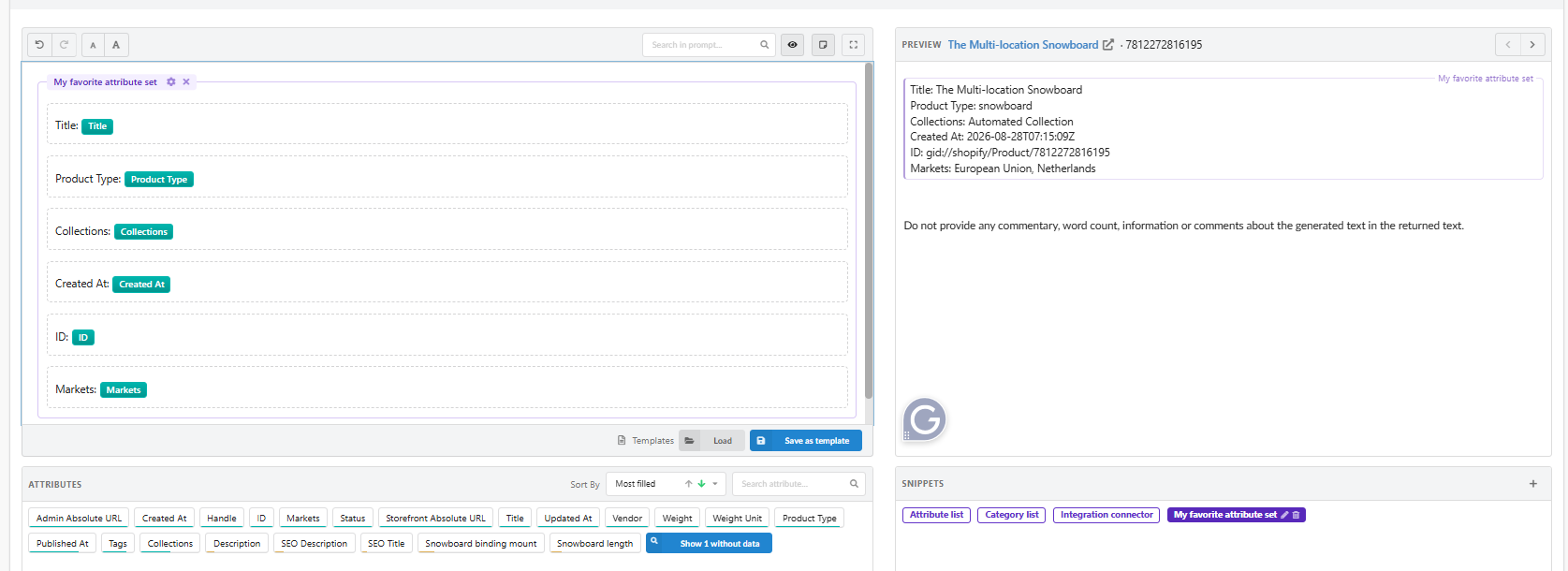
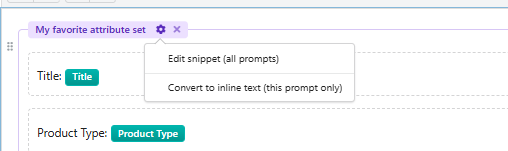
Click the gear on it:
| Option | What happens |
|---|---|
| Edit snippet (all prompts) | Opens the snippet for editing. Changes apply to every prompt that uses it, in all Flows and stores of the integration |
| Convert to inline text (this prompt only) | Turns the snippet into normal condition lines in this prompt. You can then edit, move or delete each line. Later changes to the snippet no longer affect this prompt |
Keep the snippet when the same list should stay identical and be updated in one place. Convert it when one prompt needs its own version.
Attributes inside a snippet do not count toward the counters in the Attributes panel.
When a snippet is deleted
If a snippet used in your prompt is deleted, its block stays in the prompt but turns faded and shows only a number instead of the name, for example #11. It renders nothing, so it does not break generation. Delete the block with its x, or replace it with another snippet.

8. Preview
The Preview shows the final prompt for one product from your selected set, in the language of the selected store. Attributes are replaced with the product's values, and conditions without a value are left out. This is exactly what the AI receives.
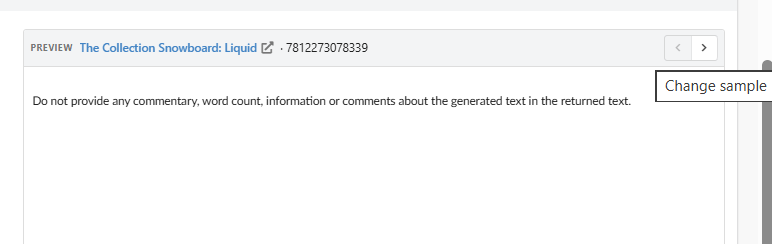
Preview header
- Product name. Click it to open the product page in Fozzels, with all its attribute values and images.
- Link icon. Opens the product on your website.
- SKU or ID. Which one you see depends on the integration.
- Change sample (< >). Switch to the previous or next product, in catalogue order.
How the Preview behaves
- Live. Every change in the editor appears right away. You do not need to refresh.
- Read-only. You cannot type in the Preview. Change the prompt in the editor.
- Synced. Hover an attribute or condition in the editor and the matching line in the Preview is highlighted. The Preview also scrolls together with the editor, so you do not get lost in a long prompt.

Switch between a few samples, especially products with little data. This shows you how the prompt reads when some conditions are skipped.
The closing instruction
At the end of every Preview you see: Do not provide any commentary, word count, information or comments about the generated text in the returned text. Fozzels adds this line to every prompt automatically, so the AI returns only the content itself. You do not need to add it yourself.
9. Templates
Templates let you reuse a complete prompt in other Flows. Unlike a snippet, a template is the whole prompt. The controls are at the bottom of the editor.
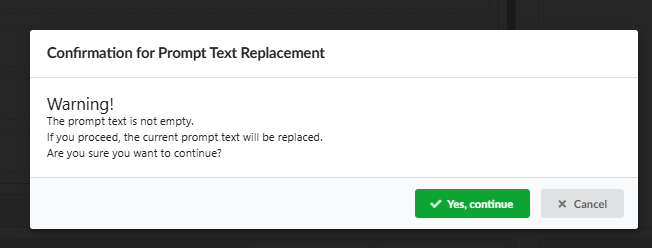
- Load replaces the current prompt with a saved template. If the prompt is not empty, you are asked to confirm first, so you do not lose your work by accident.
- Save as template saves the current prompt, including attributes, conditions and snippets, as a new template.
10. Localization of attribute names
Attribute names follow the language of the selected store, for example product_name for en-US and product_naam for nl-NL.
- If an attribute has no name for a language, the name from the default store (marked with
*) is used. - To change a localized name, go to Integration settings → Attribute → Locale.
Prompts link attributes by their unique technical key, not by their name. Renaming an attribute or switching the store language does not break your prompt.
11. Editing the prompt with the AI Prompt Assistant
The AI Prompt Assistant can write, extend or rewrite your prompt for you. It reads the current prompt, including its conditions, snippets and blocks.
- When you ask it to add something, it answers with only the new part. For example, if your prompt asks for an SEO description and you ask "add slug", it suggests just the new piece, for Add or At cursor.
- When you ask it to change the prompt (improve or rewrite it, remove or edit a line, or add a line at the start or in the middle), it answers with the complete prompt, for Replace all. Everything you did not ask to change is kept as it is, including snippets, conditions, attribute lists, category lists and integration connectors.
- To get headings, lists or HTML in the generated content, just ask, for example start the description with an h2 heading with the product name. The assistant adds this as an instruction in words, because the prompt itself carries no formatting.
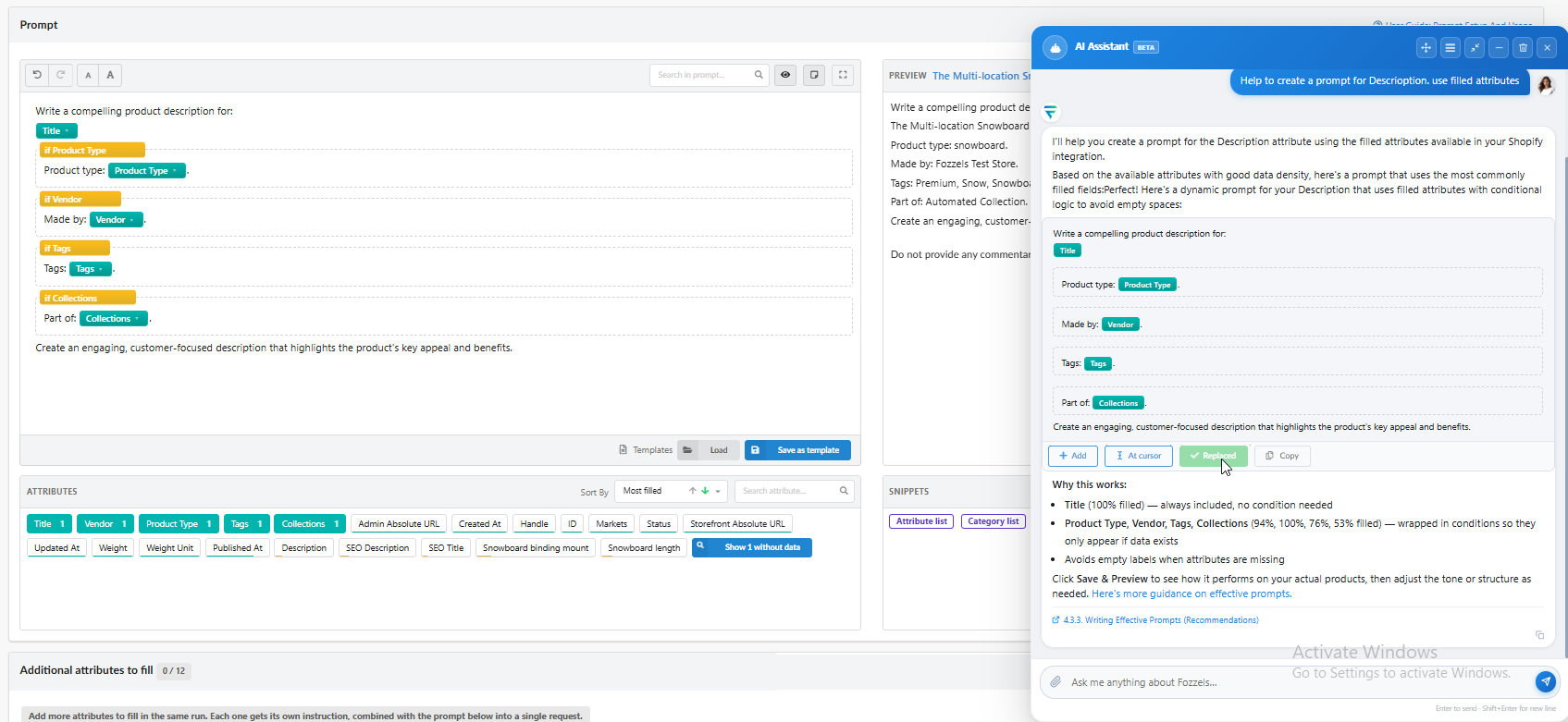
To open it, click the blue chat button in the bottom right corner of the page. The AI Assistant panel opens next to the editor. Type your request, for example Help me create a prompt for Description. Use filled attributes., and press Enter to send. Use Shift+Enter for a new line.
The assistant knows the attributes of your integration and their fill rates. It builds the prompt with attributes and conditions, and explains its choices, for example why an attribute is wrapped in a condition.
Placing a suggestion
Each suggestion appears in the chat as a block, drawn the same way the editor shows it, with these buttons:
| Button | What it does |
|---|---|
| Copy | Copies the suggestion so you can paste it yourself |
| Add | Adds the suggestion to the end of the prompt |
| At cursor | Inserts the suggestion where your cursor is in the editor |
| Replace all | Replaces the whole prompt with the suggestion |
After you click a button, it turns green and is disabled for a moment, so the same text is not inserted twice. The placement buttons appear only when a prompt editor is open on the page. If a suggestion does not fit the editor's format, only Copy is shown.
Choosing which prompt to edit
When a page has more than one prompt, a dropdown above the chat input lets you pick which one the assistant works on.
- A suggestion always goes to the prompt that was selected when you asked the question, even if you change the dropdown later.
- In a conversation restored from an earlier session, suggestions go to the Flow's main prompt.
- If the prompt a suggestion belongs to has been deleted, the suggestion is marked unavailable and is not written anywhere else.