4.7.6 Exporting Generated Content to Excel and CSV
Overview
You can download generated content from a Content Completion List as an Excel (.xlsx) or CSV file. You choose the products and columns, Fozzels builds the file in the background, and it appears under Export / Generated Data for 24 hours.
Export is useful when you need to read the full texts (they are truncated in the table), share content with colleagues or a client for review, or import results into another system such as an ERP, a PIM or a spreadsheet.
How to export
-
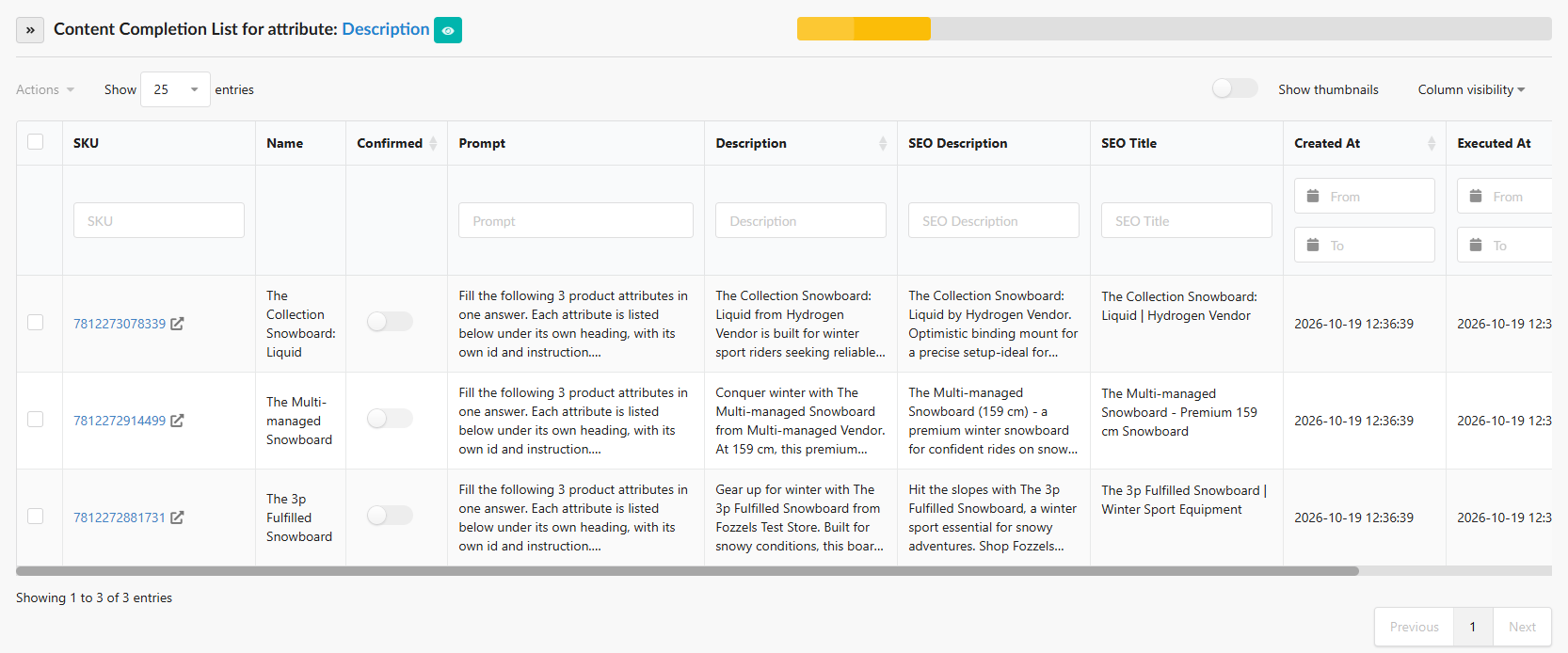
Open the Content Completion List of the flow (batch) you need.
-
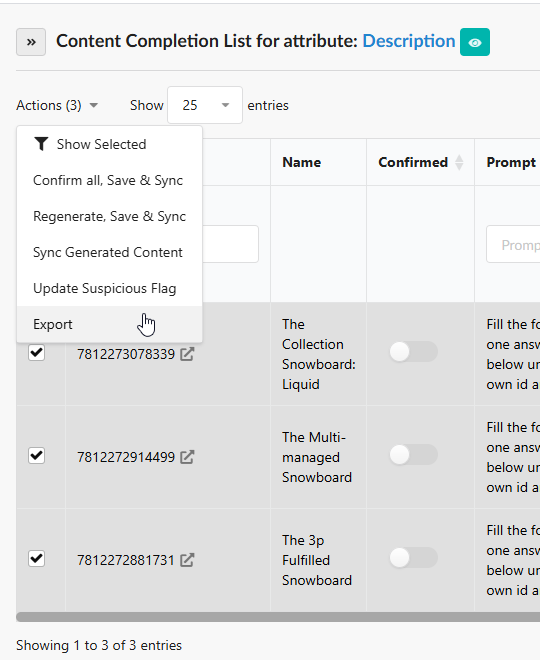
Tick the products you want to export. The number of selected items appears in the menu, for example Actions (3).
-
Click Actions → Export.
-
In the Export Text Completions window, choose the format (CSV or Excel) and, for CSV, the delimiter and line option. See File format below.
-
Tick the columns to include. Generated content and SKU are selected by default.
-
Click Export as CSV or Export as Excel. The file is built in the background.
-
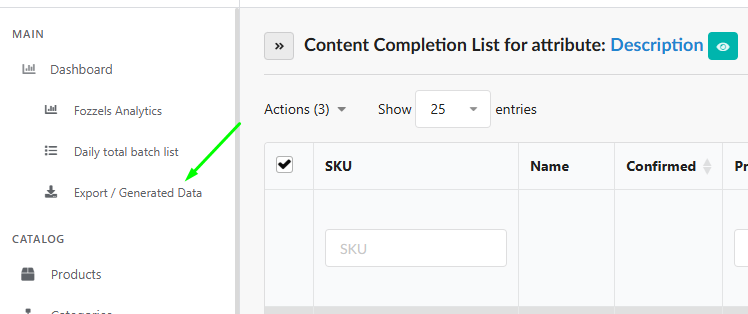
In the sidebar, open Dashboard → Export / Generated Data.
-
When the status shows Available, click ZIP in the Download column.

-
Unzip the archive: it contains the .xlsx or .csv file.
Only completions that already have generated content are included. The archive is available for 24 hours; after that, run the export again. The file name is built from the batch name and the number of records, for example my batch - 3 Completions.csv.
File format
Choose Excel when a person will read the file, and CSV when the data goes into another system.
| Format | When to use | Details |
|---|---|---|
| Excel (.xlsx) | Reviewing, editing, sharing with colleagues | Opens directly, no settings needed. SKU is stored as text |
| CSV | Importing into an ERP, PIM or other system | UTF-8 encoding, text values in quotes, delimiter of your choice |
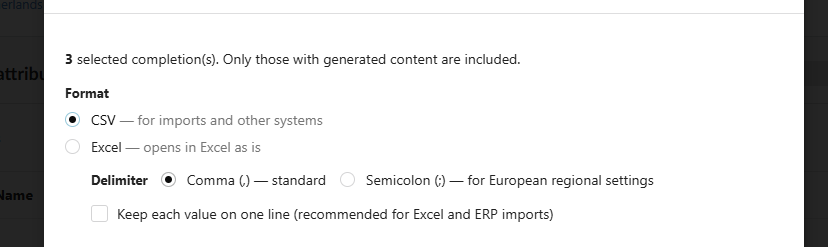
Delimiter (CSV only). Comma (,) is the standard for most import systems. Semicolon (;) is for files opened in Excel with European regional settings (Netherlands, Germany, France and others): there Excel expects “;”, otherwise everything ends up in a single column.
Keep each value on one line (CSV only). Texts can contain line breaks, for example between HTML paragraphs or in the prompt. Without this option the breaks stay inside the value (in quotes), and one product takes several physical lines in the file. With the option, line breaks are replaced by spaces and each product takes exactly one line.
- Turn it on if your import system does not support line breaks inside values (common for ERP systems).
- For HTML this is safe: spaces between tags do not change how the content is displayed.
- For plain text with paragraphs, the breaks are replaced by spaces and cannot be restored.
Available columns
Columns are grouped into four blocks. The checkbox next to a block name turns all its columns on or off at once, and the counter (e.g. “2 of 4”) shows how many are selected.
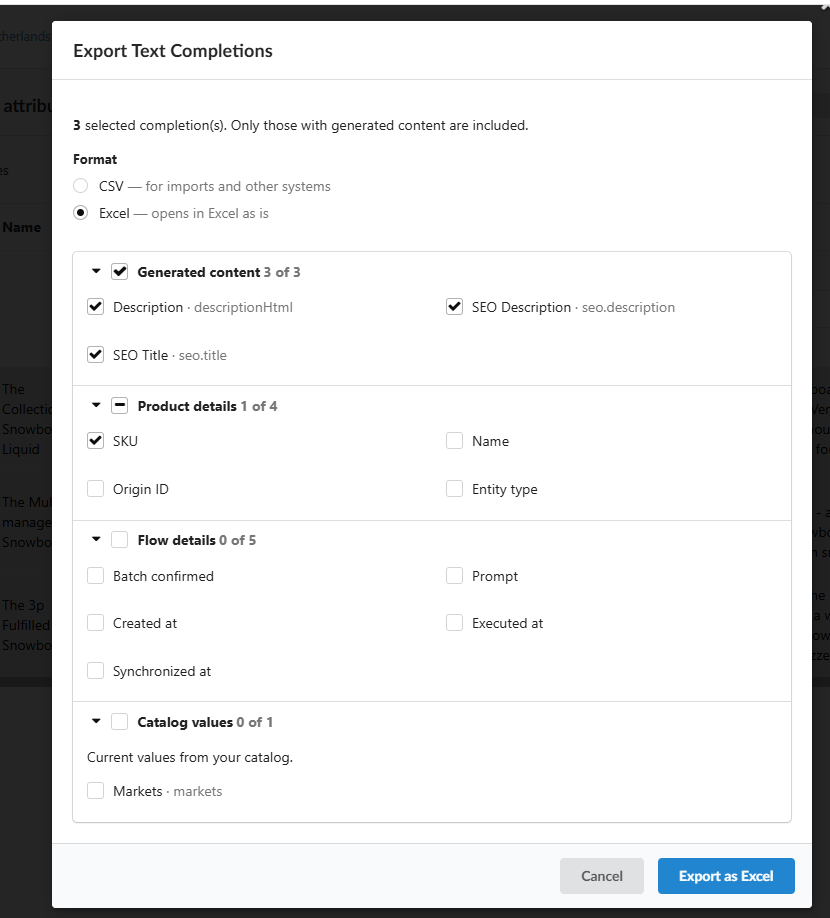
| Block | Column | Header in the file | Contains |
|---|---|---|---|
| Generated content | Attributes generated by the flow | Attribute code, e.g. descriptionHtml, seo.description, seo.title | The generated values, in full. Selected by default |
| Product details | SKU | sku | Product identifier. Selected by default |
| Product details | Name | name | Product name |
| Product details | Origin ID | origin_id | Product ID in the connected platform (e.g. Shopify) |
| Product details | Entity type | entity_type | Entity type, e.g. product |
| Flow details | Batch confirmed | batch_confirmed | Whether the result is confirmed (0 = not confirmed) |
| Flow details | Prompt | prompt | Full prompt text including product data. Long, with line breaks |
| Flow details | Created at | created_at | When the record was added to the batch (UTC) |
| Flow details | Executed at | executed_at | When the latest generation ran (UTC) |
| Flow details | Synchronized at | synchronized_at | When the content was synced to the store (UTC). Empty if not synced yet |
| Catalog values | Catalog attributes | Attribute code, e.g. markets | Current values from your catalog, not generated |
The Catalog values block lists attributes that have Show in batch list enabled in their attribute settings. In the file, product details come first, followed by flow details, generated content, dates and catalog values.
Reading the file
Headers are attribute codes, not names. Attribute names can differ per customer and per store language, while the code is unique and never changes. That is why the same file can be imported without extra mapping. The export dialog shows each code in grey next to the name (e.g. Description · descriptionHtml).
Dates and times are in UTC. Times appear as 2026-10-19 10:36:39 in UTC, so they can differ from the Fozzels interface, which shows your own time zone. For example, 12:36 Central European Summer Time appears as 10:36 in the file.
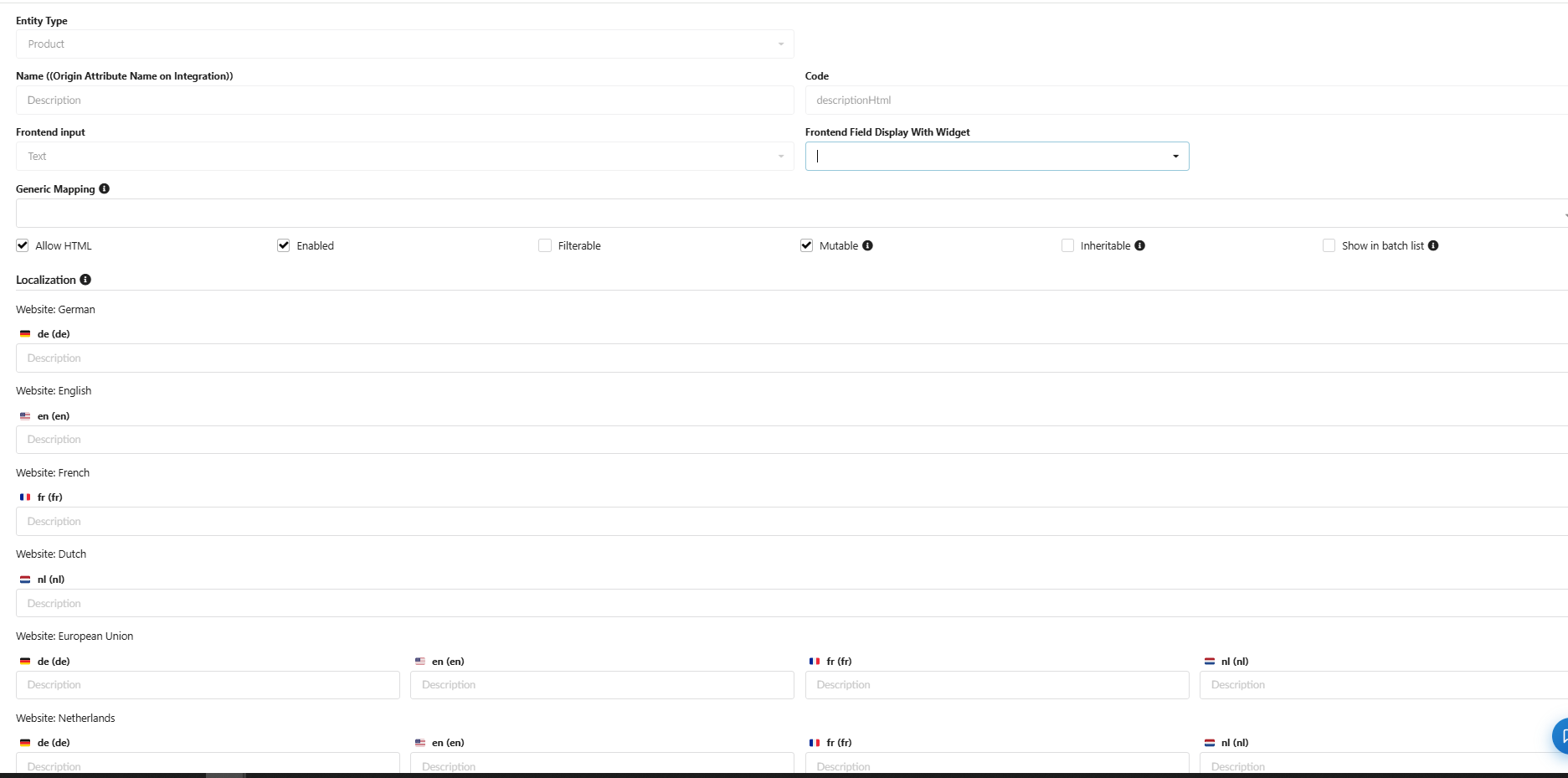
HTML is kept as is. If Allow HTML is enabled for an attribute (as for Description), the file contains markup with tags such as <p>, <ul> and <li>. This is needed for a correct import. For meta fields (SEO Title, SEO Description), Allow HTML should be disabled, otherwise tags end up both in the file and in your store.
Empty cells are normal. An empty value means there is no data: the attribute is not filled in the catalog, or the content has not been synced yet (empty synchronized_at).
Batch confirmed is returned as a number: 0 means the result is not confirmed.
Opening a CSV file
The safest way to open a CSV is through an import with UTF-8 encoding and the delimiter set explicitly. Special characters (’, é, ä, Cyrillic) and columns will then display correctly.
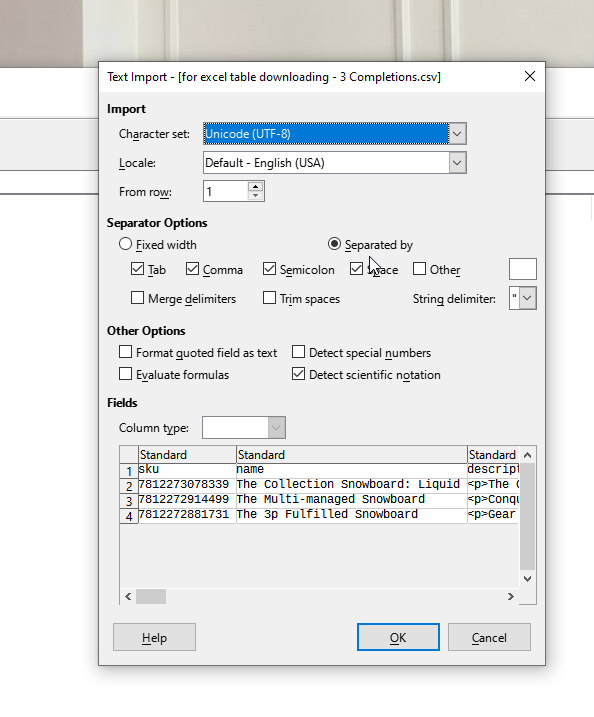
LibreOffice Calc shows the Text Import window automatically when you open any CSV:
- Character set: Unicode (UTF-8).
- Separator Options: leave only the delimiter you chose during export ticked (Comma or Semicolon). LibreOffice remembers the boxes from earlier files, so Tab or Space may also be ticked.
- String delimiter: " (double quote).
- To keep SKU and IDs as text, select those columns in the preview and set Column type → Text.
- Click OK.
Microsoft Excel opens a CSV with your local settings when you double-click it, so special characters may display incorrectly (e.g. it’s instead of it’s). To avoid this:
- In an empty workbook, go to Data → From Text/CSV and select the file.
- File Origin: 65001: Unicode (UTF-8).
- Delimiter: the same one you chose during export.
- Click Load.
If you only need to read the file, it is easier to export in Excel format straight away. Do not re-save a CSV in Excel before importing it into another system: Excel may change the delimiter or encoding, or turn long numbers into the 7.81227E+12 format.
FAQ
I clicked Export but no file was downloaded. The file is built in the background and is not downloaded automatically. Find it under Dashboard → Export / Generated Data.
The file has fewer products than I selected. Only records with generated content are exported. Also check that you selected products on all pages of the list, not just the current one.
Everything in my CSV is in one column. The delimiter in the file does not match what your program expects. Export again with the other delimiter (“;” for European Excel) or open the file through an import as described above.
I see garbled characters such as ’. The file was not opened as UTF-8. Open it through an import with UTF-8 encoding or export in Excel format.
SKU shows as 7.81227E+12. The spreadsheet program turned a long number into scientific notation. When importing the CSV, set this column to Text. The Excel format does not have this problem.
Times in the file do not match the table. The file uses UTC, while the interface uses your time zone.
SEO fields contain <p> tags. Allow HTML is enabled for that attribute. Disable it in the attribute settings and regenerate the content.
The download link has expired. Archives are kept for 24 hours. Run the export again.