4.1.2. Creating a New Content Flow and Initial Settings.
The Content Flow is the core of automation within Fozzels. It tells Fozzels which products to work on, which attributes to fill, which AI model to use and what instructions to give it. Fozzels then generates, updates and synchronizes the content for your products.
One Flow can fill several attributes at once. You choose a main attribute when you create the Flow, and you can add up to 12 more later. All of them are generated together in one AI request per product.
This guide walks you through all four steps of a Flow, using one example: a Flow that writes a Description, a Short Description and a Meta Description for women's products that have photos but no description yet.
1. Create a new Flow
-
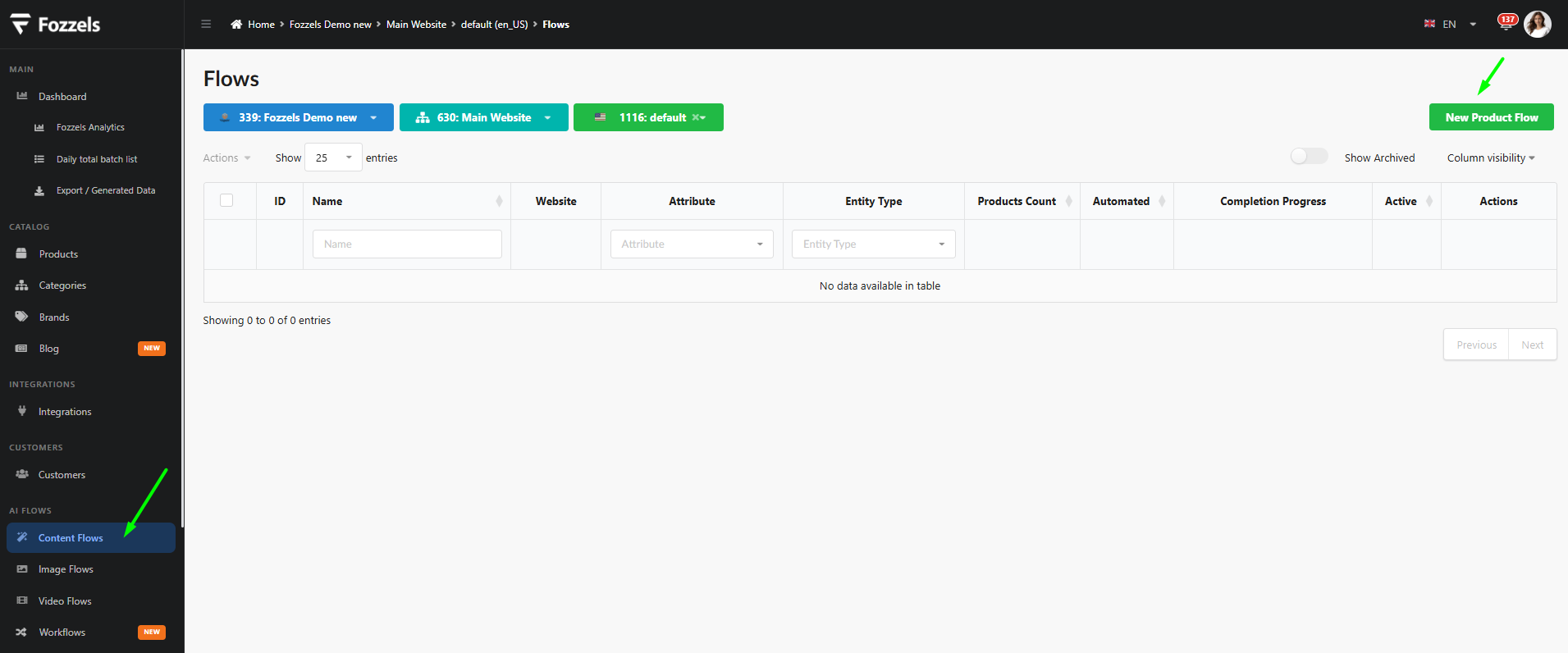
In the side menu, under AI Flows, click Content Flows. The list of Flows opens.
-
At the top, check the integration, website and store. If you have more than one, choose the one you need from the dropdown. If you have only one, it is already selected.
-
Click New Product Flow in the top right corner.
-
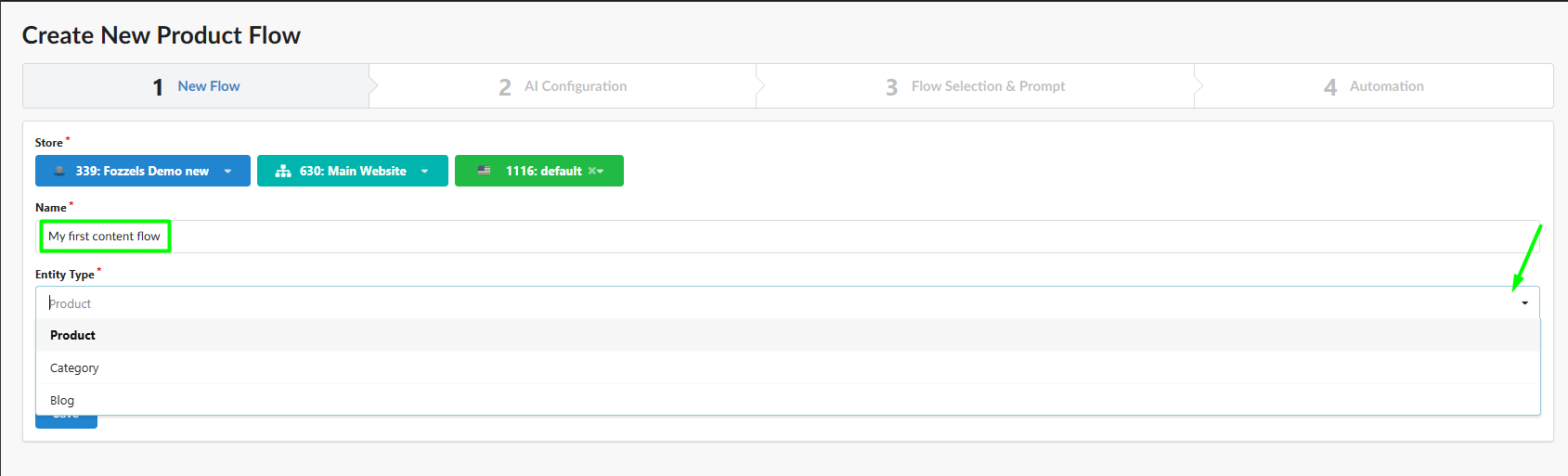
Enter a Name for the Flow, for example My first content flow.
-
Under Entity Type, choose Product. To generate content for categories, see 4.9.1 How to Create a Content Flow for Categories.
-
Under Attribute, choose the main attribute the Flow will fill. You can type to search, for example description.

-
Click Save.
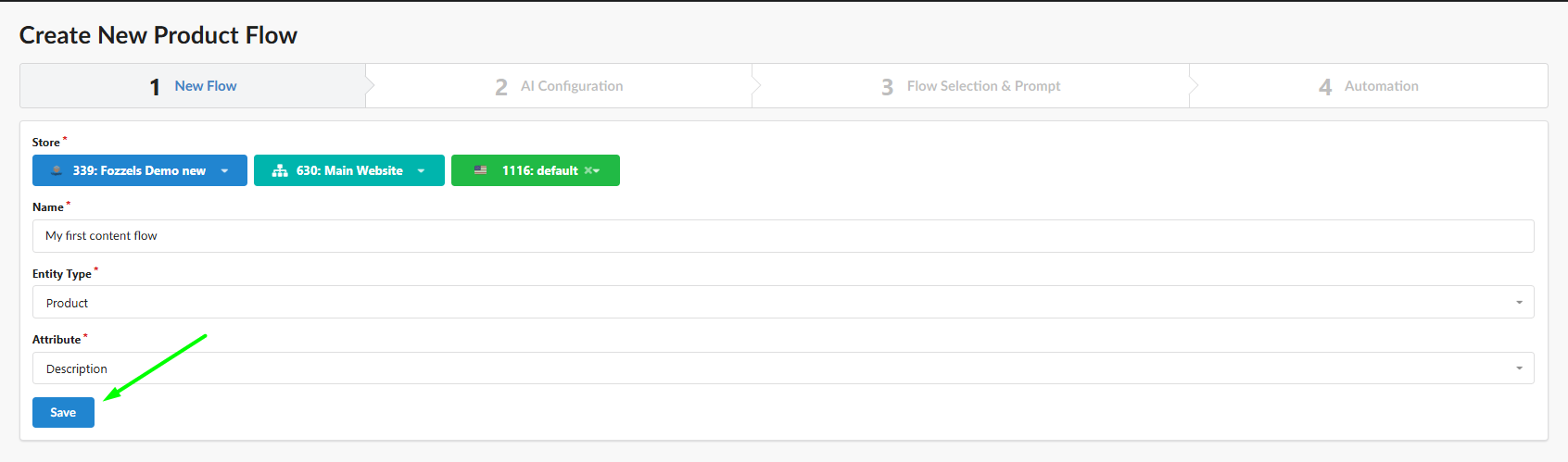
Choose the largest attribute as the main one, for example the full description. In the results, the main attribute gets the full editor with a preview, while the additional attributes are shown below it.
Generating image alt texts? Choose Media Gallery as the attribute. See 4.3.2.a Alt Texts for Magento 2 and 4.3.2.b Alt Texts for NextChapter.
2. AI Configuration
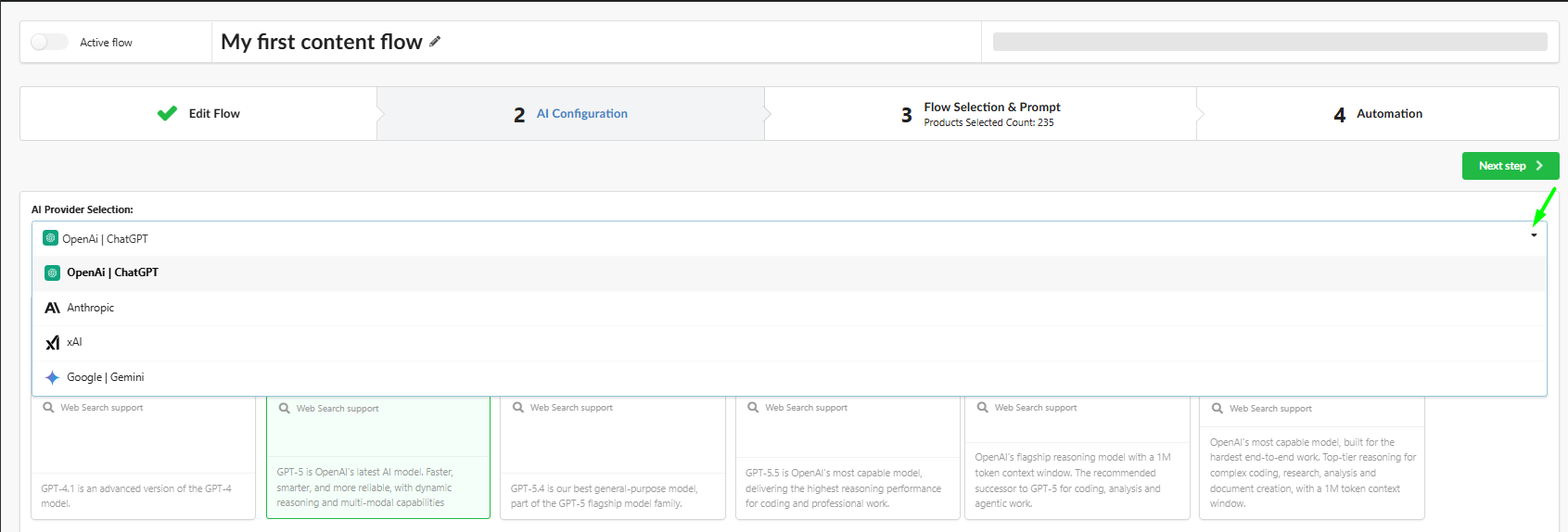
After you save, Fozzels opens the AI Configuration step. From now on, the top of the page shows the Active flow switch and the Flow name. Click the pencil next to the name to rename the Flow.
-
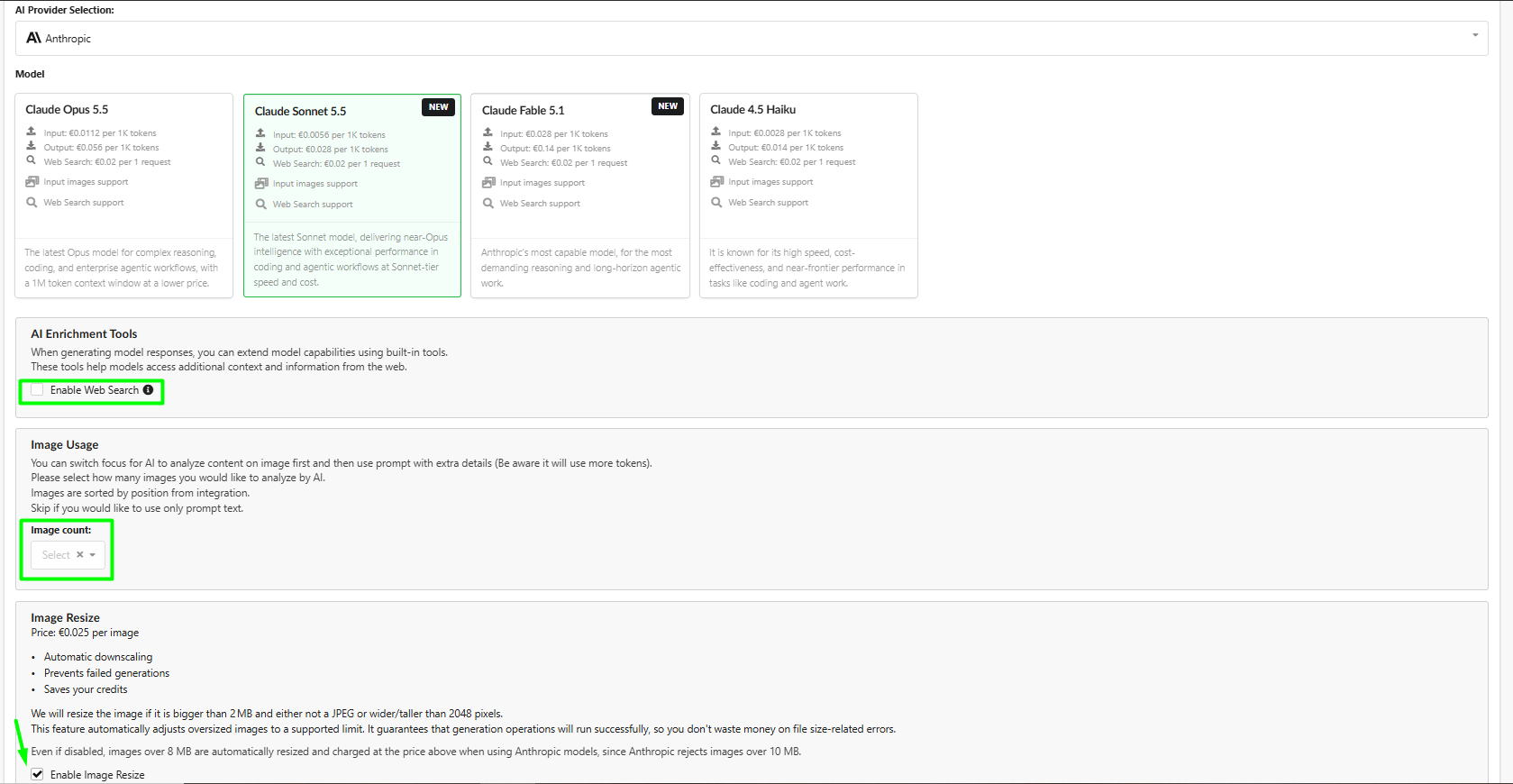
Under AI Provider Selection, choose the provider: OpenAI | ChatGPT, Anthropic, xAI or Google | Gemini.
-
Under Model, click a model tile. Each tile shows the price per 1K input and output tokens, the price of a web search, whether the model can read product images and whether it supports web search. See 4.2.1 AI Configuration.
-
Optional: tick Enable Web Search if your prompt asks the AI to look up information online, for example on your product page.
-
Optional: under Image Usage, set the Image count (up to 5). The AI then analyses that many product images, in the order they come from your integration. More images use more tokens. Leave it empty to use only the prompt text.
-
Keep Enable Image Resize on. Fozzels then shrinks images that are larger than 2 MB and either not a JPEG or wider or taller than 2048 pixels. See 4.2.2 Image Optimization.
-
Optional: choose one or more Text styles (for example Creative, Informative) and Text tones (for example Inspirational).

-
Click Save, then Next step.
Image Resize costs a small fee per image, but switching it off does not always skip it. Very large images are still resized and charged automatically, for every AI provider. Without this, the generation would fail with an error, or the AI would write something like "I can't see the image" into your content.
You can come back to these settings at any time, even after the Flow has started generating.
3. Flow Selection & Prompt
3.1 Check the main attribute and its format
At the top you see the main attribute you chose in step 1.
Decide whether the result should contain HTML. Click the eye button next to the attribute. In the Edit attribute window, untick Allow HTML if you need plain text without markup, then click Save. See 4.7.3 Allowed HTML Tags.
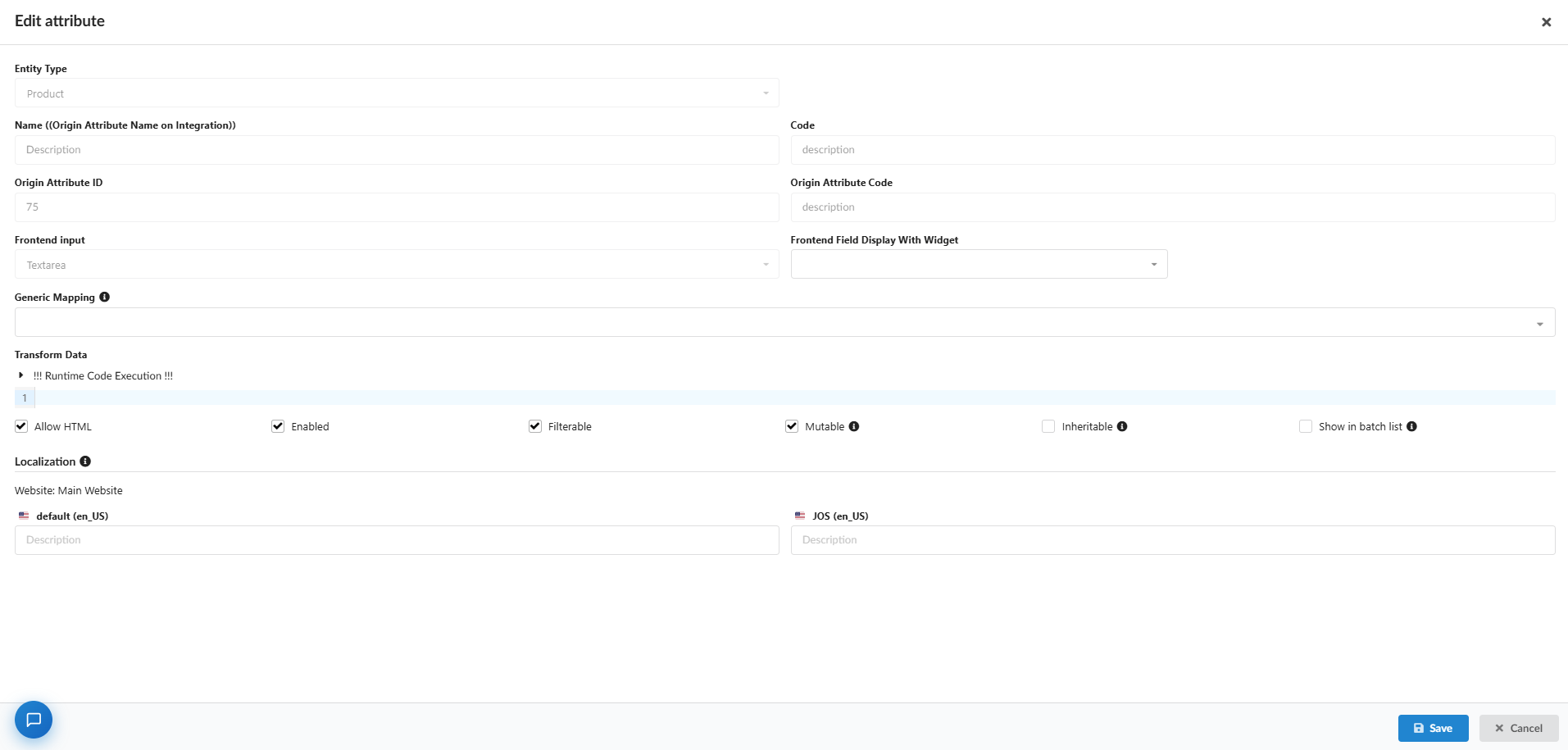
The other fields in this window are technical settings of your integration. Do not change them unless you know what they do. If you need help, contact support.
3.2 Select the products
Use Filter & Select Products to choose which products the Flow works on. The number of selected products is shown in the block title and on the step 3 tab.
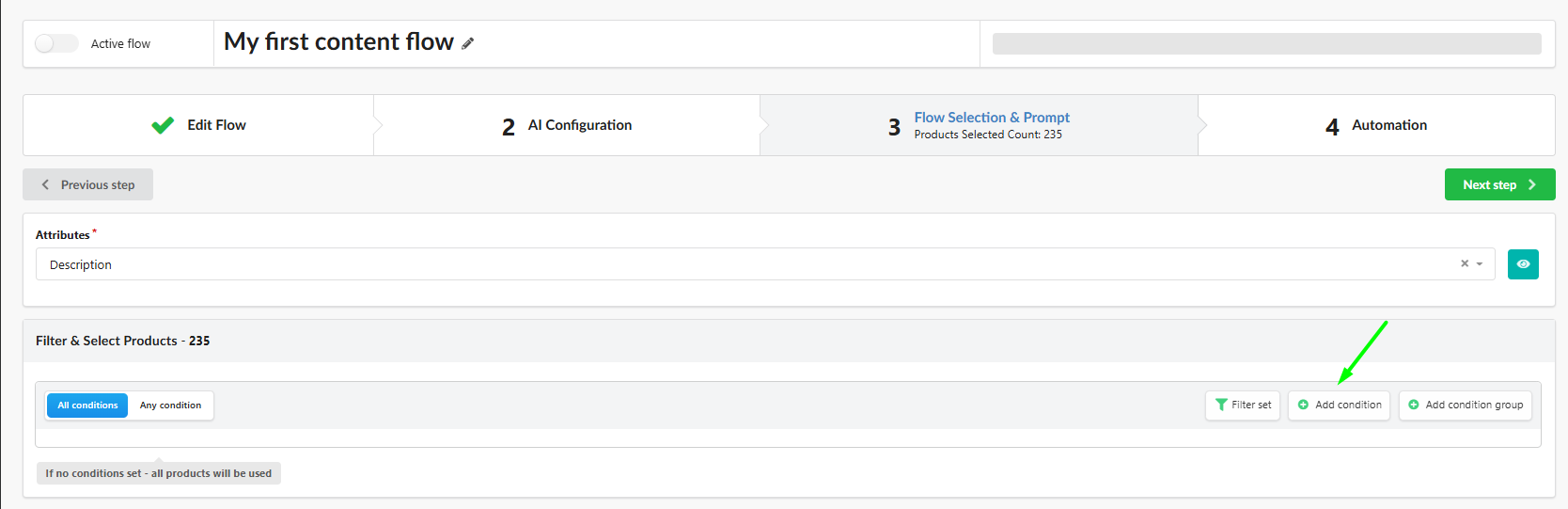
- Click Add condition to add a filter: choose an attribute, an operator and a value.
- Choose All conditions (every condition must match) or Any condition (one is enough).
- Click Add condition group to combine conditions in more complex ways.
Example. To write descriptions for women's products that have photos and no description yet:
| Attribute | Operator | Value |
|---|---|---|
| Categories | is one of | Women |
| Media Gallery | has an image | Yes |
| Description | is empty |
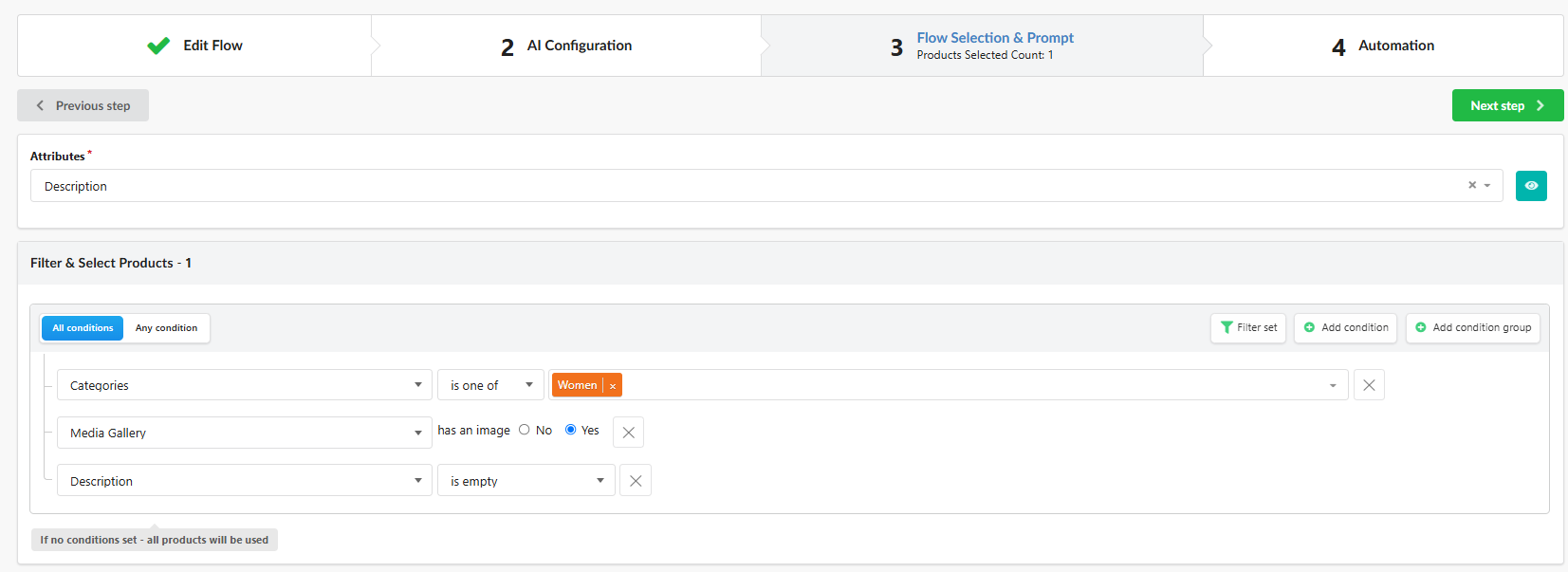
If you set no conditions, the Flow uses all products in the store.
To avoid overwriting content you already have, add a filter like Description is empty for the attribute you generate.
For all filter options, see Product Filtering for Content Generation.
Save your filters for reuse
If you plan more Flows for the same products, for example descriptions, meta tags and alt texts, save the filters once:
-
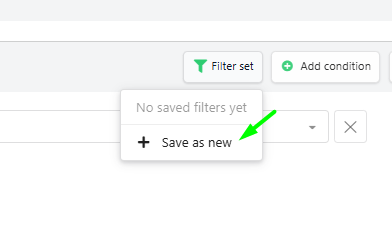
Click Filter set → Save as new.
-
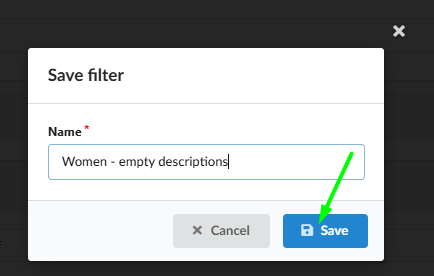
Enter a name, for example Women - empty descriptions, and click Save.
-
The set now appears in the Filter set menu. Click it to apply it, or click the bin to delete it.

Saved filter sets are available everywhere you filter products: in integrations, in the catalogue and in Flows. You can also combine a saved set with extra conditions.
3.3 Write the prompt
In the Prompt section, write the instructions for the AI and add product data to them:
- Type
/in the editor, or click or drag an attribute from the Attributes panel. Each attribute is added as a condition line, so it is skipped for products where it is empty. - Use Snippets such as Attribute list to add a ready block of product data in one click.
- Check the Preview on the right. It updates as you type and shows the final prompt for a real product. Use < > to check a few products.
- To reuse a prompt in other Flows, use Save as template and Load.
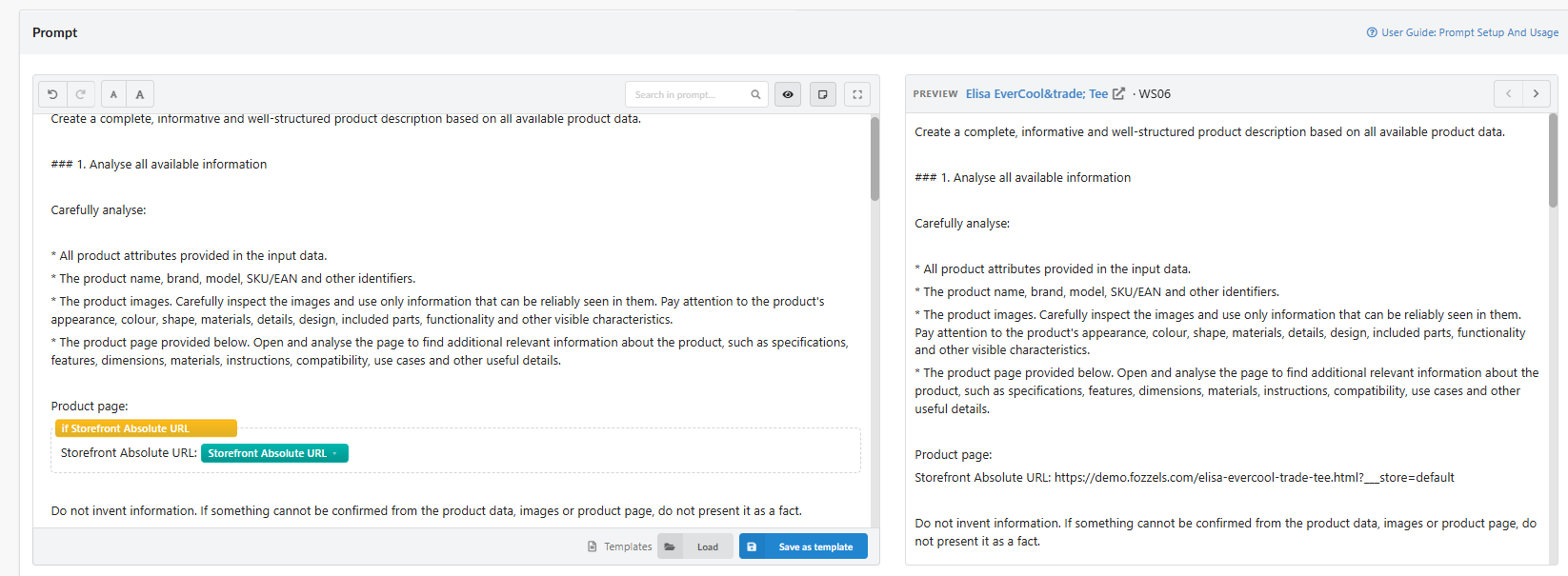
For the full guide, see 4.3.2 Prompt Setup and Usage.
Do not use the attributes you are generating as input in the prompt. For example, if the Flow writes the Description, do not insert the Description attribute into the prompt. In a Flow with several attributes, this applies to each of them. See Recursion Detection.
Check for features that are turned off
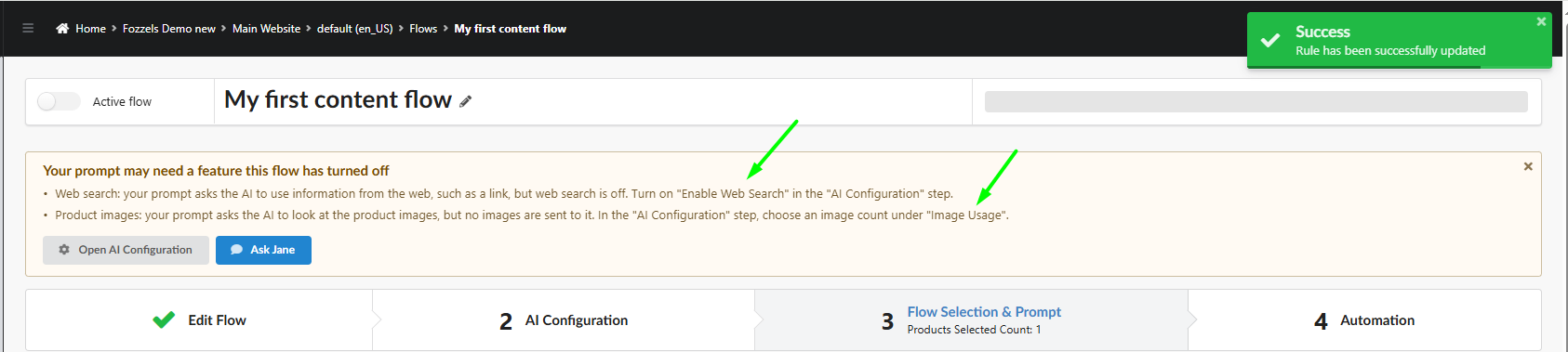
When you save, Fozzels checks whether your prompt needs a feature that is turned off in this Flow. For example:
- the prompt asks the AI to analyse the product images, but no Image count is set;
- the prompt asks the AI to read your product page, but Enable Web Search is off.
A warning then appears above the steps. Click Open AI Configuration to turn the feature on, or Ask Jane to get help from the AI assistant.
3.4 Fill more attributes in the same Flow
Below the prompt, under Additional attributes to fill, you can add up to 12 more attributes. All attributes of the Flow are generated together in one AI request per product, so product data and images are sent only once.
-
Choose an attribute in the dropdown and click Add attribute.

-
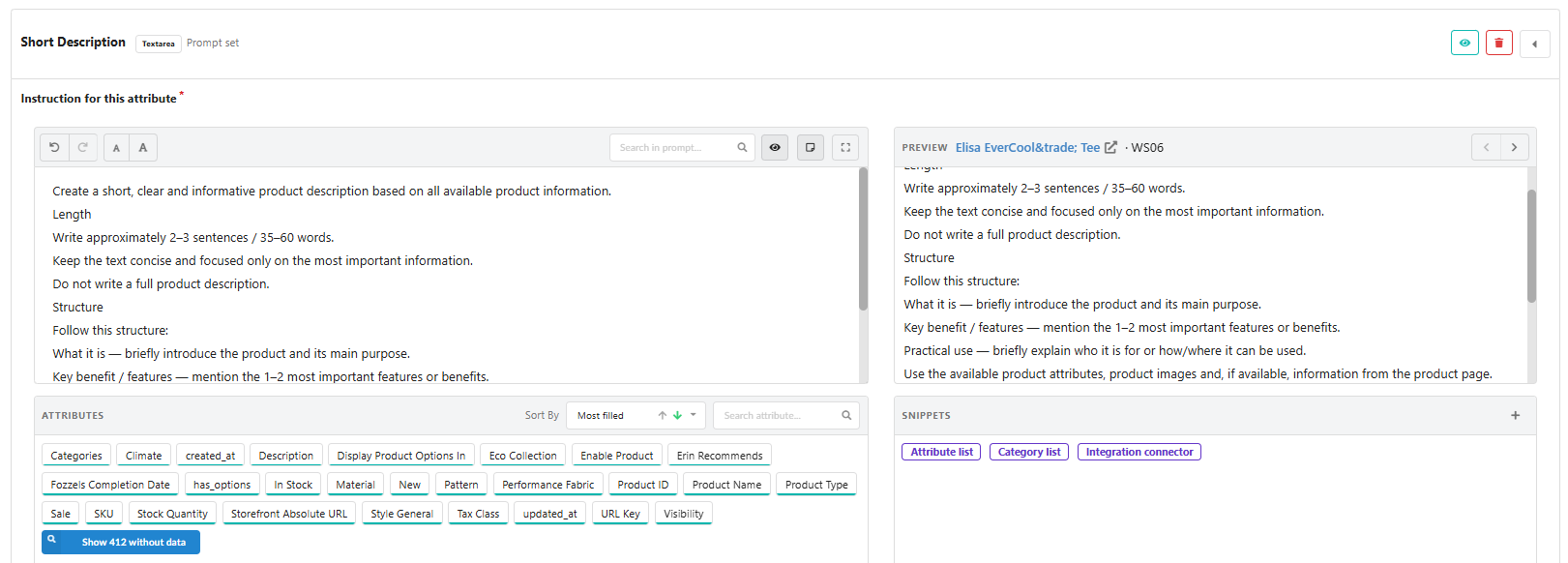
In Instruction for this attribute, write what the AI should produce. The field works like the main prompt editor, with the Preview, the Attributes panel and Snippets. When the instruction is filled in, the row shows Prompt set.
-
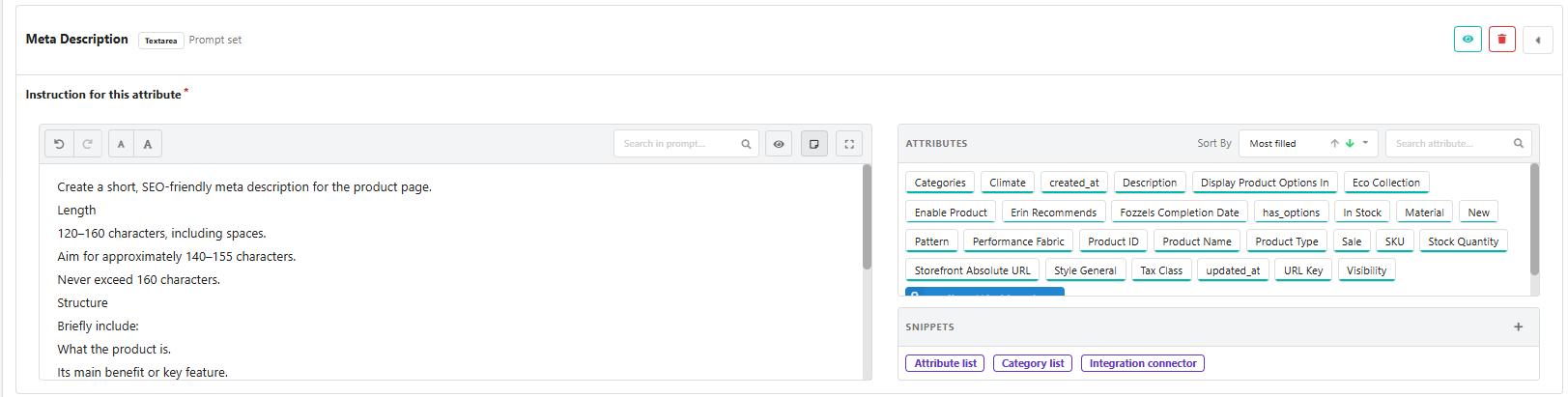
Click the eye in the row to open the attribute settings. For meta titles and meta descriptions, untick Allow HTML, because they must be plain text.
-
Repeat for each attribute, then save.
Give each attribute a clear length limit, for example 2–3 sentences, 35–60 words for a short description or 120–160 characters, never more than 160 for a meta description.
3.5 Test the prompt
Before you run the Flow, test what the AI generates on a few products.
-
At the bottom of the step, click Save and Preview.

-
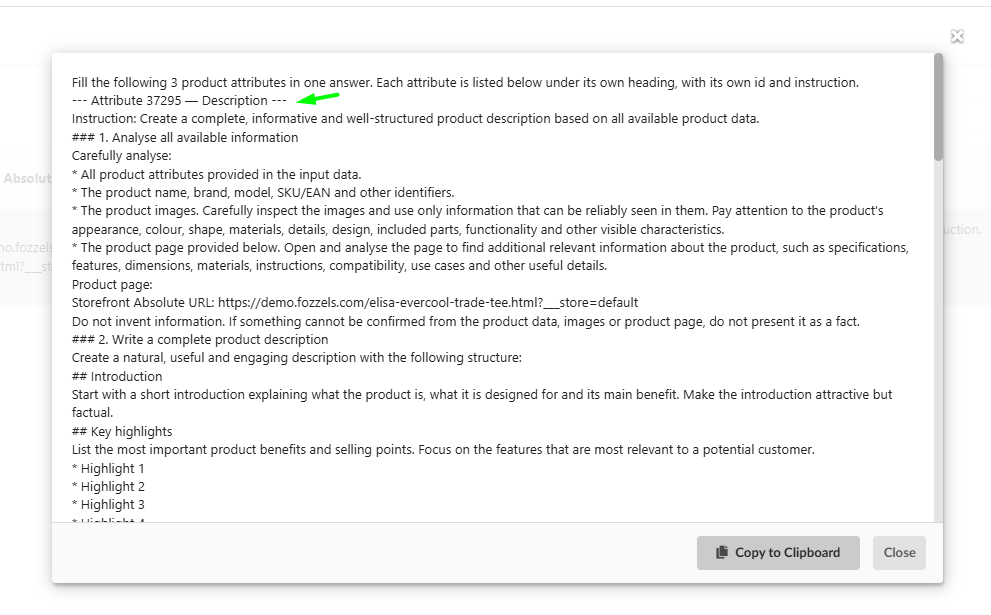
A table with your selected products opens. Click a cell in the Prompt column to see the full prompt the AI will get. In a Flow with several attributes, each attribute is listed under its own heading with its own instruction. Click Copy to Clipboard to copy it.

-
Click Generate Now in a product row. The result opens in a window, with each attribute under its own heading. Click Show HTML to see the markup.
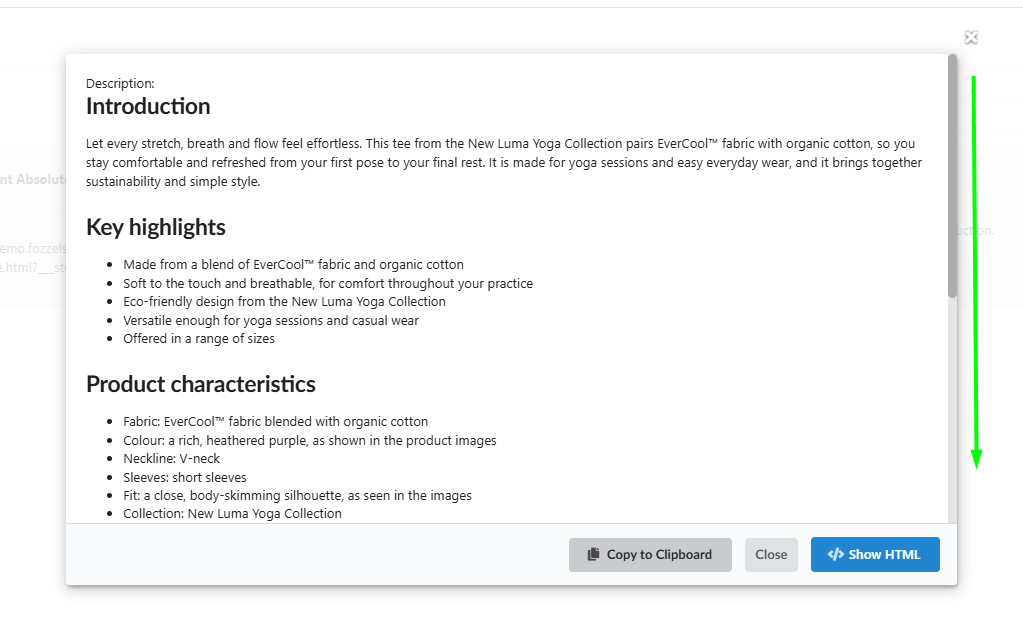
A test generation is free and does not start the Flow. The result is not saved, so if you want to keep it, click Copy to Clipboard before you close the window.
Adjust the prompt and test again until you are happy with the result. Then click Next step.
4. Automation
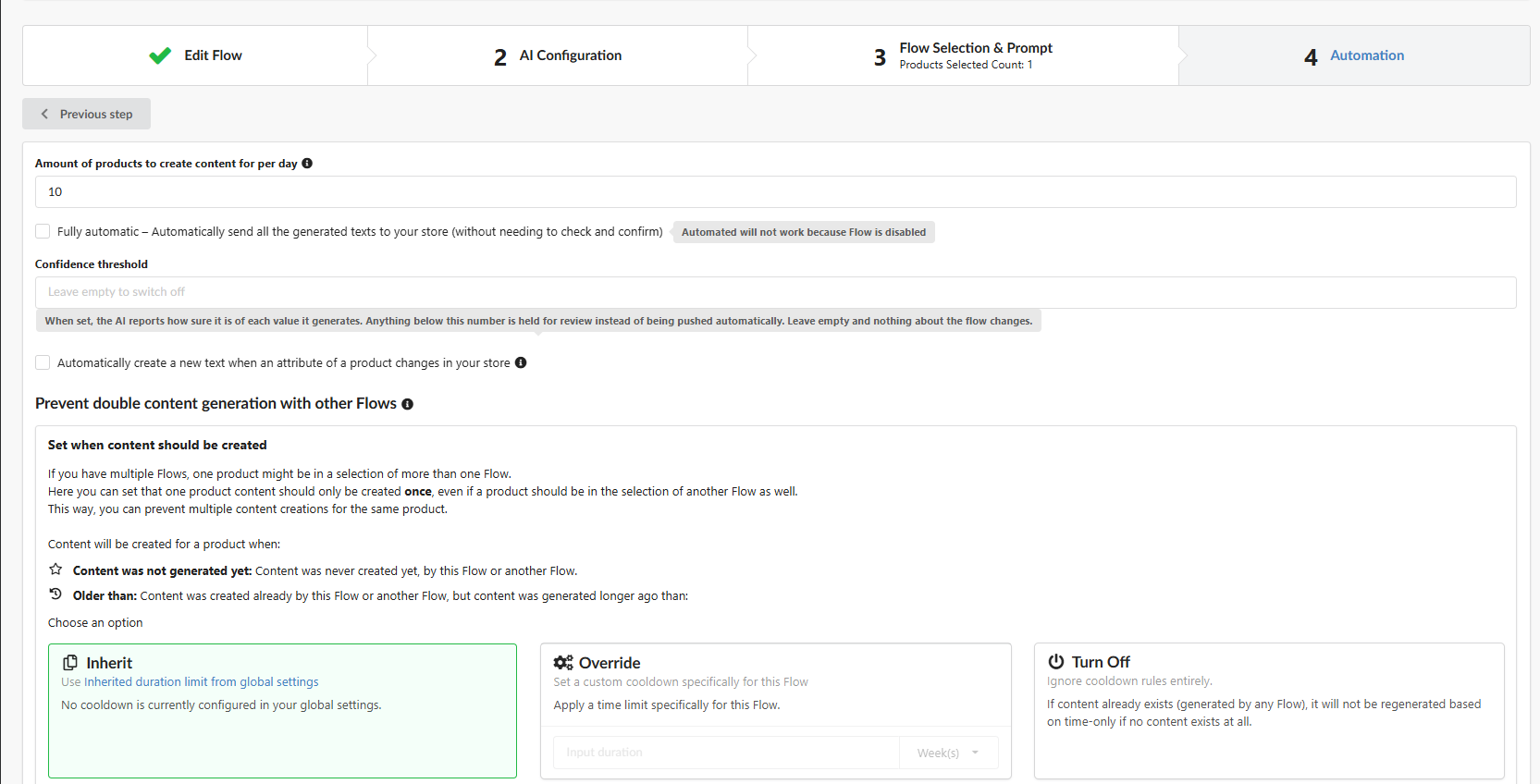
| Setting | What it does |
|---|---|
| Amount of products to create content for per day | How many products the Flow processes each day, up to 500 |
| Fully automatic | Generated content is confirmed and sent to your store right away, without manual review. Content flagged as suspicious is still held for review. Works only when the Flow is active |
| Confidence threshold | Optional, from 0.1 to 1.0. The AI reports how sure it is of each value. Values below the threshold are held for review instead of being sent automatically. The higher the threshold, the more content you review. Leave it empty to switch it off. Useful together with Fully automatic |
| Automatically create a new text when an attribute of a product changes in your store | Regenerates the content when an attribute used in the prompt changes in your store |
| Also save as the default value for all store views | Magento 2 only. Also saves the generated text as the product's default value for all store views. See 4.1.2.c How to Sync Generated Content to All Store Views in Magento 2 |
| Prevent double content generation with other Flows | Stops a product from getting new content if another Flow already generated it. Choose Inherit (use your global settings), Override (set a period for this Flow only) or Turn Off. See 4.4.1 Prevent Overlapping Content Generation |
| Workflows | Optional extra actions for this Flow. Workflows run from top to bottom; drag them or use the arrows to change the order. See 4.11.1 Workflows |
Most users start with Fully automatic off and review the first results by hand.
Launch the Flow
-
Turn on Active flow at the top of the page. The launch buttons become available only for an active Flow.
-
Choose how to start:
| Option | What happens |
|---|---|
| Plan & Close | The Flow starts the next day, after the nightly catalogue update. It then processes the Amount of products per day every day until all selected products are done |
| Run Now (arrow next to Plan & Close) | The Flow processes the first 10 products right away. After that, it continues on the daily schedule |
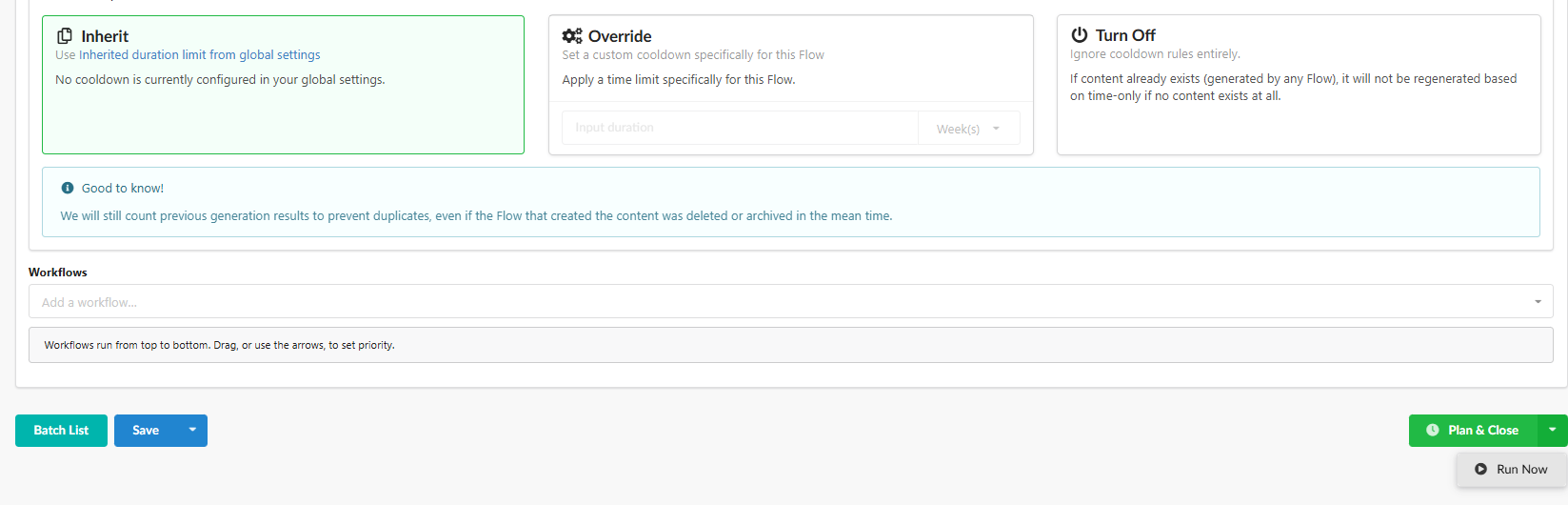
An active Flow also picks up new products that match its filters after each nightly update. For a full pre-launch checklist, see 4.1.2.a How to Set Up Automated AI Content Flows.
5. Review the results in the Batch List
-
Click Batch List at the bottom of any Flow step. In a Flow with several attributes, each attribute has its own column, so you see all results for a product in one row.
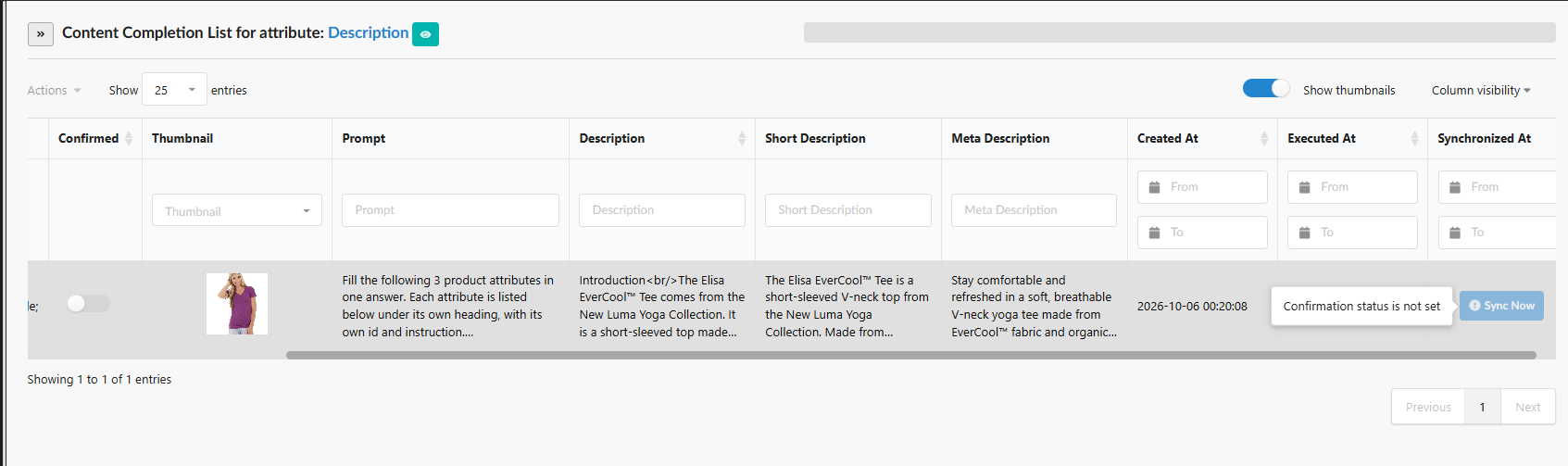
-
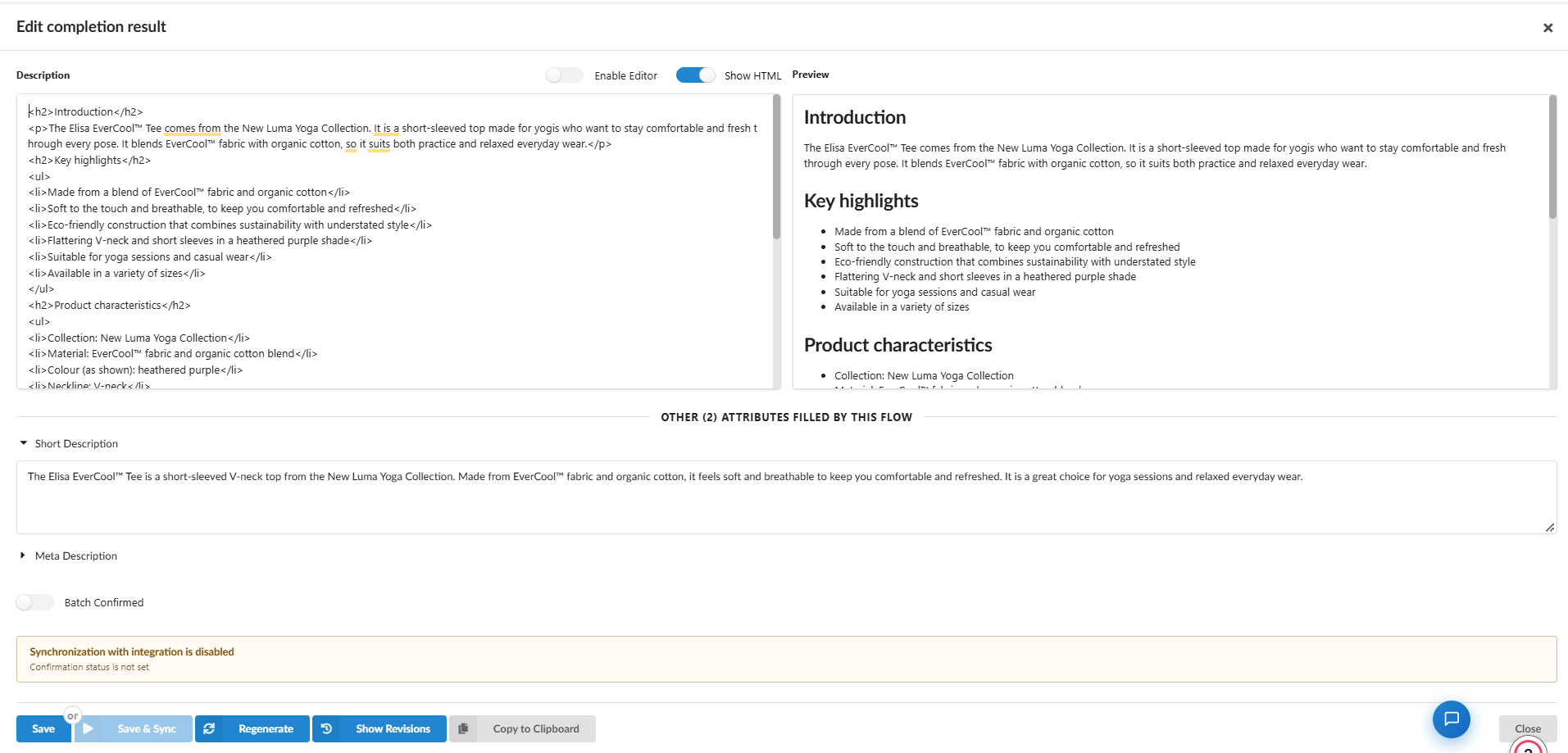
Click any generated value to open the Edit completion result window:
- The main attribute is at the top, with Enable Editor, Show HTML and a preview.
- The other attributes are listed below under Other attributes filled by this Flow. Expand each one to read and edit it. Select and multiselect attributes are edited with a dropdown.
-
Edit the text if needed and click Save.
-
Turn on Batch Confirmed, then click Save & Sync to send the content to your store. Until the result is confirmed, syncing is disabled. In a Fully automatic Flow, results are confirmed for you.
Other buttons in the window:
- Regenerate generates the content again. It always regenerates all attributes of the Flow together.
- Show Revisions shows earlier versions. See 4.8.1 Content Completion History.
- Copy to Clipboard copies the content.
Suspicious content
If a result does not pass Fozzels' quality checks, the problem parts are highlighted in yellow and the result is not synchronized. You can either fix the highlighted parts by hand and save, which costs nothing, or click Regenerate to generate all attributes again. See 4.7.4 Suspicious Words & Phrases.
For more on reviewing and syncing results, see 4.7.1 Tracking of the Generated Results and 4.7.5 Editing Content in the Batch List.